Tag: techie tips

  • iPhone VS Android — “The Boys Slug It Out For Another Round”

    iPhone Vs Android
    “The Boys” Slug It Out For Another Round

    Apple and Google went for another round in the competition for market dominance this week as Apple launched it’s larger iPhone 6 models and its iOS 8 operating system for all its gadgets.

    iOS 8 has has some very cool new features and I noticed that many of them are features that Android phones have had for a long time.  (I have used both and currently use an iPhone.)  My son, Jason, who is convinced Android is far better than iPhone and hated to see me switch, sent me this hilarious joke about the news.

    Reaction to the iPhone 6 and iPhone 6 Plus has been lukewarm. Many have accused Apple of playing catch up with rivals such as Samsung, rather than leading the way. An image titled 'Dear iPhone 6 users: Welcome to 2012' has gone viral, (pictured) which lists new Apple features that have existed on Android phones for years

    I asked Jason if he thought I should wait to install the update until the bugs are worked out and the app developers have more time to fix their apps to work with it, and he said,

    Jason Griswold's profile photo

    “Nah, that’s for normal people, we are in tech…we live to have our world turned upside down.”

    He’s so funny!  But it’s true.  I love the challenge, the adventure and being able to make your transitions easier by sharing my experience.

    Who do you know that…

    • Is trying to decide whether to buy an Android gadget or an Apple gadget
    • Needs help with updating to iOS 8
    • Wants a tutorial on the changes and new features or
    • Wants to learn more about their Android phone

    Please let me know so I can help them “make peace with the ups and downs of computer technology.” 

  • Do You Reboot?

    Do You Reboot?

    Network Neurons 1

    Your Techie Tip for this week is to turn your computer completely off at least once a week.  The reason this is important is that its memory gets too full and it’s likely to slow down or get confused.
    (Just like us!)

    During the shutdown process, it files everything away where it belongs and dumps extraneous stuff from the memory.  Kind of like we do when we get a good nights sleep.  Then, when it restarts (reboots), it checks all its systems, corrects any errors, and installs updates.  The installation of the updates is critically important because there are security fixes (patches) in them.

    Asleep 3Your computer is set to go to sleep after a certain period of non-use, and the screen may go dark, but that is not the same as shutting down.  So please choose one night a week to give your machine a complete break and an opportunity for a fresh start in the morning.

    This applies to your tablets, smartphones and other gadgets too.  

  • Avoid Printer Drama

    Do Moon Phases Affect Printers?


    Do the phases of the moon affect techie gadgets?  This past week was so full of printer drama that I had to wonder…

    Here are some tips that will help you maintain peace in your techie world:

    1. If you need to move your printer, be sure to turn it off first.  Shut it down with the off button rather than just unplugging it.  Printers are are actually computers and they need to file everything in it’s proper place before shutting down.  If you just unplug them, they may wake up very confused and not be able to connect to your wifi again.

    Note: your printer may look like it’s off, but only be sleeping.  If there is a light on anywhere, it is just asleep.  Use the on/off button to turn it off.

    1.  Sometimes there are minor power surges or mysterious techie hiccups that confuse our machines.  The first line of defense is always to reboot them. (turn them off and then back on)  If your printer loses its wifi connection, turn it off, wait a minute or two, and then turn it back on.  Hopefully, it will find the router and reconnect on its own.  If not, you will have to go through the setup process again.

    Note:  I’m not a certified Technician, I’m an Instructor and Peace Maker.  For technical issues and installations, I refer you to my friends at Desert Cow Computers.

    1. Hp is offering an “Instant Ink” service with some of its new printers.  These printers connect directly with HP, let them know when you need new ink cartridges, and HP mails you ink cartridges automatically.  You pay a flat monthly fee, depending on how many pages you print each month.  Unused pages roll over to the next month.  HP description of program   It looks like this service is less expensive than buying ink at the store.  Review I have one client who is on the program.  We’ll let you know how it goes.  If you are using this service, I would love to hear from you.

    Chromebook Update: I am not happy about printing from my Google Chromebook without a “cloud-enabled” printer.  I didn’t buy a cloud-enabled printer because I had just bought a new printer last year and thought it would be a good idea to test the alternative method offered by Google.

    My Chromebook has to print via my old computer which is connected to my printer via my WiFi network.  Therefore, my old computer has to be on in order for my Chromebook to print. I find this very inconvenient.

    Fortunately, I can access docs from my Chromebook and smartphone, so I don’t need to print very often.  Have me show you how to do this.  It’s great!

    If you buy a Chromebook, you may want to buy a cloud-enabled printer for it.  If your current printer is connected directly to your computer and is not on a wifi network, you will definitely need to buy a cloud-enabled printer.  Fortunately, you can get one for less than $100.

    By the way…I’m really enjoying my Chromebook in all other respects.  It’s a great solution for a lot of people and I highly recommend it.  I carry it with me during the day and can get a lot more accomplished between appointments than working from my smartphone.  I’ll be delighted to share it with you at our next appointment.  

  • Last Chance for the Summer Special

    Need Help Plugging Your Gadgets Into
    Your New Surge Suppressor?

    Take Advantage of My
    $40 Summer Special 

    Until the end of August only…
    I’ll bravely tackle that mess of cords, get your gadgets safely plugged into your new surge suppressor, make some tweaks to get rid of ads and speed up your browsing experience without you having to call Time Warner or Verizon and pay more for your Internet…all for one $40 appointment. Call me now to set up a time!

  • A Power Strip Does Not Protect You

    A power strip doesn’t protect you!

    Frequently, I go shopping with clients to help them buy new computers, gadgets, printers and accessories.  I want to remind you, and everyone you know, that you need surge suppressors to protect your equipment.  A common power strip is not enough protection.  Also, you need to check your surge suppressors periodically.  

    This is so important that I’m adding it to my list of things to check on all my appointments.  (The other things are virus protection and backup systems — including smart phones and tablets.)

    Don’t confuse surge suppressors with power strips. They look similar, but there is a difference.Power strips have circuit breakers instead of surge suppression.  A circuit breaker will trip the breaker and cut all power to the device.

    A surge suppressor will dissipate the surge so you can keep working.

    Also, a power strip will allow smaller surges to get through and this can wear out your electronics faster.  You need to use a surge suppressor.

    If you already have a surge suppressor but the lights are blinking, the protection is exhausted and you need to buy a new one.  If you’ve had it for 4 years or more, you should replace it anyway.  The blinking warning light may not be working.

    The right level of protection is important, but nothing can guarantee your computer won’t be damaged. A serious surge could blow through your surge suppressor and destroy your computer.  Remember to unplug your computer when a serious storm approaches. 

    No matter how much you prepare, something can always go wrong. That’s the reason you have homeowners or renters insurance. That’s also the reason it’s important to make sure all your data is backed up.

  • Back Up Your Smart Phone and Tablets


    Please Check This Now!

    Is your smart phone or tablet doing backups?
    Did you even know that it’s supposed to?
    Do you realize that if your phone or tablet breaks or is stolen, you might lose your photos, music, address book and notes?
    Apparently none of the people who sell phones are setting it up or explaining it to their customers because most of the phones I examine are not doing back ups.  This issue has come up so many times in the past two weeks that I decided I’d better give you a heads up.

    Please check your gadget’s settings and make sure backups are set up and operating. (It will show you the last date a backup occurred.)
    This is especially important if you are going to be traveling on vacation this month!

    com.alienmanfc6.wheresmyandroid_banner-450x220

     
    Also, it’s important for you to know that there are really neat apps that enable you to locate your gadget if it is lost or stolen.  They even enable you to delete your data and lock the gadget so it will be useless to a thief.  (Even if you don’t get it back, you will have the satisfaction of knowing the thief didn’t get your stuff and couldn’t use it.)

    If you have an iPhone or iPad you may have noticed the “Find My Phone” or “Find My iPad” icon and assumed that it would help you in an emergency. It won’t unless it is enabled in settings. I’m amazed how many iPhones and iPads I see that don’t have this feature activated!

    screen568x568

    A related issue that comes up frequently is people want to know if they can see their phone or tablet photos on their computers.  Yes you can!  It’s just a matter of getting things set up properly.

    I hope these Techie Tips will ensure that you are protected and enable you to take advantages of these neat things that technology can do for you.

    As always, if you, and your friends and relatives, need help with any of these things, just call me to set up an appointment.

    In Joy,

    Mardi Boettcher

    “Helping you make peace with the ups and downs of technology.”

  • Pre-purchase Consultation Questions

    One of my services is consulting with people to help them choose the best computer or gadget for their individual needs.  So much frustration can be avoided by buying the right product in the first place, and I have already test-driven quite a few of them in order to pave the way for others to have a more pleasant experience.  See my previous posts for the gruesome details.  LOL

    Here are the questions I use for my consultations.  Please forward this to your friends and relatives so they will have it when they are considering a computer or gadget purchase.   They will thank you for it.

    1. What is your budget?

    2. What is the size of the notebook that you are considering?

    3. What screen resolution do you want?

    4. Do you need a portable or desktop replacement laptop?

    5. How much battery life do you need?

    6. Do you want to play games with your laptop? If so then please list the games that you want to with the settings that you want for these games. (Low, Medium or High)?

    7. What other tasks do you want to do with your laptop? (Photo/Video editing, etc.)

    8. How much storage (Hard Drive capacity) do you need?

    9. If you are considering specific sites to buy from, please post their links.

    10. How long do you want to keep your laptop?

    11. What kind of Optical drive do you need? DVD ROM/Writer, Blue Ray ROM/Writer, etc ?

    12. Please tell me about the brands that you prefer and the brands that you don’t like and explain the reasons.

    13. What country do you live in?

    14. Please tell me any additional information if needed.

    Additionally… you should consider available support options in your area. If you buy something abroad, will you be able to have it fixed near where you live? Does the warranty apply? How quickly do local accredited technicians fix laptops?

  • New Play Shops/Gadget Clinics Soon

    Last year’s Play Shops were very fun and people asked for more of them.  Please let me know the times, days and topics that appeal to you.  We can do almost any topic that is of interest to a group of 12 to 20 people.  I do home parties too!

    You can post your suggestions and comments here.

    Thanks!

    Mardi

  • My New Computer

    My old computer was running out of memory and my web browser was crashing.  I needed “bigger, faster, stronger” badly.  After much research on line and some field trips to Best Buy, I ordered a Dell Inspiron 15″ 7000 Series that was similar to my very, very old Inspiron 1500e.  It was a lot of power for the money ($649 on special) but it turned out to be too big and bulky.  Many companies are making the laptop screens wide for movies and adding number key pads to the keyboard, which I don’t need or want.  It was a little bit lighter than my old one, but it felt heavier because of the size.

    The tracking pad was very squirrely and frustrating too.  I have since learned that track pads have been re-designed to allow finger gestures like the motions one uses on touch screens.  So this is partly a Windows 8 issue.  Maybe one can get used to it, but I’ve observed that most of my clients use a mouse.  Now I understand why I have so much trouble with my clients laptop track pads!  So….I’m sending the Dell back…too big, too heavy, disappointing web browsing speed, and a miserable squirrely touch pad.

    A part of me wanted a Lenovo Yoga Pro 2.  It converts to a tablet, is small and lightweight, and has all the power (and price, $899 ) of a higher-end laptop.  It also can be put in stand mode or tent mode.  Here is a link if you want to see it.   http://vimeo.com/73485706    I wasn’t sure if I could live with a 13″ inch screen so I went to Best Buy to look at it again (third time’s a charm) and I decided to try it.  I think I can get used to the 13 inch screen…if not, I can get a 20 TV with DVD player for $189 or internet TV for $199 and use it as a monitor.

    The touch pad doesn’t have all the gesture features and feels more like my old computer’s but it’s a little sensitive and I keep making mistakes.  Apparently this is partly a function of applications not being re-designed properly for touch screen use.  That will be changing in the near future.  Thanks again Microsoft for rocking our world with Windows 8. I’m telling the “honest to gosh” truth when I tell frantic clients, “I’ve been there and I feel your pain.”  My life has been upside down this past week with all the research, set up, customizing, downloading, and getting used to all the changes.  Playing with new gadgets makes me a happy girl…except when I’m in a hurry and need to get some work done.

    So far, I like it…very fast, only 3 lbs., and small enough to fit in a large purse. I plan to take it everywhere, so you’ll be able to see it next time we get together.   “Stay tuned folks, we’ll have film at 11:00” LOL

    I”m praying for the patience and strength to get through the return process with Dell.  May it be better than the ordering process which was a freaking nightmare.  I do not recommend doing business with Dell.  Their call centers  have no integration of departments and apparently there are no customer files for reps to access.   I feel sorry for the customer service reps who try their best to please, but are handicapped by the primitive call center infrastructure.  Be kind, it’s not their fault and I’ll bet they take a lot of abuse from irate customers.  If you ever want a Dell computer, buy it from Best Buy in Palm Desert.  I always get great service there.

    Don’t assume that you have to spend this much money on a computer or tablet.  As I always say, it depends on what you plan to do with it.  I do a lot of research and web based work and need considerable power .  There are many less expensive gadgets available for the less intense user.  You might want to make an appointment with me for a consultation and/or field trip to Best Buy.  I can usually help people save a lot of money.

    If you still use Windows XP you will need to upgrade before May.  Microsoft will not be doing anymore updates after that and your computer will be a big security risk.  So start planning and budgeting for a new machine now.

    Your computing life will be much more enjoyable when you have up-to-date equipment that can handle the demands of modern applications.  So go for it.  You’re worth it!

  • Do You Need A Tablet?

    Image

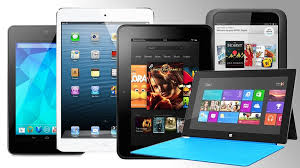
    There are so many people using tablets now that it’s hard to believe that it’s only been four years since the first iPad came on the scene.  Some analysts think tablets will outsell laptops soon.  So the question is, do you want one and if so, do you want an Apple or an Android model?

    Having just done considerable research before purchasing my new laptop, I have reached a few conclusions.

    Tablets are good for consuming information on the go.  The screens are bigger than smart phones and they have more processing power and storage capacity than smart phones.  (My iPhone ran out of storage space the minute I synced my iTunes music library and I had to delete a bunch of files.)   My Android phone runs a little slow at times.  I think it’s straining under the load of all those apps multi-tasking.  The teeny tiny keyboards on both products drive me nuts and neither Siri nor Google voice seem to understand me.

    Tablets offer a more portable and comfortable way to check email, view web pages, watch movies, listen to music, play games or view maps and reports for work.  However, if you spend a considerable amount of time creating information, like blogging, writing reports and longer emails, you won’t be happy with a touch screen keyboard.  Of course you can add keyboards to tablets, but that increases the weight and makes it into a mini laptop which sort of defeats the purpose, if you ask me.  I find the small screens restrictive and I had a hard time getting used to the small the keyboard on my Asus tablet.

    Therefore, I use my smart phone for navigation, and to check emails, texts and voice mails to see who needs immediate attention.  I leave everything I can, until I get back to my laptop with it’s nice crunchy full-size keyboard and 15 inch screen.

    So, consider what you are going to want to do with a tablet.  You probably don’t need one.

    However, you may want one.  If you decide to jump in, you will have to choose a camp…LOL…Apple, Android, or Microsoft.  I won’t go into the myriad of choices here…there are so many and they change all the time.  Suffice it to say, that if you use a Mac computer, your life will be simpler if you get an iPad; and if you use a PC, you will be happier with an Android or Microsoft product.  Some people like the simple look of the apple product and find them very easy to learn and it is possible to sync iPads (and iPhones) with PCs.  I do it with clients all the time.   But just be aware that “the boys” are very competitive and don’t like to play together nicely, so you may need my help.

    I’m always happy to do pre-purchase consultations and/or shopping trips.  It makes me so happy to be able to save clients tons of money by preventing them from buying expensive gadgets and bells and whistles that they don’t need.

    I’m always grateful for the opportunity to see you and help in any way I can.

    If you have found this information helpful, please feel free to forward this to others.  Your referrals are the heart of my business and I really appreciate you.

    In Joy,
    Mardi

    “Restoring peace and joy to the world through computer and gadget education.”