Tag: productivity tools

  • Choose the Right Tools

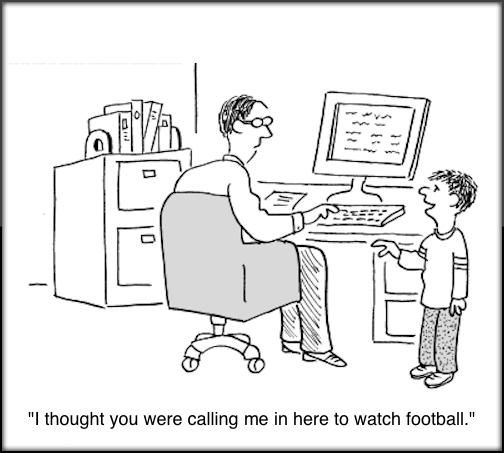
    cartoon of frustrated computer user

    Are you thinking about doing any techie projects?

    Many of my students call me because they need help with a project of some kind and I love seeing the interesting things that people in our age group are doing with modern technology.

    Sometimes we get started on a project on a computer or mobile device and become so frustrated that we just want to give up. Yep, it’s happened to me too! : (

    Often this is caused by not choosing the right tool for the job. We start with the apps that come with the computer or tablet without considering that there might be other options that could make it “simple, easy and fun.”

    I want you to know that you (and the people you care about) are welcome to call or email me for a complimentary consultation before you launch a project so I can help you get started on the right foot.

    Some of my students have:

    • written books and screenplays (two of them used an iPad instead of a computer)
    • learned how to use spreadsheets to keep track of golf groups and party invitations
    • made collections of photos and archived them for their family members
    • set up groups in their contacts to send broadcast emails and print mailing labels

    Sometimes they start with the wrong tools and by the time they reach out to me, they have wasted tons of time and are extremely frustrated:

    • An author had written a book with his iPad and was starting to have trouble because parts of it were written in different apps and it was causing problems with formatting the final draft.
    • A woman was going to type addresses in a mailing labels template instead of in a spreadsheet or address book app that can rearrange the list alphabetically after new contacts are added. (Fortunately, she called me before she was too far along.)
    • A business owner was planning to send broadcast emails without using a service that would ensure that emails get opened rather than being flagged as spam.

    There’s nothing wrong with making mistakes! Mistakes are an integral part of learning and I admire people in our age group who are willing to jump in and try new things but I want to make it a smoother road for you, so feel free to consult with me first so you can select the best app or hardware.

    I’m always happy to answer your questions and, if someone you care about is embarking on a project that involves technology, invite them to check-in with me too.

    Email me to schedule a complimentary consultation

    Go back

    Your message has been sent

    Warning
    Warning
    Warning

    Warning.


  • The gift of technology – My top 13 Gratitude List

    The gift of technology – My top 13 Gratitude List

    Happy Thanksgiving!

    Thanksgiving is my favorite holiday.  Doesn’t it feel so good to take time to focus on all the blessings in our lives?

    One of my greatest blessings is being able to do work that I love and to be able to make other’s lives happier and richer.

    You make this possible and I want you to know how much I appreciate you, your business and your referrals.

    I love sharing my passion for technology and the many ways it can make our lives more simple, easy or fun.

    Here’s A Baker’s Dozen of Techie Things I’m grateful for.  It’s not a complete list but it’s the things I enjoy almost every day.

    What would you add to the list?  Share your suggestions in the comments section below and let us count the ways….

    1. The World Wide Web for education, communication and the answer to every question imaginable
    2. Google Search, Wikipedia, YouTube and all the researchers, educators, bloggers and writers that provide the information.
    3. Video conferencing apps that allow me to see my adult children who live far away and even tour their new homes, to offer remote Tech Support to frustrated clients and restore them to being happy campers and to share the joys of technology with more and more people.
    4. Email – It’s hard to remember what life was like before email
    5. Mobile phones, their amazing cameras and apps
    6. Photo sharing and editing apps
    7. Online shopping and online reviews of products and services
    8. Facebook – I don’t go there often but it’s always a good time when I do.
    9. Google Docs and OpenOffice – all the benefits of Microsoft office suite and it’s free
    10. Audiobooks and ebooks and all the amazing authors that provide education and entertainment on so many subjects.
    11. Google Maps and Google Earth
    12. Digital Music – iTunes, Amazon, Pandora, Spotify and others
    13. Digital video entertainment – movies, Hulu, Netflix, Amazon, iTunes and others


  • ​Do You Use Skype or Face Time?

    Why Use Skype?

    Skype is an app that lets you connect with people using the video camera on your computer or mobile device.

    Face Time does the same thing, but only works with Apple products. Even if you use Face Time, it’s a good idea to know how to use Skype as well. They are both very simple and easy to use and they are truly one of the best benefits of modern technology.

    A friend of mine uses Skype to play checkers with her 9 yr. old grandson who lives out of state.

    Parents use it to stay in touch with their children when they have to be away on business trips or vacations. They can read the children a bedtime story, watch them get tucked into bed, and throw them a kiss goodnight.

    Several clients have had me show them how to use Skype for important job interviews. We practiced calling each other, chose the most flattering camera angle, picked the most attractive background, and discussed what to wear. It is so rewarding to see people gain confidence and be optimistic about getting the job!

    Video chat is great for online dating and long-distance relationships too.

    Businesses use Skype for video conferencing because they can have multiple people on a video call. They save a lot of money on air travel, hotels and meals.

    On an internet enabled big screen TV, it can feel like you’re actually in the room with distant family members. You can even watch each other open Christmas presents!

    On mobile phones, you can only use audio for group calls, but on your computer or internet enabled TV you can do video conference calls.

    Skype also supports audio calls to traditional phones. Using Skype on your tablet or smartphone, you can call somebody on a regular telephone. This is really handy if you are traveling and don’t have access to phone service but do have access to wifi.

    One of my clients who is retired from the Foreign Service, learned how to use Skype so he could stay in touch with his friends all over the world for free.

    All of the features of Skype are free, except calling people on regular telephones. However, Skype phone calls are a lot less expensive than traditional long distance calls.

    How to Use Skype

    Skype is a free download from the iOS App Store and the Google Play Store and is already installed with Windows 10 and Window phones. (It’s owned by Microsoft.)

    You need to have an account to use Skype. You can set up a free account or, if you already have a Microsoft account, you can just log in with that.

    On iPads, iPhones, Android phones, and Android tablets, each version of Skype will look a little different but the functionality is the same. There are just a few minor differences on each device

    When you login you will see three screens

    1. RECENT- shows the most list of people most recently talked to
    2. FAVORITES – shows the contacts you have marked as favorites
    3. PEOPLE – is your list of people you can call on Skype. They have to have an account also and they have to agree to be connected with you.

    To Add a Contact

    Search for the person in the Skype database. There are millions of people in the Skype database and lots of people with the same name…even unusual names. It’s amazing!

    Therefore, the quickest and easiest way to find people is to search for their unique Skype name. Email address work sometimes too because there aren’t duplicates of those but it’s really easier to ask your person for their skype name.

    When you find them, tap the button that says “add people.” Then tap “send a contact request.”

    The person’s name will show up on your contact list but, they will not show up as online and accessible until they have accepted your request.

    After they accept your request, you will be able to see their status next to their name, which lets you know when they are online for you to call them.

    Note: some people leave the Skype app open all the time to receive calls. Other people text or email each other to set a time and then open the app. It depends on how often they use it.

    To make a call

    Select a contact and you will see buttons at the bottom of the screen. You can choose to do a video call or an audio call. They both work pretty much the same. Tap on the button for audio or video. The camera starts running right away so you can frame up your shot while you wait for the other person to pick up.

    After you start talking, the buttons at the bottom of the screen will fade out of the way, but when you tap on the screen, they’ll pop up again.

    You can mute and unmute your audio by hitting the mute button.

    You can disable the camera by hitting the camera button if you want to talk and see them without them seeing you.

    When you’re done, just hit the red hang up button.

    To receive an incoming call

    The app will make a sound and you will see a choice of buttons.

    If you don’t want to answer a call, you can just hit the red button.

    If you want to answer but only want to use audio, then hit the green button in the middle.

    To see video and hear audio, hit the camera button.

    To hang up, tap on the screen to bring up the controls and hit the red button

    You can also use Skype to have a text chat.

    On the screen, with a contact’s information, tap on the field that says “type a message”. Type and then hit the Send button. When he responds, you’ll see his response pop up.

    Calling regular telephones

    This feature is particularly useful when you’re traveling to a place where you won’t have a cellular phone connection, but you will have wifi.

    This is called Voice Over IP, or VOIP. Using this feature, you can call a regular phone as long as you can connect to Skype on your mobile device.

    This is the one feature that is not free but Skype is much less expensive than traditional long distance rates. To get an idea of the pricing options, check out their website. http://www.skype.com/en/

    You can login to your Skype account on the website and add Skype credit to your account.

    Or in the app on your mobile device, you can hit the “my account” button (top right), and there’s an option for “Skype credit”. This way, it’s an “in-app” purchase and it will be charged to your iTunes account or Play Store account. It will ask for your password for confirmation. Then hit “Buy”.

    To make a call to a regular phone

    At the bottom of the screen, there’s a dialer button and you can just dial a regular phone number. Also, there’s a button at the top that links directly to the address book on your device so you can find the person and tap on the number. When you hit the phone button at the bottom, it will dial. When he answers, you will be having a conversation just as if you were using a regular telephone. To hang up, just hit the red button at the bottom

    Skype is a great app for video and audio calls because it runs on all mobile devices and computers no matter what platform. Group video calls are not available on mobile devices but video calls to individuals work.

    I hope you will try this and enjoy it. If you need help, just let me know.

    Please share this with your friends and relatives. Your referrals are the heart of my business and my mission is to help people more fully enjoy the many benefits of modern technology.

    Thanks,

    Mardi

  • Have you heard of Mophie?

    Have you heard of Mophie?

    It’s a compact battery that can charge almost any device.  It stores enough juice to charge two tablets at the same time… and it charges fast!

    It’s great for keeping your cell phone or laptop charged when you don’t have access to electricity.  It’s perfect for long bike rides, camping trips, and road trip adventures.

    It’s handy at home too. When your phone battery is low, (which seems like all the time) it’s nice to be able to talk on the phone while it’s charging without having to be tethered to a cord in a wall socket.  I think it charges my phone faster than a wall socket too!  I can charge my phone several times before I need to recharge “the Mophie.”  I’ve used it to charge my Chromebook also.

    There are other “battery packs” on the Market but my friend who told me about it, did very thorough research and determined that the Mophie powerstation is the best.  If you’re constantly frustrated by your gadgets running out of juice, you might want to consider getting one.

    There are smaller, less expensive models available but the Powerstation XL has the most power for the money.  Here is a link their website.

    I hope you find this tip helpful and that you will share it with your friends and family members.  Please help me to connect with all those people who could be enjoying their computers and gadgets more if they just had a little help.  Your referrals help me to “restore peace and joy in the world through computer and mobile gadget education” and are much appreciated.

    Enjoy!

    Mardi

  • Looking for Work On Craigslist – Safety Tips

    CRAIGSLIST-large570

    Hi Mardi,

    I am still in Brazil.

    I am trying to put an add for a new job on craigslist and I can’t do it.

    I open the craigslist page but I can’t find the right place.

    Could you help me doing that?

    I will try to call you.

    I recently received this message from a client and it reminded me to let you know about a couple of hazards to avoid when you, or someone you know, is looking for work online.

    When I first moved to the Desert, I was looking for work on Craigslist and encountered two potentially dangerous scams.

    The first and most obvious scam, was an email from a company offering me an interview and requiring that I get a credit report to bring to the interview.  They said I needed to get it from the company they recommended and the link to the website was included in the email.

    I couldn’t imagine why someone would need a credit report before an interview or expect me to divulge financial information to a company I didn’t know, so I knew it was a scam.

    facebook login

    The second scam almost got me!  A company said they were interested in me and I could learn more about them at their Facebook page.  At first, I thought it was strange that they didn’t send me to their company website, but then I thought they might be trying to be hip and leading-edge by having a company Facebook page.

    I clicked on the link and it took me to a page that looked exactly like the Facebook sign-in page.  I signed in, but had a weird feeling that something was off.  I looked up at the address bar to see exactly where I was and it said “fakebook.com/….”  I thought oh my gosh, they just captured my Facebook login and password!

    I immediately opened a new window and went to my Facebook page and changed my password.  Luckily I got there, before they were able to changed my password and lock me out.  Whew!

    craigslist banner

    There are good jobs available on Craigslist and I actually found one at that time.

    You just need to be careful and let me know if you have any questions or concerns.

    Please forward this to everyone you know who is looking for work so they can be safe and feel relaxed, happy and confident while using Craigslist.

    Thoughts or comments about this topic?  Please share in comments below.

  • Passwords Can Be Simple and Safe

    Passwords Can Be Simple and Safe

    I know you hate having to use so many passwords.  It’s a big pain to keep track of them.  You might even be using the same password for multiple sites and allowing your web browser to save them so you don’t have to login every time.

    A recent article by Kim Komando, inspired me to encourage you to take the bull by the horns, do some house cleaning and start using a password manager. This will make your online life so much simpler and safer.
    Here are some great tips based on her article, One secret about online accounts every computer user needs to know

    You may have created dozens of accounts that have only been used once. Just think of how many times you’ve created a username and password just to read an article, play a game or download something.  This can be dangerous because your information is floating around on dozens or hundreds of websites that may or may not be secure.  Even worse, if you have used the same username and password for every site, every account you have is in danger.  A hacker who gets your account information from one site can use it to get access to your other accounts as well.

    The solution is to hunt down and close any accounts you are not using and then change the passwords to your existing accounts so that each one is unique.

    A simple browser trick

    1) When you create a new online account or log in to an old one, your browser stores the username and password. This makes it easy to log back in later.  It also means you can go now and see what accounts you’ve created.

    2) After you locate your accounts, you can close down the accounts you are not using and create unique passwords for the sites you are keeping.

    3) Then turn off “password storing” and erase the existing passwords in your browser. The option to erase the passwords is in the same place you view the saved passwords.  (The Instructions are below.)

    Use A Password Manager

    LastPass, The last password you will ever need


    I know this seems like a lot of work but you only have to do it once.  Then, If you start using a password manager like LastPass all your unique passwords will be stored in a vault and you will only need to remember one master password.  The password manager will even generate secure passwords for you so you don’t have to think them up. You will love it!

    If you need help to clean things up or to learn how to use a password manager like LastPass, I’m always here for you. Just call for an appointment.

    Invite some friends to a Play Shop in your home, community room or office.  A play shop is a really fun way to learn and only costs $25 hr. per person.

    Forward this tip to your friends so they will be safe and happier too.
    Thoughts or comments about this topic? Please share in the comment section below.

    Instructions for web browser applications:

    FIREFOX

    To see your login information in Firefox, go to the Firefox menu – it’s the icon on the right with three horizontal lines – and click Options.

    Under the Security tab, click the “Saved Passwords” button.

    Then click the “Show Passwords” button and click “Yes.”

    CHROME

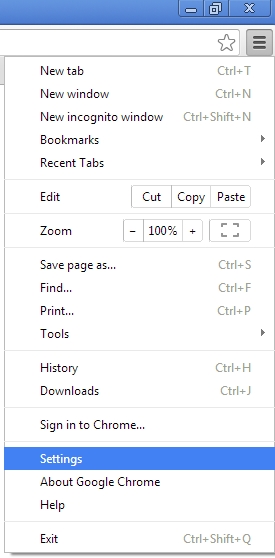
    In Chrome, click the icon with three horizontal lines in the upper right and choose “Settings.”

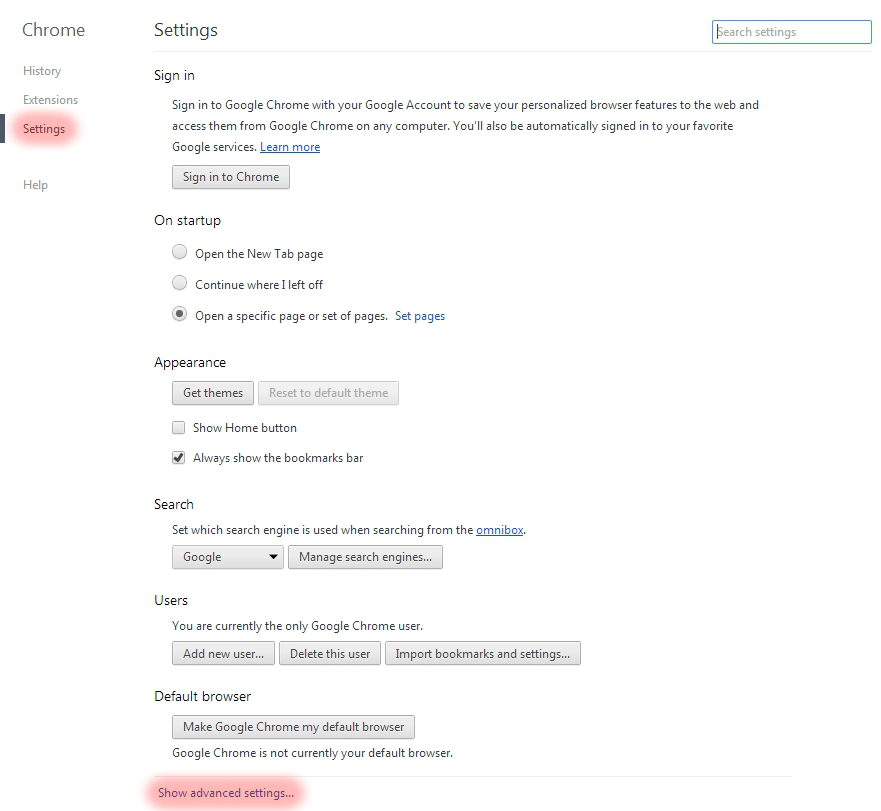
    Choose “Settings” on the left, and then click the “Show advanced settings” link at the bottom of the screen.

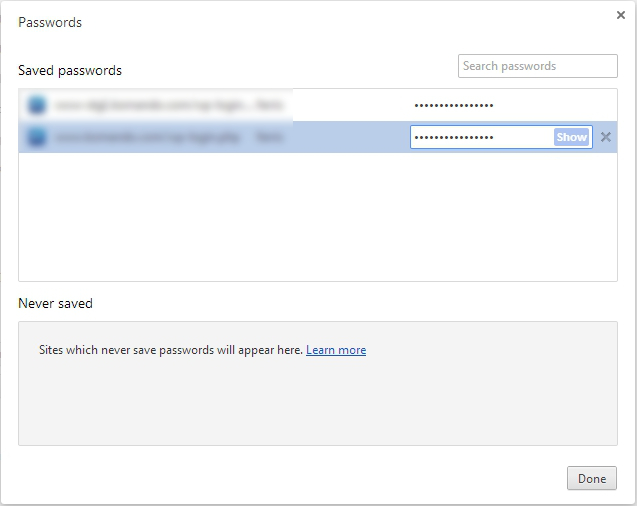
    Scroll down to “Passwords and forms” and click the “Manage saved passwords” link.

    If you want to log back into your old account, but don’t remember the password, then you can click on a password and click the Show button next to it.

    To see the password, you will have to enter your Windows account password, which does make it harder for casual snoops to get in.

    INTERNET EXPLORER

    You can’t view saved usernames and passwords directly in IE. You would need a third-party program like IE PassView.  However, I recommend that you don’t use Internet Explorer anyway.  It is easily invaded by spyware. I use Google Chrome but Firefox is good also.

    SAFARI

    In Safari, go to Safari>>Preferences>>Auto-fill. Click the Edit button to view the saved passwords.

    Need Help?

    If you need help to clean things up or to learn how to use a password manager like LastPass,  I’m always here for you. Just call for an appointment.

    Invite some friends to a Play Shop in your home, community room or office.  A play shop is a really fun way to learn and only costs $25 hr. per person.

    Forward this tip to your friends so they will be safe and happier too.

  • Great Apps for Computers and

    Apps are not just for smartphones and tablets. Many apps are web based and accessed through your web browser. You don’t have to have a smart phone or tablet to use some of the most popular apps.

    However, when people buy smartphones or tablets, they often ask me what apps they should know about.  I’m always happy to make suggestions based on antheir lifestyle and interests.

    Since you may have received a gadget as a holiday gift, I thought it would be a good time to tell you about a few of my favorites apps and programs. You may already be using some of these but you may discover some new ones to try. Enjoy!

    Entertainment and Media:   

    NetflixNetflix let’s you watch an unlimited number movies and television shows online for only $8.95 mo. You can train it to make suggestions for you based on the movies you watch and how you rate them.  You can even set up separate profiles for individual family members!  And, there are no commercials!!!

    You can connect your gadget to your TV and watch movies on it too.

    chromeCast


    Chromecast from Google $35


    roku

    Roku Streaming Stick $50


    appleTvApple TV $99


    spotify


    Spotify let’s you listen to music for free.  It even has playlists by subject or genre. The variety is astounding and there are no commercials!!!


    YouTube


    YouTube is a must for doing research on any topic that can be best explained with a video.  Think recipes, repairing things, movie previews, songs, lyrics, instructional videos, and answers to absolutely any question under the sun.

    shazam

    Shazam listens to songs on the radio, TV or movies. It identifies the song title, shows you the performer, album, lyrics and links you to sites where you can purchase.


    Productivity:

    dropboxDropbox is a great app for cloud storage and sharing.  When you put files in there, you can access them from anygadget or computer.  I use the phone app to play audio files of lectures and seminars. It’s super easy to learn and you get 2GB of storage for free.  By referring your friends to Dropbox, you can earn up to 16GB of additional space.  Sign up here
     

    office 365

    One of the most popular productivity tools for home and business is Microsoft Office. Unfortunately, Office documents don’t always play nice with third-party apps. Now Microsoft has released the Microsoft Office Mobile app.   It lets you open, create and perform basic editing on Word, Excel and PowerPoint files no matter where you are.


    mintMint.com and its app  (Free, and available for Android and iOS) links to your all your bank accounts, credit card accounts and loans so you always know just how much money you have and how you are spending it. You can set up spending categories and create a budget for each category. I love it for keeping track of my income and expenses for paying my taxes.


    The weather channelThe Weather Channel app and weather.com show you the current temperature, the hourly forecast and the next 10 days of weather.  Also you get a customizable radar map, video clips, severe weather alerts and beach conditions. It’s better than your gadget’s built-in weather app.


    free wifi finder

    You don’t want to burn through your cellular data plan when you are out and about or on a trip, so you need to useWi-Fi whenever possible. You can find free Wi-Fi locations with the Free Wi-Fi Finder app.


    Dating:

    match


    Match.com app has earned the top spot in dating apps and is my favorite.


    pof-logo


    POF.com (Plenty of Fish) is very popular here in the desert and is free.


    google mapsNavigation:

    Google Maps is my favorite navigation app.  I especially appreciate that it invites you to submit corrections.  Youget an email thanking you for your help and then a follow up email when the corrections have been made.

    uberUber is an app-based transportation network that uses a smartphone application to receive ride requests, and then sends these trip requests to their drivers. Customers love using the app to request rides and to track their reserved vehicle’s location.  Uber’s drivers use their own cars and there is a variety of types of vehicles available, from Town Cars to SUVs and more.  One of my friends is a driver for Uber and just loves it.  It’s a win-win for everybody.

    Other Popular Apps

    Here are some other popular apps that I don’t find the time to use very often, but you might enjoy.

    Save Money  

    RetailmenotThe RetailMeNot app helps you find promo codes and coupons for more than 50,000 physical and online stores, including grocery stores. You can save and store coupons for later, and share the savings with your friends through social media.




    Photo EditingSnapseed-icon-medium

    Snapseed is the top app for photo-editing and VSCO Cam is gaining ground in popularity.

    Social and Sharing

    Pinterest


    Pinterest, WhatsApp and Snapchat are the top apps in messaging and texting.


    instagram


    Instagram and Facebook are considered the must-haves for social sharing. The Facebook app got me interestedin using Facebook more often because it is so easy to use.

    Sports

    watchESPN


    WatchESPN.com is the most popular app for sports fans.


    Fitness

    MyFitnessPal is the top fitness app.my fitness pal


    Do you have any favorite apps to share?

    There are thousands of apps and recommendations from friends is the best way to sort through the maze.  Do you have some favorite apps not mentioned here?  Post your comments below so everyone can benefit from your ideas.