Tag: Passwords

  • Are You Still Frustrated by Passwords?

    Are You Still Frustrated by Passwords?

    image of keys in a safe
    Image by MasterTux from Pixabay

    You don’t have to be frustrated by passwords! I’ve written about this several times before but I’m still encountering many people who are still not using password managers.

    Google Chrome can save your user IDs and passwords and sync them across your other devices. This way you can set complex passwords for websites without worrying about memorizing them. Chrome can also automatically log you into these websites when you open them again.

    Dinsan at Chrome Story has created a great how to article complete with screenshots.  https://www.chromestory.com/2020/03/chrome-password-manager/  

    I used to recommend that you not use it, but now it’s all encrypted.  Be sure you are logged in to your google account in your Chrome Browser and be sure you use a VERY strong, secure Google (same as gmail) password and remember it.  It’s the “key to the Kingdom.”  

    If you don’t have a Google account you can set one up.  That doesn’t mean you have to use the gmail address, you just get one when you set up an account.

    If you live in the Apple World, the equivalent is Keychain.  

    Be sure your Google and Apple passwords are super secure because they unlock access to EVERYTHING else.”  

    If you need help, let’s set up a tutoring session ASAP. 

    Enjoy!

    Image by MasterTux from Pixabay

  • Google Password Checkup is Such Great News!

    Google Password Checkup is Such Great News!

    With the frequent news about security breaches, are you concerned that your passwords might be compromised?

    Have you registered with https://haveibeenpwned.com/?

    Are you feeling overwhelmed?

    I’ve got great news for you!
    Google Chrome Can Tell You if your passwords have been compromised!

    Google has created an extension (software program) for its Chrome web browser that will alert you if a username and password is known to be unsafe.

    The extension is called Password Checkup and it checks a database of 4 billion credentials that have been compromised (stolen and exposed) in various data breaches.

    When the extension detects an insecure password, it will display a big red dialogue box telling you to immediately change your username or password.

    Of course, allowing an extension to read all your usernames and passwords raises concerns about privacy.

    Google is well aware of this and has designed an encryption system to keep all your information private and anonymous:

    “We built Password Checkup so that no one, including Google, can learn your account details. To do this, we developed privacy-protecting techniques with the help of cryptography researchers at both Google and Stanford University. For a more technical description of these innovations, check out our security blog post.”

    Here’s a short video tutorial on How to Install Password Checkup

    Or follow these steps:

    Click on the 3 stacked dots (upper right)
    Hover over “More Tools”
    Click “Extensions”
    Click on the menu icon (upper left corner)
    Click on “Open Chrome Web Store (lower left corner)
    In the “search the store” box, type “password checkup”
    Click on Install
    Click the X to close the confirmation window

    If Password Checkup lets you know that a password you use is unsafe:

    Sign in to the account with the unsafe password.
    Create a new, strong password for the account and any other accounts that use the same password.
    If the site offers another security measure, like Two-Step Verification, consider setting it up.

    Let me know how it goes by leaving a comment below

    If you need help, you can schedule an appointment on my calendar here

    I’m so excited to have a simple solution for keeping your passwords safe!
    I hope you will forward share this tip with everyone you know.

    Enjoy!
    Mardi

    P.S. I try to use as little Geek speak as possible, but you do need to understand a few terms.
    I highlight them in bold so you can check yourself and look up the ones you don’t know.

    Here’s a little self-test for you. How many do you know?
    What is a web browser?
    What is a browser extension?
    Why does it matter if your account is taken over?
    What is a dialogue box?
    What does “account credentials” mean?
    What does “compromised password” mean?

  • No More Password Hassles with LastPass

    No More Password Hassles!

    Treat your password like your toothbrush.
    Don’t let anybody else use it, and get a new one every six months.

    Clifford Stoll                                      Read more at brainyquote.com

    maxresdefault

    Are you ready to put your password hassles to rest once and for all?  I’ve got a great solution for you!   Get LastPass password manager.  It’s free! It will generate secure passwords for all your accounts and insert them automatically. You only need to remember one master password.  Everything is encrypted and safe.

    No more updating pages and pages of accounts and passwords or going through a bazillion steps to reset the ones you forgot!  LastPass even let’s you know if you have an account with a company whose data base has been compromised so you can change your password immediately.

    I’ve been using the basic features of LastPass for years, but I just took a class on it to learn more and I am very impressed.  I had the opportunity to teach a client how to use it this week and she is so happy and relieved that she’s telling all her friends.

    You can learn more about it here  www.lastpass.com  I urge you to use it.  The little bit of time it takes to install and learn how to use it, will be minimal compared to the time it takes to clean up a mess if someone hacks any of your accounts.

    Please share this with everyone you know so they can be safe and feel relaxed, happy and confident with their computers and techie gadgets.

    Please post your thoughts or comments below….

    Thanks!

  • Passwords Can Be Simple and Safe

    Passwords Can Be Simple and Safe

    I know you hate having to use so many passwords.  It’s a big pain to keep track of them.  You might even be using the same password for multiple sites and allowing your web browser to save them so you don’t have to login every time.

    A recent article by Kim Komando, inspired me to encourage you to take the bull by the horns, do some house cleaning and start using a password manager. This will make your online life so much simpler and safer.
    Here are some great tips based on her article, One secret about online accounts every computer user needs to know

    You may have created dozens of accounts that have only been used once. Just think of how many times you’ve created a username and password just to read an article, play a game or download something.  This can be dangerous because your information is floating around on dozens or hundreds of websites that may or may not be secure.  Even worse, if you have used the same username and password for every site, every account you have is in danger.  A hacker who gets your account information from one site can use it to get access to your other accounts as well.

    The solution is to hunt down and close any accounts you are not using and then change the passwords to your existing accounts so that each one is unique.

    A simple browser trick

    1) When you create a new online account or log in to an old one, your browser stores the username and password. This makes it easy to log back in later.  It also means you can go now and see what accounts you’ve created.

    2) After you locate your accounts, you can close down the accounts you are not using and create unique passwords for the sites you are keeping.

    3) Then turn off “password storing” and erase the existing passwords in your browser. The option to erase the passwords is in the same place you view the saved passwords.  (The Instructions are below.)

    Use A Password Manager

    LastPass, The last password you will ever need


    I know this seems like a lot of work but you only have to do it once.  Then, If you start using a password manager like LastPass all your unique passwords will be stored in a vault and you will only need to remember one master password.  The password manager will even generate secure passwords for you so you don’t have to think them up. You will love it!

    If you need help to clean things up or to learn how to use a password manager like LastPass, I’m always here for you. Just call for an appointment.

    Invite some friends to a Play Shop in your home, community room or office.  A play shop is a really fun way to learn and only costs $25 hr. per person.

    Forward this tip to your friends so they will be safe and happier too.
    Thoughts or comments about this topic? Please share in the comment section below.

    Instructions for web browser applications:

    FIREFOX

    To see your login information in Firefox, go to the Firefox menu – it’s the icon on the right with three horizontal lines – and click Options.

    Under the Security tab, click the “Saved Passwords” button.

    Then click the “Show Passwords” button and click “Yes.”

    CHROME

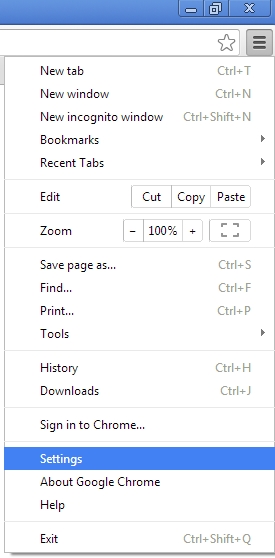
    In Chrome, click the icon with three horizontal lines in the upper right and choose “Settings.”
    Choose “Settings” on the left, and then click the “Show advanced settings” link at the bottom of the screen.
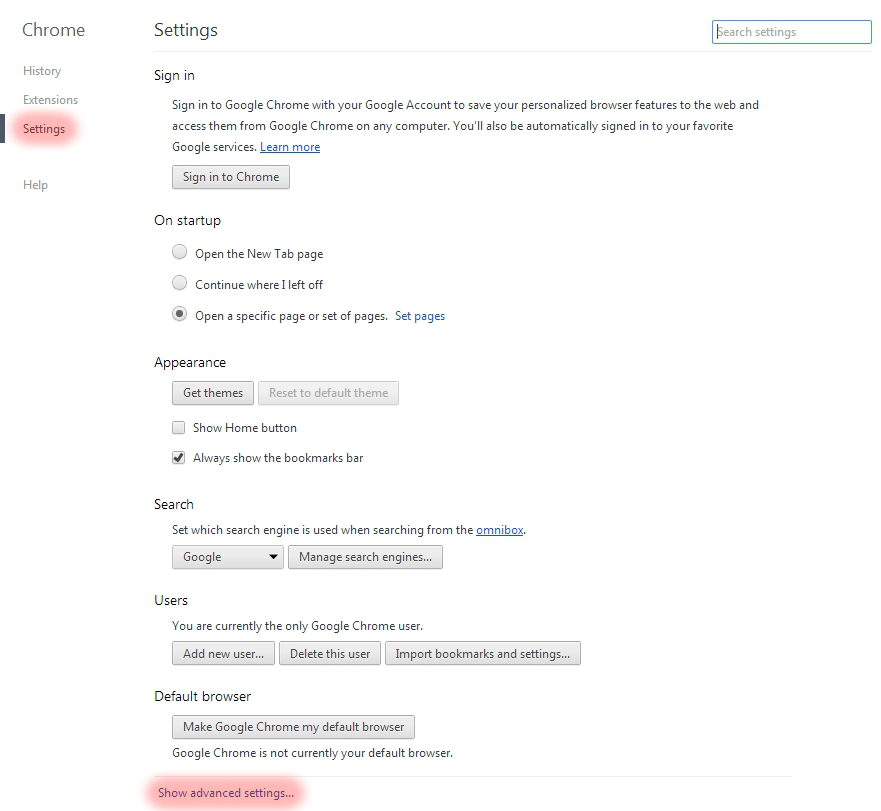
    Scroll down to “Passwords and forms” and click the “Manage saved passwords” link.

    If you want to log back into your old account, but don’t remember the password, then you can click on a password and click the Show button next to it.
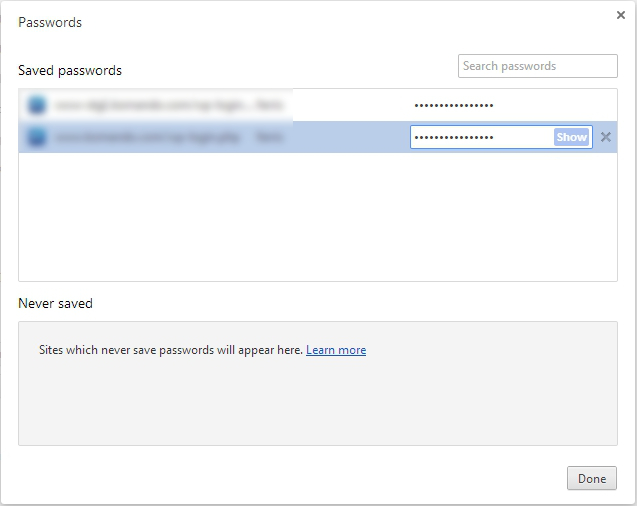
    To see the password, you will have to enter your Windows account password, which does make it harder for casual snoops to get in.

    INTERNET EXPLORER

    You can’t view saved usernames and passwords directly in IE. You would need a third-party program like IE PassView.  However, I recommend that you don’t use Internet Explorer anyway.  It is easily invaded by spyware. I use Google Chrome but Firefox is good also.

    SAFARI

    In Safari, go to Safari>>Preferences>>Auto-fill. Click the Edit button to view the saved passwords.

    Need Help?

    If you need help to clean things up or to learn how to use a password manager like LastPass,  I’m always here for you. Just call for an appointment.

    Invite some friends to a Play Shop in your home, community room or office.  A play shop is a really fun way to learn and only costs $25 hr. per person.

    Forward this tip to your friends so they will be safe and happier too.
  • Where Are Your Passwords? You don’t use the same one for everything, Right?

    I know passwords are a big nuisance.  If everybody would “play nice” we wouldn’t need them.  However, until the world has been totally restored to love and peace, we need to get a grip on passwords.

    If you use the same one for everything and someone figures it out or gets access to it, they will try your other accounts and may cause you a lot of grief.

    So, DO NOT USE THE SAME PASSWORD FOR ALL ACCOUNTS, PLEASE!!!!

    Here are a couple of solutions:  Think of a phrase that you can associate with an account and easily remember.  It could be a line from a poem, a song, a quote or a book title, etc.  Use the first letter of each word in the phrase instead of the words themselves.  Add in a number or two and a symbol like #, or @ or !.  I worked with one clever client this week that used the number 0 for the Os and 3 for the Es 1 for the Ls.  Really a neat idea!

    I know they say not to write them down, but do it anyway.  I can’t tell you how much computer tutoring time is wasted, trying to figure out forgotten passwords.  Just don’t store the list right next to your machine, where a burglar might find it.  If you want to take the list on vacation,  hide the identity of the sites that the passwords belong to, by using abbreviations.  This sounds like a lot to do when you read it, but actually you only do it once, and you will avoid a heap of stress and wasted time later.

    If somebody figures out your email password, they can log in as you and send bad emails to everyone in your address book. If they are able to change the password, you will not be able to get in and you will have to abandon that account and start all over with a new one.  That means getting all your friends to switch to your new email address and, even worse, having to tell them that somebody they don’t know has access to their email addresses.  So it you won’t take my advise for yourself, at least do it for your friends.

    Another option that I like, is a free application called Last Pass.  It generates mega-secure passwords and stores them in a vault on your computer that can only be accessed by a master password.  I use it and love it.  It may be too involved for some of you, but I’d be happy to show you how it works so you can decide.

    In any case, take a few minutes to get organized with the password thing, so we can spend our tutoring time on more fun activities…like learning new productivity tricks and playing with new gadgets.

    In peace and joy,

    Mardi