

Tag: Keychain

  • Are You Still Frustrated by Passwords?

    Are You Still Frustrated by Passwords?

    image of keys in a safe
    Image by MasterTux from Pixabay

    You don’t have to be frustrated by passwords! I’ve written about this several times before but I’m still encountering many people who are still not using password managers.

    Google Chrome can save your user IDs and passwords and sync them across your other devices. This way you can set complex passwords for websites without worrying about memorizing them. Chrome can also automatically log you into these websites when you open them again.

    Dinsan at Chrome Story has created a great how to article complete with screenshots.  https://www.chromestory.com/2020/03/chrome-password-manager/  

    I used to recommend that you not use it, but now it’s all encrypted.  Be sure you are logged in to your google account in your Chrome Browser and be sure you use a VERY strong, secure Google (same as gmail) password and remember it.  It’s the “key to the Kingdom.”  

    If you don’t have a Google account you can set one up.  That doesn’t mean you have to use the gmail address, you just get one when you set up an account.

    If you live in the Apple World, the equivalent is Keychain.  

    Be sure your Google and Apple passwords are super secure because they unlock access to EVERYTHING else.”  

    If you need help, let’s set up a tutoring session ASAP. 

    Enjoy!

    Image by MasterTux from Pixabay
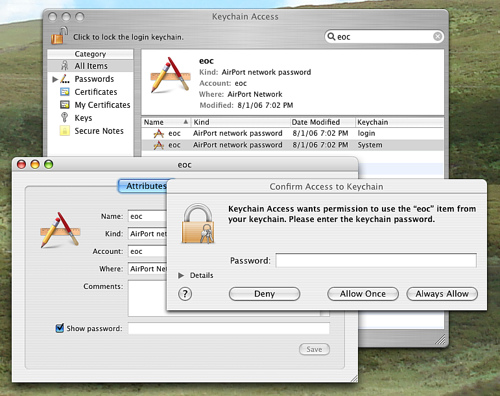
  • Get control of passwords the simple, easy way with Keychain

    use keychain to login to websites automatically

    Apple’s Password Manager Rocks!

    Apple’s password manager is one of the many reasons that I recommend buying Apple computers. I know they seem expensive but when you see the value, you will find a way. I just bought a Refurbished MacBook Pro for only $475 and I love it almost as much as my Chromebook!

    Safari offers to remember your passwords and log you in and, when you create a new account, it suggests a complex, secure password.

    It works the same on your mobile devices too.

    (There may be times when a website doesn’t allow autofill, for example, at public terminals or when a site has been coded to specifically block autofill)

    Here’s How It Works

    When you login to an account, Safari asks you if you want it to remember the password and you just click on “Yes”.

    If it doesn’t ask, check the Preferences

    • Click Safari
    • Click Preferences
    • Click Passwords
    • The check box next to “Autofill user names and passwords” needs to be checked
    • Close the window by clicking the red dot.

    Note: this is where you can go to see a list of your sites and their passwords too.

    To see your passwords

    • Click Safari
    • Click Preferences
    • Click Passwords
    • Check the box next to “show passwords”
    • Enter your Admin/Owner password
    • Select the site for which you want to see the password.
    • Close the window.

    Safari Autofill

    Safari will autofill, forms on websites with account and credit card information and your contact information.

    1. Click Preferences
    2. Click Autofill to verify that these options are checked or to uncheck them if desired

    It’s convenient features like these that make Apple products such a pleasure to use.

    If you have questions about buying a computer or if you need help with Keychain or other apps, just call or send me an email and we’ll set up a time to get together — in person or via remote access.    Enjoy!

    ← Back

    Thank you for your response. ✨