You have to see this! It’s the information you need and it’s not condescending. So refreshing! Thanks to Payette Forward Good job!
Tag: iphone
-
Great Solution for Robocalls
Photo by Arun Thomas on Pexels.com How are you managing robocalls these days?
I recently read a great article from How To Geek that validates my advice to not pick up calls from people who are not identified on your phone’s caller ID.
Did you know that if you pick up and answer a robocall, you are more likely to get called again?
It also explains why other commonly recommended methods don’t work.
And it suggested a great solution for those times when you might be expecting a call from your doctor or the pharmacy.
Here’s a great Techie Tip from the article:
If you’re continually expecting calls from doctors, customers, lawyers, or anyone else, add trusted businesses, customers, and professionals to your contact list. Ask companies for their outgoing phone number, and be sure to check if they use multiple outgoing numbers.
Then use the Do Not Disturb feature on your phone. The Do Not Disturb feature allows you to choose which numbers can call you. If you’ve set up a detailed contact list, this feature can help you block out scammers without missing out on important calls from your family or your doctor. And, if you’re ever expecting a call from an unknown number, you can quickly turn off the Do Not Disturb feature until you receive the call that you’re waiting for and then turn it back on.
Apple Do Not Disturb for iPhones and iPads
Android Do Not Disturb mode .
Another method is to set your phone to not ring for incoming calls except for your Favorites which then allows specific numbers to bypass the block.
I hope you found this helpful and that you will share it with your friends and family.
And, as always, if you or someone you know, needs a helping hand or some compassionate techno-therapy, just give me a call at 760-348-8867 or schedule an appointment here.
In any case…
Enjoy!
Mardi
-
You Don’t Need A New Galaxy S10 Phone
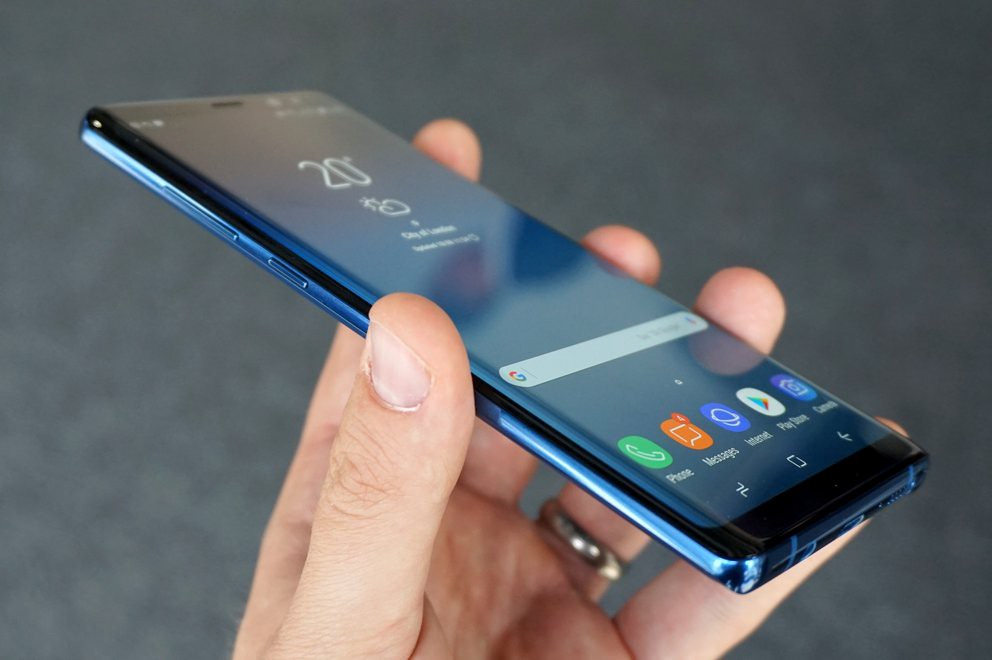
 I just read a review of the new Galaxy S10 and S10+ by Engadget and was absolutely amazed that it was described as “a superb phone” in spite of an “inconsistent fingerprint sensor and a subpar digital assistant.”
If you like technology simple, easy and fun like I do, you’re probably wondering…
- Why in the world would anyone spend $1000 for a phone?
- Do I need an amazing screen to check email, text messages and use Google maps?
- Am I watching YouTube videos and movies on my phone?
- The only reason to have a big screen is to have larger keys on the keyboard for typing and with a good voice assistant and predictive text, I don’t even need to use the keyboard very much.
And speaking of typing, it’s critically important to me that a phone’s digital assistant can understand me and type accurately. I’ve found Google assistant to be much better at this than Siri. Samsung may have improved it’s Bixby assistant but I wouldn’t even consider paying $1,000 for second-rate voice to text.
Another huge priority for me is a digital assistant that can find answers for me and deliver them verbally. Apple’s Siri doesn’t understand me and she isn’t very smart. The Google assistant (I call her Google Girl) is much more capable. Whereas Siri (if she can find anything at all) will display a search results page, Google Girl will usually tell me verbally what I want to know. This is particularly important when I’m driving my car.
The other most important feature to me, is a quick and reliable way to unlock my phone. I’ve grudgingly accepted the fact that we need to keep our phones locked but it’s a big nuisance.
The fingerprint sensor on my iPhone 6 Plus is not only inconsistent but it forgets the fingerprints over time and I have had to go into the settings and set them up again.
I don’t bother with fingerprints anymore. I just use my 5 digit passcode. It’s quicker and it always works the first time.
There are android phones for $250 that will do everything I need and that’s what I’ll be getting as soon as my iPhone 6 Plus (a gift from my wonderful son) dies or is rendered obsolete.
If you’d like to simplify your techie life in this way and want recommendations for purchasing a new phone or help with setup and learning how to use it, you can schedule an appointment here or call 760-348-8867.
What kind of phone do you have? What do you like and dislike about it? Let us know in the comments below so we can all benefit from your experience.
-

Holiday Photo Tips and Tricks
Are you capturing lots of great memories with photos this holiday season? Here are some great techie tips about photos from my news feed.

Remove the background from photos for free
From Beth Zensies, Your Nerdy Best Friend “Just upload a pic to remove.bg and the site instantly removes the background. Where was this all my life??? It takes less than 5 seconds, instead of an hour with me in a cheap Photoshop alternative.”
Making digital Photo Collages
(Some of you have used Picasa in the past but Google is not supporting it anymore and it may stop working soon.) From How To Geek: How to make a digital photo collage
An Alternative to Photoshop That Runs in Your Web Browser

From Kim Komando Photopea
Best Photo Editing Apps for Android
From Kim Komando: Best Photo Editing Apps for Android
How to Make Your iPhone Photos look better
From Kim Komando: How to Make Your iPhone Photos Look Better

Snapseed for Chromebooks
Chromebooks support Android apps now and Leo Laporte, an avid photographer, has found the Snapseed app to be just as capable as Photoshop.
An Amazing photo presentation that gives us a different perspective on life

Shared by a fun client: Smile from Cosmic Eye by Dan Apps
Websites for sending free ecards
From How To Geek: Websites for sending free ecards
And a goofy Merry Christmas video…

My Merry Christmas Video courtesy of Office Depot
You can make one too at https://www.elfyourself.com/
Please share these techie tips with your loved ones.
Have you tried any of these? I’d love to read your comments below. Thanks!
In joy!
Mardi -
My Bad….I Should Have Warned You!

Recent Microsoft and Apple Updates – Causing Stress And Confusion
I’ve had a rash of calls from people complaining that Windows Update is tying up their computers for hours and hours, or that their iPads or iPhones are suddenly looking and acting very differently. Don’t feel bad, I’ve had the same issues!
I knew changes were coming but I didn’t anticipate the upset they would cause. It might have been easier if I had warned you beforehand. You still would have had to deal with the inconvenience but it might have been less shocking. Next time I will give you a heads up.
The Windows 10 Anniversary Update

The Windows 10 Anniversary Update stalled and locked up my computer on two different days. I had to “pull the plug” so I could reboot. On the third try, it tied up my computer for more than six hours! It took over my PC at 6:00 PM, wasn’t finished when I went to bed at 11:00 PM. Fortunately, my main computer is a Chromebook!
Window Update Locking Up Your Computer?
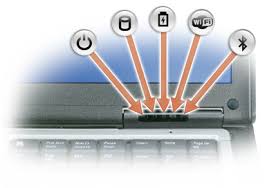
If the Windows update gremlins have taken over your computer and it seems to be all locked up, check to see if the hard drive light is blinking. If it’s blinking, the update is working and you just need to be patient. If it’s not blinking, the system is locked up. You will need to hold down the power button to turn it off. Then turn it back on.
PC Running Slow?
If your PC is running slow, be sure you are up to date on your maintenance tasks. If you are using Windows 10, you can turn off the “live tiles”, and disable Cortana. (Use right click on your mouse to see the options.)
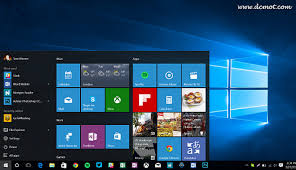
New Features in Windows 10
I didn’t find any of the Windows 10 “new features” to be particularly exciting, but I like things simple.
Microsoft is trying to be more like Apple and Google products. This started with the Windows 8 debacle. Big Mistake! They are way behind and don’t do it well. Let me know what you think in the comments below.The Edge web browser still isn’t as good as Google Chrome or Firefox.
On the positive side, Windows 10 is a more stable and secure operating system.
If you need help with the update, new features or maintenance, just let me know.
The Apple iOS 10 update (A much better experience than with Microsoft)

A message appered, letting me know that an update was available and giving me choices of “install now” or “remind me later.” (I always wait a couple of weeks, until I’m sure that any glitches have been fixed.)
In the software update screen, above the “Install Now” button, there was a brief introduction with an explanation of the reason for the update and a complete list of all the new features–in plain English!
I agreed to the terms of service and the update screen showed me a brightly lit screen with the Apple logo and a bar indicating the progress of the update. (No wondering what’s going on, no locking up.)
Things look a little different but there are some very practical and useful new features. The best one is that my fingerprint on the button works much better and I don’t have to swipe to get past the lock screen. I have to laugh because I’m still swiping after several days. Old habits die hard don’t
Let me know what you think in the comments below. I’ll tell you my faves if you’ll tell me yours….
Why are there fewer problems with Apple?
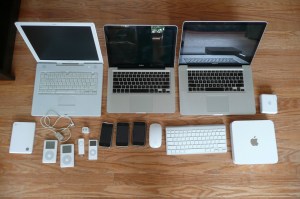
One main reasons there are fewer problems with Apple products, is that Apple controls both the hardware and the software, whereas Microsoft is in control of only the software.
Microsoft’s new operating system has to be compatible with hardware from many different manufacturers, machines that are very old, and machines that have software from other companies that can cause conflicts.
When Apple’s operating system becomes a problem for their old hardware, they just let you know that your device has become obsolete and you’ll have to buy a new one. This is not good news, but it prevents you from limping along and being constantly frustrated.
It’s not your fault

These issues are not the result of anything you have done. Technology is a full time job for me and I can barely keep up myself! My mission is to keep things simple, easy and fun for you in spite of the constant changes. Please let me know if you are having trouble. If you have any questions, need tech support or moral support, I’m here for you.
You Can Help Others
Please share this to others so they can get help too.
If you received this from a friend and would like to receive all my Techie Tips directly, you can sign up here.
 Looking forward to knowing what you think.
Enjoy!
Mardi Boettcher
760 3 4tutor
-
Digital Calendars Rock!

Are you using the Calendar app on your computer or mobile gadgets? Perhaps you have considered using a digital calendar, but wonder if it’s worth the time and effort to learn? Perhaps you are curious about some of the features you aren’t using now?
Digital calendars are one of the best uses of modern technology and they are easy to learn. They have a lot of “bells and whistles” that you may not need, but you might be surprised at how many features you will enjoy.
Here are 7 Good reasons to use digital calendars and
2 great articles on how to use them-
You have a lot of appointments and it’s a challenge to keep up with them — social, medical, business, family
-
You would like to be reminded via email or pop up screens so nothing falls through the cracks.
-
You have a big project you would like to do but you can’t seem to get started. Breaking it down into small steps and putting it on your calendar would get it done.
-
You would like to be able to see your spouse’s schedule so you won’t schedule conflicting appointments.
-
Many of your To Do’s on your To Do List have deadlines and you’d like reminders so they will get done on time.
-
You would like to be able to see your appointments on your smartphone or tablet when you are away from home so you can know if you are available to schedule something — to get it done the first time, instead of having to say “Let me call you when I get home and am in front of my calendar.”
-
You would like reminders to purchase birthday cards or gifts so you can get them in the mail in time for the big day.

Years ago, I used Microsoft Outlook but now I use the Google Calendar. I have an iPhone right now and I downloaded the Google Calendar app to my iPhone. However, the Calendar App that comes with the iPhone can be set up to work with Microsoft Outlook and the Google calendar.If you are in the Apple ecosystem, you can easily use the Apple Calendar App. It should be activated in your settings alread.
If you have an android phone, the Google Calendar is probably activated already.

Here is a great article about the advantages of Google Calendar with some neat tips and tricks. Click here
Here is a detailed article on all the features of the Apple Calendar and how to use them. Click here
If these articles seem too daunting, consider hosting a playshop, or schedule some one-on-one time with me. You will be using your digital calendar like a pro in no time!
-
-
Do You Use Skype or Face Time?
Why Use Skype?
Skype is an app that lets you connect with people using the video camera on your computer or mobile device.
Face Time does the same thing, but only works with Apple products. Even if you use Face Time, it’s a good idea to know how to use Skype as well. They are both very simple and easy to use and they are truly one of the best benefits of modern technology.
A friend of mine uses Skype to play checkers with her 9 yr. old grandson who lives out of state.
Parents use it to stay in touch with their children when they have to be away on business trips or vacations. They can read the children a bedtime story, watch them get tucked into bed, and throw them a kiss goodnight.
Several clients have had me show them how to use Skype for important job interviews. We practiced calling each other, chose the most flattering camera angle, picked the most attractive background, and discussed what to wear. It is so rewarding to see people gain confidence and be optimistic about getting the job!
Video chat is great for online dating and long-distance relationships too.
Businesses use Skype for video conferencing because they can have multiple people on a video call. They save a lot of money on air travel, hotels and meals.
On an internet enabled big screen TV, it can feel like you’re actually in the room with distant family members. You can even watch each other open Christmas presents!
On mobile phones, you can only use audio for group calls, but on your computer or internet enabled TV you can do video conference calls.
Skype also supports audio calls to traditional phones. Using Skype on your tablet or smartphone, you can call somebody on a regular telephone. This is really handy if you are traveling and don’t have access to phone service but do have access to wifi.
One of my clients who is retired from the Foreign Service, learned how to use Skype so he could stay in touch with his friends all over the world for free.
All of the features of Skype are free, except calling people on regular telephones. However, Skype phone calls are a lot less expensive than traditional long distance calls.
How to Use Skype
Skype is a free download from the iOS App Store and the Google Play Store and is already installed with Windows 10 and Window phones. (It’s owned by Microsoft.)
You need to have an account to use Skype. You can set up a free account or, if you already have a Microsoft account, you can just log in with that.
On iPads, iPhones, Android phones, and Android tablets, each version of Skype will look a little different but the functionality is the same. There are just a few minor differences on each device
When you login you will see three screens
- RECENT- shows the most list of people most recently talked to
- FAVORITES – shows the contacts you have marked as favorites
- PEOPLE – is your list of people you can call on Skype. They have to have an account also and they have to agree to be connected with you.
To Add a Contact
Search for the person in the Skype database. There are millions of people in the Skype database and lots of people with the same name…even unusual names. It’s amazing!
Therefore, the quickest and easiest way to find people is to search for their unique Skype name. Email address work sometimes too because there aren’t duplicates of those but it’s really easier to ask your person for their skype name.
When you find them, tap the button that says “add people.” Then tap “send a contact request.”
The person’s name will show up on your contact list but, they will not show up as online and accessible until they have accepted your request.
After they accept your request, you will be able to see their status next to their name, which lets you know when they are online for you to call them.
Note: some people leave the Skype app open all the time to receive calls. Other people text or email each other to set a time and then open the app. It depends on how often they use it.
To make a call
Select a contact and you will see buttons at the bottom of the screen. You can choose to do a video call or an audio call. They both work pretty much the same. Tap on the button for audio or video. The camera starts running right away so you can frame up your shot while you wait for the other person to pick up.
After you start talking, the buttons at the bottom of the screen will fade out of the way, but when you tap on the screen, they’ll pop up again.
You can mute and unmute your audio by hitting the mute button.
You can disable the camera by hitting the camera button if you want to talk and see them without them seeing you.
When you’re done, just hit the red hang up button.
To receive an incoming call
The app will make a sound and you will see a choice of buttons.
If you don’t want to answer a call, you can just hit the red button.
If you want to answer but only want to use audio, then hit the green button in the middle.
To see video and hear audio, hit the camera button.
To hang up, tap on the screen to bring up the controls and hit the red button
You can also use Skype to have a text chat.
On the screen, with a contact’s information, tap on the field that says “type a message”. Type and then hit the Send button. When he responds, you’ll see his response pop up.
Calling regular telephones
This feature is particularly useful when you’re traveling to a place where you won’t have a cellular phone connection, but you will have wifi.
This is called Voice Over IP, or VOIP. Using this feature, you can call a regular phone as long as you can connect to Skype on your mobile device.
This is the one feature that is not free but Skype is much less expensive than traditional long distance rates. To get an idea of the pricing options, check out their website. http://www.skype.com/en/
You can login to your Skype account on the website and add Skype credit to your account.
Or in the app on your mobile device, you can hit the “my account” button (top right), and there’s an option for “Skype credit”. This way, it’s an “in-app” purchase and it will be charged to your iTunes account or Play Store account. It will ask for your password for confirmation. Then hit “Buy”.
To make a call to a regular phone
At the bottom of the screen, there’s a dialer button and you can just dial a regular phone number. Also, there’s a button at the top that links directly to the address book on your device so you can find the person and tap on the number. When you hit the phone button at the bottom, it will dial. When he answers, you will be having a conversation just as if you were using a regular telephone. To hang up, just hit the red button at the bottom
Skype is a great app for video and audio calls because it runs on all mobile devices and computers no matter what platform. Group video calls are not available on mobile devices but video calls to individuals work.
I hope you will try this and enjoy it. If you need help, just let me know.
Please share this with your friends and relatives. Your referrals are the heart of my business and my mission is to help people more fully enjoy the many benefits of modern technology.
Thanks,
Mardi
-
Best Way To Backup Your Computer and Mobile Devices

Do you have a backup strategy for your computer and mobile devices in the event of a catastrophe? Are you wondering about the easiest and least expensive way to do it?
I recently received an email from a client with questions like these and I thought you would like to know my recommendations….
“Is iDrive the best cloud storage company? The cost is $45/year and it says it’s for all devices. Is there a cloud storage system that automatically updates my iPhone and PC? I pay Apple for extra storage and it still is not enough….and I have an external hard drive for my PC back-up.”
External hard drives can fail just like internal hard drives and won’t do you any good if burned in a fire or stolen. You still need to have a cloud backup.
 I like iDrive the best. The $45/yr. includes 1T (terabyte) of storage, which is more than enough for most people, and it includes backups of mobile devices.
Carbonite is also good but doesn’t include mobile devices. It’s 59.99 for unlimited backup. So if you need lots of storage and don’t have a smartphone or tablet to back up, this would be the best option.
It’s gets a little more complicated when you are using devices from two different companies, like an Apple phone and a Microsoft PC. An iPhone backs up to iCloud but a PC doesn’t.
If you have an Apple computer and an iPhone and/or iPad, everything backs up to iCloud. Apple offers some inexpensive plans but if you need a lot of storage, it can get expensive.
20 GB: $0.99/mo, 200 GB: $3.99/mo, 500 GB: $9.99/mo, 1 TB: $19.99/mo ($239.40/year)
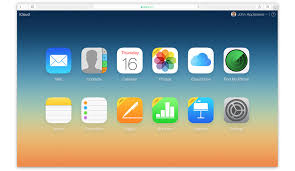
Many of my clients are complaining having to upgrade to more expensive iCloud storage plans. This is usually because of their photos/videos or music collections.
You can save money on iCloud storage by moving files to your PC and deleting them from iCloud but be sure have a backup plan for your your PC.
If you aren’t making changes to photos or docs and you just want to archive them, you can slide them onto a flash drive and save money on cloud storage. Be sure you have more than one copy. Flash drives can get damaged or lost. You might store copies with friends or relatives or in a safe deposit box.
If you have an Android phone, Google has your back…almost.
Google will save app data and all of your phone’s settings including Wi-Fi passwords to your Google account. When you sign in using this Google account on another phone, all of your preferences, photos (via Google+), and contacts will be imported automatically. Be sure all the options are turned on in “Accounts & sync” in “Settings.”
This does not include your text messages, you’ll have to back them up yourself. Or or you can save your text messages and call logs to your Gmail account by using an app called SMS Backup+.
To save the music, movies and other media you’ve saved on your phone’s memory card, you need to connect your phone to a PC and copy everything that’s in the micro SD card. This is a manual process so you’ll need to establish a routine for doing this.
When it’s all said and done, it’s simpler, easier and safer to just pay for iDrive cloud storage. Think of it like paying for insurance for your house and renting mini storage for your extra stuff.
I hope you have found this information helpful and that you will get your files protected. It’s really sad when computers crash and mobile devices get lost, but at least they can be replaced. Your files cannot. Having good backups will preserve your files and make it easy to restore them when you get new devices.
Please share this information with your family and friends so they will be protected too.
Enjoy!
Mardi
-
Good News – Phones Unlocked!
Good News – Phones Unlocked!
The government has agreed to the unlocking of devices in the United States This means you can now unlock your mobile phone or tablet (iPhones, iPads, Android smartphones and tablets) and use it with a different wireless network carrier. All major service providers like Verizon, AT&T, T-Mobile, Sprint and U.S cellular are now allowing the unlocking of devices so you can switch to the carrier service that is best for you. Previously, if you wanted to change your network provider you had to buy a new phone.

The unlocking policy and methods vary according to the network provider. The unlocking process is free if you fit into the rules set by the provider. Before making your request to unlock the device, check the company policy and make sure you are eligible.
Please forward this to everyone you know so they can be safe and feel relaxed, happy and confident with their computers and techie gadgets.
Thoughts or comments about this topic?
Please comment below.Thanks!
-
The Joys of Airplane Mode

Many of us will be traveling and visiting family this time of year. Here are some tips to enhance the peace and joy of your holiday season.
Using Airplane Mode on your smartphone isn’t only useful for flights. The feature can prolong your battery life or allow you to unplug and enjoy some uninterrupted family time. Here are some surprising ways you might want to use it.
1: During a flight

If you have been on a flight in the last few years, you have heard the constant reminders from the flight attendants to turn off all electronic devices. Once the plane has reached an altitude of 10,000 feet, cell phones can be used in airplane mode.
To activate Airplane Mode on your phone, simply go into the Settings app and turn it on. There are shortcuts to do this, depending on the type of phone, (ask me to show you on yours next time we see each other) but this method will work for everyone reading this article.
Once Airplane Mode is activated, your phone turns off both the Wi-Fi and cellular connections. This means you will no longer be able to make or receive calls, texts, or e-mails, or browse the Internet — anything that requires a data connection will not work while Airplane Mode is activated.
Wi-Fi can be turned back on and connected to a network while phone is in Airplane Mode. If you are lucky enough to be on a flight with Wi-Fi, you can turn just the Wi-Fi connection back on and send emails, browse the Internet, or send instant messages. (Again, just go into the settings app and turn the wifi on.)

2: To unplug for awhile
Airplane Mode is a great way to unplug in order to spend some quality time with your family or just take a break from the beeps that seem to control our lives sometimes.
Putting your phone in Airplane Mode puts you back in control. You may be surprised how quickly you forget that your connection is turned off, and how peaceful your evening can be.
This is also a great way to silence your phone during important meetings. Don’t worry, all of your messages will be waiting and will download as soon as you turn Airplane Mode off.
3: While traveling internationally

Traveling across borders can be an expensive affair for you and your wireless carrier. International roaming charges are very pricey. One way to avoid the extra roaming fees is to activate airplane mode on your phone and only use Wi-Fi hotspots while you travel. You won’t be able to receive text messages or phone calls, but you will still be able to check your e-mail, use instant messaging, and browse the Internet over a Wi-Fi-only connection. (You can let people know you will be out of town and suggest they communicate by email until you get back.)

4: While the kids play games or movies
Your smartphone can provide a welcome distraction for your young kids or grand kids. However, as you can imagine, kids will start pushing and tapping anything they see on the screen. You don’t want them accidentally dialing phone numbers or sending random texts. If you are going to let your favorite little people play games or watch a movie on your phone, turn on Airplane Mode before you give your phone to them. This not only prevents them from calling anyone, but it also stops push alerts from interrupting their game or movie.
5: To save battery

We have all been in a situation where we suddenly have a low battery and no access to a charger. One way to help slow down battery drain is to turn Airplane Mode on. When your phone is on, even with the screen off, it is constantly searching for and monitoring data connections. Turning those connections off with Airplane Mode will save battery, allowing you to make calls only when you absolutely need to.
 The Desert Computer Tutor