Tag: Google

  • Digital Calendars Rock!

    image of google calendar

    Are you using the Calendar app on your computer or mobile gadgets? Perhaps you have considered using a digital calendar, but wonder if it’s worth the time and effort to learn?  Perhaps you are curious about some of the features you aren’t using now?

    Digital calendars are one of the best uses of modern technology and they are easy to learn.  They have a lot of “bells and whistles” that you may not need, but you might be surprised at how many features you will enjoy.

    Here are 7 Good reasons to use digital calendars and
    2 great articles on how to use them

    1. You have a lot of appointments and it’s a challenge to keep up with them — social, medical, business, family

    2. You would like to be reminded via email or pop up screens so nothing falls through the cracks.

    3. You have a big project you would like to do but you can’t seem to get started.  Breaking it down into small steps and putting it on your calendar would get it done.

    4. You would like to be able to see your spouse’s schedule so you won’t schedule conflicting appointments.

    5. Many of your To Do’s on your To Do List have deadlines and you’d like reminders so they will get done on time.

    6. You would like to be able to see your appointments on your smartphone or tablet when you are away from home so you can know if you are available to schedule something — to get it done the first time, instead of having to say “Let me call you when I get home and am in front of my calendar.”

    7. You would like reminders to purchase birthday cards or gifts so you can get them in the mail in time for the big day.

    Outlook syncs with Calendar Apps
    Years ago, I used Microsoft Outlook but now I use the Google Calendar.  I have an iPhone right now and I downloaded the Google Calendar app to my iPhone. However, the Calendar App that comes with the iPhone can be set up to work with Microsoft Outlook and the Google calendar.

    If you are in the Apple ecosystem, you can easily use the Apple Calendar App. It should be activated in your settings alread.

    If you have an android phone, the Google Calendar is probably activated already.
    You Can Easily Use the Calendar App on Your Phone

    Here is a great article about the advantages of Google Calendar with some neat tips and tricks.  Click here

    Here is a detailed article on all the features of the Apple Calendar and how to use them.  Click here

    If these articles seem too daunting, consider hosting a playshop, or schedule some one-on-one time with me. You will be using your digital calendar like a pro in no time!
  • Best Way To Backup Your Computer and Mobile Devices

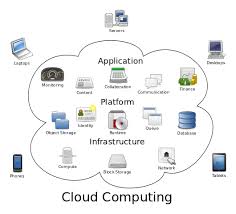
    Cloud Computing Diagram

    Do you have a backup strategy for your computer and mobile devices in the event of a catastrophe?  Are you wondering about the easiest and least expensive way to do it?

    I recently received an email from a client with questions like these and I thought you would like to know my recommendations….

    “Is iDrive the best cloud storage company?  The cost is $45/year and it says it’s for all devices.  Is there a cloud storage system that automatically updates my iPhone and PC?  I pay Apple for extra storage and it still is not enough….and I have an external hard drive for my PC back-up.”

    External hard drives can fail just like internal hard drives and won’t do you any good if burned in a fire or stolen.  You still need to have a cloud backup.

    IDrive Online BackupI like iDrive the best.  The $45/yr. includes 1T (terabyte) of storage, which is more than enough for most people, and it includes backups of mobile devices.

    Carbonite is also good but doesn’t include mobile devices.  It’s 59.99 for unlimited backup.  So if you need lots of storage and don’t have a smartphone or tablet to back up, this would be the best option.

    It’s gets a little more complicated when you are using devices from two different companies, like an Apple phone and a Microsoft PC.  An iPhone backs up to iCloud but a PC doesn’t.

    If you have an Apple computer and an iPhone and/or iPad, everything backs up to iCloud.  Apple offers some inexpensive plans but if you need a lot of storage, it can get expensive.

    20 GB: $0.99/mo, 200 GB: $3.99/mo, 500 GB: $9.99/mo, 1 TB: $19.99/mo ($239.40/year)iCloud

    Many of my clients are complaining having to upgrade to more expensive iCloud storage plans.  This is usually because of their photos/videos or music collections.

    You can save money on iCloud storage by moving files to your PC and deleting them from iCloud but be sure have a backup plan for your your PC.

    If you aren’t making changes to photos or docs and you just want to archive them, you can slide them onto a flash drive and save money on cloud storage.  Be sure you have more than one copy.  Flash drives can get damaged or lost.  You might store copies with friends or relatives or in a safe deposit box.

    If you have an Android phone, Google has your back…almost.Android Phone

    Google will save app data and all of your phone’s settings including Wi-Fi passwords to your Google account. When you sign in using this Google account on another phone, all of your preferences, photos (via Google+), and contacts will be imported automatically.  Be sure all the options are turned on in “Accounts & sync” in “Settings.”

    This does not include your text messages, you’ll have to back them up yourself.  Or or you can save your text messages and call logs to your Gmail account by using an app called SMS Backup+.

    To save the music, movies and other media you’ve saved on your phone’s memory card, you need to connect your phone to a PC and copy everything that’s in the micro SD card. This is a manual process so you’ll need to establish a routine for doing this.

    When it’s all said and done, it’s simpler, easier and safer to just pay for iDrive cloud storage.  Think of it like paying for insurance for your house and renting mini storage for your extra stuff.

    I hope you have found this information helpful and that you will get your files protected.  It’s really sad when computers crash and mobile devices get lost, but at least they can be replaced.  Your files cannot.  Having good backups will preserve your files and make it easy to restore them when you get new devices.

    Please share this information with your family and friends so they will be protected too.

    Enjoy!

    Mardi

  • Are you wondering if you should upgrade your OS?

    There are major changes happening with computer and mobile gadget operating systems and it’s my mission to make it easy for you to keep up and enjoy the many benefits.

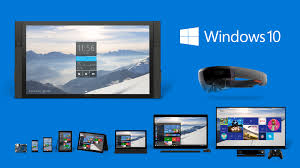
    One of my clients received an email from Microsoft offering a free upgrade to Windows 10 and she wanted to know if I thought it would be better or worse than her Windows 8.1.
    windows 10

    I told her, that it’s too soon to tell.  I recommend that people wait until it has been on the market for at least a year to give them a chance to correct any problems.  There are always bugs and fixes that need to be done with any new software.

    There are many improvements and some neat new features, but we’ll shall see….

    If you are interested in knowing about the new features of Windows 10, Click here.

     Yosemite

    Apple also has a new operating system for it’s computers. It’s been available for quite some time and Apple has issued several important updates.  It’s called OS X Yosemite and it has a lot of cool new features.  If you want to learn more about it click here.

    Chromebook

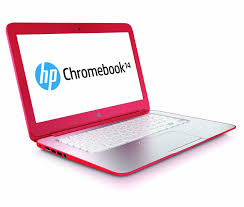
    I’m still really enjoying my Chromebook.  A Chromebook is a laptop of a different breed. Instead of Windows or Mac OS, Chromebooks run Google’s Chrome OS. These machines are designed to be used primarily while connected to the Internet, with most applications and documents living in the cloud and they are much less expensive than other computers.

    If you are thinking about buying a new computer, smart phone or tablet, you might want to consult with me first. In my tutoring, I have the opportunity to play with many kinds of devices so I can give you some good information about their advantages and disadvantages.  I’m proud to say that many of my clients have saved a lot of money and avoided a lot of frustration by consulting with me before they purchased.
    If you buy a new device, have me give you an orientation so you can get up and running quickly and easily. I read the owners manuals and take online classes so you don’t have to.  (“It’s a tough job but somebody has to do it.”  LOL)

    If you found this information helpful, please share it.  


    Enjoy!

    Mardi

  • OpenOffice.org

    Sometimes I Feel Stupid Too!  Computer User Feeling Stupid


    One of the biggest challenges for me in my work is that so many of my clients say they feel so stupid.  No one is stupid!  One of my goals in my work is to help my clients feel better about themselves.


    No one is born with all the information they need in order to navigate life.   We either educate ourselves or we “wing it” based on what we are told by others (who may or may not have the best information).


    Even those of us who take the time to do research, study and practice, will make mistakes. It’s part of the learning process.


    My goal is for you to benefit from my mistakes and those of my clients.


    Here are some really useful tips based on my work in the field this past week.


    Great Money Saving Tip

    OpenOffice.org

    There is a great free office suite called Open Office that looks very much like the apps in Microsoft Office and has many of the same tools.  You don’t need to pay for Microsoft Office suite.


    The Pitfalls

    The address for Open Office is www.openoffice.org not “.com”  There is another site, http://www.openoffice.us.com that looks reputable but will download a bunch of malware programs on your computer.

    firefox-os_logo-wordmark_RGB-vertical-300dpiThe Solution    Google Chrome

    You should be using Mozilla Firefox or Google Chrome.


    If you use Microsoft Internet Explorer as your web browser, you are at risk of getting add pop ups installed on it and having your home page changed to something you don’t want.  This is called “hijacking your web browser”.

    Norton Internet Security


    If you have installed the W.O.T (Web of Trust) extension on your web browser or if you are using Norton with Internet Security, you will see a notification that http://www.openoffice.us.com  is not safe.
    (Buy Norton from Dom at Desert Cow Computers and save $20.) www.mydesertcow.com


    Do a Google search for reviews of any app you are considering downloading before you proceed.

    The Rules In Review

    • Use the right web browser and search engine
    • Have safety extensions on your browser
    • Do your research
    • Be sure you are going to the reputable site


    If none of his makes sense to you, just call for an appointment.

    The promise of successEverything will be OK.   We’ll do it together.

     

    Hope this helps you “make peace with the ups and downs of modern technology.”


  • Video Calling Is Such Fun!

    skypeHave you ever done video calling? It’s really fun and I’m finding that many of my clients use it to stay in touch with their children and grandchildren.

    You can get loved ones together on the same group video call — in just a few clicks. You can even show your screen. It’s great for making travel plans, group decisions or sharing your holiday photos with everyone on the call. Whether you’re planning a party or just want to catch up with friends and family, group video calling lets you get together with everyone all at once — no matter where they are.

    Last Christmas, I was visiting my daughter and her fiancé in Colorado and we opened gifts with his family in Texas via the Skype app on their big screen TV. It was so much fun…almost as good as being together in person. What a great way to bring families together! I highly recommend it.

    The Skype app is free and can be downloaded to your computer and all your gadgets. The people you want to video call, have to have the app too and have to accept your invitation.  To see how it works on Skype Click here

    If you use Apple products you can use Face Time. The people you call, must be Apple product users also so they can use the Face Time app. See how to do it

    If you, and the people you want to video call, have gmail accounts, you can do video calls right from gmail, or you can use the free Google Hangouts app. See the instructions here

    If you, or someone you know would like personal tutoring to learn how to do this, or if you want to invite a group of friends and learn together in a “Play Shop,” just let me know. Thanks!

  • Pre-purchase Consultation Questions

    One of my services is consulting with people to help them choose the best computer or gadget for their individual needs.  So much frustration can be avoided by buying the right product in the first place, and I have already test-driven quite a few of them in order to pave the way for others to have a more pleasant experience.  See my previous posts for the gruesome details.  LOL

    Here are the questions I use for my consultations.  Please forward this to your friends and relatives so they will have it when they are considering a computer or gadget purchase.   They will thank you for it.

    1. What is your budget?

    2. What is the size of the notebook that you are considering?

    3. What screen resolution do you want?

    4. Do you need a portable or desktop replacement laptop?

    5. How much battery life do you need?

    6. Do you want to play games with your laptop? If so then please list the games that you want to with the settings that you want for these games. (Low, Medium or High)?

    7. What other tasks do you want to do with your laptop? (Photo/Video editing, etc.)

    8. How much storage (Hard Drive capacity) do you need?

    9. If you are considering specific sites to buy from, please post their links.

    10. How long do you want to keep your laptop?

    11. What kind of Optical drive do you need? DVD ROM/Writer, Blue Ray ROM/Writer, etc ?

    12. Please tell me about the brands that you prefer and the brands that you don’t like and explain the reasons.

    13. What country do you live in?

    14. Please tell me any additional information if needed.

    Additionally… you should consider available support options in your area. If you buy something abroad, will you be able to have it fixed near where you live? Does the warranty apply? How quickly do local accredited technicians fix laptops?

  • Heads Up – Sudden Changes

    Have you been experiencing sudden changes to your computer, or seeing new applications and services showing up out of nowhere?  If you have, know that I feel your pain and I’m here to help.

    Even I get frustrated and disappointed when companies add features and applications  without asking permission first.  It used to be that they offered new services and endeavored to pitch them in a way that would be appealing.  Now, they just foist them on us with instructions on how to undo it.  Not only are the sudden changes very confusing, but many people don’t have the vocabulary to understand the instructions on how to undo the changes!

    Here are some solutions for you:

    1.  When you authorize updates or download applications, read each screen before you hit “next.”  There may be other apps being offered and they may have boxes checked that mean they will be included and installedYou need to uncheck the boxes! 

    Here are just a few examples of what I’m encountering:

    • Current anti-virus program uninstalled and replaced by MacAfee
    • The Ask Tool Bar installed on web browser
    • Default search engine changed from Google to Conduit or Bing

    2.  Did you notice that Google added tabs to the inbox so mail is sorted into categories?  The “Social” Tab is for social networking, “Promotions,” for business offers and promotions, “Updates,” for confirmations, receipts and bills, “Forums,” for online groups, and mailing lists.  (I had many calls from clients who thought some of their emails were missing and I walked them through the process to undo the tabs.)  Google did include instructions for undoing the changes but again…we have to take the time to read the screens and the instructions.


    3.  Google will soon allow people to send an email, even if they do not have the person’s email address, as long as both people have a Gmail and a Google Plus account.

    This change was announced Thursday and will be introduced over the next few days.  Some people are concerned that this will open the door to spam and unwanted solicitations.  Google says that the new capability will be useful for people who know one another but have not yet exchanged email addresses.

    Senders can email anyone as long as they follow them on Google Plus, which they are able to do without permission.  Recipients can receive email from anyone on Google Plus but the recipient’s email address only shows up if the recipient replies to the email.

    The ability for anyone on Google Plus to email a Gmail user will be automatically turned on, requiring people to opt out if they do not want to be reachable.

    If this affects you, you can turn it off by visiting the General tab on the Gmail Settings page, where you can choose to receive email from “anyone on Google Plus”, “people in my circles” or “extended circles” or “no one”.
    Google plans to send emails to Gmail users explaining the change before turning it on.  Emails received from people outside Google Plus users circles will be filtered into the social tab in Gmail.  So be aware that you may be getting these requests.  Try to follow the instructions from Google and let me know if you get stuck.

    This change, is directed at more tightly integrating Gmail with Google Plus, and is the latest move by Google to weave its social network into all of its products.
    Technology is all about change and expansion.  It can be a challenge to keep up and takes a certain sense of adventure and passion for the gadgets and apps.  That’s why I do what I do.  I enjoy the game and can bring you the play-by-plays that you need.   My goal is to enhance people’s experience and help to maintain peace and joy in the world.

    So, no worries…I’m here to give you a heads up when I can.  Just read the instructions and let me know if you need help.

    You can do your friends a favor and help me with my mission, by sharing these tips with your friends.   Thanks!

    In Joy,
    Mardi

    “Restoring peace and joy to the world through computer education.”