Tag: computers

  • ​Do You Use Skype or Face Time?

    Why Use Skype?

    Skype is an app that lets you connect with people using the video camera on your computer or mobile device.

    Face Time does the same thing, but only works with Apple products. Even if you use Face Time, it’s a good idea to know how to use Skype as well. They are both very simple and easy to use and they are truly one of the best benefits of modern technology.

    A friend of mine uses Skype to play checkers with her 9 yr. old grandson who lives out of state.

    Parents use it to stay in touch with their children when they have to be away on business trips or vacations. They can read the children a bedtime story, watch them get tucked into bed, and throw them a kiss goodnight.

    Several clients have had me show them how to use Skype for important job interviews. We practiced calling each other, chose the most flattering camera angle, picked the most attractive background, and discussed what to wear. It is so rewarding to see people gain confidence and be optimistic about getting the job!

    Video chat is great for online dating and long-distance relationships too.

    Businesses use Skype for video conferencing because they can have multiple people on a video call. They save a lot of money on air travel, hotels and meals.

    On an internet enabled big screen TV, it can feel like you’re actually in the room with distant family members. You can even watch each other open Christmas presents!

    On mobile phones, you can only use audio for group calls, but on your computer or internet enabled TV you can do video conference calls.

    Skype also supports audio calls to traditional phones. Using Skype on your tablet or smartphone, you can call somebody on a regular telephone. This is really handy if you are traveling and don’t have access to phone service but do have access to wifi.

    One of my clients who is retired from the Foreign Service, learned how to use Skype so he could stay in touch with his friends all over the world for free.

    All of the features of Skype are free, except calling people on regular telephones. However, Skype phone calls are a lot less expensive than traditional long distance calls.

    How to Use Skype

    Skype is a free download from the iOS App Store and the Google Play Store and is already installed with Windows 10 and Window phones. (It’s owned by Microsoft.)

    You need to have an account to use Skype. You can set up a free account or, if you already have a Microsoft account, you can just log in with that.

    On iPads, iPhones, Android phones, and Android tablets, each version of Skype will look a little different but the functionality is the same. There are just a few minor differences on each device

    When you login you will see three screens

    1. RECENT- shows the most list of people most recently talked to
    2. FAVORITES – shows the contacts you have marked as favorites
    3. PEOPLE – is your list of people you can call on Skype. They have to have an account also and they have to agree to be connected with you.

    To Add a Contact

    Search for the person in the Skype database. There are millions of people in the Skype database and lots of people with the same name…even unusual names. It’s amazing!

    Therefore, the quickest and easiest way to find people is to search for their unique Skype name. Email address work sometimes too because there aren’t duplicates of those but it’s really easier to ask your person for their skype name.

    When you find them, tap the button that says “add people.” Then tap “send a contact request.”

    The person’s name will show up on your contact list but, they will not show up as online and accessible until they have accepted your request.

    After they accept your request, you will be able to see their status next to their name, which lets you know when they are online for you to call them.

    Note: some people leave the Skype app open all the time to receive calls. Other people text or email each other to set a time and then open the app. It depends on how often they use it.

    To make a call

    Select a contact and you will see buttons at the bottom of the screen. You can choose to do a video call or an audio call. They both work pretty much the same. Tap on the button for audio or video. The camera starts running right away so you can frame up your shot while you wait for the other person to pick up.

    After you start talking, the buttons at the bottom of the screen will fade out of the way, but when you tap on the screen, they’ll pop up again.

    You can mute and unmute your audio by hitting the mute button.

    You can disable the camera by hitting the camera button if you want to talk and see them without them seeing you.

    When you’re done, just hit the red hang up button.

    To receive an incoming call

    The app will make a sound and you will see a choice of buttons.

    If you don’t want to answer a call, you can just hit the red button.

    If you want to answer but only want to use audio, then hit the green button in the middle.

    To see video and hear audio, hit the camera button.

    To hang up, tap on the screen to bring up the controls and hit the red button

    You can also use Skype to have a text chat.

    On the screen, with a contact’s information, tap on the field that says “type a message”. Type and then hit the Send button. When he responds, you’ll see his response pop up.

    Calling regular telephones

    This feature is particularly useful when you’re traveling to a place where you won’t have a cellular phone connection, but you will have wifi.

    This is called Voice Over IP, or VOIP. Using this feature, you can call a regular phone as long as you can connect to Skype on your mobile device.

    This is the one feature that is not free but Skype is much less expensive than traditional long distance rates. To get an idea of the pricing options, check out their website. http://www.skype.com/en/

    You can login to your Skype account on the website and add Skype credit to your account.

    Or in the app on your mobile device, you can hit the “my account” button (top right), and there’s an option for “Skype credit”. This way, it’s an “in-app” purchase and it will be charged to your iTunes account or Play Store account. It will ask for your password for confirmation. Then hit “Buy”.

    To make a call to a regular phone

    At the bottom of the screen, there’s a dialer button and you can just dial a regular phone number. Also, there’s a button at the top that links directly to the address book on your device so you can find the person and tap on the number. When you hit the phone button at the bottom, it will dial. When he answers, you will be having a conversation just as if you were using a regular telephone. To hang up, just hit the red button at the bottom

    Skype is a great app for video and audio calls because it runs on all mobile devices and computers no matter what platform. Group video calls are not available on mobile devices but video calls to individuals work.

    I hope you will try this and enjoy it. If you need help, just let me know.

    Please share this with your friends and relatives. Your referrals are the heart of my business and my mission is to help people more fully enjoy the many benefits of modern technology.

    Thanks,

    Mardi
  • Best Way To Backup Your Computer and Mobile Devices

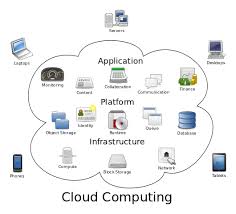
    Cloud Computing Diagram

    Do you have a backup strategy for your computer and mobile devices in the event of a catastrophe?  Are you wondering about the easiest and least expensive way to do it?

    I recently received an email from a client with questions like these and I thought you would like to know my recommendations….

    “Is iDrive the best cloud storage company?  The cost is $45/year and it says it’s for all devices.  Is there a cloud storage system that automatically updates my iPhone and PC?  I pay Apple for extra storage and it still is not enough….and I have an external hard drive for my PC back-up.”

    External hard drives can fail just like internal hard drives and won’t do you any good if burned in a fire or stolen.  You still need to have a cloud backup.

    IDrive Online BackupI like iDrive the best.  The $45/yr. includes 1T (terabyte) of storage, which is more than enough for most people, and it includes backups of mobile devices.

    Carbonite is also good but doesn’t include mobile devices.  It’s 59.99 for unlimited backup.  So if you need lots of storage and don’t have a smartphone or tablet to back up, this would be the best option.

    It’s gets a little more complicated when you are using devices from two different companies, like an Apple phone and a Microsoft PC.  An iPhone backs up to iCloud but a PC doesn’t.

    If you have an Apple computer and an iPhone and/or iPad, everything backs up to iCloud.  Apple offers some inexpensive plans but if you need a lot of storage, it can get expensive.

    20 GB: $0.99/mo, 200 GB: $3.99/mo, 500 GB: $9.99/mo, 1 TB: $19.99/mo ($239.40/year)iCloud

    Many of my clients are complaining having to upgrade to more expensive iCloud storage plans.  This is usually because of their photos/videos or music collections.

    You can save money on iCloud storage by moving files to your PC and deleting them from iCloud but be sure have a backup plan for your your PC.

    If you aren’t making changes to photos or docs and you just want to archive them, you can slide them onto a flash drive and save money on cloud storage.  Be sure you have more than one copy.  Flash drives can get damaged or lost.  You might store copies with friends or relatives or in a safe deposit box.

    If you have an Android phone, Google has your back…almost.Android Phone

    Google will save app data and all of your phone’s settings including Wi-Fi passwords to your Google account. When you sign in using this Google account on another phone, all of your preferences, photos (via Google+), and contacts will be imported automatically.  Be sure all the options are turned on in “Accounts & sync” in “Settings.”

    This does not include your text messages, you’ll have to back them up yourself.  Or or you can save your text messages and call logs to your Gmail account by using an app called SMS Backup+.

    To save the music, movies and other media you’ve saved on your phone’s memory card, you need to connect your phone to a PC and copy everything that’s in the micro SD card. This is a manual process so you’ll need to establish a routine for doing this.

    When it’s all said and done, it’s simpler, easier and safer to just pay for iDrive cloud storage.  Think of it like paying for insurance for your house and renting mini storage for your extra stuff.

    I hope you have found this information helpful and that you will get your files protected.  It’s really sad when computers crash and mobile devices get lost, but at least they can be replaced.  Your files cannot.  Having good backups will preserve your files and make it easy to restore them when you get new devices.

    Please share this information with your family and friends so they will be protected too.

    Enjoy!

    Mardi

  • Have you heard about Telikin?

    Have you heard about Telikin?

    A client asked me this recently so I looked in to it and I am impressed!  Telikin is a super easy to use touch screen computer.  It will be a great solution for many of my clients and I thought you might be interested in it for yourself or for someone you love.

    My Mother saw it in the AARP magazine a few years ago and I didn’t pay much attention because she already knew a little bit about how to use a PC laptop and I didn’t think a Telikin would be the best choice for the price.  Now that she is 93 and having some vision problems, I think the Telikin would be better for her.  Even though she is my “poster child” for what “tech resistant” elders can do, (she has hearing aids that connect to her TV and iPod with bluetooth) I think she would enjoy her computer more and use it more if she had a Telikin.  They have easy payment plans so I just may be getting her one soon.

    This week, I had an online meeting with Nancy Allegrezza, Director of Sales and wife of the inventor of Telikin.  Nancy is also a nurse, and her passion for helping seniors and providing excellent customer service is truly inspiring.

    Nancy and her husband got involved because they had aging parents with disabilities, and wanted to help them stay connected via email, photos and video chat.  There weren’t any easy computer solutions.  The Telikin computer, its apps and customer service are all designed to make everything fun and easy.  

    In my experience with clients to date, the best solution has been the iPad.  However, the screen is very small and the the apps have commands that are hard to see and sometimes hard to find.  I keep wondering why someone doesn’t come up with a better solution.
    http://telekin.com/
    Telikin may be the answer.  Everything is in large letters and the navigation buttons are clearly visible and well labeled.  There is nothing to open or close, you just touch the big buttons on the screen and you are where you want to be!  The price is just about right, too – $699 isn’t a lot to pay vs. a $599 for a Mac Mini without a monitor.  

    You can try a Telikin for two months and get your money back if you don’t like it.  They provide VIP tech support (including remote access) to ensure that you have a good experience right from the beginning.  And it has a “tech buddie” feature so a trusted friend or relative, anywhere, can access your computer remotely and help whenever you want.

    I’d love to know what you think about it.  Do you think you might be interested in getting one?  Do you know someone who might like one?

    Click here to see a video and learn more about the features and benefits and let me know what you think.

    Looking forward to hearing from you!

    In joy,

    Mardi
    “Helping people enjoy the many benefits of modern technology is my passion”

    P.S.  Feel free to forward this to anyone you think might be interested.

  • Passwords Can Be Simple and Safe

    Passwords Can Be Simple and Safe

    I know you hate having to use so many passwords.  It’s a big pain to keep track of them.  You might even be using the same password for multiple sites and allowing your web browser to save them so you don’t have to login every time.

    A recent article by Kim Komando, inspired me to encourage you to take the bull by the horns, do some house cleaning and start using a password manager. This will make your online life so much simpler and safer.
    Here are some great tips based on her article, One secret about online accounts every computer user needs to know

    You may have created dozens of accounts that have only been used once. Just think of how many times you’ve created a username and password just to read an article, play a game or download something.  This can be dangerous because your information is floating around on dozens or hundreds of websites that may or may not be secure.  Even worse, if you have used the same username and password for every site, every account you have is in danger.  A hacker who gets your account information from one site can use it to get access to your other accounts as well.

    The solution is to hunt down and close any accounts you are not using and then change the passwords to your existing accounts so that each one is unique.

    A simple browser trick

    1) When you create a new online account or log in to an old one, your browser stores the username and password. This makes it easy to log back in later.  It also means you can go now and see what accounts you’ve created.

    2) After you locate your accounts, you can close down the accounts you are not using and create unique passwords for the sites you are keeping.

    3) Then turn off “password storing” and erase the existing passwords in your browser. The option to erase the passwords is in the same place you view the saved passwords.  (The Instructions are below.)

    Use A Password Manager

    LastPass, The last password you will ever need


    I know this seems like a lot of work but you only have to do it once.  Then, If you start using a password manager like LastPass all your unique passwords will be stored in a vault and you will only need to remember one master password.  The password manager will even generate secure passwords for you so you don’t have to think them up. You will love it!

    If you need help to clean things up or to learn how to use a password manager like LastPass, I’m always here for you. Just call for an appointment.

    Invite some friends to a Play Shop in your home, community room or office.  A play shop is a really fun way to learn and only costs $25 hr. per person.

    Forward this tip to your friends so they will be safe and happier too.
    Thoughts or comments about this topic? Please share in the comment section below.

    Instructions for web browser applications:

    FIREFOX

    To see your login information in Firefox, go to the Firefox menu – it’s the icon on the right with three horizontal lines – and click Options.

    Under the Security tab, click the “Saved Passwords” button.

    Then click the “Show Passwords” button and click “Yes.”

    CHROME

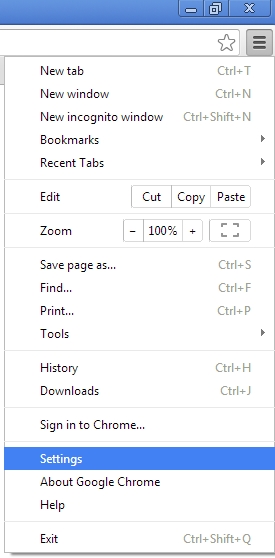
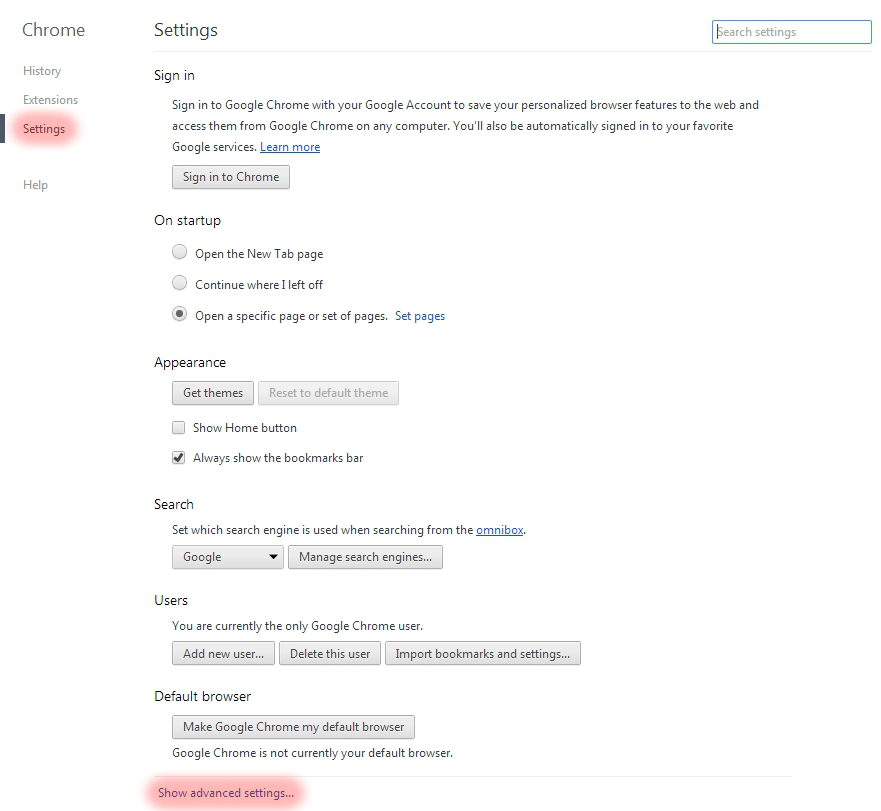
    In Chrome, click the icon with three horizontal lines in the upper right and choose “Settings.”

    Choose “Settings” on the left, and then click the “Show advanced settings” link at the bottom of the screen.

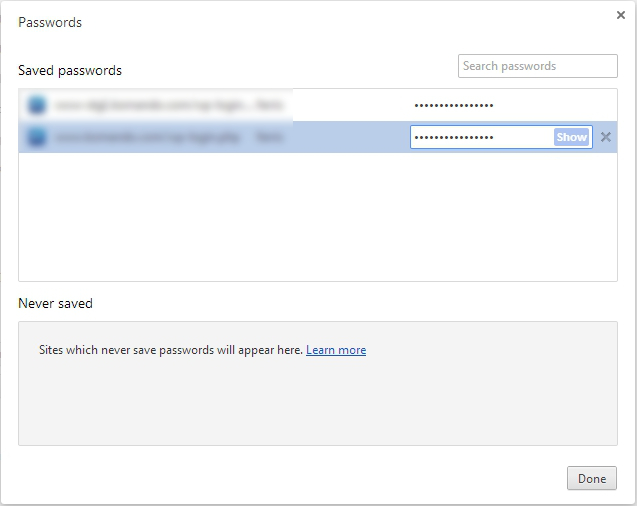
    Scroll down to “Passwords and forms” and click the “Manage saved passwords” link.

    If you want to log back into your old account, but don’t remember the password, then you can click on a password and click the Show button next to it.

    To see the password, you will have to enter your Windows account password, which does make it harder for casual snoops to get in.

    INTERNET EXPLORER

    You can’t view saved usernames and passwords directly in IE. You would need a third-party program like IE PassView.  However, I recommend that you don’t use Internet Explorer anyway.  It is easily invaded by spyware. I use Google Chrome but Firefox is good also.

    SAFARI

    In Safari, go to Safari>>Preferences>>Auto-fill. Click the Edit button to view the saved passwords.

    Need Help?

    If you need help to clean things up or to learn how to use a password manager like LastPass,  I’m always here for you. Just call for an appointment.

    Invite some friends to a Play Shop in your home, community room or office.  A play shop is a really fun way to learn and only costs $25 hr. per person.

    Forward this tip to your friends so they will be safe and happier too.

  • Great Apps for Computers and

    Apps are not just for smartphones and tablets. Many apps are web based and accessed through your web browser. You don’t have to have a smart phone or tablet to use some of the most popular apps.

    However, when people buy smartphones or tablets, they often ask me what apps they should know about.  I’m always happy to make suggestions based on antheir lifestyle and interests.

    Since you may have received a gadget as a holiday gift, I thought it would be a good time to tell you about a few of my favorites apps and programs. You may already be using some of these but you may discover some new ones to try. Enjoy!

    Entertainment and Media:   

    NetflixNetflix let’s you watch an unlimited number movies and television shows online for only $8.95 mo. You can train it to make suggestions for you based on the movies you watch and how you rate them.  You can even set up separate profiles for individual family members!  And, there are no commercials!!!

    You can connect your gadget to your TV and watch movies on it too.

    chromeCast


    Chromecast from Google $35


    roku

    Roku Streaming Stick $50


    appleTvApple TV $99


    spotify


    Spotify let’s you listen to music for free.  It even has playlists by subject or genre. The variety is astounding and there are no commercials!!!


    YouTube


    YouTube is a must for doing research on any topic that can be best explained with a video.  Think recipes, repairing things, movie previews, songs, lyrics, instructional videos, and answers to absolutely any question under the sun.

    shazam

    Shazam listens to songs on the radio, TV or movies. It identifies the song title, shows you the performer, album, lyrics and links you to sites where you can purchase.


    Productivity:

    dropboxDropbox is a great app for cloud storage and sharing.  When you put files in there, you can access them from anygadget or computer.  I use the phone app to play audio files of lectures and seminars. It’s super easy to learn and you get 2GB of storage for free.  By referring your friends to Dropbox, you can earn up to 16GB of additional space.  Sign up here
     

    office 365

    One of the most popular productivity tools for home and business is Microsoft Office. Unfortunately, Office documents don’t always play nice with third-party apps. Now Microsoft has released the Microsoft Office Mobile app.   It lets you open, create and perform basic editing on Word, Excel and PowerPoint files no matter where you are.


    mintMint.com and its app  (Free, and available for Android and iOS) links to your all your bank accounts, credit card accounts and loans so you always know just how much money you have and how you are spending it. You can set up spending categories and create a budget for each category. I love it for keeping track of my income and expenses for paying my taxes.


    The weather channelThe Weather Channel app and weather.com show you the current temperature, the hourly forecast and the next 10 days of weather.  Also you get a customizable radar map, video clips, severe weather alerts and beach conditions. It’s better than your gadget’s built-in weather app.


    free wifi finder

    You don’t want to burn through your cellular data plan when you are out and about or on a trip, so you need to useWi-Fi whenever possible. You can find free Wi-Fi locations with the Free Wi-Fi Finder app.


    Dating:

    match


    Match.com app has earned the top spot in dating apps and is my favorite.


    pof-logo


    POF.com (Plenty of Fish) is very popular here in the desert and is free.


    google mapsNavigation:

    Google Maps is my favorite navigation app.  I especially appreciate that it invites you to submit corrections.  Youget an email thanking you for your help and then a follow up email when the corrections have been made.

    uberUber is an app-based transportation network that uses a smartphone application to receive ride requests, and then sends these trip requests to their drivers. Customers love using the app to request rides and to track their reserved vehicle’s location.  Uber’s drivers use their own cars and there is a variety of types of vehicles available, from Town Cars to SUVs and more.  One of my friends is a driver for Uber and just loves it.  It’s a win-win for everybody.

    Other Popular Apps

    Here are some other popular apps that I don’t find the time to use very often, but you might enjoy.

    Save Money  

    RetailmenotThe RetailMeNot app helps you find promo codes and coupons for more than 50,000 physical and online stores, including grocery stores. You can save and store coupons for later, and share the savings with your friends through social media.




    Photo EditingSnapseed-icon-medium

    Snapseed is the top app for photo-editing and VSCO Cam is gaining ground in popularity.

    Social and Sharing

    Pinterest


    Pinterest, WhatsApp and Snapchat are the top apps in messaging and texting.


    instagram


    Instagram and Facebook are considered the must-haves for social sharing. The Facebook app got me interestedin using Facebook more often because it is so easy to use.

    Sports

    watchESPN


    WatchESPN.com is the most popular app for sports fans.


    Fitness

    MyFitnessPal is the top fitness app.my fitness pal


    Do you have any favorite apps to share?

    There are thousands of apps and recommendations from friends is the best way to sort through the maze.  Do you have some favorite apps not mentioned here?  Post your comments below so everyone can benefit from your ideas.