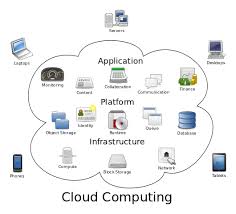
Do you have a backup strategy for your computer and mobile devices in the event of a catastrophe? Are you wondering about the easiest and least expensive way to do it?
I recently received an email from a client with questions like these and I thought you would like to know my recommendations….
“Is iDrive the best cloud storage company? The cost is $45/year and it says it’s for all devices. Is there a cloud storage system that automatically updates my iPhone and PC? I pay Apple for extra storage and it still is not enough….and I have an external hard drive for my PC back-up.”
External hard drives can fail just like internal hard drives and won’t do you any good if burned in a fire or stolen. You still need to have a cloud backup.
 I like iDrive the best. The $45/yr. includes 1T (terabyte) of storage, which is more than enough for most people, and it includes backups of mobile devices.
Carbonite is also good but doesn’t include mobile devices. It’s 59.99 for unlimited backup. So if you need lots of storage and don’t have a smartphone or tablet to back up, this would be the best option.
It’s gets a little more complicated when you are using devices from two different companies, like an Apple phone and a Microsoft PC. An iPhone backs up to iCloud but a PC doesn’t.
If you have an Apple computer and an iPhone and/or iPad, everything backs up to iCloud. Apple offers some inexpensive plans but if you need a lot of storage, it can get expensive.
20 GB: $0.99/mo, 200 GB: $3.99/mo, 500 GB: $9.99/mo, 1 TB: $19.99/mo ($239.40/year)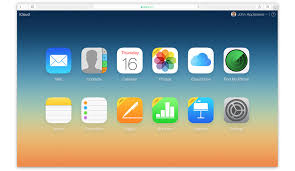
Many of my clients are complaining having to upgrade to more expensive iCloud storage plans. This is usually because of their photos/videos or music collections.
You can save money on iCloud storage by moving files to your PC and deleting them from iCloud but be sure have a backup plan for your your PC.
If you aren’t making changes to photos or docs and you just want to archive them, you can slide them onto a flash drive and save money on cloud storage. Be sure you have more than one copy. Flash drives can get damaged or lost. You might store copies with friends or relatives or in a safe deposit box.
If you have an Android phone, Google has your back…almost.
Google will save app data and all of your phone’s settings including Wi-Fi passwords to your Google account. When you sign in using this Google account on another phone, all of your preferences, photos (via Google+), and contacts will be imported automatically. Be sure all the options are turned on in “Accounts & sync” in “Settings.”
This does not include your text messages, you’ll have to back them up yourself. Or or you can save your text messages and call logs to your Gmail account by using an app called SMS Backup+.
To save the music, movies and other media you’ve saved on your phone’s memory card, you need to connect your phone to a PC and copy everything that’s in the micro SD card. This is a manual process so you’ll need to establish a routine for doing this.
When it’s all said and done, it’s simpler, easier and safer to just pay for iDrive cloud storage. Think of it like paying for insurance for your house and renting mini storage for your extra stuff.
I hope you have found this information helpful and that you will get your files protected. It’s really sad when computers crash and mobile devices get lost, but at least they can be replaced. Your files cannot. Having good backups will preserve your files and make it easy to restore them when you get new devices.
Please share this information with your family and friends so they will be protected too.
Enjoy!
Mardi
 Power strips have circuit breakers instead of surge suppression. A circuit breaker will trip the breaker and cut all power to the device.
 The right level of protection is important, but nothing can guarantee your computer won’t be damaged. A serious surge could blow through your surge suppressor and destroy your computer. Remember to unplug your computer when a serious storm approaches.
 The Desert Computer Tutor