Tag: about gadgets

  • The gift of technology – My top 13 Gratitude List

    The gift of technology – My top 13 Gratitude List

    Happy Thanksgiving!

    Thanksgiving is my favorite holiday.  Doesn’t it feel so good to take time to focus on all the blessings in our lives?

    One of my greatest blessings is being able to do work that I love and to be able to make other’s lives happier and richer.

    You make this possible and I want you to know how much I appreciate you, your business and your referrals.

    I love sharing my passion for technology and the many ways it can make our lives more simple, easy or fun.

    Here’s A Baker’s Dozen of Techie Things I’m grateful for.  It’s not a complete list but it’s the things I enjoy almost every day.

    What would you add to the list?  Share your suggestions in the comments section below and let us count the ways….

    1. The World Wide Web for education, communication and the answer to every question imaginable
    2. Google Search, Wikipedia, YouTube and all the researchers, educators, bloggers and writers that provide the information.
    3. Video conferencing apps that allow me to see my adult children who live far away and even tour their new homes, to offer remote Tech Support to frustrated clients and restore them to being happy campers and to share the joys of technology with more and more people.
    4. Email – It’s hard to remember what life was like before email
    5. Mobile phones, their amazing cameras and apps
    6. Photo sharing and editing apps
    7. Online shopping and online reviews of products and services
    8. Facebook – I don’t go there often but it’s always a good time when I do.
    9. Google Docs and OpenOffice – all the benefits of Microsoft office suite and it’s free
    10. Audiobooks and ebooks and all the amazing authors that provide education and entertainment on so many subjects.
    11. Google Maps and Google Earth
    12. Digital Music – iTunes, Amazon, Pandora, Spotify and others
    13. Digital video entertainment – movies, Hulu, Netflix, Amazon, iTunes and others


  • A Little Comic Relief

    Modern technology can be really frustrating at times.  Besides occasional malfunctions, there are the constant changes!  If you feel stressed-out sometimes, I want you to know that you are not alone.  It’s even a challenge for me to keep up!!

    Fortunately, I love reading, doing research and taking classes.  And, being able to share what I know and brighten up someone’s day is my greatest joy.  So, in addition to posting techie tips, I think it’s a good idea to have a little comic relief.  I loved these funnies from one of my client’s emails and I hope they will brighten up your day.

    The phone generation gap
    The joy of finding a quarter in the coin return
    Violently pressing "end call" just doesn't do it for me.
    unnamed (4)

    Hilarious Videos from YouTube

     Funny T Shirts

     http://www.badideatshirts.com/


    The Original Computer

    Plug me back in and see if that works
     Remote Control
  • ​Do You Use Skype or Face Time?

    Why Use Skype?

    Skype is an app that lets you connect with people using the video camera on your computer or mobile device.

    Face Time does the same thing, but only works with Apple products. Even if you use Face Time, it’s a good idea to know how to use Skype as well. They are both very simple and easy to use and they are truly one of the best benefits of modern technology.

    A friend of mine uses Skype to play checkers with her 9 yr. old grandson who lives out of state.

    Parents use it to stay in touch with their children when they have to be away on business trips or vacations. They can read the children a bedtime story, watch them get tucked into bed, and throw them a kiss goodnight.

    Several clients have had me show them how to use Skype for important job interviews. We practiced calling each other, chose the most flattering camera angle, picked the most attractive background, and discussed what to wear. It is so rewarding to see people gain confidence and be optimistic about getting the job!

    Video chat is great for online dating and long-distance relationships too.

    Businesses use Skype for video conferencing because they can have multiple people on a video call. They save a lot of money on air travel, hotels and meals.

    On an internet enabled big screen TV, it can feel like you’re actually in the room with distant family members. You can even watch each other open Christmas presents!

    On mobile phones, you can only use audio for group calls, but on your computer or internet enabled TV you can do video conference calls.

    Skype also supports audio calls to traditional phones. Using Skype on your tablet or smartphone, you can call somebody on a regular telephone. This is really handy if you are traveling and don’t have access to phone service but do have access to wifi.

    One of my clients who is retired from the Foreign Service, learned how to use Skype so he could stay in touch with his friends all over the world for free.

    All of the features of Skype are free, except calling people on regular telephones. However, Skype phone calls are a lot less expensive than traditional long distance calls.

    How to Use Skype

    Skype is a free download from the iOS App Store and the Google Play Store and is already installed with Windows 10 and Window phones. (It’s owned by Microsoft.)

    You need to have an account to use Skype. You can set up a free account or, if you already have a Microsoft account, you can just log in with that.

    On iPads, iPhones, Android phones, and Android tablets, each version of Skype will look a little different but the functionality is the same. There are just a few minor differences on each device

    When you login you will see three screens

    1. RECENT- shows the most list of people most recently talked to
    2. FAVORITES – shows the contacts you have marked as favorites
    3. PEOPLE – is your list of people you can call on Skype. They have to have an account also and they have to agree to be connected with you.

    To Add a Contact

    Search for the person in the Skype database. There are millions of people in the Skype database and lots of people with the same name…even unusual names. It’s amazing!

    Therefore, the quickest and easiest way to find people is to search for their unique Skype name. Email address work sometimes too because there aren’t duplicates of those but it’s really easier to ask your person for their skype name.

    When you find them, tap the button that says “add people.” Then tap “send a contact request.”

    The person’s name will show up on your contact list but, they will not show up as online and accessible until they have accepted your request.

    After they accept your request, you will be able to see their status next to their name, which lets you know when they are online for you to call them.

    Note: some people leave the Skype app open all the time to receive calls. Other people text or email each other to set a time and then open the app. It depends on how often they use it.

    To make a call

    Select a contact and you will see buttons at the bottom of the screen. You can choose to do a video call or an audio call. They both work pretty much the same. Tap on the button for audio or video. The camera starts running right away so you can frame up your shot while you wait for the other person to pick up.

    After you start talking, the buttons at the bottom of the screen will fade out of the way, but when you tap on the screen, they’ll pop up again.

    You can mute and unmute your audio by hitting the mute button.

    You can disable the camera by hitting the camera button if you want to talk and see them without them seeing you.

    When you’re done, just hit the red hang up button.

    To receive an incoming call

    The app will make a sound and you will see a choice of buttons.

    If you don’t want to answer a call, you can just hit the red button.

    If you want to answer but only want to use audio, then hit the green button in the middle.

    To see video and hear audio, hit the camera button.

    To hang up, tap on the screen to bring up the controls and hit the red button

    You can also use Skype to have a text chat.

    On the screen, with a contact’s information, tap on the field that says “type a message”. Type and then hit the Send button. When he responds, you’ll see his response pop up.

    Calling regular telephones

    This feature is particularly useful when you’re traveling to a place where you won’t have a cellular phone connection, but you will have wifi.

    This is called Voice Over IP, or VOIP. Using this feature, you can call a regular phone as long as you can connect to Skype on your mobile device.

    This is the one feature that is not free but Skype is much less expensive than traditional long distance rates. To get an idea of the pricing options, check out their website. http://www.skype.com/en/

    You can login to your Skype account on the website and add Skype credit to your account.

    Or in the app on your mobile device, you can hit the “my account” button (top right), and there’s an option for “Skype credit”. This way, it’s an “in-app” purchase and it will be charged to your iTunes account or Play Store account. It will ask for your password for confirmation. Then hit “Buy”.

    To make a call to a regular phone

    At the bottom of the screen, there’s a dialer button and you can just dial a regular phone number. Also, there’s a button at the top that links directly to the address book on your device so you can find the person and tap on the number. When you hit the phone button at the bottom, it will dial. When he answers, you will be having a conversation just as if you were using a regular telephone. To hang up, just hit the red button at the bottom

    Skype is a great app for video and audio calls because it runs on all mobile devices and computers no matter what platform. Group video calls are not available on mobile devices but video calls to individuals work.

    I hope you will try this and enjoy it. If you need help, just let me know.

    Please share this with your friends and relatives. Your referrals are the heart of my business and my mission is to help people more fully enjoy the many benefits of modern technology.

    Thanks,

    Mardi
  • Best Way To Backup Your Computer and Mobile Devices

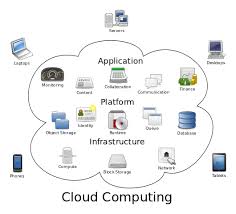
    Cloud Computing Diagram

    Do you have a backup strategy for your computer and mobile devices in the event of a catastrophe?  Are you wondering about the easiest and least expensive way to do it?

    I recently received an email from a client with questions like these and I thought you would like to know my recommendations….

    “Is iDrive the best cloud storage company?  The cost is $45/year and it says it’s for all devices.  Is there a cloud storage system that automatically updates my iPhone and PC?  I pay Apple for extra storage and it still is not enough….and I have an external hard drive for my PC back-up.”

    External hard drives can fail just like internal hard drives and won’t do you any good if burned in a fire or stolen.  You still need to have a cloud backup.

    IDrive Online BackupI like iDrive the best.  The $45/yr. includes 1T (terabyte) of storage, which is more than enough for most people, and it includes backups of mobile devices.

    Carbonite is also good but doesn’t include mobile devices.  It’s 59.99 for unlimited backup.  So if you need lots of storage and don’t have a smartphone or tablet to back up, this would be the best option.

    It’s gets a little more complicated when you are using devices from two different companies, like an Apple phone and a Microsoft PC.  An iPhone backs up to iCloud but a PC doesn’t.

    If you have an Apple computer and an iPhone and/or iPad, everything backs up to iCloud.  Apple offers some inexpensive plans but if you need a lot of storage, it can get expensive.

    20 GB: $0.99/mo, 200 GB: $3.99/mo, 500 GB: $9.99/mo, 1 TB: $19.99/mo ($239.40/year)iCloud

    Many of my clients are complaining having to upgrade to more expensive iCloud storage plans.  This is usually because of their photos/videos or music collections.

    You can save money on iCloud storage by moving files to your PC and deleting them from iCloud but be sure have a backup plan for your your PC.

    If you aren’t making changes to photos or docs and you just want to archive them, you can slide them onto a flash drive and save money on cloud storage.  Be sure you have more than one copy.  Flash drives can get damaged or lost.  You might store copies with friends or relatives or in a safe deposit box.

    If you have an Android phone, Google has your back…almost.Android Phone

    Google will save app data and all of your phone’s settings including Wi-Fi passwords to your Google account. When you sign in using this Google account on another phone, all of your preferences, photos (via Google+), and contacts will be imported automatically.  Be sure all the options are turned on in “Accounts & sync” in “Settings.”

    This does not include your text messages, you’ll have to back them up yourself.  Or or you can save your text messages and call logs to your Gmail account by using an app called SMS Backup+.

    To save the music, movies and other media you’ve saved on your phone’s memory card, you need to connect your phone to a PC and copy everything that’s in the micro SD card. This is a manual process so you’ll need to establish a routine for doing this.

    When it’s all said and done, it’s simpler, easier and safer to just pay for iDrive cloud storage.  Think of it like paying for insurance for your house and renting mini storage for your extra stuff.

    I hope you have found this information helpful and that you will get your files protected.  It’s really sad when computers crash and mobile devices get lost, but at least they can be replaced.  Your files cannot.  Having good backups will preserve your files and make it easy to restore them when you get new devices.

    Please share this information with your family and friends so they will be protected too.

    Enjoy!

    Mardi

  • Are you wondering if you should upgrade your OS?

    There are major changes happening with computer and mobile gadget operating systems and it’s my mission to make it easy for you to keep up and enjoy the many benefits.

    One of my clients received an email from Microsoft offering a free upgrade to Windows 10 and she wanted to know if I thought it would be better or worse than her Windows 8.1.
    windows 10

    I told her, that it’s too soon to tell.  I recommend that people wait until it has been on the market for at least a year to give them a chance to correct any problems.  There are always bugs and fixes that need to be done with any new software.

    There are many improvements and some neat new features, but we’ll shall see….

    If you are interested in knowing about the new features of Windows 10, Click here.

     Yosemite

    Apple also has a new operating system for it’s computers. It’s been available for quite some time and Apple has issued several important updates.  It’s called OS X Yosemite and it has a lot of cool new features.  If you want to learn more about it click here.

    Chromebook

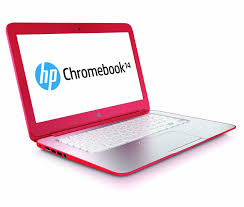
    I’m still really enjoying my Chromebook.  A Chromebook is a laptop of a different breed. Instead of Windows or Mac OS, Chromebooks run Google’s Chrome OS. These machines are designed to be used primarily while connected to the Internet, with most applications and documents living in the cloud and they are much less expensive than other computers.

    If you are thinking about buying a new computer, smart phone or tablet, you might want to consult with me first. In my tutoring, I have the opportunity to play with many kinds of devices so I can give you some good information about their advantages and disadvantages.  I’m proud to say that many of my clients have saved a lot of money and avoided a lot of frustration by consulting with me before they purchased.
    If you buy a new device, have me give you an orientation so you can get up and running quickly and easily. I read the owners manuals and take online classes so you don’t have to.  (“It’s a tough job but somebody has to do it.”  LOL)

    If you found this information helpful, please share it.  


    Enjoy!

    Mardi

  • Crapware

    Crapware:

    Why manufacturers install it, what you can do about it, and why it’s not going to go away   Based on an article by Adrian Kingsley-Hughes  http://www.zdnet.com/

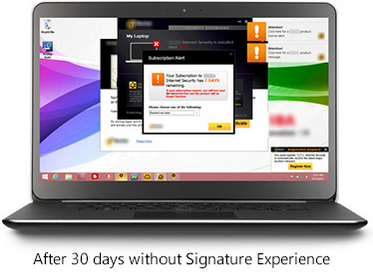
    Crapware, also know as “bloatware” or “junkware,” are apps that hardware companies install onto their devices on top of the operating system (OS).  It’s a bunch of free trials and demos that nag you to buy the full version. Most annoying to me, is when you start using the app, not realizing that it’s a free trial, and then find out that you have to pay in order to continue accessing the work you’ve done.
    snailThe worst consequence is that crapware can dramatically slow down system performance or even compromise your system’s security. I frequently see relatively new computers running slow because of the weight of the crapware that has been installed on them. They run great once all the junk is removed. One has to wonder about the number of people who spend hard-earned money on a PC only to end up getting a third-rate experience because of crapware.
    Furthermore, many of these dissatisfied PC owners may end up blaming “Microsoft” or “Windows” for the performance issues, when the real problem is that the manufacturing company took money from third-parties to fill their computers with junk.
    Microsoft is well-aware of this.  It’s now offering Signature which is free from the clutter that “can slow down your computer and junk up your Start screen or desktop.”  See it here
    Screenshot 2015-03-07 at 1.35.12 PMScreenshot 2015-03-07 at 1.36.27 PM

    If you ask the hardware makers why they install this stuff, they’ll tell you they are offering you extra value. That’s a lie.  They do it because they make money for doing it. Except for Apple products, computer profits are very thin. Hardware makers are happy to install junk onto new systems in exchange for a few extra dollars.

    Photo courtesy of www.kitguru.net
    photo.apple_.windows.crapware (1)


    Eradicating crapware from Windows PCs isn’t easy, and when it comes Android smartphones and tablets it can be almost impossible.  There are tools out there for the PC such as PC Decrapifier and CCleaner that do a reasonable job of cleaning a system, but they’re far from perfect.


    The purveyors of crapware have become wise to these tools and take deliberate steps to make it difficult. It’s best to call my friends at Desert Cow Computers. www.mydesertcow.com

    desert cow computers

    Hardware manufacturers operate in a cutthroat business environment and crapware can make the difference between almost no profit and a little profit, especially on budget systems.  Perhaps you will decide to stay away from budget systems now.
    Microsoft offers the Signature range of PCs and Google sells Nexus-branded devices, These products are free from crapware. If you’re looking for a pure Windows or Android experience, then this might be worth investigating.  Another option is to switch to Apple or Chromebook.

    nexus

    If more people complain or vote with their feet by purchasing crapware-free products, perhaps equipment manufacturers will be persuaded to make crapware easier to remove.

     
    Thoughts or comments about this topic?  Please comment below.  Thanks!

  • The Joys of Airplane Mode

    Airplane Mode for Travel


    Many of us will be traveling and visiting family this time of year.  Here are some tips to enhance the peace and joy of your holiday season.

    Using Airplane Mode on your smartphone isn’t only useful for flights. The feature can prolong your battery life or allow you to unplug and enjoy some uninterrupted family time. Here are some surprising ways you might want to use it.

    1: During a flight

    Screen shot of Settings for Android

    If you have been on a flight in the last few years, you have heard the constant reminders from the flight attendants to turn off all electronic devices. Once the plane has reached an altitude of 10,000 feet, cell phones can be used in airplane mode.

    To activate Airplane Mode on your phone, simply go into the Settings app and turn it on.  There are shortcuts to do this, depending on the type of phone, (ask me to show you on yours next time we see each other) but this method will work for everyone reading this article.

    Once Airplane Mode is activated, your phone turns off both the Wi-Fi and cellular connections. This means you will no longer be able to make or receive calls, texts, or e-mails, or browse the Internet — anything that requires a data connection will not work while Airplane Mode is activated.

    Wi-Fi can be turned back on and connected to a network while phone is in Airplane Mode.  If you are lucky enough to be on a flight with Wi-Fi, you can turn just the Wi-Fi connection back on and send emails, browse the Internet, or send instant messages.  (Again, just go into the settings app and turn the wifi on.)


    Screen shot of Settings for iPhone

    2: To unplug for awhile

    Airplane Mode is a great way to unplug in order to spend some quality time with your family or just take a break from the beeps that seem to control our lives sometimes.

    Putting your phone in Airplane Mode puts you back in control. You may be surprised how quickly you forget that your connection is turned off, and how peaceful your evening can be.

    This is also a great way to silence your phone during important meetings. Don’t worry, all of your messages will be waiting and will download as soon as you turn Airplane Mode off.


    3: While traveling internationally

    Screen shot of Airplane mode on iPhone

    Traveling across borders can be an expensive affair for you and your wireless carrier. International roaming charges are very pricey. One way to avoid the extra roaming fees is to activate airplane mode on your phone and only use Wi-Fi hotspots while you travel. You won’t be able to receive text messages or phone calls, but you will still be able to check your e-mail, use instant messaging, and browse the Internet over a Wi-Fi-only connection.  (You can let people know you will be out of town and suggest they communicate by email until you get back.)


    screen shot of movie on phone

    4: While the kids play games or movies

    Your smartphone can provide a welcome distraction for your young kids or grand kids. However, as you can imagine, kids will start pushing and tapping anything they see on the screen.  You don’t want them accidentally dialing phone numbers or sending random texts. If you are going to let your favorite little people play games or watch a movie on your phone, turn on Airplane Mode before you give your phone to them. This not only prevents them from calling anyone, but it also stops push alerts from interrupting their game or movie.


    5: To save battery

    screen shot of battery status on iPhone

    We have all been in a situation where we suddenly have a low battery and no access to a charger. One way to help slow down battery drain is to turn Airplane Mode on. When your phone is on, even with the screen off, it is constantly searching for and monitoring data connections. Turning those connections off with Airplane Mode will save battery, allowing you to make calls only when you absolutely need to.

  • Listen Up Sports Fans… There’s An App for That!

    RememberThis week a client asked me if he could watch college football on his new tablet.  Yes!  “There’s an app for that.”  Actually there are a lot of apps available.  There are many free and paid options to watch football, soccer, basketball, tennis and other favorite sports.

    You can download an app through “the company store”. (Google Play for Android devices and The App Store for Apple devices.)

    Here are a few suggestions to get you started. Two good apps for streaming live sports are offered by television stations.

    WatchESPN (ESPN Inc) offers live streaming of events from the ESPN, ESPN2, ESPN3 and ESPNU networks. You can enjoy access to events from the NBA, MBL, U.S. Open, The Masters, college football and basketball, Grand Slam Tennis and Euro 2012 Soccer — as well as original ESPN programming like SportsCenter, Pardon the Interruption and SportsNation. WatchESPN is user-friendly, making it easy to search for your favorite teams, leagues and shows.

    To access WatchESPN’s live stream, you’ll need a cable subscription through a participating cable provider (e.g., AT&T U-verse, Cox, Time Warner Cable or Verizon). The app will prompt you to enter your TV provider, TV subscription user ID and password.

    CBS Sports (CBS Interactive, Inc.) features a live stream of video of top sports, including NCAA and SEC football games. Scores of games that cannot be streamed live are updated very quickly. CBS Sports also offers on-demand access to game highlights, analysis and original programming, as well as a live Twitter feed of commentary from players, writers, analysts and bloggers.  The CBS Sports mobile app features extensive college football coverage including live streaming of some games on Saturday.

    Note:  You may need to download and install Adobe Flash Player, the leading video and animation player. Downloading Adobe Flash Player is free, quick and easy.

    NBA League Pass Mobile allows you to follow the league through live NBA game viewing in addition to on-demand game replays and league highlights. The league Pass costs $16.99 per season and is available through the NBA Game Time mobile app.

    MLB.tv offers the At Bat 13 subscription service, which features home and away broadcasts, HD quality video, full game archives and in-game highlights and stats. A season pass is $19.99 and premium subscribers have access to live video feeds.

    In addition to apps, you can find websites that can connect you to an online broadcast of the sporting event you want to watch.  Just do a search in your web browser.  You may want to check out Ustream, FirstRow Sports and Stream2Watch.


    Note:  Streaming sports live does limit the life of your battery because it requires you to use your data connection plus the audio and video components of your device’s hardware.  To prolong the life of your battery, try dimming the screen and turning off any unnecessary features (e.g., Bluetooth). Make sure to have a power adapter on hand to juice up your battery when the need arises.

    If you, or someone you know, needs to learn more about how to search for good apps, or websites, I’d love to help. Call me today!

    Share your favorite apps and websites for sports in the “Comments” below.


  • Can’t Type? Try Dragon Naturally Speaking

    Can’t Type?   There is a great solution.

     Dragon Naturally Speaking

    Dragon

    Dragon is similar to the speech recognition apps on smart phones like Siri and Google Voice, but you can train Dragon to recognize your voice and your speech patterns so it gets more and more accurate.  It will even scan the emails in your “Sent” folder to learn your speech patterns. You have to be a little patient in the beginning to correct its mistakes, because that’s how it learns to become more accurate but it’s easy to do.

    I have helped several clients with Dragon and I’m currently working with a man who had a stroke several years ago and is using Dragon to write his emails.  I also connected his computer to his big screen TV so he can see the typing better.  He’s really enjoying it and that has inspired me to consider using myself.  I often feel like my hands can’t keep up with my brain.  My typing is fast but makes so many mistakes, especially when I’m journaling or writing Techie Tips.

    I used it years ago when I was in Real Estate and it worked in all my apps:  email correspondence in Outlook, web searches, composing documents in Word, and making notes in my contact manager.  The newer version of Dragon is even more accurate and easier to train than before and it’s not very expensive.

    Dragon Dictate
    You can get the app for your tablet or smartphone too.
    iTunes                     Google Play Store

    And you can use your smart phone as the microphone for your computer.

     iTunes                      Google Pla

    If you, or someone you know, would like to learn how to use Dragon Naturally Speaking, please let me know. 

    This is a great way to “make peace with the ups and downs of computer technology.”

  • Presentations for Service Groups and Clubs

    I love to share about my work, so I’ve started doing speaking engagements for groups.  I will be speaking at two Rotary Club luncheons in May.

    If you are a member of a group that would like me to do a presentation, please let me know.  Some topics that might be of interest:  “An overview of the latest computers or Gadgets,” “What is The Cloud and Why Should I Care?”,  “Do I Really Want or Need a Tablet?”

    Tell me your suggestions for topics in the comments below.

    Thanks,

    Mardi