Category: Tips & Tricks

  • Mobile Manners

    It seems like manners go flying out the window when people are on a smart phone or tablet. They’ll reach for it to text a friend no matter what else they’re doing!

    It’s not just children, adults lose track of good etiquette too. Have you looked around in a restaurant lately?

    Kim Komando put together the 10 Commandments for Mobile Manners. Slap this on your fridge so everyone remembers how important it is to put down the phone at times.  Share this with friends and family, too.

    Download Here

  • What to Do With Your Outdated Gadgets?

    Our gadgets get outdated faster every year!  But don’t just let them collect and clutter your home or office.  You might be able to get some money for them; and if not, you can recycle them and get them out of your way.

    In any case, be sure to erase your data first.  Even if you’re giving away an old phone to a close friend or relative, you still don’t want them snooping around in your contacts, text messages, photos and email.

    Fortunately, erasing an iPhone or Android phone isn’t difficult at all. You just have to know where to look.

    Before erasing, make sure you backup the old phone. For an iPhone, connect it to a Mac or PC and launch iTunes. Follow the onscreen instructions to perform a backup of your apps, settings and other data.

    For an Android, backup important files to your PC or an external drive. Sync your contacts with Google cloud or your Gmail account.

    To erase an iPhone 3GS or 4, go to Settings>>General>>Reset. Tap Erase All Content and Settings, then press the big red button that says Erase iPhone. The phone will give you an estimate of how long it will take.

    You erase the iPad and the iPod touch the same way. Make sure your gadget is fully charged or plugged in before starting. Sometimes the process can take a while.

    If you want to double check, you can check the mail, phone, calendar and message apps to verify that everything is gone. If you sync the device to the computer again, it should show up as a new gadget.

    For an Android gadget, press Menu and tap Settings. Select SD & Phone Storage and then tap Factory data reset. Tap Reset Phone. All your information, apps and the SD card will be gone.

    Some manufacturers modify how Android works on their gadgets. If you don’t see the above options, check your phone’s manual or contact the manufacturer’s support website for specific instructions.

    If you have a newer older gadget, you can make back some of your money by selling it.  I recommend CashForLaptops.com  I sold my mom’s old laptop and got $60 for it.  It was so easy.  I applied online, they mailed me the packaging and label, kept me updated by email and paid promptly.  They didn’t want my old Blackberry but, hey, it was worth a try.

    If you can’t sell it, then please recycle it.  The easiest way is to drop things off at Best buy in Palm Desert.

  • Share Your Vacation Photos

    As many of you have discovered, it isn’t always easy to email photos to your friends and family.  The reason is that email service providers have placed limitations on the size of file transfers. The best way to share photos is to post them on a website and send your friends and family a link so they can go there and view them.  Some sites even provide options for others to add their photos.  This is particularly helpful if you have attended an event and want to pool all the photos.  Everyone can enjoy each other’s photos.  You can even choose which ones you want to print.  Another advantage, is that you have your photos in another place for back up.

    There are many sites that will host your photos with no charge. When you get to a Wi-Fi hotspot, you can upload multiple shots at once and unload your memory cards for tomorrow’s adventures. All of your shots will be displayed in a beautiful digital gallery.

    Shutterfly – is a popular photo-sharing community. It gives you an interactive Web page to display all of your pictures, and your friends and family can comment on your photos.  The site displays your photos as a gallery, slideshow or a digital photo book. If you want a physical book, Shutterfly will print one for a fee.  It includes basic photo editing, including filters and a red-eye removal tool.  There is also an APP that allows you to post photos to social media sites right from your Web album or iPhone.

    WinkFlash  is a site designed to turn your photos into prints. It handles everything from an 8×10 poster to a canvas to hang on your wall. You don’t need to purchase anything to store your photos, though.  It has an email feature so that allows you to snap a picture with your mobile device, compose an e-mail and send it later when you have access to Wi-Fi.  You can email pictures to your friends as well.  If you want to share on social media, simply copy and paste your page’s link to Facebook or Twitter.

    Snapfish has all the usual ways to upload photos, but it adds Facebook and Flickr as well. There’s even a handy mobile app  if you like to snap pictures from your smartphone.  In addition to prints and posters, Snapfish will turn your pictures into just about anything. You can put photos onto an iPhone skin, water bottle or even a kid’s growth chart!  Snapfish makes it easy to decorate your whole home with your favorite photos.

  • Q and A: How to Get Rid of Spam Emails

    Mardi–Is there any way to block all the junk E-Mails we get?    Thanks–Jerry

    Thanks for the question Jerry.  I get this one often.

    We can’t really block them, but they can be filtered and redirected to your trash folder.

    Just mark them as spam instead of deleting them.  Next time, you get one from the same sender, it will go directly to your trash folder instead of to your inbox.

    You can also set up filters for certain subject lines, or words in the subject line.  For example, in gmail you can

    1. Select the message in your message list.
    2. Click the More button, then Filter messages like these.
    3. Enter your filter criteria in the appropriate field(s).
    Most email programs have this feature,  just poke around until you find filters or we can set up a time for me to show you how.

    On a related note:  Never reply to spam emails or unsubscribe, that just lets the spammers know that they have reached a real email address.

    In Joy,

    Mardi

  • Introducing the Week Chart

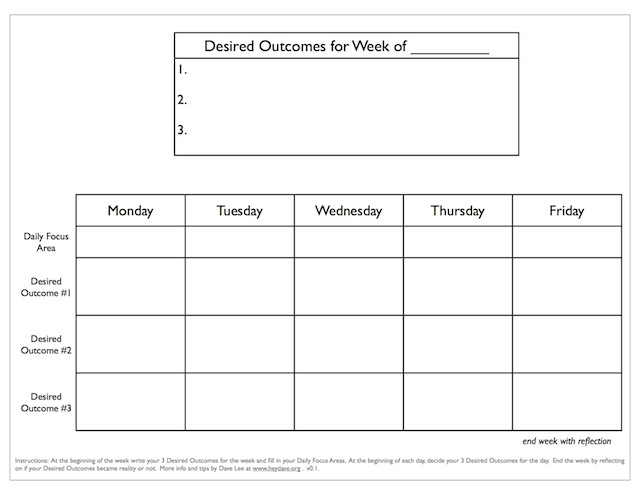
    Kim Komando showed me this blog post by Dave Lee and it’s a really useful tool.  It isn’t a new idea, but I love the way Dave describes it and is so passionate about it.  It does really work too.  I’ve used something similar in the past and was amazed at the results.  Why don’t we do it more often?

    You can use it for manifesting anything you want…not just for business stuff.  It’s just a matter of intention and focus.

    Some of you will find it really amusing that he advocates printing it on paper instead of using the computer.   But you shouldn’t be surprised that I would share it.  As I always say, I’m committed to helping people learn the technology that serves them well.  You don’t have to learn everything.  And….sometimes paper is good enough…or better.

    For the complete article on Dave’s blog go to http://heydave.org/post/24857123736/intr…

  • What in “the bleep” is “The Cloud” anyway?

    “The cloud” is just a fancy term for the Internet. “Cloud computing takes place on the Internet. It doesn’t take place on your computer. Your computer is just used to view the result.  Most of you have used web mail like yahoo, hotmail, gmail, roadrunner, etc; so you have already been doing “cloud computing.”   See you are so leading-edge-techie and didn’t even know it!

    This actually isn’t a new concept. Back in the old days it was called a client-server system. And many businesses still use this model today.  One powerful computer is the server. Servers can also be a collection of computers hooked together. The server runs all the company’s programs and stores all its data.

    Connected to the server are client computers called terminals. These terminals let people access the server. Terminals are inexpensive, basic computers. All they do is access information on the server. They don’t have to process or store much.

    The benefit to business is that terminals are inexpensive. You can add as many as you need at little cost. Plus, they don’t store any information. A terminal can die and you don’t lose any data.

    Now with broadband Internet home computers can operate the same as businesses. The Internet acts as the server. And a home computer acts as the terminal.  Actually your electronic gadgets like smart phones, iPads, tablets and netbooks act as terminals too.

    The benefits are that processing and storage are done on the Internet. That means you don’t need an expensive stand-alone computer. You just need an inexpensive gadget with a fast Internet connection.

    Everything is accomplished online. When the gadget breaks, it is inexpensive to replace…well inexpensive is a relative term.   Anyway, you don’t lose any of your data and you can access your data from multiple gadgets.

    So what are some examples of cloud computing? There are hundreds available. Here are a few common ones.

    Besides web-based email, there are many other exciting uses.  There office programs like Google Docs and Office Web Apps that let you create, store and share documents online and you can access the documents from anywhere.

    There are full graphics suites and places to upload, store and share photos.  You may have heard of iPhoto and Picasa, flicker and Snapfish.  There are video editors, audio programs and presentation creators popping up.

    There are also back-up programs like Carbonite, Mozy, and idrive where you can have backups off-site and  access your data from anywhere.

    Now there are gadgets like Apple TV and Google TV which both stream content from the Internet directly to your TV.

    The possibilities are endless and this  is the direction most of the computer industry is headed.

    Of course, there are potential drawbacks.  The first one is privacy and security. You are  entrusting your information to another party. How do you know the company isn’t going to  abuse it? Or how do you know their security procedures are adequate?  At this point, there is no easy answer. Even Facebook, with 500 million users, has security and privacy issues.

    What happens when you can’t connect?  What if your Internet goes down? What if the service’s server is temporarily unavailable? How do you access your data? Unless you have a local file backed up, you’re out of luck.

    These issues are being addressed and things are certainly better than they were a few years ago.  Web services used to go out of business overnight. And security procedures were really poor.

    These days Web services tend to be much more stable. And most are implementing proper security.

    I recommend giving cloud services a try. They can be incredibly useful for storing your data safely and sharing with friends and family. Just take into account the potential drawbacks and plan accordingly.  And if you have any questions or concerns, just let me know.

    On cloud 9 with the joy of techie tools and toys,

    Mardi

  • Blog Your Vacation–Yes You Can!

    Did you know that “blog” is short for “weblog”?  Yes it is, and now you can do a web based journal of your summer vacation.  It’s all set up for you so all you have to do is upload your photos and write your journal.

    You can send your family and friends a link to the site and they can follow your travel adventures.  It even tracks your location on a world map!  How fun it that!

    But the best part is….you can have them publish your blog as a hardcover or paper back book!  What a treasure that will be.

    Check out the site here  http://www.offexploring.com/

    Of course, if you need a little tutoring to practice before your trip, I’d love to help…I’ve never used it and I’m just itching to try it out.  But, in any case, please send me a link if you use it so I can share your joy.

    Happy summer exploring to you,

    Mardi

  • Where Are Your Passwords? You don’t use the same one for everything, Right?

    I know passwords are a big nuisance.  If everybody would “play nice” we wouldn’t need them.  However, until the world has been totally restored to love and peace, we need to get a grip on passwords.

    If you use the same one for everything and someone figures it out or gets access to it, they will try your other accounts and may cause you a lot of grief.

    So, DO NOT USE THE SAME PASSWORD FOR ALL ACCOUNTS, PLEASE!!!!

    Here are a couple of solutions:  Think of a phrase that you can associate with an account and easily remember.  It could be a line from a poem, a song, a quote or a book title, etc.  Use the first letter of each word in the phrase instead of the words themselves.  Add in a number or two and a symbol like #, or @ or !.  I worked with one clever client this week that used the number 0 for the Os and 3 for the Es 1 for the Ls.  Really a neat idea!

    I know they say not to write them down, but do it anyway.  I can’t tell you how much computer tutoring time is wasted, trying to figure out forgotten passwords.  Just don’t store the list right next to your machine, where a burglar might find it.  If you want to take the list on vacation,  hide the identity of the sites that the passwords belong to, by using abbreviations.  This sounds like a lot to do when you read it, but actually you only do it once, and you will avoid a heap of stress and wasted time later.

    If somebody figures out your email password, they can log in as you and send bad emails to everyone in your address book. If they are able to change the password, you will not be able to get in and you will have to abandon that account and start all over with a new one.  That means getting all your friends to switch to your new email address and, even worse, having to tell them that somebody they don’t know has access to their email addresses.  So it you won’t take my advise for yourself, at least do it for your friends.

    Another option that I like, is a free application called Last Pass.  It generates mega-secure passwords and stores them in a vault on your computer that can only be accessed by a master password.  I use it and love it.  It may be too involved for some of you, but I’d be happy to show you how it works so you can decide.

    In any case, take a few minutes to get organized with the password thing, so we can spend our tutoring time on more fun activities…like learning new productivity tricks and playing with new gadgets.

    In peace and joy,

    Mardi

  • What’s the deal with Word 2007/2010 line spacing?

    Several clients have asked me about this one lately, so I did a little research.

    Microsoft Office Word 2010 has wide spacing as the default.   It seems that Microsoft, in its infinite wisdom, decided we could all do with a more online-friendly line spacing scheme.

    So they made line spacing in the Normal template 1.15 instead of 1.  By default.

    If you want to change the default back to that single line spacing that looks good on paper, then here’s what you do:

    • On the home tab of the ribbon, find the Styles section (on the right).  You’ll see a drop-down called Change Styles.  Click it, then choose Style Set, then click on Word 2003 (which will change the default styles for that document to the ones where Normal paragraphs have single spacing with no extra space after paragraphs.
    • To make this change effective for all new documents based on the Normal template, drop this menu down again, and choose Set as Default.

    Ah! That’s better!

    Thanks to the Microsoft Office Knowledge Base and http://legalofficeguru.com for this.

    And….if you want to avoid the whole issue altogether…use Google Docs.

    Google Docs are free, they’re online so you have automatic backups, and there’s nothing to synchronize!