Category: Tips & Tricks

  • To Sleep or Shut Down, That is the Question

    When your computer is not in use, do you shut it down, put it to sleep, or just keep it turned on?

    In working with clients, it’s come to my attention that many people don’t completely shut down their computers from time to time.  Letting your computer just go to sleep night after night can cause problems.  For the average user, I recommend shutting it down completely, at least once a week.  The same applies to mobile gadgets like tablets and phones.  (See below for more details.)

    If any of your techie tools are acting a little weird and slowing down, they may just need a reboot (shutdown and restart).  Try rebooting and then call me if that doesn’t work.

    I hope you have found this tip useful and that you will forward it to others so they too, can more fully enjoy the benefits of computer technology.

    Pros and Cons

    Putting It To Sleep   Computer in sleep mode

    The advantage to putting it to sleep is that it provides the easiest and fastest way to resume work while minimizing wear and tear on the hardware. The computer goes to sleep instantly and when it wakes up, all of your open apps, documents, window arrangements, and web pages, are exactly where you left off with almost no delay. For average users who want to quickly get back to what they were doing, sleeping is perfect.

    • Pros: Quickly resume exactly where you left off; sleep and wake can be scheduled or even done remotely
    • Cons: Minor power consumption; system temp fluctuations, swap, and cache files don’t get cleared out during as during a reboot process; system updates requiring reboots don’t install automatically and need a manual reboot; performance is best for computers with 4GB RAM or more

    If you use your computer every day, simply putting it to sleep when it’s not in use or overnight is probably the best choice. Just be sure to reboot every once in awhile to allow system software updates to install. Waiting for an operating system Update or Security Update is generally a sufficient time between reboots.

    shutting down computer for updatesShutting It Down

    Shutting it down isn’t necessary unless it’s going into a longer term state of inactivity or storage. Shutting down is slower because all the open applications and documents have to quit; and when you turn the machine back on, everything has to re-open again to get back to where you were prior to shutdown.

    • Pros: Saves power, doesn’t strain hardware; system temp, memory, swap, and cache files get cleared out during boot; allows for major system updates to install
    • Cons: Takes a while to boot up and resume previous activity

    For the power conscious or for those trying to squeeze the absolute longest lifespan out of hardware and hard disks, shutting down when not in use is the best choice. This is also necessary if you’re going to put your computer in long term storage, won’t be using it for a longer than a few days, or you’re going to be traveling and not using it during the travel period.

    Computer as a serverKeeping It Always Turned On

    Leaving a computer constantly turned on is best reserved for computers that function as servers. On the plus side, you don’t have to bother resuming anything since it’s already on, you can schedule all maintenance and backup tasks to occur in the wee hours of system inactivity, and it allows for a server or media center to be running on the machine. The downside is the constant power consumption and the constantly active hardware, which can limit overall lifespans of the computer components.

    • Pros: No waiting for use; instantly resume all apps and tasks exactly where you left off; allows for servers to run with constant accessibility; backup and system maintenance tasks can be scheduled for off hours
    • Cons: Constant power consumption; more wear and tear on hard drives, fans, and physical hardware due to possible heat

    For the casual user, it’s best to put it to sleep when it’s not in use.  It gives hard drives and fans a rest, and will generally lead to a longer lifespan of the computer.

  • Crapware

    Crapware:

    Why manufacturers install it, what you can do about it, and why it’s not going to go away   Based on an article by Adrian Kingsley-Hughes  http://www.zdnet.com/

    Crapware, also know as “bloatware” or “junkware,” are apps that hardware companies install onto their devices on top of the operating system (OS).  It’s a bunch of free trials and demos that nag you to buy the full version. Most annoying to me, is when you start using the app, not realizing that it’s a free trial, and then find out that you have to pay in order to continue accessing the work you’ve done.
    snailThe worst consequence is that crapware can dramatically slow down system performance or even compromise your system’s security. I frequently see relatively new computers running slow because of the weight of the crapware that has been installed on them. They run great once all the junk is removed. One has to wonder about the number of people who spend hard-earned money on a PC only to end up getting a third-rate experience because of crapware.
    Furthermore, many of these dissatisfied PC owners may end up blaming “Microsoft” or “Windows” for the performance issues, when the real problem is that the manufacturing company took money from third-parties to fill their computers with junk.
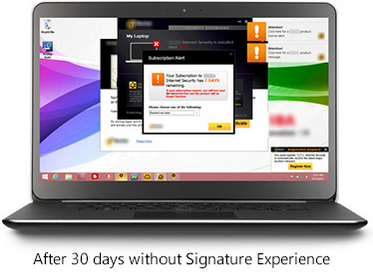
    Microsoft is well-aware of this.  It’s now offering Signature which is free from the clutter that “can slow down your computer and junk up your Start screen or desktop.”  See it here
    Screenshot 2015-03-07 at 1.35.12 PMScreenshot 2015-03-07 at 1.36.27 PM

    If you ask the hardware makers why they install this stuff, they’ll tell you they are offering you extra value. That’s a lie.  They do it because they make money for doing it. Except for Apple products, computer profits are very thin. Hardware makers are happy to install junk onto new systems in exchange for a few extra dollars.

    Photo courtesy of www.kitguru.net
    photo.apple_.windows.crapware (1)


    Eradicating crapware from Windows PCs isn’t easy, and when it comes Android smartphones and tablets it can be almost impossible.  There are tools out there for the PC such as PC Decrapifier and CCleaner that do a reasonable job of cleaning a system, but they’re far from perfect.


    The purveyors of crapware have become wise to these tools and take deliberate steps to make it difficult. It’s best to call my friends at Desert Cow Computers. www.mydesertcow.com

    desert cow computers

    Hardware manufacturers operate in a cutthroat business environment and crapware can make the difference between almost no profit and a little profit, especially on budget systems.  Perhaps you will decide to stay away from budget systems now.
    Microsoft offers the Signature range of PCs and Google sells Nexus-branded devices, These products are free from crapware. If you’re looking for a pure Windows or Android experience, then this might be worth investigating.  Another option is to switch to Apple or Chromebook.

    nexus

    If more people complain or vote with their feet by purchasing crapware-free products, perhaps equipment manufacturers will be persuaded to make crapware easier to remove.

     
    Thoughts or comments about this topic?  Please comment below.  Thanks!

  • No More Password Hassles with LastPass

    No More Password Hassles!

    Treat your password like your toothbrush.
    Don’t let anybody else use it, and get a new one every six months.

    Clifford Stoll                                      Read more at brainyquote.com

    maxresdefault

    Are you ready to put your password hassles to rest once and for all?  I’ve got a great solution for you!   Get LastPass password manager.  It’s free! It will generate secure passwords for all your accounts and insert them automatically. You only need to remember one master password.  Everything is encrypted and safe.

    No more updating pages and pages of accounts and passwords or going through a bazillion steps to reset the ones you forgot!  LastPass even let’s you know if you have an account with a company whose data base has been compromised so you can change your password immediately.

    I’ve been using the basic features of LastPass for years, but I just took a class on it to learn more and I am very impressed.  I had the opportunity to teach a client how to use it this week and she is so happy and relieved that she’s telling all her friends.

    You can learn more about it here  www.lastpass.com  I urge you to use it.  The little bit of time it takes to install and learn how to use it, will be minimal compared to the time it takes to clean up a mess if someone hacks any of your accounts.

    Please share this with everyone you know so they can be safe and feel relaxed, happy and confident with their computers and techie gadgets.

    Please post your thoughts or comments below….

    Thanks!

  • Phishing Alert: Watch Out For This!

    I thought you should know about this right away.

    After seeing my Techie Tip about phishing on Saturday, my daughter sent the following email about a phishing problem with Anthem Insurance.  Even if you don’t have Anthem Insurance, this will reinforce what I said about “phishing. ”

    Heh Mom, Did you know about this?

    Last week, Anthem announced that data might have been accessed about Anthem Healthcare clients.  Apparently, hackers are taking advantage and sending emails and making phone calls asking to verify information.

    Here is the email from the Human Resources Department where she works.

    “Anthem notified us today that members who may have been impacted by the cyber attack should be aware of scam email campaigns targeting current and former Anthem members.  These scams, designed to capture personal information (known as “phishing”) are designed to appear as if they are from Anthem and the emails include a “click here” link for credit monitoring.  Anthem DID NOT send these emails.  If you receive one of these scam emails like the one attached:

    • DO NOT click on any links in email.
    • DO NOT reply to the email or reach out to the senders in any way.
    • DO NOT supply any information on the website that may open, if you clicked on a link in email.
    • DO NOT open any attachments that arrive with email.

    Further, Anthem is not calling members regarding the cyber attack and Anthem representatives are not asking for credit card information or social security numbers over the phone.

    This outreach is from scam artists who are trying to trick consumers into sharing personal data. There is no indication that the scam email campaigns are being conducted by those that committed the cyber attack, or that the information accessed in the attack is being used by the scammers.

    Anthem will contact current and former members via mail delivered by the U.S. Postal Service about the cyber attack with specific information on how to enroll in credit monitoring. Affected members will receive free credit monitoring and ID protection services.

    For more guidance on recognizing scam email, please visit the FTC Website:http://www.consumer.ftc.gov/articles/0003-phishing.

    Anthem has created a website (www.anthemfacts.com), and a hotline, 1-877-263-7995, for its members to call for more information.”

    Please forward this to everyone you know so they can be safe too.
    Thanks,
    Mardi

  • Looking for Work On Craigslist – Safety Tips

    CRAIGSLIST-large570

    Hi Mardi,

    I am still in Brazil.

    I am trying to put an add for a new job on craigslist and I can’t do it.

    I open the craigslist page but I can’t find the right place.

    Could you help me doing that?

    I will try to call you.

    I recently received this message from a client and it reminded me to let you know about a couple of hazards to avoid when you, or someone you know, is looking for work online.

    When I first moved to the Desert, I was looking for work on Craigslist and encountered two potentially dangerous scams.

    The first and most obvious scam, was an email from a company offering me an interview and requiring that I get a credit report to bring to the interview.  They said I needed to get it from the company they recommended and the link to the website was included in the email.

    I couldn’t imagine why someone would need a credit report before an interview or expect me to divulge financial information to a company I didn’t know, so I knew it was a scam.

    facebook login

    The second scam almost got me!  A company said they were interested in me and I could learn more about them at their Facebook page.  At first, I thought it was strange that they didn’t send me to their company website, but then I thought they might be trying to be hip and leading-edge by having a company Facebook page.

    I clicked on the link and it took me to a page that looked exactly like the Facebook sign-in page.  I signed in, but had a weird feeling that something was off.  I looked up at the address bar to see exactly where I was and it said “fakebook.com/….”  I thought oh my gosh, they just captured my Facebook login and password!

    I immediately opened a new window and went to my Facebook page and changed my password.  Luckily I got there, before they were able to changed my password and lock me out.  Whew!

    craigslist banner

    There are good jobs available on Craigslist and I actually found one at that time.

    You just need to be careful and let me know if you have any questions or concerns.

    Please forward this to everyone you know who is looking for work so they can be safe and feel relaxed, happy and confident while using Craigslist.

    Thoughts or comments about this topic?  Please share in comments below.

  • Passwords Can Be Simple and Safe

    Passwords Can Be Simple and Safe

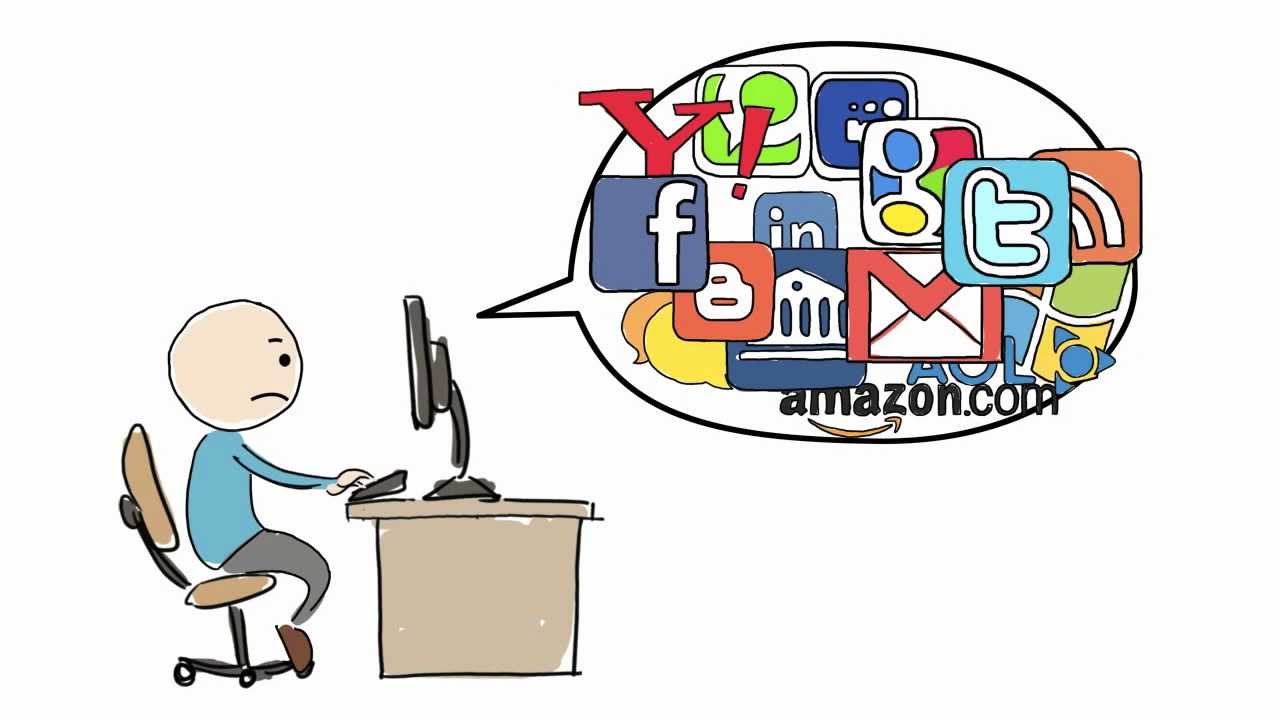
    I know you hate having to use so many passwords.  It’s a big pain to keep track of them.  You might even be using the same password for multiple sites and allowing your web browser to save them so you don’t have to login every time.

    A recent article by Kim Komando, inspired me to encourage you to take the bull by the horns, do some house cleaning and start using a password manager. This will make your online life so much simpler and safer.
    Here are some great tips based on her article, One secret about online accounts every computer user needs to know

    You may have created dozens of accounts that have only been used once. Just think of how many times you’ve created a username and password just to read an article, play a game or download something.  This can be dangerous because your information is floating around on dozens or hundreds of websites that may or may not be secure.  Even worse, if you have used the same username and password for every site, every account you have is in danger.  A hacker who gets your account information from one site can use it to get access to your other accounts as well.

    The solution is to hunt down and close any accounts you are not using and then change the passwords to your existing accounts so that each one is unique.

    A simple browser trick

    1) When you create a new online account or log in to an old one, your browser stores the username and password. This makes it easy to log back in later.  It also means you can go now and see what accounts you’ve created.

    2) After you locate your accounts, you can close down the accounts you are not using and create unique passwords for the sites you are keeping.

    3) Then turn off “password storing” and erase the existing passwords in your browser. The option to erase the passwords is in the same place you view the saved passwords.  (The Instructions are below.)

    Use A Password Manager

    LastPass, The last password you will ever need


    I know this seems like a lot of work but you only have to do it once.  Then, If you start using a password manager like LastPass all your unique passwords will be stored in a vault and you will only need to remember one master password.  The password manager will even generate secure passwords for you so you don’t have to think them up. You will love it!

    If you need help to clean things up or to learn how to use a password manager like LastPass, I’m always here for you. Just call for an appointment.

    Invite some friends to a Play Shop in your home, community room or office.  A play shop is a really fun way to learn and only costs $25 hr. per person.

    Forward this tip to your friends so they will be safe and happier too.
    Thoughts or comments about this topic? Please share in the comment section below.

    Instructions for web browser applications:

    FIREFOX

    To see your login information in Firefox, go to the Firefox menu – it’s the icon on the right with three horizontal lines – and click Options.

    Under the Security tab, click the “Saved Passwords” button.

    Then click the “Show Passwords” button and click “Yes.”

    CHROME

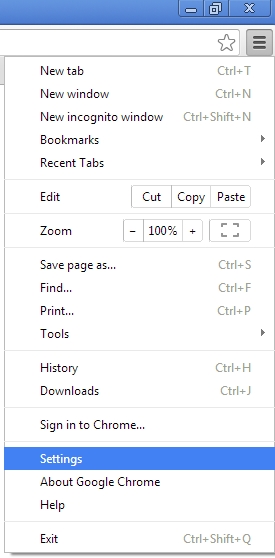
    In Chrome, click the icon with three horizontal lines in the upper right and choose “Settings.”

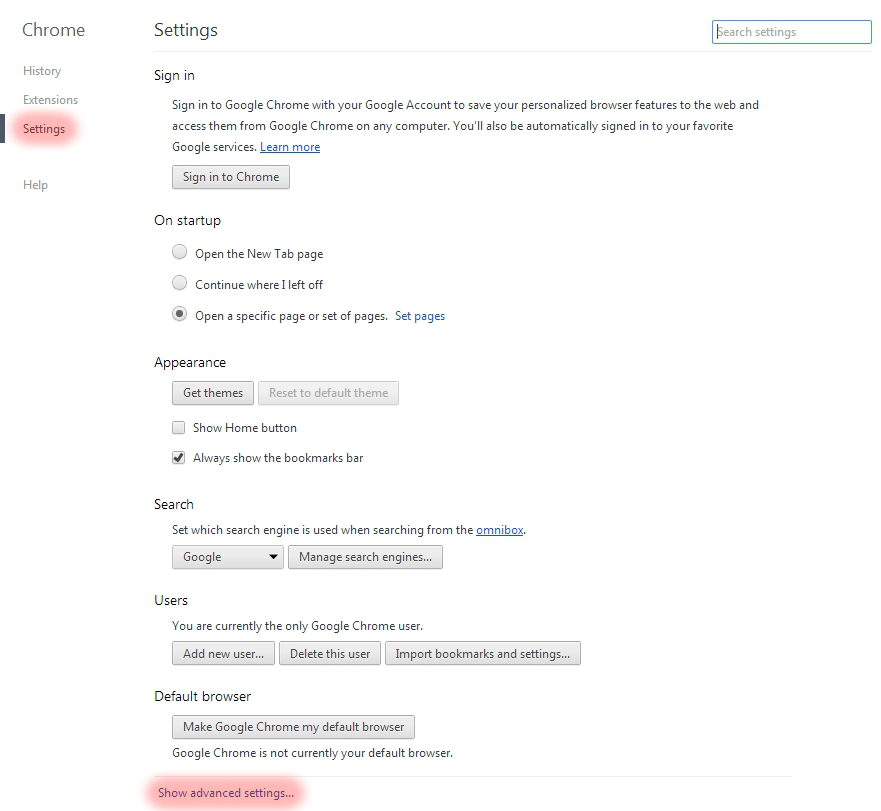
    Choose “Settings” on the left, and then click the “Show advanced settings” link at the bottom of the screen.

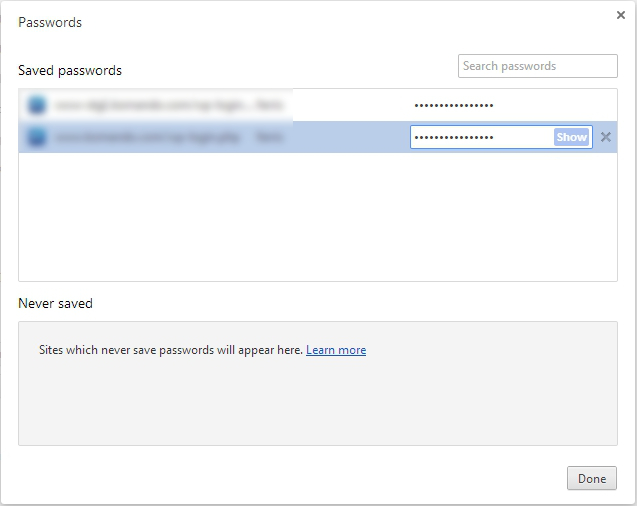
    Scroll down to “Passwords and forms” and click the “Manage saved passwords” link.

    If you want to log back into your old account, but don’t remember the password, then you can click on a password and click the Show button next to it.

    To see the password, you will have to enter your Windows account password, which does make it harder for casual snoops to get in.

    INTERNET EXPLORER

    You can’t view saved usernames and passwords directly in IE. You would need a third-party program like IE PassView.  However, I recommend that you don’t use Internet Explorer anyway.  It is easily invaded by spyware. I use Google Chrome but Firefox is good also.

    SAFARI

    In Safari, go to Safari>>Preferences>>Auto-fill. Click the Edit button to view the saved passwords.

    Need Help?

    If you need help to clean things up or to learn how to use a password manager like LastPass,  I’m always here for you. Just call for an appointment.

    Invite some friends to a Play Shop in your home, community room or office.  A play shop is a really fun way to learn and only costs $25 hr. per person.

    Forward this tip to your friends so they will be safe and happier too.

  • Simple Fixes for Webcam Spying

    Are you scared by all the news stories suggesting that hackers can spy on you through your computer and gadget cameras?

    My mother has been really concerned about it and I understand how scary it can be.  It is almost overwhelming and really annoying when all these “advances” in technology bring new challenges and require more education!

    You don’t need to worry though, I’m dedicated to calming your fears and giving you the information and help you need so you can relax and enjoy your toys again.

    Despite the potential dangers, webcams are great tools for chatting long-distance with friends and family, and conducting  business.

    When you understand how they work and how to secure them, you will feel much better and have more fun.  Enjoy!

    Please help others by forwarding this to all your friends and relatives and encourage them to subscribe to my techie tips so they can be protected and have peace of mind also.  They can click right here to subscribe.  If you are into social media, you can use the sharing buttons provided. That will be a big help also. Thanks!

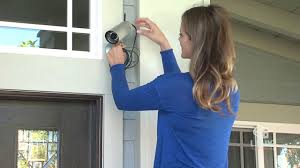
    INTERNET-ENABLED CAMERAS  Internet Cameras

    Internet-enabled security cameras and baby monitors are becoming more and more common because they are inexpensive and easy to set up.  These gadgets connect to your Wi-Fi network and they are a great way to keep an eye on kids, aging parents and your possessions.

    However, many people don’t follow the directions when setting them up and leave the default username and password in place. Hackers have made it their business to know all the default login information for every gadget on the market.  If you don’t change the factory settings they could find your camera online, log in, and watch you or put you on a website with thousands of other cameras for curious snoops to browse.

    Good News!
    The solution is easy: just remember to change the default password when you set up any type of new gadget. If you buy a camera that doesn’t have a password, exchange it for a different model.

    COMPUTER WEBCAMS  lamptop cam

    Once hackers get on your computer, they can use programs to turn on your webcam without triggering alerts like the webcam light. Thus, covering or unplugging the camera when not in use is a good idea.

    However, hackers could still have full access to your computer. They could rummage through your email, browser history, passwords, documents and anything else they want.

    And, of course, when you do use the webcam, they can eavesdrop.

    To get on your computer, hackers use a remote access tool, or RAT. That’s what tech support agents use to get on your computer remotely to change settings or fix a problem. Fortunately, remote access tools require your permission, so a person can’t just take control without your permission.

    However, hackers have many ways to trick you into letting them on to your computer — fake email attachments, malicious links, Trojan viruses, and phony tech support calls.  Once you’re tricked into running a file, clicking a link, or inviting them on to your system, they can take control and do whatever they want.

    More Good News!

    The solution is pretty simple. Just avoid unsolicited email attachments and links, run up-to-date security software and don’t believe anyone who contacts you claiming to be tech support for a major company.

    Operating systems on your computer may have a remote access tool (RAT) built in. This makes it easier for real tech support to get on your system, but it also makes it easier for a hacker to trick your system into letting them on.

    To turn off Remote Assistance in Windows, go to Start>>Control Panel. In the Search box in the upper right corner, type “remote” and then click the “Allow remote access to your computer” link.

    Uncheck the “Allow Remote Assistance connections to this computer” option and click OK.

    For Macs, go to the Apple icon and select System Preferences. Click the Sharing icon and uncheck Remote Login, Remote Management.

    If you use a company laptop, it could have similar software on it. Companies are supposed to disclose the presence of that kind of software but they don’t always do it, so if it doesn’t belong to you, be mindful of what you do on it.

    smartphone cameraTABLET AND SMARTPHONE CAMERAS

    Tablets and smartphones also have cameras but I haven’t heard of any malicious apps or spying apps that can trigger the camera.  That doesn’t mean they don’t exist, or won’t exist in the future but I will let you know if that changes.

    A word to the wise….if there is something you really don’t want the world to see, don’t put it on your smartphone or tablet.

    If you have any questions or comments about this or if you have any suggestions for future tips, please post a comment below and let me know. I always love to know what you think and how I can help you. Thanks!

  • Great Apps for Computers and

    Apps are not just for smartphones and tablets. Many apps are web based and accessed through your web browser. You don’t have to have a smart phone or tablet to use some of the most popular apps.

    However, when people buy smartphones or tablets, they often ask me what apps they should know about.  I’m always happy to make suggestions based on antheir lifestyle and interests.

    Since you may have received a gadget as a holiday gift, I thought it would be a good time to tell you about a few of my favorites apps and programs. You may already be using some of these but you may discover some new ones to try. Enjoy!

    Entertainment and Media:   

    NetflixNetflix let’s you watch an unlimited number movies and television shows online for only $8.95 mo. You can train it to make suggestions for you based on the movies you watch and how you rate them.  You can even set up separate profiles for individual family members!  And, there are no commercials!!!

    You can connect your gadget to your TV and watch movies on it too.

    chromeCast


    Chromecast from Google $35


    roku

    Roku Streaming Stick $50


    appleTvApple TV $99


    spotify


    Spotify let’s you listen to music for free.  It even has playlists by subject or genre. The variety is astounding and there are no commercials!!!


    YouTube


    YouTube is a must for doing research on any topic that can be best explained with a video.  Think recipes, repairing things, movie previews, songs, lyrics, instructional videos, and answers to absolutely any question under the sun.

    shazam

    Shazam listens to songs on the radio, TV or movies. It identifies the song title, shows you the performer, album, lyrics and links you to sites where you can purchase.


    Productivity:

    dropboxDropbox is a great app for cloud storage and sharing.  When you put files in there, you can access them from anygadget or computer.  I use the phone app to play audio files of lectures and seminars. It’s super easy to learn and you get 2GB of storage for free.  By referring your friends to Dropbox, you can earn up to 16GB of additional space.  Sign up here
     

    office 365

    One of the most popular productivity tools for home and business is Microsoft Office. Unfortunately, Office documents don’t always play nice with third-party apps. Now Microsoft has released the Microsoft Office Mobile app.   It lets you open, create and perform basic editing on Word, Excel and PowerPoint files no matter where you are.


    mintMint.com and its app  (Free, and available for Android and iOS) links to your all your bank accounts, credit card accounts and loans so you always know just how much money you have and how you are spending it. You can set up spending categories and create a budget for each category. I love it for keeping track of my income and expenses for paying my taxes.


    The weather channelThe Weather Channel app and weather.com show you the current temperature, the hourly forecast and the next 10 days of weather.  Also you get a customizable radar map, video clips, severe weather alerts and beach conditions. It’s better than your gadget’s built-in weather app.


    free wifi finder

    You don’t want to burn through your cellular data plan when you are out and about or on a trip, so you need to useWi-Fi whenever possible. You can find free Wi-Fi locations with the Free Wi-Fi Finder app.


    Dating:

    match


    Match.com app has earned the top spot in dating apps and is my favorite.


    pof-logo


    POF.com (Plenty of Fish) is very popular here in the desert and is free.


    google mapsNavigation:

    Google Maps is my favorite navigation app.  I especially appreciate that it invites you to submit corrections.  Youget an email thanking you for your help and then a follow up email when the corrections have been made.

    uberUber is an app-based transportation network that uses a smartphone application to receive ride requests, and then sends these trip requests to their drivers. Customers love using the app to request rides and to track their reserved vehicle’s location.  Uber’s drivers use their own cars and there is a variety of types of vehicles available, from Town Cars to SUVs and more.  One of my friends is a driver for Uber and just loves it.  It’s a win-win for everybody.

    Other Popular Apps

    Here are some other popular apps that I don’t find the time to use very often, but you might enjoy.

    Save Money  

    RetailmenotThe RetailMeNot app helps you find promo codes and coupons for more than 50,000 physical and online stores, including grocery stores. You can save and store coupons for later, and share the savings with your friends through social media.




    Photo EditingSnapseed-icon-medium

    Snapseed is the top app for photo-editing and VSCO Cam is gaining ground in popularity.

    Social and Sharing

    Pinterest


    Pinterest, WhatsApp and Snapchat are the top apps in messaging and texting.


    instagram


    Instagram and Facebook are considered the must-haves for social sharing. The Facebook app got me interestedin using Facebook more often because it is so easy to use.

    Sports

    watchESPN


    WatchESPN.com is the most popular app for sports fans.


    Fitness

    MyFitnessPal is the top fitness app.my fitness pal


    Do you have any favorite apps to share?

    There are thousands of apps and recommendations from friends is the best way to sort through the maze.  Do you have some favorite apps not mentioned here?  Post your comments below so everyone can benefit from your ideas.

  • A Small Gift With A Huge Benefit

    The Gift of Knowledge  


    At this holiday time when we focus on our desire for more peace and joy in the world, it seems fitting to tell you about a techie tool that is changing the world for the better — Wikipedia

     
    Jimmy Wales


    I love Wikipedia!  I use it all the time to find answers to questions and the meaning of new terms.  When I think about how this extensive body of knowledge is available to everyone in the world at no cost, my heart just leaps with joy.  What an amazing resource!  This is modern technology at its best. If you have never used it, please take a look here . You will love it!!!


    This time of year, Wikipdia.org puts up a banner asking for donations so that it will not have to resort to posting ads.  Since we all complain about ads on websites, it would serve us to make a donation now.  The good news is that if everyone who uses it paid only $3.00 the fundraising goal would be met!


    Features and BenefitsWikipedia

    Here are the reasons that Wikipedia, one of the world’s five most popular web properties, asks for financial support from its users and why you might want to participate. (Adapted from an appeal letter by Founder, Jimmy Wales.)

    1. Has a small number of paid staff, just twenty-three.
    2. Wikipedia content is free to use by anyone for any purpose.
    3. Annual expenses are less than six million dollars.
    4. Wikipedia is run by the non-profit Wikimedia Foundation, founded in 2003.
    5. At its core, Wikipedia is driven by a global community of more than 150,000 volunteers – all dedicated to sharing knowledge freely.
    6. These volunteers have contributed more than 11 million articles in 265 languages.
    7. More than 275 million people come to the website every month to access information, free of charge and free of advertising.
    8. Wikipedia.org is committed to a world in which every single person on the planet is given free access to the sum of all human knowledge.
    9. Your donation helps cover the increasing cost of managing global traffic to one of the most popular websites on the Internet.
    10. Funds also help improve the software that runs Wikipedia — making it easier to search, easier to read, and easier to write for.
    11. Wikipedia.org is committed to growing the free knowledge movement world-wide, by recruiting new volunteers, and building strategic partnerships with institutions of culture and learning.
    12. Wikipedia.org is the largest encyclopedia in history, written by volunteers.
    13. Your donation will help keep Wikipedia free for the whole world.

    Gratitude

    world peaceBelow is the thank you email I received after making my donation.  It will show you the scope of their amazing work in the world.  I hope it will inspire you to use the service, if you haven’t already, and motivate you to donate.


    Thank you for your invaluable gift of bringing knowledge to every human around the world. My name is Lila Tretikov, and I’m the Executive Director of the Wikimedia Foundation. Over the past year, gifts like yours powered our efforts to expand the encyclopedia in 287 languages and to make it more accessible all over the world. We strive most to impact those who would not have access to education otherwise. We bring knowledge to people like Akshaya Iyengar from Solapur, India. Growing up in this small textile manufacturing town, she used Wikipedia as her primary learning source. For students in these areas, where books are scarce but mobile Internet access exists, Wikipedia is instrumental. Akshaya went on to graduate from college in India and now works as a software engineer in the United States. She credits Wikipedia with powering half of her knowledge.
    This story is not unique. Our mission is lofty and presents great challenges.Most people who use Wikipedia are surprised to hear it is run by a non-profit organization and funded by your donations. Each year, just enough people donate to keep the sum of all human knowledge available for everyone. Thank you for making this mission possible.

    On behalf of nearly half a billion people who read Wikipedia, thousands of volunteer editors, and staff at the Foundation, I thank you for keeping Wikipedia online and ad-free this year.

    Thank you,  
    Lila

    Lila Tretikov
    Executive Director,
    Wikimedia Foundation
    donate.wikimedia.org