Category: tips and tricks

  • Have you heard of Mophie?

    Have you heard of Mophie?

    It’s a compact battery that can charge almost any device.  It stores enough juice to charge two tablets at the same time… and it charges fast!

    It’s great for keeping your cell phone or laptop charged when you don’t have access to electricity.  It’s perfect for long bike rides, camping trips, and road trip adventures.

    It’s handy at home too. When your phone battery is low, (which seems like all the time) it’s nice to be able to talk on the phone while it’s charging without having to be tethered to a cord in a wall socket.  I think it charges my phone faster than a wall socket too!  I can charge my phone several times before I need to recharge “the Mophie.”  I’ve used it to charge my Chromebook also.

    There are other “battery packs” on the Market but my friend who told me about it, did very thorough research and determined that the Mophie powerstation is the best.  If you’re constantly frustrated by your gadgets running out of juice, you might want to consider getting one.

    There are smaller, less expensive models available but the Powerstation XL has the most power for the money.  Here is a link their website.

    I hope you find this tip helpful and that you will share it with your friends and family members.  Please help me to connect with all those people who could be enjoying their computers and gadgets more if they just had a little help.  Your referrals help me to “restore peace and joy in the world through computer and mobile gadget education” and are much appreciated.

    Enjoy!

    Mardi

  • Does Your Internet Seem Slow?

    Does Your Internet Seem Slow?

    Based on an article by Fiona Syrett at http://digitalunite.com/

    Here is a simple way to check your speed and some tips for speeding it up.

    When you sign up for broadband, your internet provider (ISP) tells you the maximum speed you can expect. However, the reality can be quite different.

    It’s very easy to find out what speed you’re actually getting.

    Follow these step-by-step instructions to find out your internet speed

    Step 1: Open your web browser – for example, Chrome, Firefox or Safari. (I don’t recommend using Internet Explorer.)

    Step 2: Click in the address bar at the top and type in www.speedtest.net

    Be sure you use “.net” and not “.com.”
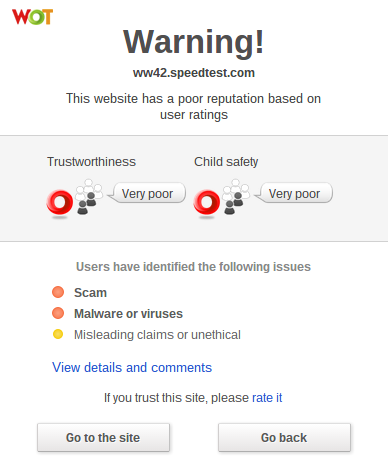
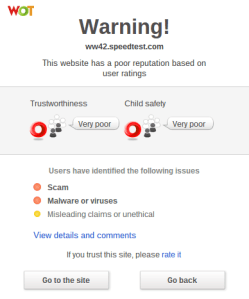
    Note: If you have WOT (Web of Trust) installed on your web browser and you were to accidentally go to “speedtest.com,” instead of “speedtest.net;” you would see this somewhat scary, but very helpful, warning message and you would click on “Go Back.”
    Wot warning

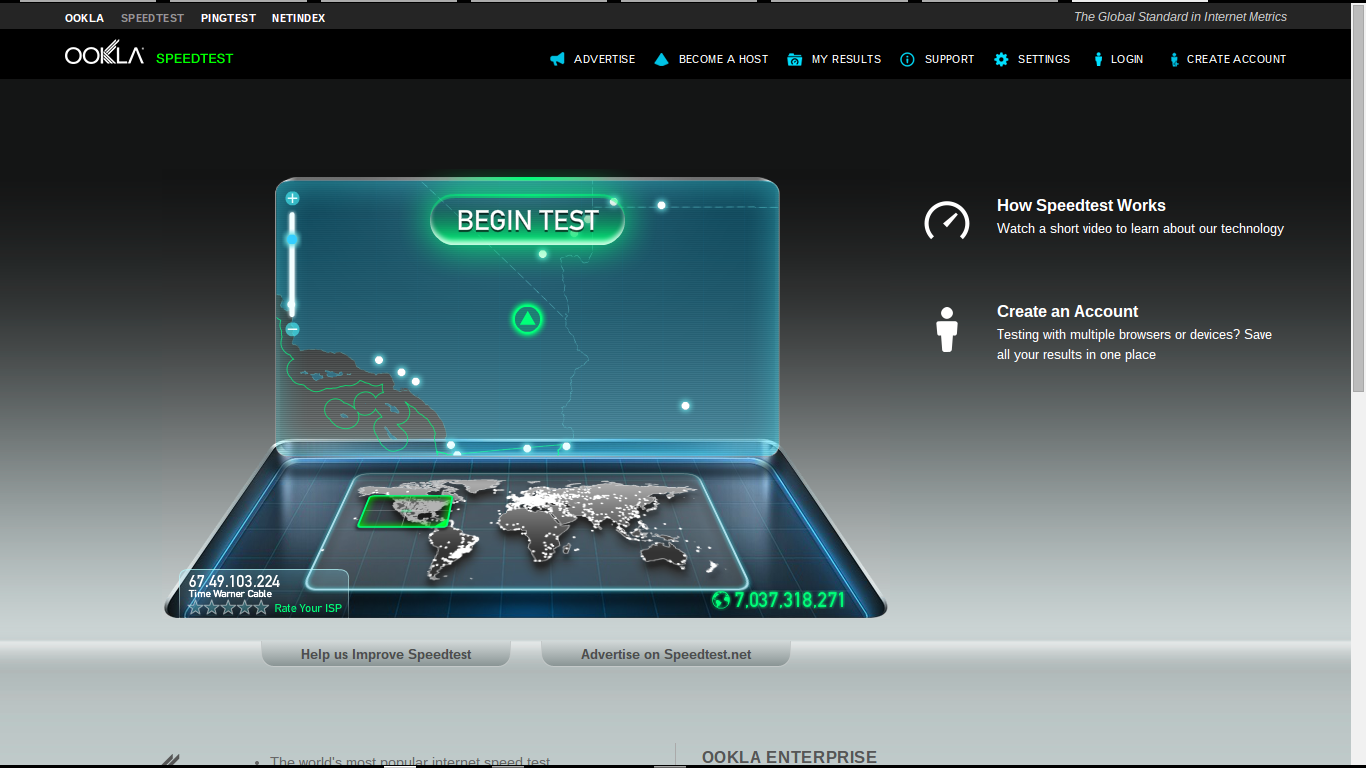
    Step 3: Now, with www.speedtest.net entered in the address bar, press the “Enter” key on the keyboard. This will take you to the website that will check your internet speed.
    Speedtestnet

    Step 4: When the page has loaded click “Begin Test.”

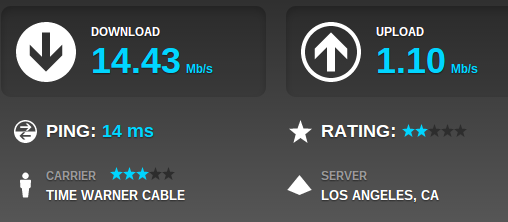
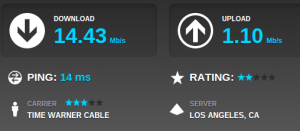
    The results will show you two speeds:

    • The download speed is how long it takes for pages to appear on your screen and to download files such as music files from the internet to your computer.
    • The upload speed is the opposite – for instance, how long it takes to upload photographs from your computer to an online photo album.
    My speed test

    Internet speeds can vary considerably at different times of the day, so you should check yours more than once.

    If your internet speeds are slower than you think they should be:

    Step 1: Find out what speed you’re paying your internet provider (ISP) for. You may have to phone them to get the answer to this. If you’ve had your broadband for some time, it may be time to upgrade.

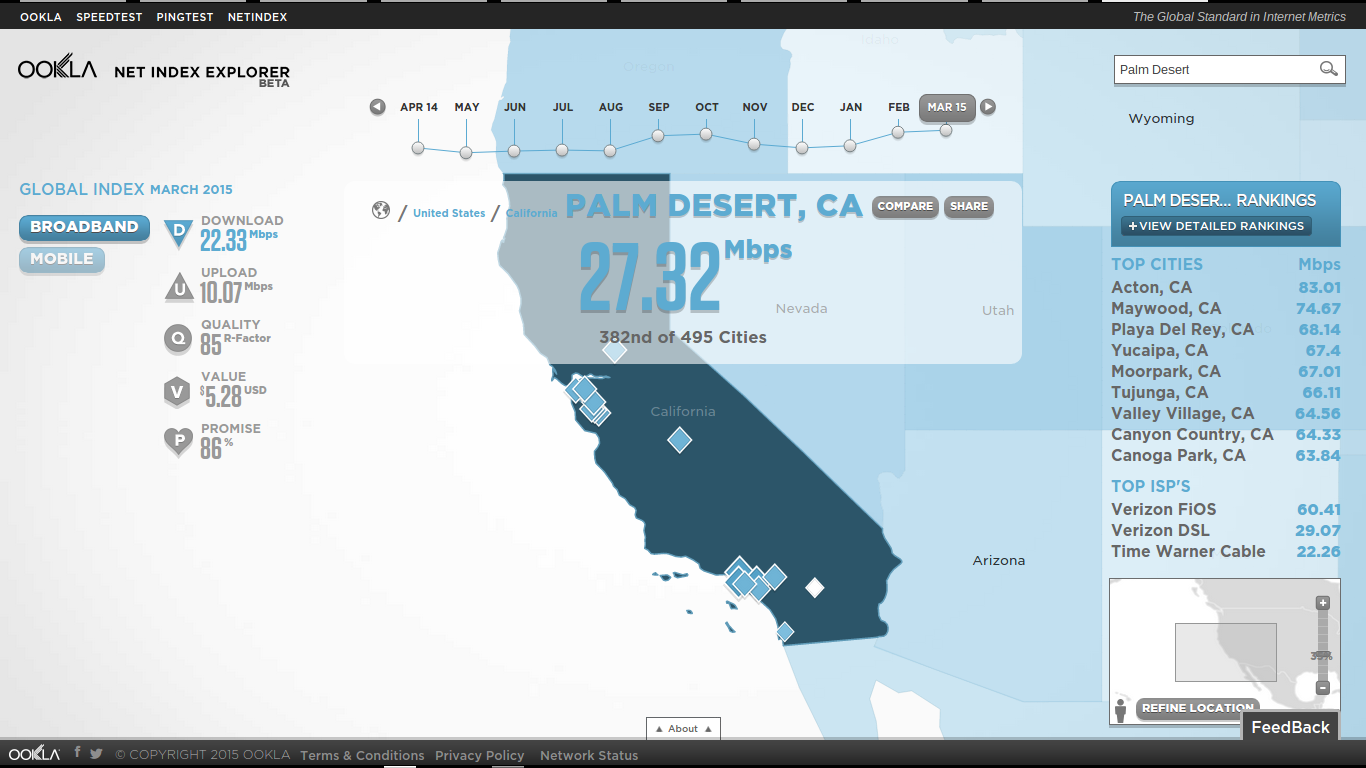
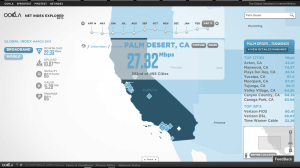
    Step 2: Check what speed is achievable in your area. You can click on the “Net Index” tab at www.speedtest.net and enter the name of your city in the search box.  Here is a screenshot for Palm Desert:
    net index palm desert

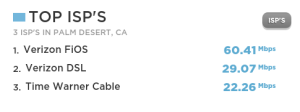
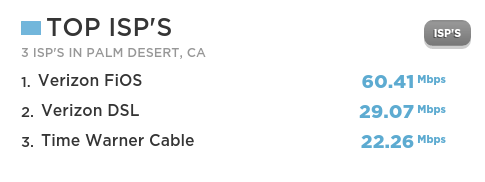
    You can also see “Top ISP Speeds:

    Tops isp

    Step 4: Now that you know what speed you’re paying for and what your hardware is capable of producing, there are a number of things you can do that are likely to make your internet run faster:

    • Check that you haven’t exceeded your monthly download allowance. Some ISPs cap internet speeds as a penalty for doing this.
    • If possible, always use the master telephone socket for your broadband router.
    • Don’t use a telephone extension lead with your router. If it’s unavoidable, use the shortest one you can.
    • Make sure that all other telephone sockets in use are fitted with microfilters.  Not doing this can result in loss of internet speed and interference on the line.
    • Make sure your computer isn’t running any unnecessary applications in the background. This can slow things down considerably.  Finding out if it’s happening can be a bit complicated. It might be best to ask an expert for help.
    • Make sure your antivirus software is kept up to date. Viruses and adware can slow down your computer and the internet a lot.
    • If you’re using WiFi (wireless internet), make sure it’s password protected. Otherwise you could be providing your neighbors with free WiFi!
    • If you’re using a laptop with a wireless connection, try using it in a different room or consider using a network cable to connect to the router instead.

    I hope these tips enhance the peace and joy in your techie life.

    Thoughts or comments about this topic?
    Please comment below.

    If you would like to receive my weekly tips via email, you can subscribe here.​

  • Are You Doing Your Updates?


    remember-659706-m

    It’s very, very important to allow updates on your computers, tablets and smart phones.  Updates have fixes for “bugs” (program errors that cause malfunctions) and “patches” that prevent breaches in security.  Often the updates contain cool new features too.

    Many people don’t allow the updates because they don’t understand the value, or they don’t know the difference between a reliable update and a scam or virus.  In the past, I have included a list of the names of reliable updates for you to print.

    tent card

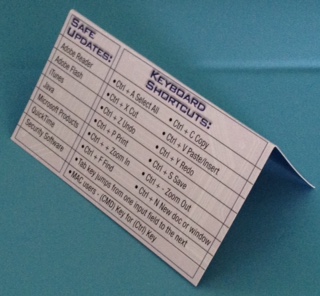
    Now, I’ve created a new business card that has the list on it.  It’s designed as a tent card so you can stand it up beside your computer. This is so important that I’d like everyone in our community to have one.  If you need one, or want a bunch to give to your friends, let me know right away.

    That being said, I want you to know that even some reliable updates may come with things you might not want. Companies make marketing agreements to offer other companies’ services.  Don’t worry, just read the screens as you go through the update process. Uncheck any boxes or click “no” to anything that is being offered as an “extra benefit.”

    ask_toolbarJava

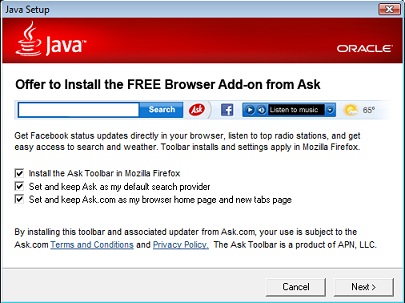
    A case in point…I updated Java this week and noticed that Java is still trying to install an Ask Toolbar and change my search engine to Ask.  This has happened to my clients in the past and it’s very confusing.  They call me to find out what happened to their Google search box.

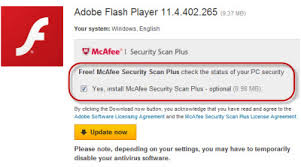
    Even more frustrating is the Adobe Flash update which can install Mcafee antivirus in place of your current antivirus program if you don’t tell it otherwise.adobeflashWithMcAffey

    Please don’t be intimidated and ignore the updates. Just be patient and read the screens before you click “next.”  If you need help, try my new call-in service or make an appointment for a detailed lesson on how to install programs, apps and updates on all your devices.
    Keep Calm and Call Me

    Who do you know that needs to learn how to install programs, apps and updates?  I’m here to help and I promise to take good care of them.  Call me today!   760-348-8867

  • Do You Reboot?

    Do You Reboot?

    Network Neurons 1

    Your Techie Tip for this week is to turn your computer completely off at least once a week.  The reason this is important is that its memory gets too full and it’s likely to slow down or get confused.
    (Just like us!)

    During the shutdown process, it files everything away where it belongs and dumps extraneous stuff from the memory.  Kind of like we do when we get a good nights sleep.  Then, when it restarts (reboots), it checks all its systems, corrects any errors, and installs updates.  The installation of the updates is critically important because there are security fixes (patches) in them.

    Asleep 3Your computer is set to go to sleep after a certain period of non-use, and the screen may go dark, but that is not the same as shutting down.  So please choose one night a week to give your machine a complete break and an opportunity for a fresh start in the morning.

    This applies to your tablets, smartphones and other gadgets too.