Category: Techie Tips

  • What To Do If Your Cell Phone Gets Wet

    cell phone in the toilet

    One Saturday night, I received an urgent call from a client who had dropped her cell phone in the toilet. It had fallen out of her pocket. I know…it’s funny….but embarrassing too. Well, she isn’t the only one. It’s a fairly common occurrence. Don’t we all know someone….?

    If your cell phone gets wet, you will need to act quickly and you won’t want to be wasting valuable time doing research on the internet.


    It isn’t always easy to find the most reliable information either. Just because it’s on the Internet, doesn’t mean it’s true. Sometimes it takes a lot of time and some background knowledge to find the right answer.

    I thought you would like to have the results of my research and an article to print in case of an emergency. Please share this with the people you care about so they can be prepared too. And, encourage them to subscribe to my Techie Tips. Thanks!

    boy on bike in the lakeIf you do a google search, you’re going to see many articles that say the best way to prevent water damage after dropping your phone into a toilet, (or lake any other liquid) is to put it into a container of dry, uncooked rice. Conventional thought says the rice will suck the moisture right out of the phone and restore it to life.


    The folks at Gazelle wanted to find the truth about rescuing drowned phones, so they gathered nine devices destined for recycling and put popular wisdom to the test. What they learned surprised them. See Gazelle’s Guide To Water Damage for the details.

    If you just want to know what they recommend and don’t care about how they arrived at their conclusions, here’s the instructions to print: How to Save Your Phone From Water Damage

    If you enjoyed this article, please share it and encourage your friends and relatives to sign up to receive new blog posts in their inbox so they can enjoy modern technology more.

    Enjoy!
    Mardi

  • Windows 10 Update

    Windows 10 Update

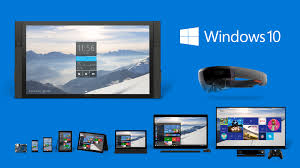
    Windows 10

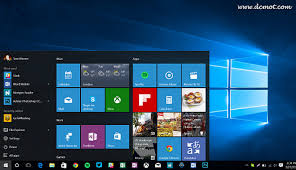
    You may remember that, back in July when Windows 10 originally became available, I recommended that everyone wait until “the bugs were worked out.” Now that Windows 10 has been available for five months and “the dust has settled,” it’s time to give you an update.

    I recommend that people who are running Windows 7 on older machines do not upgrade to Windows 10.  Updating to Windows 10 has caused some computers to lock up or crash, and I have had to refer several clients to a computer technician for expensive repairs.  I recommend that people with Windows 7 wait until it’s time to get a new computer. (If your computer is 4 years old…it’s time to get a new one!)

    People with Windows 8 on their machines can probably update to Windows 10 without problems. They will find that it is much less confusing.  (They might want to have me tweak the settings so so it looks like good ‘ol Windows 7.)

    People who are are making the transition from Windows 7 to Windows 10 because they survived the update or got a new computer, may want to have me tweak the settings so it looks like Windows 7, and take them on a tour of the new features.

     For many reasons, that I won’t go into here, I have been very disappointed with Microsoft and its products and recommend avoiding them if possible. (You probably don’t want all the gory details but if you do, just ask.)  There are other computers systems that are easier to use and more reliable.  I have been using a Chromebook for almost 2 years and it cost less than $300!  I also highly recommend Apple computers and tablets.  Of course the choice depends on how you use them and your budget.

    When it’s time to make a purchase, please consult with me first.So many problems and frustrations can be avoided by choosing the right equipment for your individual needs, and I can often save people a lot of money.

    I also do free presentations on “How To Choose The Right Computers and Gadgets for Your Needs”.  If you know a group that would like me to speak, just let me know.

  • Plan Your Year

    Great tools here…especially for business owners that already have a lot “on their plates” and more they want to contribute.  Sometimes paper is as better than digital.  Yes,  I did say that.  LOL  However they will have “an app for that” too.

  • ​Do You Use Skype or Face Time?

    Why Use Skype?

    Skype is an app that lets you connect with people using the video camera on your computer or mobile device.

    Face Time does the same thing, but only works with Apple products. Even if you use Face Time, it’s a good idea to know how to use Skype as well. They are both very simple and easy to use and they are truly one of the best benefits of modern technology.

    A friend of mine uses Skype to play checkers with her 9 yr. old grandson who lives out of state.

    Parents use it to stay in touch with their children when they have to be away on business trips or vacations. They can read the children a bedtime story, watch them get tucked into bed, and throw them a kiss goodnight.

    Several clients have had me show them how to use Skype for important job interviews. We practiced calling each other, chose the most flattering camera angle, picked the most attractive background, and discussed what to wear. It is so rewarding to see people gain confidence and be optimistic about getting the job!

    Video chat is great for online dating and long-distance relationships too.

    Businesses use Skype for video conferencing because they can have multiple people on a video call. They save a lot of money on air travel, hotels and meals.

    On an internet enabled big screen TV, it can feel like you’re actually in the room with distant family members. You can even watch each other open Christmas presents!

    On mobile phones, you can only use audio for group calls, but on your computer or internet enabled TV you can do video conference calls.

    Skype also supports audio calls to traditional phones. Using Skype on your tablet or smartphone, you can call somebody on a regular telephone. This is really handy if you are traveling and don’t have access to phone service but do have access to wifi.

    One of my clients who is retired from the Foreign Service, learned how to use Skype so he could stay in touch with his friends all over the world for free.

    All of the features of Skype are free, except calling people on regular telephones. However, Skype phone calls are a lot less expensive than traditional long distance calls.

    How to Use Skype

    Skype is a free download from the iOS App Store and the Google Play Store and is already installed with Windows 10 and Window phones. (It’s owned by Microsoft.)

    You need to have an account to use Skype. You can set up a free account or, if you already have a Microsoft account, you can just log in with that.

    On iPads, iPhones, Android phones, and Android tablets, each version of Skype will look a little different but the functionality is the same. There are just a few minor differences on each device

    When you login you will see three screens

    1. RECENT- shows the most list of people most recently talked to
    2. FAVORITES – shows the contacts you have marked as favorites
    3. PEOPLE – is your list of people you can call on Skype. They have to have an account also and they have to agree to be connected with you.

    To Add a Contact

    Search for the person in the Skype database. There are millions of people in the Skype database and lots of people with the same name…even unusual names. It’s amazing!

    Therefore, the quickest and easiest way to find people is to search for their unique Skype name. Email address work sometimes too because there aren’t duplicates of those but it’s really easier to ask your person for their skype name.

    When you find them, tap the button that says “add people.” Then tap “send a contact request.”

    The person’s name will show up on your contact list but, they will not show up as online and accessible until they have accepted your request.

    After they accept your request, you will be able to see their status next to their name, which lets you know when they are online for you to call them.

    Note: some people leave the Skype app open all the time to receive calls. Other people text or email each other to set a time and then open the app. It depends on how often they use it.

    To make a call

    Select a contact and you will see buttons at the bottom of the screen. You can choose to do a video call or an audio call. They both work pretty much the same. Tap on the button for audio or video. The camera starts running right away so you can frame up your shot while you wait for the other person to pick up.

    After you start talking, the buttons at the bottom of the screen will fade out of the way, but when you tap on the screen, they’ll pop up again.

    You can mute and unmute your audio by hitting the mute button.

    You can disable the camera by hitting the camera button if you want to talk and see them without them seeing you.

    When you’re done, just hit the red hang up button.

    To receive an incoming call

    The app will make a sound and you will see a choice of buttons.

    If you don’t want to answer a call, you can just hit the red button.

    If you want to answer but only want to use audio, then hit the green button in the middle.

    To see video and hear audio, hit the camera button.

    To hang up, tap on the screen to bring up the controls and hit the red button

    You can also use Skype to have a text chat.

    On the screen, with a contact’s information, tap on the field that says “type a message”. Type and then hit the Send button. When he responds, you’ll see his response pop up.

    Calling regular telephones

    This feature is particularly useful when you’re traveling to a place where you won’t have a cellular phone connection, but you will have wifi.

    This is called Voice Over IP, or VOIP. Using this feature, you can call a regular phone as long as you can connect to Skype on your mobile device.

    This is the one feature that is not free but Skype is much less expensive than traditional long distance rates. To get an idea of the pricing options, check out their website. http://www.skype.com/en/

    You can login to your Skype account on the website and add Skype credit to your account.

    Or in the app on your mobile device, you can hit the “my account” button (top right), and there’s an option for “Skype credit”. This way, it’s an “in-app” purchase and it will be charged to your iTunes account or Play Store account. It will ask for your password for confirmation. Then hit “Buy”.

    To make a call to a regular phone

    At the bottom of the screen, there’s a dialer button and you can just dial a regular phone number. Also, there’s a button at the top that links directly to the address book on your device so you can find the person and tap on the number. When you hit the phone button at the bottom, it will dial. When he answers, you will be having a conversation just as if you were using a regular telephone. To hang up, just hit the red button at the bottom

    Skype is a great app for video and audio calls because it runs on all mobile devices and computers no matter what platform. Group video calls are not available on mobile devices but video calls to individuals work.

    I hope you will try this and enjoy it. If you need help, just let me know.

    Please share this with your friends and relatives. Your referrals are the heart of my business and my mission is to help people more fully enjoy the many benefits of modern technology.

    Thanks,

    Mardi

  • Six Simple Maintenance Tips for Windows PCs

    Most computer owners don’t know much about basic computer maintenance and their PCs are likely to slow down or crash as a result.

    Of course, most of us don’t know much about cars either, but we know to give them gas, change the oil and keep an eye out for flat tires. It’s the same with PCs. You don’t need to be an expert to keep your PC in relatively good condition. You just need to perform a little basic PC maintenance and, more importantly, be observant.

    Here are six simple steps you can take to keep your PC running quickly and reliably:

    Windows Updates1. Keep the Window Operating System (OS) Updated with the Latest Patches

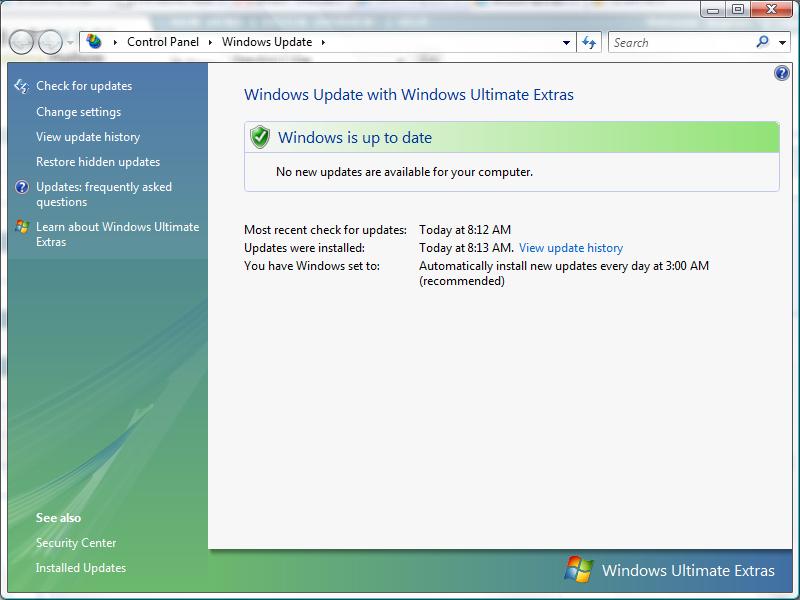
    Windows Update scans your system and updates it with the latest security patches and service packs. You can schedule these updates to run automatically, so there is really no excuse for not having an up-to-date system.

    To access Windows Update click on the Start button, All Programs and scroll through the list to find it.

    2. Keep Your Applications and Utilities Patched  Java update message

    This may surprise you, but all the applications and utilities on your system are prone to security risks and need to be updated regularly.

    Programs that you use everyday like Adobe Acrobat Reader, QuickTime, Realplayer, Skype, WinZip and more require both maintenance and security updates from time to time. Even applications that run in the background like Flash and Java are at risk.

    When update notifications pop up on your screen, allow them to install. Just read the screens as you go, to be sure they aren’t offering to install promotional software that you don’t want. You may need to uncheck some boxes.

    If you have my business card, you have a list of safe updates on it. If you don’t have my care or aren’t sure if a pop up is a legitimate update, just give me a call.

    Norton Expiration Notice3. Keep Your Spyware and AntiVirus Programs Updated

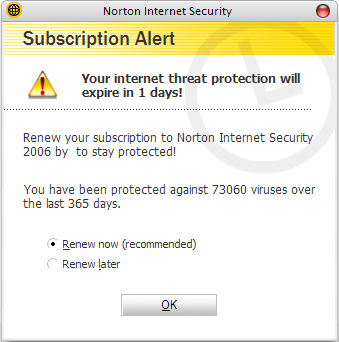
    No matter how good your spyware and antivirus software, it won’t do you any good if it’s not updated or, worse, not running because it expired.

    Most antivirus applications load an icon in the Windows tray, (lower right corner) which lets you verify its status at a glance. Always verify that the application is running after starting Windows.

    In addition, these applications should be configured to perform definition updates everyday and complete system scans at least once a week.

    4. Clean Off the Desktop  Cluttered Windows Desktop

    Having a lot of files on the desktop will actually slow down your computer because each file and its icon preview take up RAM and resources. The less RAM you have the more you’ll notice the sluggishness resulting from a cluttered desktop.

    It’s really more efficient to get in the habit of filing things in the appropriate folders instead of on the desktop; but if you can’t be bothered to do that, just grab all the files and move them into the appropriate folders from time to time.

    If you can’t remember to do it yourself, there are apps that will automatically clean it for you by moving files and folders to a designated place at a regular interval.

    IDrive Online Backup5. Regularly Backup Your Computer

    Performing regular backups is essential for you to be able to quickly recover from potential disasters. I recommend iDrive or Carbonite. They are easy to set up and make it easy to restore your data when you have a disaster, or upgrade to a new computer. You can access your files from your mobile gadgets too! If paying the annual fee bothers you, just think of it as insurance, like your auto and home insurance.

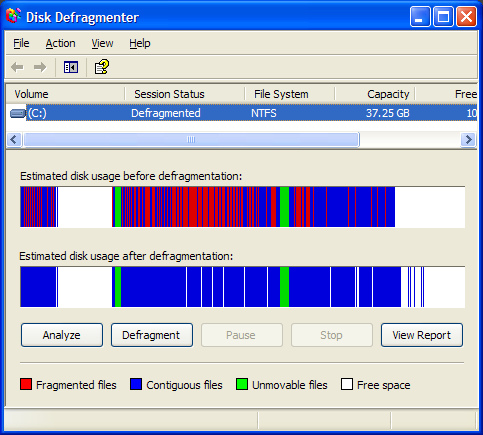
    6. Defragment and Check Your Hard Drive for Errors Regularly  Defragmenter Utility

    In order to maintain the integrity of your data there are two hard drive tests that you should run at least once a month.

    The first is to Defragment your hard drive. Over the course of regular use, your files get fragmented or spread out all over your hard drive. So while an MP3 or WMV file appears as a single file to you in Windows Explorer, small pieces of the file could literally be spread across the entire hard drive. Gathering all of these distant pieces back together into a single continuous order, makes files load faster. Defragmenting your drive can can make your system noticeably faster if you had lots of files fragmented.

    The other test is Check Disk. This tool checks hard disk volumes for problems and attempts repairs. (It can repair problems related to bad sectors, lost clusters, cross-linked files and directory errors…but you don’t need to know all that.) Just remember that Disk errors are a common source of difficult-to-track problems, and running this test regularly can significantly reduce your risk of having problems.

    Windows has a built-in defragmenter and check-disk utility. Just open Windows Explorer and right-click on the drive you want to examine. Select Properties and then click on the Tools tab. To defragment your hard drive, go to the Defragmentation section and press the Defragment now button. To perform a check disk, go to the Error-checking section and press the Check now button.

    You don’t need to be a computer expert to keep your computer running well. Preventing problems doesn’t require much understanding about computers. You just need to pay attention and actually read those messages that popup on screen during an installation and use the tools that come with your computer.

    Just follow these basic steps, and your computer will be safer and far more reliable.

  • 4 Simple Apple Computer Maintenance Tips

    Did you know that your computer needs some regular maintenance, just like your car?

    Just like your car, your computer is a substantial financial investment and causes major inconvenience when it doesn’t run properly so it’s important to keep it in good shape. In both cases, you can learn how to do the maintenance yourself, or you can pay someone to take care of it for you.

    If you don’t want to deal with it, I’ll be happy to take care of it for you…one time or on a monthly basis via remote connection.

    I hope you find this information helpful and that you will forward to others so they can more fully enjoy the benefits of computer technology.

    There are four simple maintenance tips that will help you keep your computer in tip-top shape and running at its best.:

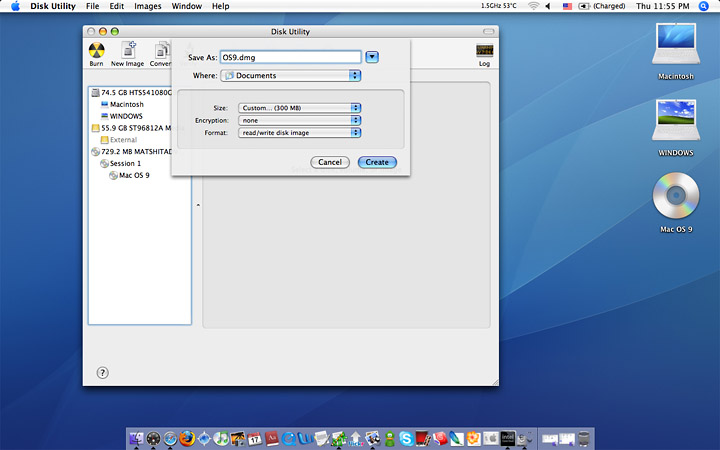
    Run Apple Disk Utility1) Run Disk Utility

    Running Disk Utility every month or two is a good for: repairing permissions, and more importantly, verifying and repairing the hard drive.

    Disk Utility is included on all Macs and found in the /Applications/Utilities folder, under the “First Aid” tab and can be run one after another.

    Repairing permissions is a good procedure to run, especially after installing or uninstalling a lot of applications.

    Repair Disk s probably the most important thing to do with Disk Utility. Be sure to run Verify Disk not only on the drive itself (physical drive name), but also the boot partition (Macintosh HD). If any errors are found, they’ll appear in red, and thankfully Disk Utility is usually more than capable of handling such repairs on it’s own.

    The best way to repair the boot disk is to boot from the recovery partition by holding down Command+R and running Disk Utility from there. This will be necessary if bad blocks are found or if the drive is corrupt.

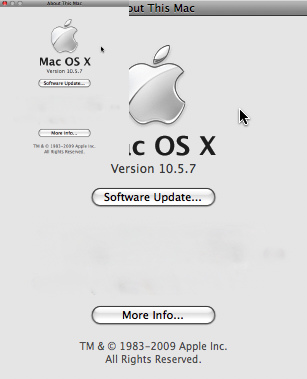
    Mac Software Update2) Keep your Mac Software Updated

    Keeping your software up to date is vital. Periodically run Software Update from the Apple menu, and periodically check the Mac App Store for updates of your apps too.

    Updates contain bug fixes, feature enhancements, and security fixes. and it’s so easy to do there is no excuse not to.

    Software Update will check for updates once a week by default, but the Mac App Store has to be manually checked for updates in OS X Lion.

    With OS X Mountain Lion and newer, Software Update moves to the Mac App Store so this whole process will be automated for modern OS X users, including El Capitan, Yosemite, and Mavericks.

    Mac Desktop Clutter3) Clean Off the Desktop

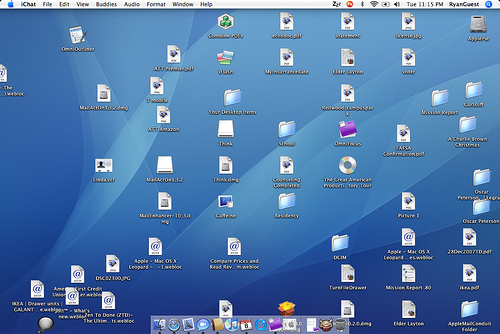
    Having a lot of files on the desktop will actually slow down your computer because each file and its icon preview take up RAM and resources.

    The less RAM you have the more you’ll notice the sluggishness resulting from a cluttered desktop.

    It is more efficient to get in the habit of filing things into appropriate folders instead of on the desktop; but if you can’t be bothered to do that, just grab all the files and move them into the appropriate folders from time to time.

    If you can’t remember to do it yourself, there are apps that will automatically clean it for you by moving files and folders to a designated place at a regular interval.

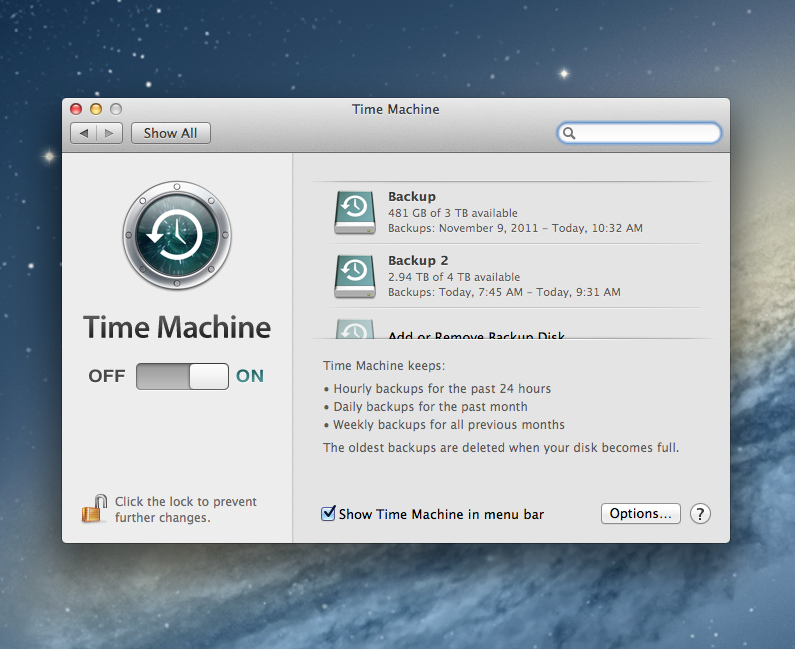
    Set Up Time Machine4) Regularly Back Up Your Computer

    Performing regular backups is essential for you to be able to quickly recover from potential disasters.

    The simplest back up solution for Macs is Time Machine. You’ll need an external hard drive, but once you set up Time Machine, automatic backups occur without any effort.

    If you haven’t set up Time Machine yet you really need to do so. Get a large external hard drive and configure Time Machine through System Preferences.  I’t’s easy to do and you’ll be very thankful you have a back up in the event of a hard drive failure.

    You should also do a manual back up before allowing system software updates. I’t’s rare, but things can go wrong, and it’s best to be prepared.

    “Listen to your Mother” and do your maintenance so you won’t have regrets later ; )

    Enjoy!

  • To Sleep or Shut Down, That is the Question

    When your computer is not in use, do you shut it down, put it to sleep, or just keep it turned on?

    In working with clients, it’s come to my attention that many people don’t completely shut down their computers from time to time.  Letting your computer just go to sleep night after night can cause problems.  For the average user, I recommend shutting it down completely, at least once a week.  The same applies to mobile gadgets like tablets and phones.  (See below for more details.)

    If any of your techie tools are acting a little weird and slowing down, they may just need a reboot (shutdown and restart).  Try rebooting and then call me if that doesn’t work.

    I hope you have found this tip useful and that you will forward it to others so they too, can more fully enjoy the benefits of computer technology.

    Pros and Cons

    Putting It To Sleep   Computer in sleep mode

    The advantage to putting it to sleep is that it provides the easiest and fastest way to resume work while minimizing wear and tear on the hardware. The computer goes to sleep instantly and when it wakes up, all of your open apps, documents, window arrangements, and web pages, are exactly where you left off with almost no delay. For average users who want to quickly get back to what they were doing, sleeping is perfect.

    • Pros: Quickly resume exactly where you left off; sleep and wake can be scheduled or even done remotely
    • Cons: Minor power consumption; system temp fluctuations, swap, and cache files don’t get cleared out during as during a reboot process; system updates requiring reboots don’t install automatically and need a manual reboot; performance is best for computers with 4GB RAM or more

    If you use your computer every day, simply putting it to sleep when it’s not in use or overnight is probably the best choice. Just be sure to reboot every once in awhile to allow system software updates to install. Waiting for an operating system Update or Security Update is generally a sufficient time between reboots.

    shutting down computer for updatesShutting It Down

    Shutting it down isn’t necessary unless it’s going into a longer term state of inactivity or storage. Shutting down is slower because all the open applications and documents have to quit; and when you turn the machine back on, everything has to re-open again to get back to where you were prior to shutdown.

    • Pros: Saves power, doesn’t strain hardware; system temp, memory, swap, and cache files get cleared out during boot; allows for major system updates to install
    • Cons: Takes a while to boot up and resume previous activity

    For the power conscious or for those trying to squeeze the absolute longest lifespan out of hardware and hard disks, shutting down when not in use is the best choice. This is also necessary if you’re going to put your computer in long term storage, won’t be using it for a longer than a few days, or you’re going to be traveling and not using it during the travel period.

    Computer as a serverKeeping It Always Turned On

    Leaving a computer constantly turned on is best reserved for computers that function as servers. On the plus side, you don’t have to bother resuming anything since it’s already on, you can schedule all maintenance and backup tasks to occur in the wee hours of system inactivity, and it allows for a server or media center to be running on the machine. The downside is the constant power consumption and the constantly active hardware, which can limit overall lifespans of the computer components.

    • Pros: No waiting for use; instantly resume all apps and tasks exactly where you left off; allows for servers to run with constant accessibility; backup and system maintenance tasks can be scheduled for off hours
    • Cons: Constant power consumption; more wear and tear on hard drives, fans, and physical hardware due to possible heat

    For the casual user, it’s best to put it to sleep when it’s not in use.  It gives hard drives and fans a rest, and will generally lead to a longer lifespan of the computer.

  • See Your Computer on “The Big Screen”

    Have you ever wished you could see your computer screen on a TV?  Would you like to see emails, web pages, photos slideshows, YouTube videos and movies on a big screen or display presentations for your business?

    Well you can….and it can be pretty simple and inexpensive to set up.

    The simplest method is Chromecast because you don’t have to know about ports and screen resolution settings.

    chromeCast

    A $35 Chromecast plugs into the TV and connects it to your Wi-Fi network. Then you can see video, images and pages from the Chrome web browser from any computer, smartphone or tablet that’s also on the network.  This is a very inexpensive solution and very easy to set up.  You can use Chromecast with a Mac too.  You will just need to use the chrome browser instead of Safari when connected to the TV.

    If you want to see everything on your computer rather than just what’s shown in Google Chrome, you can do a direct connection.

    DIRECT CONNECTION

    There are four kinds of ports for direct connections.  HDMI, DisplayPort, DVI and VGA.

    All newer TVs have HDMI, and that’s the one you ideally want to use because it supports HD (high definition).

    Unfortunately, many computers don’t support HDMI

    Computers that don’t have HDMI, will have either DVI or DisplayPort. If your computer has one of these, you can get an adapter to connect it to the HDMI port on your TV.

    Inexpensive computers might have only VGA and it cannot do HD (high definition) images so you might want to use a better computer if you plan to stream movies online.

    GETTING THE RESOLUTION RIGHT

    Modern computers should be smart enough to figure out the right resolution, when you plug into a TV, especially if you’re using the HDMI port.

    However, if you’re using an adapter or an older version of Windows, it might have to adjust the resolution.

    Right-click on the computer desktop and select “Screen Resolution.” Select the TV and change the Resolution to 1920×1080 (unless you’re using a smaller or older TV, in which case it might be 1280×720).

    You might be tempted to push the resolution higher, but don’t. Not only will it look terrible but a higher resolution actually makes everything on the screen look smaller.

    video calls

    PICKING A TV SIZE 

    If you’re going to use a TV in a larger room, you want to make sure it’s easy to see. This handy chart will give you an idea of the size you’ll want based on the room length.

    Distance Minimum size Maximum size
    6 feet 24-inch screen 36-inch screen
    8 feet 32-inch screen 48-inch screen
    10 feet 40-inch screen 60-inch screen
    12 feet 48-inch screen 72-inch screen

    Even with a large TV, you might still have a hard time seeing smaller computer text from a distance. You can use CTRL + + (plus sign) in most programs to zoom in text and images. CTRL + – (minus sign) zooms back out, and CTRL + 0 (zero) resets the zoom. This is a great trick for watching on your regular computer monitor as well.

    CONTROLLING THE COMPUTER

    You can use a wired mouse and keyboard, but it’s more convenient to use a wireless mouse and keyboard so you can pass it around or give it to whomever is running a meeting in your office.

    Be sure everyone knows how to turn off the mouse when it isn’t in use so you don’t waste the batteries. For business use, you might keep several on hand so you don’t have to interrupt a meeting to change batteries.

    If you need help doing any of this, just call me for an appointment.  760-348-8867

    If you have found this information helpful, please share it with others and encourage them to contact me to receive my Techie Tips on a regular basis.

    Enjoy!

    Mardi

  • Wait Until The Bugs Are Out!

    With new technology, it’s best to wait until the bugs have been worked out…to wait until the “early adopters” have found the major problems and the company has had a chance to fix them.  We’ve seen this recently with the release of the iPhone 6 and the Apple watch. Now, Microsoft is offering PC users the opportunity to upgrade their operating system (OS) to Windows 10 for free and people may be wondering if that is a good idea. It’s not!

    Microsoft’s wants it’s Windows 10 operating system to be installed on 1 billion devices within three years so it’s giving it away for free.  I doubt that this is going to be enough of an incentive for people to change. Even though Windows 10 will look very similar to Windows 8.1, people who use Windows 8.1 vividly remember how traumatic that change was, and will be hesitant to trust the new one. Windows 7 users are determined to avoid going through that.

    People running Windows 7 or Windows 8, should already have had an invitation to “reserve” a copy of Windows 10.

    If not, they can run Windows Update to see if any updates are available for their PC.  The one to they want is KB3035583.  This puts a small white Windows logo – the GWX, “Get Windows 10” app – in the system tray on the right hand side of the Taskbar.

    Alternatively, they should be able to find the invitation by going to Windows Update in the Control Panel (via System and Security)

    The point of “reserving” the upgrade

    The point of reserving the upgrade is to allow Microsoft to download Windows 10 – probably 4GB or more – to PCs in the background over a period of time. It doesn’t want to download the code to 400 million PCs on the same day.   Even if someone reserves Windows 10 now, they may not be invited to install it for days or weeks after the official launch on July 29.

    To cancel a reservation

    Right-click on GWX, the white Windows icon on the Taskbar, select “Check your upgrade status” and then “Cancel reservation”.

    How can People avoid Windows 10?

    Nobody is forcing people to get Windows 10. If they don’t want it, they don’t have to reserve it or install it.

    To remove the reminder, right-click on Start and select Properties. Next, go to the Taskbar tab, click the button that says “Customize …”, and find GWX, the Get Windows 10 app. The drop-down menu offers the option to “Hide icon and notifications”.

    To go further, run Windows Update and click “View update history” to see all the updates installed. Look for KB3035583, select it, and then click to uninstall or change it. Windows will ask “Are you sure?” Just click “Yes”. It will never bother you again … unless you reinstall KB3035583.

    Can they downgrade later if they don’t like it?

    Microsoft aims to enable people to “roll back” to their old operating system, if required. However, I wouldn’t rely on this.  In any case, it would be wise to backup the old system before installing a new and use the option to create “recovery media” with the old system, so that they’re not totally dependent on the “roll back” working.  Remember, you, and you alone, are responsible for preserving your own data.

    More details

    The software which will begin rolling out July 29, will be offered as a free upgrade for all Windows 7 and Windows 8.1 PC and Tablet users.  (Windows 7 and Windows 8.1 operate 74.1 percent of all devices, according to NetMarketShare.)

    Unlike Apple, who offers OS upgrades for free, the Windows free upgrade will only be available for one year…until July 29, 2016.

    For those eligible for the free upgrade, the process will only grant you a comparable version of the software. If you had Windows 7 Home, you get Windows 10 Home. If you had Windows 8.1 Pro, you get Windows 10 Pro. For those who wish to upgrade from the Home edition to the Pro edition, a Windows 10 Pro Pack will cost $99.

    Windows 10 will cost the same as its predecessor, Windows 8.  A copy of Windows 10 Home will run $119, while Windows 10 Pro will cost $199.  Copies of the software will be available online and in stores.  This option will be used by the minority of users who don’t have an eligible machine or wish to build their own computer and install Windows themselves.

  • Are you wondering if you should upgrade your OS?

    There are major changes happening with computer and mobile gadget operating systems and it’s my mission to make it easy for you to keep up and enjoy the many benefits.

    One of my clients received an email from Microsoft offering a free upgrade to Windows 10 and she wanted to know if I thought it would be better or worse than her Windows 8.1.
    windows 10

    I told her, that it’s too soon to tell.  I recommend that people wait until it has been on the market for at least a year to give them a chance to correct any problems.  There are always bugs and fixes that need to be done with any new software.

    There are many improvements and some neat new features, but we’ll shall see….

    If you are interested in knowing about the new features of Windows 10, Click here.

     Yosemite

    Apple also has a new operating system for it’s computers. It’s been available for quite some time and Apple has issued several important updates.  It’s called OS X Yosemite and it has a lot of cool new features.  If you want to learn more about it click here.

    Chromebook

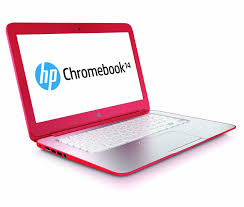
    I’m still really enjoying my Chromebook.  A Chromebook is a laptop of a different breed. Instead of Windows or Mac OS, Chromebooks run Google’s Chrome OS. These machines are designed to be used primarily while connected to the Internet, with most applications and documents living in the cloud and they are much less expensive than other computers.

    If you are thinking about buying a new computer, smart phone or tablet, you might want to consult with me first. In my tutoring, I have the opportunity to play with many kinds of devices so I can give you some good information about their advantages and disadvantages.  I’m proud to say that many of my clients have saved a lot of money and avoided a lot of frustration by consulting with me before they purchased.
    If you buy a new device, have me give you an orientation so you can get up and running quickly and easily. I read the owners manuals and take online classes so you don’t have to.  (“It’s a tough job but somebody has to do it.”  LOL)

    If you found this information helpful, please share it.  


    Enjoy!

    Mardi