Category: Techie Tips

  • Shutterfly for Photo Sharing

    Shutterfly for Photo Sharing

    Are you taking lots of photos this summer?

    I got a call this week from a client who had just returned from an amazing caribbean vacation with family and wanted to know the best way for them to share their photos with each other. What fun!

    I thought you might like to know about it too. It’s Shutterfly.com. Are you familiar with it?

    Shutterfly offers free, unlimited, secure photo storage! They also offer photo prints, photo books, cards, stationary, calendars, and personalized gifts like coffee mugs.

    It’s very easy to set up a free private website where a group of people can upload their photos to share and then everyone has the opportunity to download their favorites to their computers, and order prints or other items from Shutterfly.

    My nieces send my mother little books with photos of their children after they visit and she loves them.

    I’m eager to know if you use Shutterfly and what you think about it.  Send me a message below.

    If you are trying Shutterfly for the first time and have questions or want me to help you set up a site, let me know that too.

    If you have any other questions about photos, I’m always happy to help.

    Use the handy form below:


    Go back

    Your message has been sent

    Warning
    Warning
    Warning

    Warning.

  • Feeling Better About Having to Change

    frustrated computer user

    The world is changing rapidly these days, largely due to technology.  My goal is to help people adapt as simply, easily and affordably as possible.

    Perhaps thinking about the situation in a different way will help you feel better about changes.

    We can’t turn back the clock or stop technological evolution, but we can control how we respond.  

    We can choose to resist what is, get upset, refuse to change and be continually frustrated, or we can do what we need to do to make things work and make ourselves happy.  

    Think about the things you wouldn’t be able to do if it weren’t for technology.  Make a list of all the ways you benefit.

    Then remember that in order to benefit, you will need to invest in equipment and maintenance from time to time, just like you do with your house appliances and automobile.

    Here’s a good analogy:

    How old is your car?  (Is it as old as your computer?)  If your mechanic said it wasn’t possible to get parts to fix it because it’s too old, would you insist on driving it anyway?  It it couldn’t pass a smog check, would you drive without registration?

    Computers and technology may become obsolete faster than cars, but the principle is the same.  There comes a time, when it’s more effective to change than to hold on to the old.  Sometimes that requires a little education, similar to taking continuing education courses for professional certifications or learning how to use a new TV.  You just get a little instruction and enjoy the benefits of the new information.

    I hope thinking about technology in this way will help you feel better and inspire you to change your equipment or way of doing things when necessary.

    If you need help to decide on the best equipment and apps for your individual needs and instruction on how to use them, just let me know.  I promise to make it as simple, easy, affordable and fun as possible.

    If this has been helpful to you, please share below so everyone can feel better about changes too.  

    Be the first to see now blog posts.  Sign up for email notifications below:

    Go back

    Your message has been sent

    Warning
    Warning
    Warning

    Warning.

  • Tablet VS Chromebook

    tablet and chromebook.jpeg

    I received this question recently and thought you might be interested too…

    Question:  Hi Mardi,  Thank you for always sending these healthy tips for the computer.  My question is what is the difference between a Tablet and a Chrome Book?

    Answer:  Tablets are lightweight so they are easy to carry around but they are mainly for “consuming” information.  Any amount of typing with touch screens can be very, very frustrating.  You can get keyboards for them and then they are more like small laptops, but the screens are very small for doing much in the way of work and you have to buy a fairly expensive model in order to get the processor speed of a laptop.

    A Chromebook is a laptop computer that does almost everything online so it doesn’t need a hard drive.  That makes it nice and lightweight like a tablet but it comes with a regular full size keyboard attached.  It’s better than a traditional laptop because it doesn’t need maintenance, backups or  antivirus programs.  It’s really trouble free. It’s also much less expensive than traditional laptops.  Good ones are less than $300.  The battery charge lasts a long time too, because it doesn’t have a hard drive with cooling fans.

    If you are going to do any amount of work, like spreadsheets, or documents or blogging, you will be happier with a Chromebook than a tablet because of the full size keyboard and larger screen.  You will need to learn how to use Google docs but it’s pretty easy, and they are free.  All your docs will back up to the cloud automatically.  The other Google apps for the Chromebook like the photos app, are great too.  You need a wifi connection for Chromebooks because they work off the internet, but you can download some things and work offline when necessary.

    If you only need a small lightweight device for travel to watch movies, youtube videos, check your email and calendar, a tablet will work, but, again, the screens are pretty small.  I think of a tablet as a larger version of a smartphone without the phone.  lol

    My clients who have switched to Chromebooks love them because they are so trouble free and easy to use.

    Let me know if you have any other questions or if you want me to help you buy one online. (I don’t recommend the HP Chromebook at Best Buy because mine stopped working on wifi after 18 mo.  My daughter’s HP Chromebook is still working fine, though and  been a couple of years.)  I have a Toshiba and I like the ACER that one of my students has.  Let me know what you decide to get.

    If you, or people you know, are considering a new computer or mobile device purchase, please contact me for a complimentary consultation which I’m happy to do.  Buying the right equipment is the key to making your techie Life simple, easy and fun.  Let’s schedule a time to discuss the best purchase for your needs and budget….
     

    Go back

    Your message has been sent

    Warning
    Warning
    Warning

    Warning.

  • Choose the Right Tools

    cartoon of frustrated computer user

    Are you thinking about doing any techie projects?

    Many of my students call me because they need help with a project of some kind and I love seeing the interesting things that people in our age group are doing with modern technology.

    Sometimes we get started on a project on a computer or mobile device and become so frustrated that we just want to give up. Yep, it’s happened to me too! : (

    Often this is caused by not choosing the right tool for the job. We start with the apps that come with the computer or tablet without considering that there might be other options that could make it “simple, easy and fun.”

    I want you to know that you (and the people you care about) are welcome to call or email me for a complimentary consultation before you launch a project so I can help you get started on the right foot.

    Some of my students have:

    • written books and screenplays (two of them used an iPad instead of a computer)
    • learned how to use spreadsheets to keep track of golf groups and party invitations
    • made collections of photos and archived them for their family members
    • set up groups in their contacts to send broadcast emails and print mailing labels

    Sometimes they start with the wrong tools and by the time they reach out to me, they have wasted tons of time and are extremely frustrated:

    • An author had written a book with his iPad and was starting to have trouble because parts of it were written in different apps and it was causing problems with formatting the final draft.
    • A woman was going to type addresses in a mailing labels template instead of in a spreadsheet or address book app that can rearrange the list alphabetically after new contacts are added. (Fortunately, she called me before she was too far along.)
    • A business owner was planning to send broadcast emails without using a service that would ensure that emails get opened rather than being flagged as spam.

    There’s nothing wrong with making mistakes! Mistakes are an integral part of learning and I admire people in our age group who are willing to jump in and try new things but I want to make it a smoother road for you, so feel free to consult with me first so you can select the best app or hardware.

    I’m always happy to answer your questions and, if someone you care about is embarking on a project that involves technology, invite them to check-in with me too.

    Email me to schedule a complimentary consultation

    Go back

    Your message has been sent

    Warning
    Warning
    Warning

    Warning.


  • Best Antivirus Programs

    mistake-1966448_960_720

    I recently answered a question for a client that I think you will find very help and that you will want to share with people you care about.

    Client:  Have you heard of scanguard?  It is a free download of a program that supposedly scans for viruses and speeds up your computer.  Would you recommend it?

    Mardi:  No and I wouldn’t trust free.  My Techs recommend WebRoot in conjunction with Malwarebytes or BitDefender but BitDefender can slow things down.

    Noah and Angel at NYPC Repair are in the business of removing viruses so they ought to know.  They also told me that they see machines using McAfee that come in with viruses.

    There’s an old saying in publishing that says, “If you don’t pay to learn how to do things right the first time, you’ll pay three times that to fix your mistakes.”

    You just learned how to do antivirus protection right and it didn’t cost you a penny!  You will need to pay for the most reliable protection however…unless you decide to use a Chromebook which doesn’t require antivirus programs.

    Do you have a burning question that you want answered?  Feel free to ask.  There are probably many other folks that have the same question or concern.

    Speaking of other folks, please share this with the people you care about so they can benefit too.  They can sign up to receive all my Techie Tips here.

    Enjoy!

    Mardi

  • What is 2 Step Verification?

    minion-what

    Are you using 2-step verifications for some of your logins yet?

    Is it bugging you that 2-Step Verification procedures are being recommended more and more when you try to login to your accounts?

    I found it confusing and annoying when I didn’t understand what they were talking about or why it was necessary but now I appreciate the value of it.

    I thought you might like to know more about it.

    Here is a quick little video from Google that explains it very well and the principles apply to other accounts besides Google’s.  You just go into your account settings and set it up.

    With 2-Step Verification, you’ll protect your account by requiring something you know (your password) and something you have (your phone, tablet or a key).
    If hackers get your password, they still can’t get into your account because they won’t have the phone or other device that has a verification code on it.

    Verification Codes are created for one-time use at the time you need them.  They are sent to your phone or other device via text, or phone call.

    Here’s how it works

    Step 1 You’ll enter your password
    Step 2 You’ll be asked for something else, like a code that will be sent to your phone via text or phone call

    Sometimes, during sign-in, you might have an opportunity to choose not to use 2-Step Verification again on that particular computer. If you say yes, the system will only ask for your password in the future. This makes it more convenient for you.
    However, If you or anyone else tries to sign in to your account from another computer, 2-Step Verification will still be required.

    If you aren’t using 2-Step verification, maybe you will start using it now.  If you need help, just let me know.  We can even do a quick lesson via remote access!

    Please share this Techie Tip with your friends and family so their accounts will be protected too.

    Enjoy!

    Mardi

  • The Ultimate Apps List

    bethMy friends call me “The Gadget Queen,” but when it comes to apps, I bow to Beth Ziesenis, Author, Speaker and Nerd. (yournerdybestfriend.com)
    She is definitely “The App Queen”.  She looks at thousands of apps every year and shares the latest and greatest in her hilarious Friday NerdWords email. 

    At the end of the year, she spends weeks combing back through the year’s NerdWords to create a list of every app she’s covered in the past year.  

    I thought you would enjoy her annual Ultimate Tech Tool List and she gave me permission to share it with you.

    Go ahead… get your nerd on and download this list!   Let me know your faves.

    Enjoy!  

    Mardi

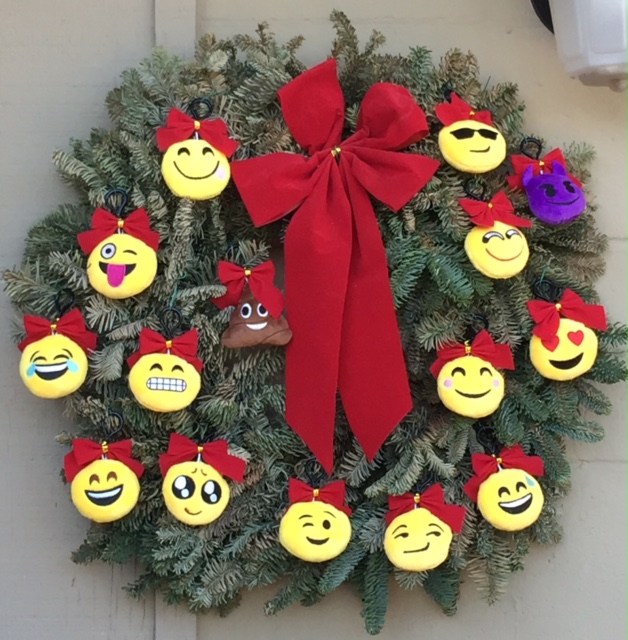
  • A Merry Emoji Holiday To All

    emoji-wreath

    A Merry Emoji Holiday to All
    Whatever way you celebrate this holiday season…
    I wish you much joy and peace.
    May you find ways to keep it simple, easy and fun
    And enter the New Year
    With enthusiasm and a sense of adventure.
    Enjoy!
    Mardi
    Your Computer Tutor & Gadget Guide
  • The gift of technology – My top 13 Gratitude List

    The gift of technology – My top 13 Gratitude List

    Happy Thanksgiving!

    Thanksgiving is my favorite holiday.  Doesn’t it feel so good to take time to focus on all the blessings in our lives?

    One of my greatest blessings is being able to do work that I love and to be able to make other’s lives happier and richer.

    You make this possible and I want you to know how much I appreciate you, your business and your referrals.

    I love sharing my passion for technology and the many ways it can make our lives more simple, easy or fun.

    Here’s A Baker’s Dozen of Techie Things I’m grateful for.  It’s not a complete list but it’s the things I enjoy almost every day.

    What would you add to the list?  Share your suggestions in the comments section below and let us count the ways….

    1. The World Wide Web for education, communication and the answer to every question imaginable
    2. Google Search, Wikipedia, YouTube and all the researchers, educators, bloggers and writers that provide the information.
    3. Video conferencing apps that allow me to see my adult children who live far away and even tour their new homes, to offer remote Tech Support to frustrated clients and restore them to being happy campers and to share the joys of technology with more and more people.
    4. Email – It’s hard to remember what life was like before email
    5. Mobile phones, their amazing cameras and apps
    6. Photo sharing and editing apps
    7. Online shopping and online reviews of products and services
    8. Facebook – I don’t go there often but it’s always a good time when I do.
    9. Google Docs and OpenOffice – all the benefits of Microsoft office suite and it’s free
    10. Audiobooks and ebooks and all the amazing authors that provide education and entertainment on so many subjects.
    11. Google Maps and Google Earth
    12. Digital Music – iTunes, Amazon, Pandora, Spotify and others
    13. Digital video entertainment – movies, Hulu, Netflix, Amazon, iTunes and others


  • Get control of passwords the simple, easy way with Chrome

    Smart Lock Password Manager for Chrome

    Google Chrome Smart Lock To The Rescue

    Passwords are torture for everyone and I’m so happy to be able to share a solution that’s even easier than LastPass.

    You can use Google Chrome “Smart Lock for Passwords.”  You just need to use Google Chrome and be signed into Chrome with a Google account.  (You don’t have to use the gmail address for anything else if you don’t want to.)

    Here’s How It Works

    If you don’t have a Google account:

    1. Go to google.com and create an account
    2. Download and install Google Chrome
    3. Follow the instructions to make it the default browser
    4. Allow it to import your bookmarks or favorites when it offers

    To Connect Chrome to your account:

    1. Click on the three stacked dots (upper right)
    2. Click Settings
    3. Under “Sign In” click “Connect your Google Account”
    4. Close the tab.

    You’re Good To Go

    When you login to your sites, it will ask to remember your logins. You will give permission the first time and it will log you in automatically afterward. What a relief!!!

    And, if you use Google Chrome on your mobile devices, it will log you in there also.

    (There may be times when a website doesn’t allow autofill, for example, at public terminals or when a site has been coded to specifically block autofill)

    Now that you don’t have to remember your passwords (Ah bliss!) you can create super secure (impossible to remember or hack) passwords instead of using the usual lame ones.

    A good source for secure passwords is http://www.nortonsecurityonline.com/tools/password-generator.html

    1. Go to your accounts and login with your old password
    2. Find the place that says “change password” (it will be different for every site)
    3. Change the password using one that you copied from the Norton’s website

    What If You’re Not Using Your Own Computer?

    If you need a password when you’re not using your own computer, you can login to www.passwords.google.com and see all your passwords.

    To see all the password on your computer:

    1. Click the stacked three dots (upper right)
    2. Click “Settings”
    3. Scroll down and click “Show advanced settings”
    4. Scroll down to “Passwords and forms” and click “manage passwords.”
    5. Click the dots by the link account you want to see
    6. Click “Show”

    If you have questions or need help with Chrome or other apps, just call or send me an email and we’ll set up a time to get together — in person or via remote access.    Enjoy!

    Go back

    Your message has been sent

    Warning
    Warning
    Warning

    Warning.

    Enjoy!