Category: Techie Tips

  • How To Make Your Technology Less Frustrating and More Fun This Year

    How To Make Your Technology Less Frustrating and More Fun This Year

    “It’s that holiday time of year again, and that means it’s over the river and through the woods to…well, fix my family’s Wi-Fi and other tech problems.”  From: The Complete Guide to Giving Better Family Tech Support  by Jason Fitzpatrick
    family-dinner-3407701_1280
    Do you have someone in your family who takes care of your techie problems for you?

    I was that person for my mother. In fact, she was the one who suggested that I start this tutoring business to help other retirement-age adults.

    I often laugh and tell people, “I’m your person, when you don’t have access to any techie relatives or you don’t want to impose. ; )

    I recently read a fun article by How to Geek. The Complete Guide to Giving Better Family Tech Support  and I realized that it’s time to remind you that, “a few times a year someone needs to make sure computers are up to date,photos are backed up, and the tech is humming along as it should, so you won’t be in a in a position to have people exploit your computers, lose your photos to a hard drive crash, or otherwise be miserable because you just didn’t know any better.  After all, you aren’t out there keeping up on all the tech news and reading how-to guides.”

    image of computer with 2019 on the screenAnd, there’s another great article for the New Year… Lock Down Your Tech With These New Year’s Resolutions by Justin Pot.  It urges people to:

    • “Use a freaking password manager
    • Lock Down Important Accounts With Two-Factor Authentication
    • Backup Your Computer (Seriously)
    • Update (or Upgrade) Your Router
    • Clean Out Your Browser Extensions
    • Remove Unused Third-Party App Access From Google, Facebook, and Other Accounts
    • Encrypt Your Computers and Phone”

    As I often say, “using technology is like driving cars, they need check ups from time to time, and you have to know the rules of the road for your safety and security.

    sparkler-839831_1280No Worries…There Are Easy Ways To Get It All Done:

    • Read the two articles and follow their very clear instructions or
    • Send these tips to your “Family Tech Guru” so he or she can do it or
    • Hire me to teach you how to do it or
    • Hire me do it for you

    Whatever you decide is fine, but  please make a decision and “get ‘er done” so you can have less frustration and more fun.

    Wishing you a very happy new year and may your techie world be simple, easy and fun this year!

    Enjoy!

    Mardi

    P. S. Please share this with your loved ones so they can get the help they need too.  Thanks!

  • Holiday Photo Tips and Tricks

    Holiday Photo Tips and Tricks

    Are you capturing lots of great memories with photos this holiday season?  Here are some great techie tips about photos from my news feed.

    sample1

    Remove the background from photos for free

    From Beth Zensies, Your Nerdy Best Friend   “Just upload a pic to remove.bg and the site instantly removes the background. Where was this all my life??? It takes less than 5 seconds, instead of an hour with me in a cheap Photoshop alternative.”

    Making digital Photo Collages

    (Some of you have used Picasa in the past but Google is not supporting it anymore and it may stop working soon.)  From How To Geek:  How to make a digital photo collage

    An Alternative to Photoshop That Runs in Your Web Browser

    icon256

    From Kim Komando Photopea

    Best Photo Editing Apps for Android

    From Kim Komando:  Best Photo Editing Apps for Android

    How to Make Your iPhone Photos look better

    From Kim Komando:  How to Make Your iPhone Photos Look Better

    images

    Snapseed for Chromebooks

    Chromebooks support Android apps now and Leo Laporte, an avid photographer, has found the Snapseed app to be just as capable as Photoshop.

    An Amazing photo presentation that gives us a different perspective on life

    Screenshot 2018-12-21 at 12.54.51 PM

    Shared by a fun client: Smile from Cosmic Eye by Dan Apps

    Websites for sending free ecards

    From How To Geek: Websites for sending free ecards

    And a goofy Merry Christmas video…

    Screenshot 2018-12-21 at 12.51.37 PM

    My Merry Christmas Video courtesy of Office Depot

    You can make one too at https://www.elfyourself.com/

    Please share these techie tips with your loved ones.

    Have you tried any of these?  I’d love to read your comments below.  Thanks!

    In joy!
    Mardi

  • Do I Need A Streaming Device?

    Do I Need A Streaming Device?

    Roku, Apple TV, Amazon Fire Stick…Do You Need One?   

    Are you considering buying one of these devices or are you wondering if you need one?

    These devices are designed for streaming content.  In this article I’m going to give you some basic information about how they work and and make some recommendations.

    TV menu for streaming services showing Netflix and Hulu

    What Is Streaming?

    Streaming is a method of transmitting or receiving data (especially video and audio material) over a computer network as a steady, continuous flow.  It allows playback to proceed while subsequent data is being received.

    In other words, instead of downloading a movie or song and then playing it from your device, (computer, smartphone, or tablet) you watch it as it’s being transmitted over the internet from someone else’s server. (Netflix, Amazon, Hulu, etc.)

    Here’s a good analogy:  when someone talks to you, information travels toward you in the form of a sound wave. Your ears and brain decode this information, allowing you to understand it.

    • Streaming video and audio, is a stream of data from a server.
    • The decoder is a stand-alone player like a Roku, Apple TV, Amazon Fire Stick or a plugin (program) that works as part of a Web browser (Chrome, Firefox, Safari).
    • The server data stream and the decoder work together to show live (sports events, concerts) or prerecorded (movies, songs) broadcasts.

    What Does Buffering Mean?

    Buffering is the process of creating a buffer which is some data stored in the memory for playing back soon.  When your video stops or lags and you see “buffering,” that means the download has not happened fast enough and you’ve viewed more than was able to be downloaded.  This situation occurs when the internet connection is not fast enough.  After a few minutes the download catches up and the video starts again.

    Who Streams and Why?

    image of a smoking cable cord and the amazon, hulu and netflix logos

    According to Hub Entertainment Research’s Conquering Content Report, 52 percent of people now watch streaming video and more than 48 percent of those use set-top boxes. (like Roku and Apple TV)

    Two-thirds of them subscribe to at least one of the big three streaming services: Netflix, Amazon Prime, and Hulu. More than a third subscribe to two or more services.

    According to another Hub study, Decoding the Default, 78 percent of people are still subscribing to cable or satellite, but 70 percent of those subscribers are also subscribing to a streaming service. It appears people aren’t “cutting the cord” but rather, adding streaming networks.

    One of the reasons is that watching popular shows like Stranger Things (Netflix), The Handmaid’s Tale (Hulu), or The Man in the High Castle (Amazon Prime), requires a subscription to their streaming services.

    In addition, traditional over-the-air (OTA) networks, such as CBS are also moving to streaming. Star Trek: Discovery, is only available on CBS’s streaming service: CBS All Access.

    Do I Need A Streaming Device?

    Most newer TVs have streaming capability (The LG OLEDB8P or LG OLEDC7P, are considered some of the best).  If you only watch shows from the big three streaming services (Netflix, Hulu, Amazon Prime), you may not need a separate set-top streaming gadget.

    Apple TV

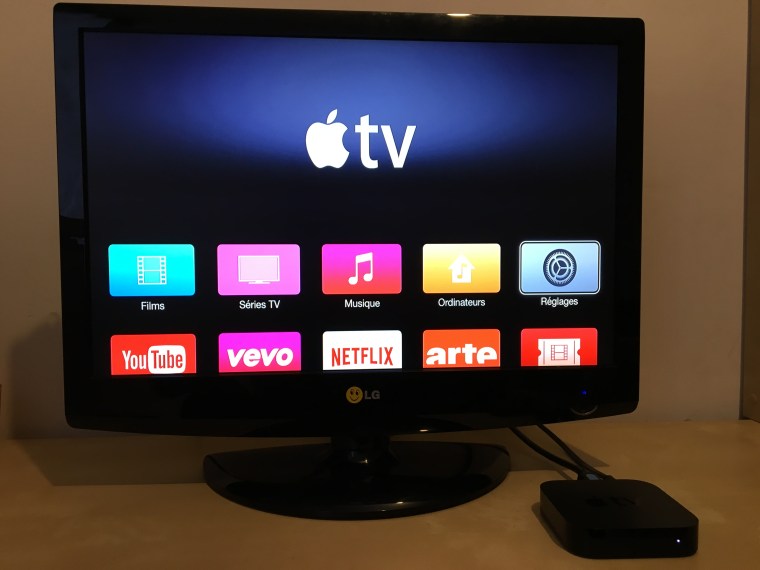
    Picture of a TV with Apple TV menu

    Do you love Apple gadgets? Do you buy and rent videos from the iTunes store? Do you use iTunes for your personal media library? Then you’ll enjoy Apple TV.  The latest Apple TV is The Apple TV 4K. The starting price is $179 and you will need a 4K TV to benefit fully benefit from the 4K resolution but it will work on older TV’s.  (Be aware that if you upgrade your TV to 4K, you will need to upgrade any other devices you have, like DVD players. It’s a seemingly never ending cycle of consumerism. LOL

    In addition to letting you buy or rent content from the Apple Store or your own iTunes library, the new Apple TV supports more third-party streaming services than it used to, but it still doesn’t support Amazon Prime Video.  It has some cool apps of it’s own like slideshows of the history of art, famous places around the world. And your personal  photos.

    Other advantages to Apple TV is that, unlike other streaming devices, Apple TV 4K also supports HDR10 video, Dolby Vision HDR, Gigabit Ethernet and 802.11ac Wi‑Fi connectivity.

    A big plus in my book is the Apple TV interface and remote controller because they are so simple and easy to use.  

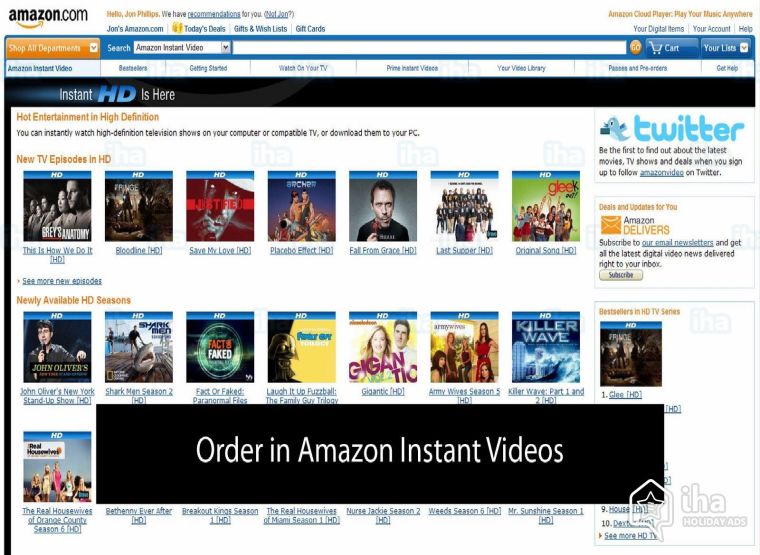
    Amazon Fire TV Stick with Alexa Voice   Picture of a TV screen with the Amazon order page for instant videos

    If you’re an Amazon Echo user or a subscriber to Amazon Prime Video, you might want the Amazon streaming gadget – the new Amazon Fire TV Stick with Alexa Voice. You can use it’s remote controller or any nearby Alexa device, to start showing The Marvelous Mrs. Maisel and other Amazon videos.  It also supports most of the other popular streaming services such as Netflix, Hulu, and YouTube. At $39.99, it’s an affordable, high-quality streaming gadget.

    Like other devices, it supports 4K and HDR-10 but it also supports Dolby Vision, an HDR format alternative to the more popular HDR-10.  In theory, Dolby Vision HDR is superior to HDR10 because of its potential to display more colors but you may not be able to see the difference.

    Roku

    Picture of a TV screen with the Roku menu

    If you have an older TV that doesn’t offer streaming, the Roku Express+ for $39.99 can bring it up to speed. This device has composite A/V ports that work with older TVs.

    Roku builds outstanding streaming devices and they have a simple interface that’s easy to use.  This year’s top Roku device is the Roku Streaming Stick Plus. It’s a simple stick and it supports 4K video, High Dynamic Range Video 10 (HDR10) and 802.11ac WiFi for only $59.99.

    Like all Roku devices, it supports many more streaming services than its competitors so people who want to explore the hundreds of video services available will want this one.

    The new Roku Premiere+ available from Walmart for $49.99 has most of the Stick Plus features and a good voice interface with audio control built into the remote but it only supports 802.11n at 2.4GHz so if your WiFi isn’t strong, it may not work well for you.

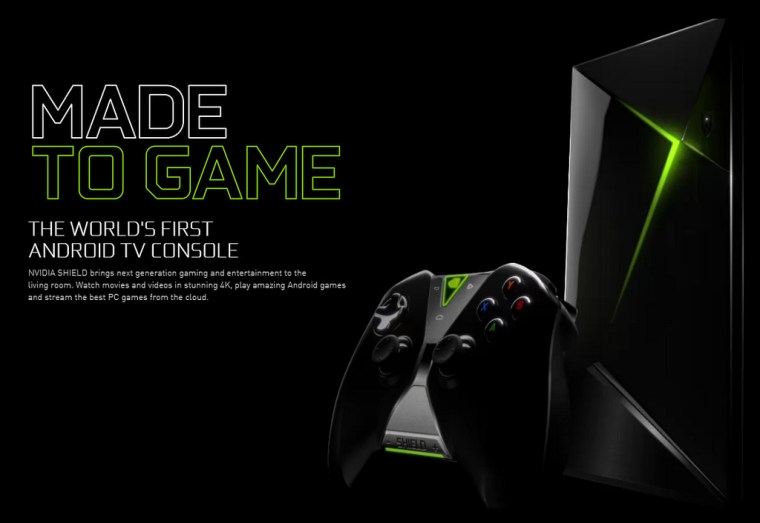
    Nvidia Shield TV  Picture of the Nvidia Shield console device for gaming and streaming movies

    Are You A Gamer?

    If you want to both stream video and play games, you have many good choices including Sony’s PlayStation 4 Pro or the Xbox One X, but for streaming, the Nvidia Shield (2017) is much cheaper at $179.  It does a great job of showing 4K and HDR video and you can use it to stream many services including Netflix, Amazon, and Vudu.

    It also supports Google Assistant (because it runs the Android TV operating system).  The current model comes with a microphone, so you won’t need to buy an accessory to use Google Assistant.  However, Google assistant devices are pretty inexpensive and very useful in their own right so you might want to get one anyway. (More about assistants in another article coming soon.)

    Hope this puts you “in the know” and helps you decide what, if anything, to buy.  

    What streaming services do you use?  Do you have a streaming device?  Will you buy one now?

    Please share in the comments below.

    Enjoy!

    Mardi

  • What Happened to Your Windows 10 October Update?

    What Happened to Your Windows 10 October Update?

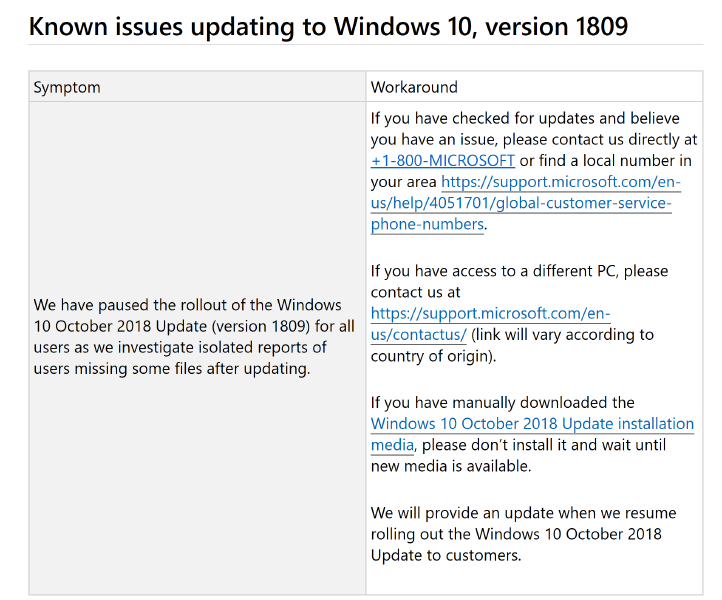
    screen shot of notice of issues on Microsoft's websiteMicrosoft has paused the roll-out of its October Update (version 1809) because it was causing numerous problems.  It’s been over a month and there hasn’t been any word as to when it will be re-released.

    The new feature update will eventually download and install automatically, based on your Windows Update settings.  It may be some time before you get the update because Windows 10 is running on more than 700 million machines! (It took more than six weeks for the April 2018 Update to reach 250 million Windows 10 devices — about 36 percent, and that was a record pace.)

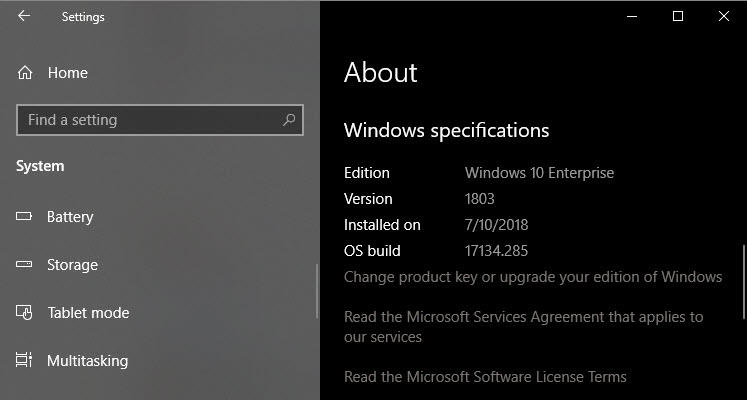
    The October 2018 Update is officially version 1809, build 17763. You can check the version information on your PC by going to Settings > System > About, and looking under the Windows Specifications heading. There, you’ll see the details for the currently installed version and build. (The number after the build number indicates the most recent update version.)

    This example shows a PC running the previous version 1803.

    Screen shot of Settings Menu

    If you are using Windows 10 Home edition, you don’t have an option to defer the update until bugs and compatibility issues are revealed and fixed, but you, as a home user, aren’t on the top of the list either.  This deferment actually protects you.  

    People who run a business edition of Windows 10 can change some things in the settings to control when they allow updates, but I’m not going to go into all the details here because it’s not relevant for you.

    In any case, I trust that you have heeded my previous warnings about OS updates.  You have a backup system in place, and you know your passwords, right?

    I know all this negative news and confusion makes you nervous.  It’s been been very damaging to the credibility of the Microsoft brand too.  Tech news reporters have suggested that Microsoft’s development process is broken, and that they should focus on fundamentals rather than new features. 

    Microsoft’s “broken development process” is hurting the entire PC industry.  It’s almost the holiday shopping season.  Computer manufacturers are having to ship computers without the latest version of Windows.  Consumers, troubled by all the negative news stories, are likely to consider Chromebooks, MacBooks, or the new iPads. Who wants to deal with all these problems unless they have to?

    If you’re tired of dealing with Windows issues, or you need a new computer, or you’re planning to buy a computer for a loved one, you might want to consider other options too.  Most of computer problems and frustrations can be avoided by choosing the right computer in the first place and I want to help you keep your techie life simple, easy and fun!  I’ll be happy to answer your questions about the best choice for your unique needs, free of charge. 

  • Love Apple’s New macOS Mojave

    Love Apple’s New macOS Mojave

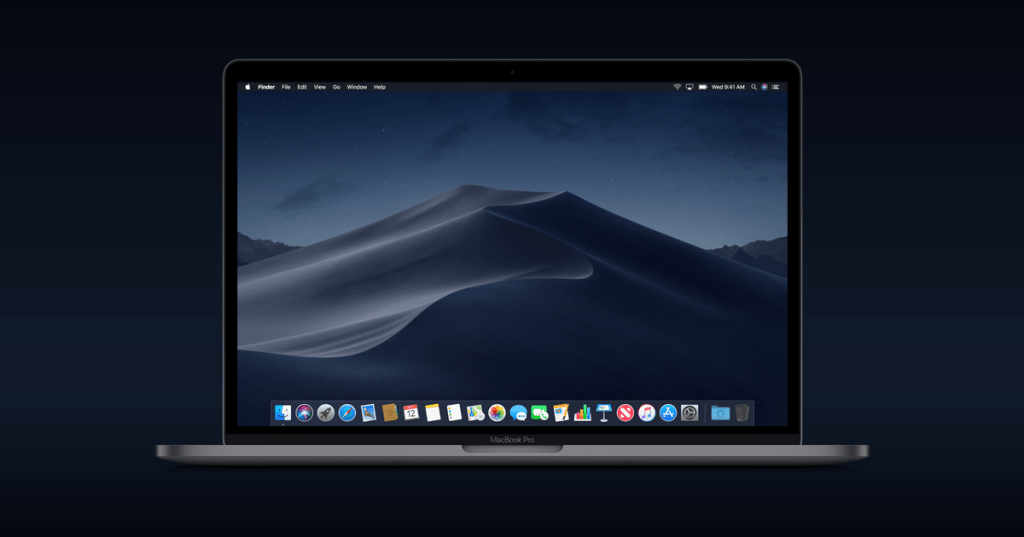
    Image of macOS Mojave Dark Mode Theme

    The new macOS Mojave was released on September 24 and “the coast is clear” to install it now, if you haven’t already. It’s a free software update in the App Store.

    Before you do that, you need to:

    1. Check that your computer is compatible
    2. Make a backup
    3. Check that you have enough free space

    No worries…all the instructions are clearly explained on Apple’s website How to upgrade to Mac OS Mojave   If you need a little hand holding or want me to do it for you, let’s set up a time.

    Apple has created a beautiful web page that describes the new features.  It even has animations to show what they do.  See it all here…

    The features I think you will really love are:

    1. The Dark Mode Desktop theme and the time-shifting images to match the time of day. It’s really pretty!
    2. The Stacks feature that cleans up messy desktops by automatically organizing files into neat groups.
    3. Quick Look in Finder that lets you work on a file without even opening it!  You can perform actions specific to the file type — without ever launching an app. You can mark up a PDF, rotate and crop an image, trim audio and video and even share files!

    And too “technical” to “Love” but hugely helpful…

    1. macOS Mojave requires apps to get your approval before accessing the camera or microphone, your messages data and mail database.
    2. Enhanced Tracking Prevention — When you browse the web, the characteristics of your device can be used by advertisers to create a “fingerprint” to track you. Safari now thwarts this by only sharing a simplified system profile. Intelligent Tracking Prevention keeps embedded content such as social media Like buttons, Share buttons, and comment widgets from tracking you without your permission. 
    3. Safari automatically creates, stores, and autofills strong passwords for you. And it flags existing passwords that have been reused in Safari preferences, so you can easily update them. Security has never been so user friendly!

    I’m eager to know how you like it.  Let me know your favorite features in the comments below.

  • How to Backup Your Computer

    How to Backup Your Computer

    Why Backups Are Important

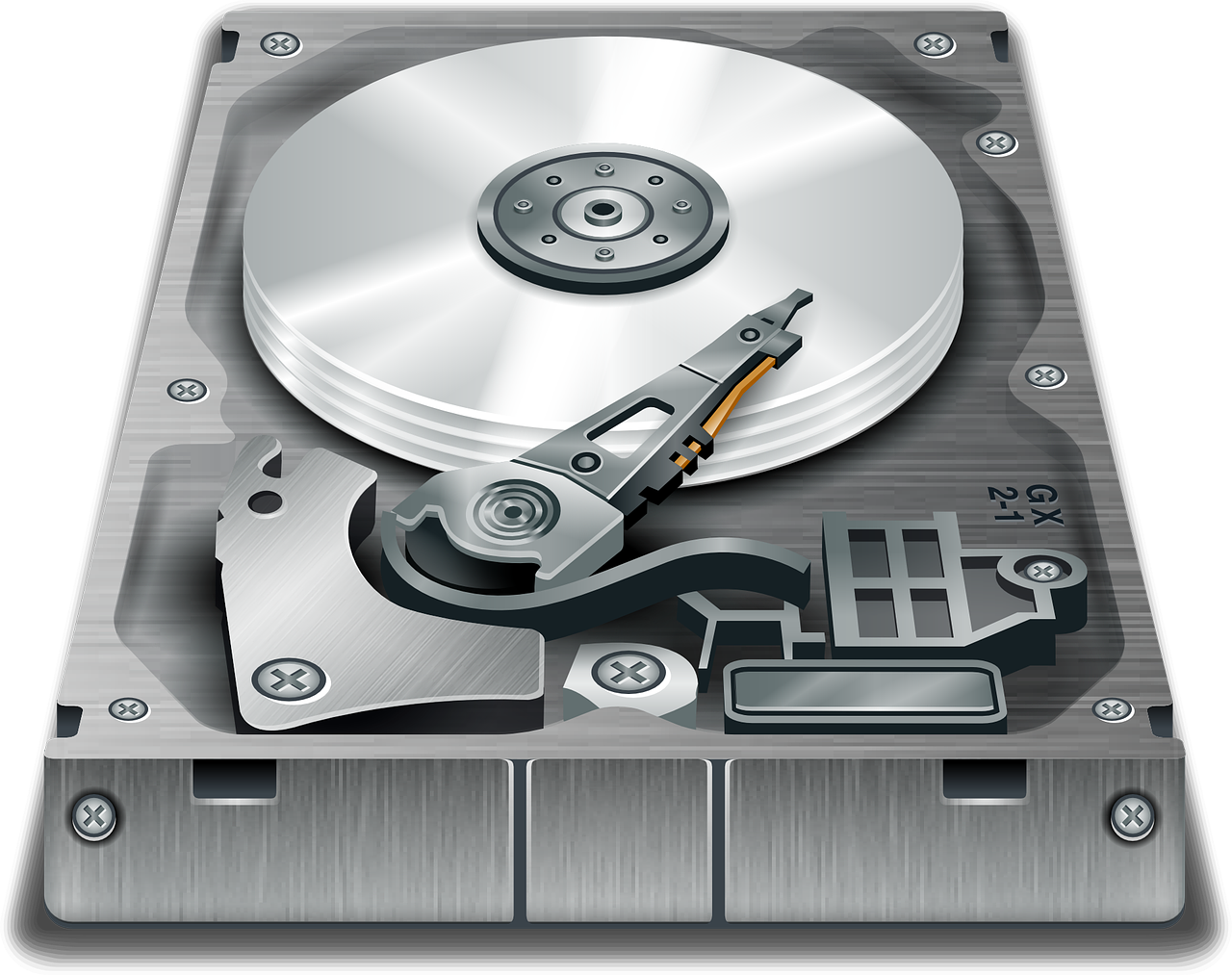
    illustration of a traditional disc drive
    Image courtesy of Pixabay

    1. Hard Drives Crash — Even though solid state drives, don’t have moving parts like disc drives, they can still fail.
    2. Computers can get stolen — especially if you travel
    3. Operating system (OS) updates can corrupt or delete your files.

    I feel so sad when I see clients who are devastated because they didn’t realize how important their data was until it was gone.  

    Think about all of the files on your computer.  Do you have an address book, irreplaceable photos or videos, music or movies you’ve purchased, important letters, legal documents, or medical records?  What would you do if they disappeared or were corrupted due to a hardware or failure or software glitch?

    When you have a backups, you can easily restore your files from your backup.   

    The Ultimate Backup Plan

    Follow the 3, 2 , 1 rule  

    1. 3 backups
    2. 2 different types
    3. 1 off-site

    If you have important files and photos and don’t want to risk losing them, this is the way to go.  With my Chromebook, I store everything in Google Drive and trust Google not to lose my stuff but you may not be as trusting.  With my PC, I use and external backup as well as Google backup and sync.  Another option would be to use Microsoft’s One Drive cloud plus an external backup.  This plan qualifies as “2 different types” and “1 off-site” but it’s only “2 backups.”  Decide on a plan that makes you comfortable but DECIDE and IMPLEMENT!

    Off-Site (Cloud Storage)

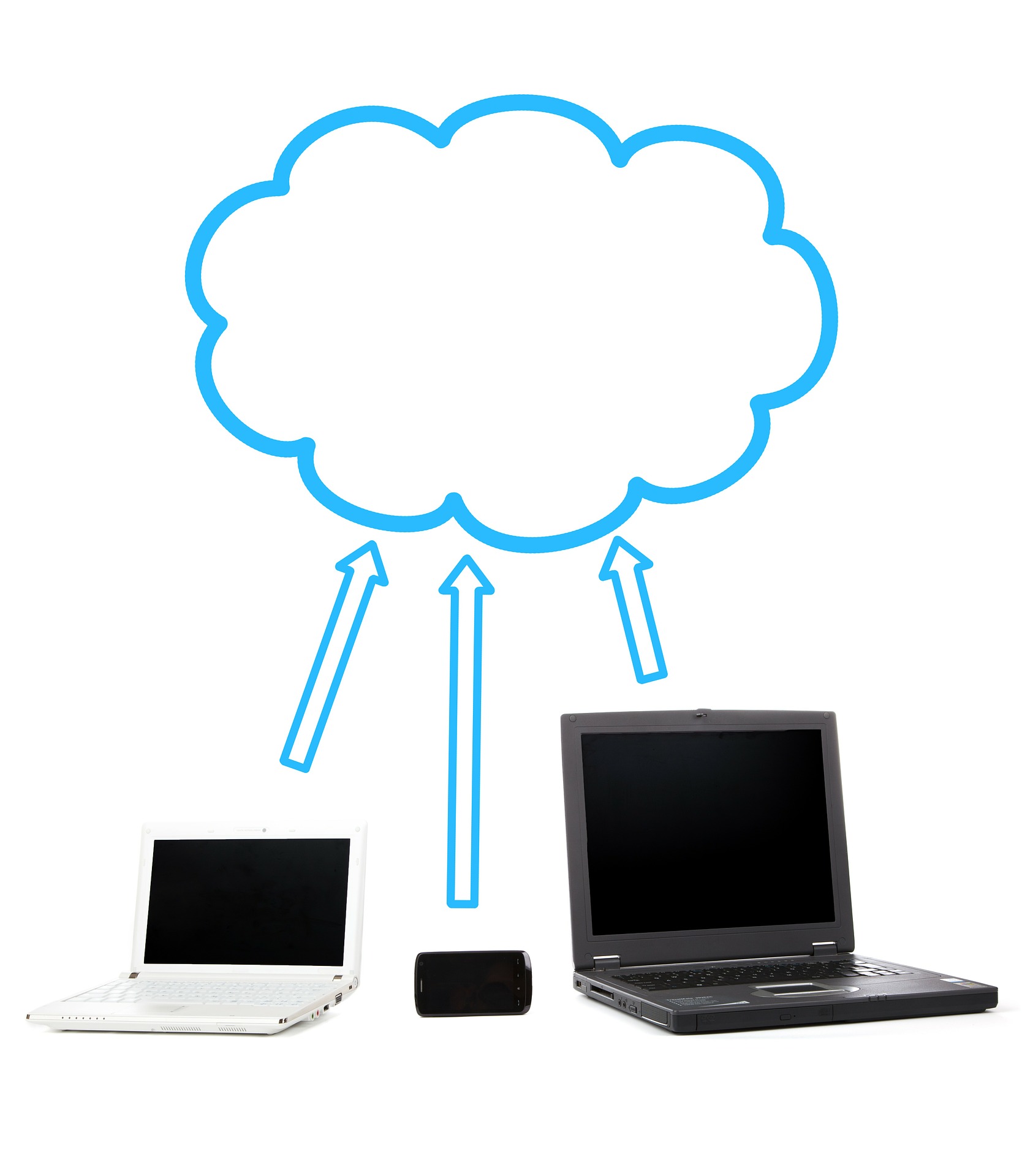
    Illustration of cloud backup
    Image Courtesy of Pixabay

    Google Drive, OneDrive, iCloud, Dropbox and other cloud services, enable you to store your files off site on their computers, but they are not doing continuous backups as you work and you have to make sure that your files get saved to the right location.

    Continuous Backup Inside Software

    Software programs, like Word or Excel can be set to update continually as you work but they may not be set up to do this by default. You may need to adjust the settings. Google docs does continuous backups automatically!  This protection assumes that your document file is connected to a cloud service.  It doesn’t do any good to have your document updating as you work on it, if it’s stored on your computer and your computer drive crashes.

    Subscription Cloud Backup Services

    Another solution is to pay for a service like Carbonite, Backblaze, or  iDrive. These services backup all the changes in all applications as they occur. You set up an account and then download an app that synchronizes your files between your computer and their servers.  They provide ample storage space with the basic fee and you can always increase the capacity if you need more storage. (Services and fees change all the time, so search on the internet thewirecutter.com or call me for help.)

    External Drive Backups

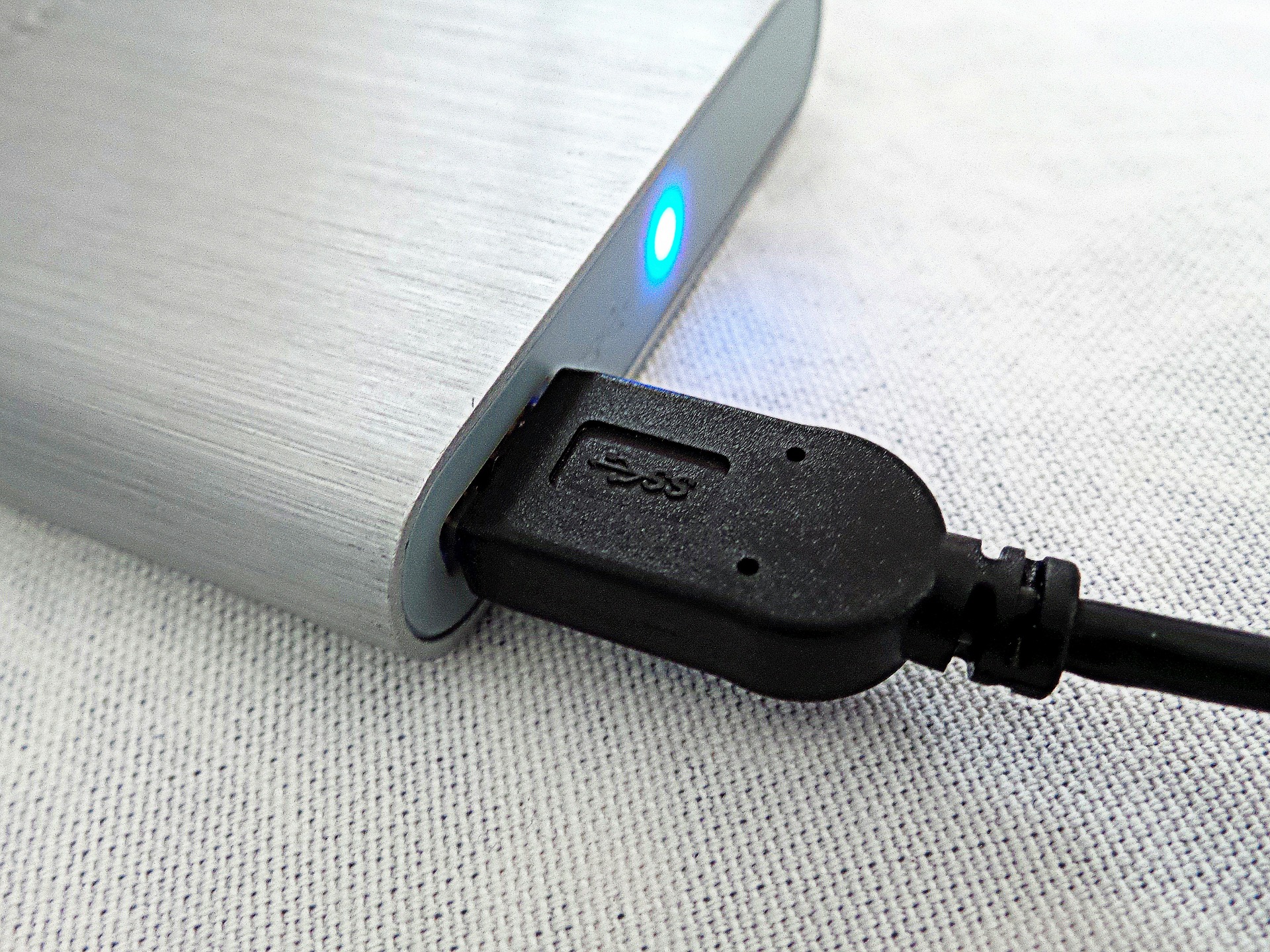
    image of external backup device
    Image Courtesy of Pixabay

    External drive backups provide a safety net in case an online/cloud backup should fail. It’s unlikely that an online backup system would fail, but you never know for sure. 

    Your external drive backup should be set up to work continually in the background.  If you only use scheduled backups, you can lose changes made between scheduled backups.  For example: If you create a document on Friday, your computer doesn’t back up until Sunday, and your computer crashes on Saturday, you will loose the document created on Friday. 

    A disadvantage to external drive backups is that they can crash just like any other drive they can get stolen, or damaged by a fire or natural disaster.

    Again, in order for your files to be completely safe, you should use more than just an external drive backup.  Remember the 3 – 2 – 1 rule.

    How To Set Up Backups With Microsoft Windows

    Image of Windows Computer
    Image Courtesy of Pixabay

    For Windows 8 and 10  Use File History

    File History automatically backs up your files every hour by default, but you can choose every 10 minutes, 15 minutes, 20 minutes, 30 minutes, 1 hour, 3 hours, 6 hours, 12 hours, or once per day.

    It will be set to keep your backups forever, unless you change it to 3 months, 6 months, 9 months, 1 year, or 2 years old. You can also have it automatically delete backups as necessary to make space on your drive.

    1. Connect an external hard drive to your computer using a USB port.  
    2. Open the Settings app or Control Panel from your Start menu.
    3. Navigate to Update & Security > Backup.
    4. Click Add a Drive and select the drive.
    5. Select More options to choose how often to backup, how long to keep backup copies, and which files to back up. 

    Windows will backup your files to the drive, as long as it is connect it to your computer.  If you move your laptop, be sure to remember to plug your drive in again.

    For Windows 7:  

    1. Go to the Control Panel
    2. click on System and Security
    3. click on Backup your Computer
    4. click Setup Backup
    5. click on the name of your external drive
    6. click Schedule to choose the day and time
    7. click Save Settings and Run Backup

    Apple Computers

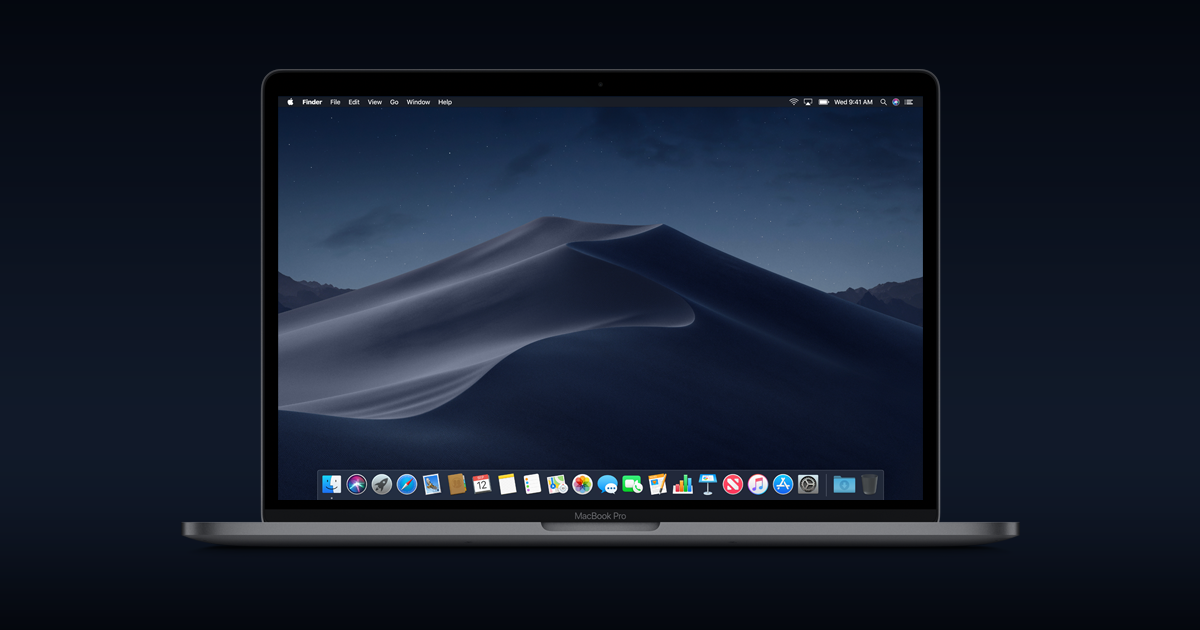
    Image of Apple Computer and iPad
    Image Courtesy of Pixabay

    Use Time Machine

    Time Machine keeps a day’s worth of hourly backups, a month’s worth of daily backups, and weekly backups until there’s no more space.

    1. Connect an external drive to your Mac and you’ll be asked if you want to configure it as a Time Machine drive
    2. Click Use as Backup Disk and Time Machine will automatically begin backing up everything
    3. Click the Time Machine icon on the menu bar and select Open Time Machine Preferences or open the System Settings window and click Time Machine to access its preferences window.

    Enabling Time Machine on a MacBook will also enable the Local Snapshots feature. Your Mac will save a single daily snapshot as well as a single weekly snapshot of your files to its internal storage if the Time Machine backup drive isn’t available. This provides you with a way to recover deleted files or restore previous versions of files even if you’re away from your backup drive for a while.

    Mobile devices

    Tablets and smartphones have built-in auto-backup systems.  Check in Settings to be sure the backup feature is turned on and that it has backed up recently.

    Archiving Files

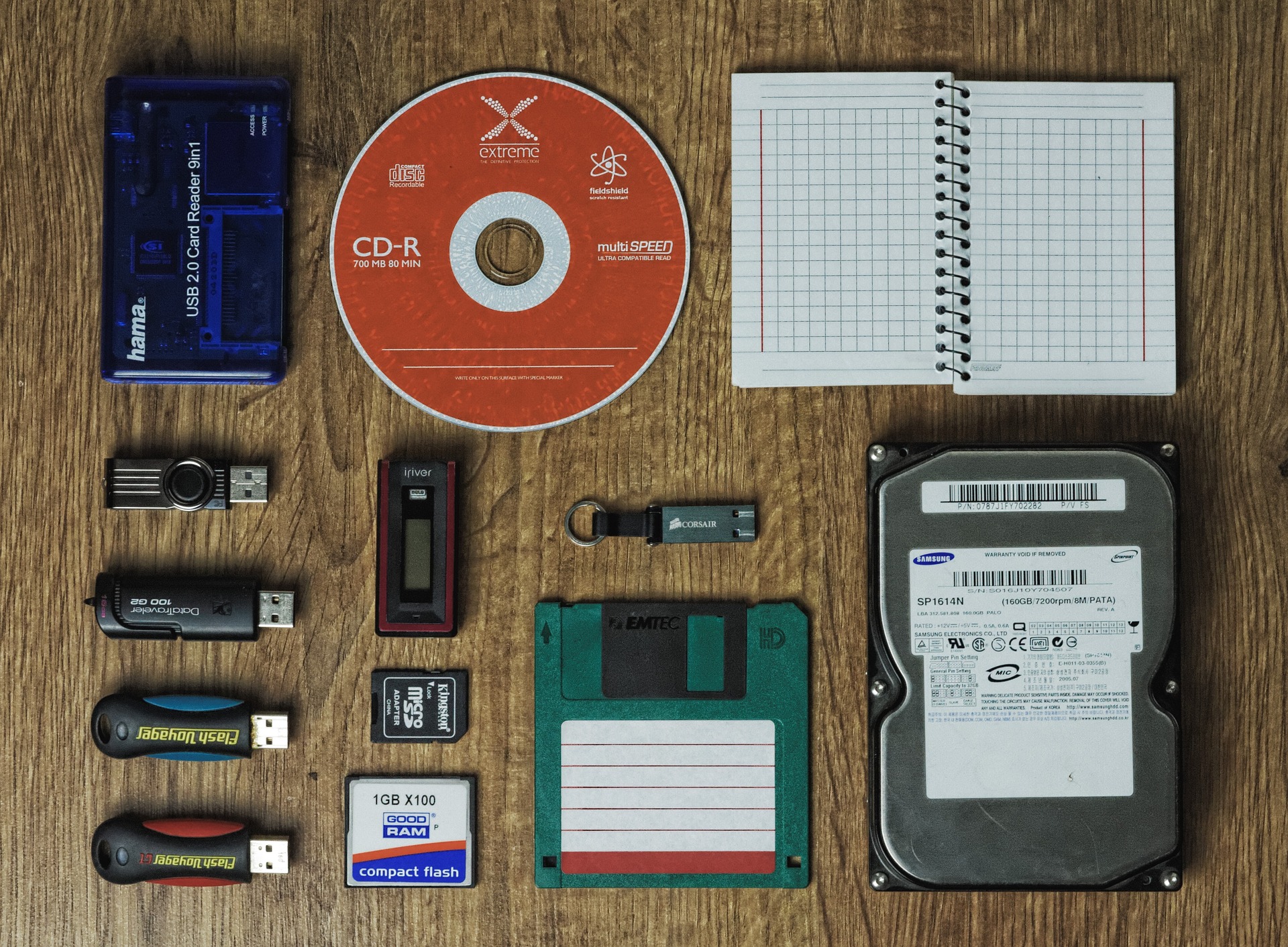
    storage devices for file storage
    Image Courtesy of Pixabay


    Files that you don’t intend to edit or view frequently, don’t need to be backed up continually and can be archived.  You can move the files to an external storage device and store it offsite by giving it to family members or putting it in a safe deposit box at a bank.  Consider making more than one copy and storing them in more than one location. This can save you money on cloud storage fees.

    In Conclusion

    check on your backups
    Image Courtesy of Pixabay

    Setting up backup systems is critically important but it’s also a simple matter of deciding on the systems you want to use and setting them up.  Once your backup systems are in place, you only need to check occasionally to be sure they are working properly.  (Just choosing your doctors and getting your regular checkups.)

    You can do this!  Get it done so you can…

    Enjoy!

  • The iOS 12 Release Made Simple

    The iOS 12 Release Made Simple

    This week, Apple released a new version of it’s operating system for iPhones and iPads, iOS 12 and many of you may not care much about it.

    I’ve been looking forward to this update because it’s supposed to make older phones run faster and I still use an iPhone 6 Plus.  It will be interesting to see how it works.

    While there are many interesting and innovative new features, I doubt that I will use most of them.  We’ll see….

    Here are two simple, but important things you need to know:

    1. Wait a few weeks to be sure that any bugs are worked out of the software (There are usually several updates that come out during the weeks following a new iOS release so wait until “the dust settles.”
    2. Be sure to create a backup before allowing the iPhone or iPad to install the update (in case something goes wrong).

    After a week or so you should see a red badge with a “1” appear on the Settings icon. Tap Settings > General > Software Update.  You will need Wi-Fi access and your battery charged above 50 percent or the device will need to be connected to a charger.  (Actually it’s a good idea to connect it to a charger during the update process in any case).

    WHICH DEVICES CAN RUN iOS 12?

    You can get iOS 12 if your running iOS 11.
    iOS 11 is supported on the following devices:
    iPad Air
    iPad Air 2
    iPad Pro
    iPad mini 2
    iPad mini 3
    iPad mini 4
    iPod touch 6th generation
    iPhone 5s
    iPhone SE
    iPhone 6/6 Plus
    iPhone 6s/6s Plus
    iPhone 7/7 Plus
    iPhone 8/8 Plus
    iPhone X
    iPhone XS/XS Max (will ship with iOS 12)
    iPhone XR (will ship with iOS 12)
    The following Devices are not supported:
    iPhone 5
    iPhone 5c
    iPad 4

    So, the oldest Apple devices that can support iOS 12 will be the iPhone 5s and the iPad Air.

    REMEMBER THAT THINGS CAN GO WRONG. CREATE A BACKUP FIRST!!!

    You can either create a local backup using iTunes, (for the more tech-savvy user who doesn’t want backups on the cloud) or backup to iCloud by going to Settings > iCloud > Backup, and then turning on iCloud Backup (simpler and easier).

    IT’S A GOOD TIME TO DO SOME SPRING CLEANING

    While iOS 12 doesn’t need as much free space for the installation as earlier versions of iOS, it’s still a good time to get rid of apps that you no longer use — or have never used.

    ROUND UP YOUR PASSWORDS

    • If you use iTunes for backup and the data is encrypted, you’ll need that password handy in case something goes wrong.
    • After the upgrade, you’ll need to enter your iCloud password to reconnect to all your data and photos on iCloud.
    • You may also need your passwords for logging in again to some of the apps on your device.

    For details about the many new features of iOS 12 see: Apple iOS 12: Cheat sheet by TechRepublic

    Are you excited about any of the new bells and whistles?  Do you have any questions?  I’d love to know what you think.  Post in the comments section below.

    If you’d like to receive all my Techie Tips and invitations to classes and workshops, sign up below.

    Go back

    Your message has been sent

    Warning
    Warning
    Warning

    Warning.

    Enjoy!
    Mardi

  • Smartphones

    Smartphones

    Smartphones are essentially hand-held computers with phones and cameras.  Many of them cost as much as a laptop computer.

    When it comes to choosing a smartphone, it’s a matter of lifestyle, personal interests, and budget.  You may not need a smartphone at all, or you might enjoy having the latest and greatest.

    I have clients on one end of the spectrum who have tried using a smartphone and then decided to just get a simple flip phone for emergencies and, on the other end are clients who enjoy having all the bells and whistles on the latest $1,000 + phones. I have one client who has decided that he likes his phone better than using a computer and uses it exclusively.  (Actually, that’s probably the wave of the future. Young people are heading in that direction. Before very long, we may only see computers in offices.)

    Unlike basic cell phones, smartphones require a data plan for email, web surfing and getting data to the apps.  A data plan will increase your cell phone bill by at least $40/mo. ($480/yr.) so you’ll need to decide if the benefits, justify the additional cost.

    Ask yourself, why you want a smartphone?  Is it just because your kids say you should have one or because you don’t want to be behind the times?  Has anyone actually shown you what they can do or explained the advantages?

    Schedule a Complimentary Consultation to help you

    decide on the best choice for your unique needs:

    Go back

    Your message has been sent

    Warning
    Warning
    Warning

    Warning.

    The Basic Functions of a smartphone include a phone, camera, address book, maps for navigation, texting, email, calendar, calculator, alarm clock and timer, web browser and voice recognition/digital assistants, like Siri, Google Assistant.

    In addition, there are apps for everything under the sun — documents, banking, invoicing, music, podcasts, games, health and fitness, weather, stocks, news, and more.

    People who have businesses like me may need to have a digital calendar and other business-related apps at the ready.

    Some people use their phones primarily for entertainment — texting, playing games, taking photos, or listening to music or podcasts, etc.

    Others depend on smartphone apps for traveling — to find RV parks, translate languages, find the best gas prices, etc.

    If you just want to dip your toe in the water, there are inexpensive phones that are very good.  At some point you may find yourself wondering “what was life was like before I had a smartphone?” or you might decide you don’t need one but at least you will be making an educated decision.

    If you have questions or would like a patient, understanding person to help you gain clarity, you are welcome to schedule a complimentary consultation with me.

    Choosing the Right Phone

    Since smartphones are mini hand-held computers, the considerations are the same as for buying a laptop or desktop computer — processing speed, memory, storage space, screen resolution, and security.

    The type of processor and chipset (the processing and memory units of a computer) and the LTE bands and frequencies that connect the devices to the service providers’ networks, (Verizon, Sprint, T-mobile, AT&T, etc) are important considerations for people who run apps or games that need a lot of processing power.  These factors will not be as important for people who only make calls, send texts or use simple apps like Uber or Facebook

    Screen resolution is a matter of aesthetics and will be more important to people who do a lot of photography or play video games.

    Storage is important if you take a lot of photos and videos, or download a lot of music or movies.

    • Photos: 16GB = 4096 photos, 32GB = 8192 photos, 64GB = 16384 photos, 128GB = 32768 photos.  To make it simpler, if you took 10 photos a day, you’d fill up 16GB in a little over a year.
    • Videos: When recording at 720p, you get about 20 minutes HD footage, per GB of memory. So on a 32GB card, you’d get about 10 hours 40 minutes
    • Music:  1GB would give you roughly 200 songs and you could use online services like Pandora instead of downloading your own.

    Camera specs will matter to avid photographers.  Most people won’t notice the differences.

    You’re probably not interested in understanding all the technical specifications and that’s fine.  The main thing to keep in mind is that the technical specifications affect prices. If your needs are fairly simple, you might be very happy with a less expensive phone.  I think most people pay more than necessary.

    A great source of information is thewirecutter.com  If you can understand “geek speak” and want detailed information, you can find it at https://thewirecutter.com/

    iPhones

    If you use an apple computer or tablet, your techie life will be much simpler if you stay in the “Apple Universe” and use an iPhone. The hardware is well-made and durable, the software is user-friendly, they offer excellent security protection, and there’s no advertising or annoying third-party apps pre-installed.

    Android phones

    You can get a decent Android phone for quite a bit less than the most inexpensive iPhone which is $350. The main issue with Android phones is that the Android operating system is “open source.” That means it’s available for everyone to modify. Whereas Apple has complete control of the iPhone hardware and the iOS operating system, Android hardware is made by many different companies and some of the phones aren’t kept up to date with the latest versions of the Android OS. In fact, some of the companies modify the operating system. You want to be sure that your phone will be eligible for security updates for the whole time you have your phone or be prepared to buy a new phone later. A lot of times the availability of updates depend on the carrier. (Verizon, AT&T, Sprint, T-mobile.)

    The Benefits of Unlocked Phones

    An unlocked smartphone is a phone that isn’t tied to a specific carrier or contract.  It gives you the freedom to shop for the latest phones and plans as often — or as infrequently — as you like. The biggest advantage is that they don’t come preloaded with numerous carrier applications that take up space and confuse people.  Unlocked phones are more apt to work for international travel.

    Click here to see my recommendations for phones to buy.

    Important Disclosure:

    Some of the links are affiliate links, which means that if you choose to make a purchase, I will earn a commission. There is no additional cost to you. In fact, I have endeavored to save you money by choosing the products and services that are the best value.  I have not been given any free products, services or anything else by these companies in exchange for mentioning them on the site. I recommend them only because I want to help you make the best choices for your particular needs and budget, not because of the small commissions I make if you decide to buy something.

  • All About Printers

    All About Printers

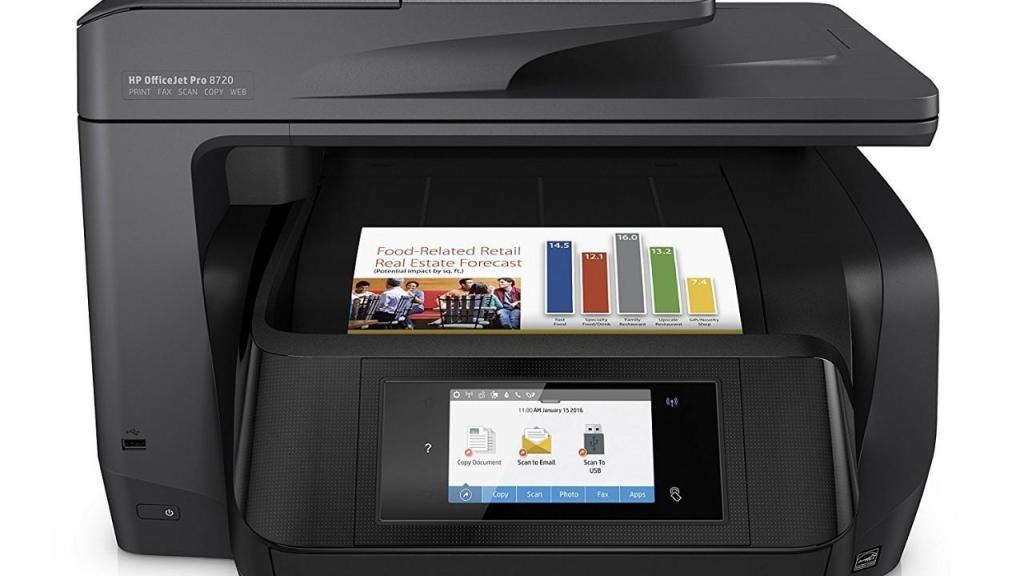
    Thewirecutter.com has a very informative and funny article about printers, by Liam McCabe, Why All Printers Suck – Even the Best Ones

    https://thewirecutter.com/blog/why-all-printers-suck-even-the-best-ones/

    You’ll be gratified to know that printer frustration is not your fault.  McCabe says, “Close your eyes, take a deep breath, and stop expecting printers to “just work” because that would make sense in a world where a touchscreen supercomputer fits in your shirt pocket (mobile phone). Like most things in life that you have no control over, you’ll be happier if you accept printers for the janky money pits that they really are. Most of you are going to hate something about any printer that you buy, and there’s nothing you can do about it. Instead of fighting it, try to reframe the issue in your mind: You’re not buying a printer because you’re supposed to have one at home. You’re buying a printer because it’s (just barely) less inconvenient than going to a copy center.”

    There’s lots of good information in his article, and it will make you laugh, but here’s what I think you want to know, explained in simple terms:

    Printers are actually pretty inexpensive when you consider all the amazing technology in them — the print-heads, the ink, and the mapping software.  That simple-looking box can cover a piece of paper with a precise array of millions of dots of colored ink in a few seconds.

    The cost of the printer doesn’t cover the costs of the research and development, manufacture, and distribution. The manufacturer is essentially subsidizing the machine with the intention of recouping its costs from your ink purchases.

    Don’t use generic ink cartridges.  Ink is formulated to work with specific print-heads. Generic ink might not have the right properties.  Also, inkjet printers designed for home use have print-heads built into the cartridge itself. There’s no permanent print-head in most inexpensive printers. If you refill a cartridge you might still have a burnt-out print-head.

    Some manufacturers purposely design their printers to shut down if you try to use third-party cartridges. It’s very frustrating, but remember, they’re just trying to protect you from a big mess.

    On the other hand, it’s OK to use generic toner cartridges.  Toner is an electrostatically charged powder (part polymer, part carbon), and the cartridge itself is just a simple plastic container. There aren’t any fancy print-heads or circuitry. Manufacturers don’t try as hard to protect toner cartridges, they just charge a higher markup on the printers themselves.

    If an ink cartridge is missing, your printer will not print and it may not even scan.

    If your home network is more complex than just a modem, a router, and your PC, there’s a chance that you’ll run into network connectivity problems. Networking technology in the printer industry is not very good.

    At some point, you’ll need to manually download new drivers for your printer after updating your operating system. It would be nice if this happened automatically, but it usually doesn’t. Some companies are better than others at issuing new drivers in a timely manner. thewirecutter.com has found that Brother is very diligent and Canon is the most likely to stop updating drivers for printers that are more than a couple of years old.

    The Bare Minimum

    If you just need something to print words, the simplest solution is a cheap laser printer.  It will cost less than $100 to buy and less than 2¢ per page to operate. Because a laser printer uses toner instead of ink, the toner cartridge won’t dry out even if you print infrequently and you can safely use cheaper, third-party toner if you want to save money.

    You’ll have to go to a copy center if you want color prints and the LCD screens on these printers tend to be small and hard to use but it’s better than not being able to print your black-and-white tax returns because one of your color cartridges has dried up.

    Home Office

    If you need more out of your printer, consider an all-in-one inkjet printer. These are best suited for home offices that occasionally use color printing, scanning, copying, or faxing but don’t require any of these tasks on a daily basis.  An all-in-one inkjet printer costs about $200 and printing costs 2¢ to 4¢ per page for black-and-white and 7¢ to 10¢ per page for color. However, unlike a laser printer, you have to use the ink regularly or the ink will dry up and ruin the print-heads in spite of the automatic purges to keep their nozzles clean and ready to print.

    It’s fairly common with my clients who are only here in the desert during the season, to have problems with ink drying up in the ink jets from lack of use. So if you don’t print frequently, a laser printer is a better option than an inkjet printer.  (Note: I’ve had problems getting Brother laser printers to work with iPhones, iPads, and Chromebooks even though they claim to work with mobile devices.)

    If you only need to scan an occasional document and don’t need a sheet feeder, use a scanning app on your phone or tablet instead of a printer scanner. Printer scanners are very slow and the apps that talk to the computer are poorly designed and very confusing.

    It’s a good idea to read some user reviews of any printer that you’re considering. Some printers may test well in a controlled setting when used by experienced testers but fail a home test. User reviews will give you an idea of long-term reliability as well as details that the pro reviews sometimes overlook, like poorly written owner’s manuals, jams with card stock, or problems with the fax machine, etc.

    To see my recommendations for specific printers and other techie gadgets, go to Resources Page.

    Enjoy!

  • What Are Cookies, What Do They Do, And Are They Harmful?

    What Are Cookies, What Do They Do, And Are They Harmful?

    Cookies, you’ve probably heard the term and you might have some concerns about what they do, but maybe they’re just one of those “techie mysteries.”

    By the end of this lesson, you will understand and be able to explain

    • What cookies are
    • How cookies work
    • How cookies help web browsers improve your experience,
    • Why websites and ad-serving companies use cookies
    • How to control which cookies get sent to you

    Have you ever wondered how websites remember your username and password every time you visit, or how online stores know which items you’ve added to your shopping cart or how ads seem to know what you’ve been looking for? (kind of creepy!)

    Well, cookies make this all possible. Cookies help websites and advertisers customize your online experience.

    So what is a cookie?
    A cookie is a small digital file that a website places on your web browsers (like Microsoft Edge, Google Chrome or Mozilla Firefox) so the website can identify you when you visit. It doesn’t identify you by name or by personal information, it just assigns your web browser a digital ID that might look something like this.

    HTTP/1.0 200 OK
    Set-Cookie: lu=Rg3vHJZnehYLjVg7qi3bZjzg; Expires=Tue, 15 Jan 2013 21:47:38 GMT; Path=/; Domain=.example.com; HttpOnly
    Set-Cookie: made_write_conn=1295214458; Path=/; Domain=.example.com
    Set-Cookie: reg_fb_gate=deleted; Expires=Thu, 01 Jan 1970 00:00:01 GMT; Path=/; Domain=.example.com; HttpOnly

    The term “cookie” was coined by web browser programmer Lou Montulli. It was derived from the term “magic cookie”, which is a packet of data a program receives and sends back unchanged, used by Unix programmers.

    Here’s How They Work
    When you visit a site like google.com for the first time, Google places a cookie on your browser and the next time you visit Google, your browser automatically sends Google.com that same cookie with an ID number that allows Google to recognize you. Not by name…but as a user, using your web browser…you’re just a digital ID

    All search engines and most websites use cookies. Cookies allow the sites you visit to recognize your computer when you return and then tailor your online experience accordingly.

    It’s a lot like the claim check you get from the dry cleaners. When you come back for your clothes the clerk uses the number on your claim check to give you the right item. In the same way, when your cookie tells Google that you’ve visited its site before, Google is able to remember your preferences — like the fact that you want to see your search results in English or that you’ve turned on the Safe Search (a tool that blocks adult content from your search results).

    What else do cookies do?

    • On weather sites they remember which cities you want the forecast for
    • On e-commerce sites they make sure all your selections are in your virtual shopping cart when you go to checkout and
    • On finance sites they allow you to easily track your stock portfolio without having to re-enter the information every time you visit

    So you can see that cookies can you a lot of time and, you don’t need to be afraid of them. Like a claim check, a cookie ID is usually just a combination of letters and numbers. Most of the time there’s no personally identifiable information in a cookie file and cookies cannot be used to run programs on your computer, access information on your hard drive or deliver viruses.

    There are different types of cookies

    first-party cookie is the kind of cookie I just told you about – a cookie that goes back and forth between your browser and the website you’re visiting allowing that website to store information about your preferences.

    There are third-party cookies that work a bit differently Unlike first-party cookies that travel back and forth between your browser and the website you’re visiting, third party cookies typically travel between your browser and the website of a company that’s displaying an ad on the site you’re visiting. That’s why they’re called third-party cookies –
    because the websites sending cookies to your browser (the ad serving company) is a different site from the website you’re visiting.

    Ad serving companies use third-party cookies to remember what ads have already appeared on your browser, that you clicked on an ad for a product and you saw the same ad twice. (For example, you clicked on an ad for Toyota and you clicked on an ad for Camry  twice.)

    This information helps advertisers

    • deliver ads that are relevant to your interests
    • control the number of times you see a given ad
    • measure the effectiveness of ad campaigns.

    What if you don’t want websites recording your preferences or ad serving companies knowing your web browsing history?

    It’s easy to set up your browser to notify you when cookies are being sent, to refuse cookies from certain websites and ad-serving companies or to refuse cookies altogether.

    However, bear in mind that, if you disable cookies, websites won’t be able to retrieve your preferences, or save settings to customize your visits in the future.

    Nowadays, many websites show a notification that warns you that the website is using cookies and you have to click “Allow” That’s because European law requires that all websites targeting European Union members acquire “informed consent” from users before storing non-essential cookies on their devices.

    So now you know

    • What cookies are
    • How cookies work
    • How cookies help web browsers improve your experience,
    • Why websites and ad-serving companies use cookies
    • How to control which cookies get sent to you

    Has this information been helpful?  Has it changed the way you feel about cookies?  Please comment below and let me know what you think.

    And if you have benefitted, please share this with your friends so they can “make peace with cookies” and have more fun too.

    Above all else, Enjoy!

    Mardi