Category: Security

  • Looking for Work On Craigslist – Safety Tips

    CRAIGSLIST-large570

    Hi Mardi,

    I am still in Brazil.

    I am trying to put an add for a new job on craigslist and I can’t do it.

    I open the craigslist page but I can’t find the right place.

    Could you help me doing that?

    I will try to call you.

    I recently received this message from a client and it reminded me to let you know about a couple of hazards to avoid when you, or someone you know, is looking for work online.

    When I first moved to the Desert, I was looking for work on Craigslist and encountered two potentially dangerous scams.

    The first and most obvious scam, was an email from a company offering me an interview and requiring that I get a credit report to bring to the interview.  They said I needed to get it from the company they recommended and the link to the website was included in the email.

    I couldn’t imagine why someone would need a credit report before an interview or expect me to divulge financial information to a company I didn’t know, so I knew it was a scam.

    facebook login

    The second scam almost got me!  A company said they were interested in me and I could learn more about them at their Facebook page.  At first, I thought it was strange that they didn’t send me to their company website, but then I thought they might be trying to be hip and leading-edge by having a company Facebook page.

    I clicked on the link and it took me to a page that looked exactly like the Facebook sign-in page.  I signed in, but had a weird feeling that something was off.  I looked up at the address bar to see exactly where I was and it said “fakebook.com/….”  I thought oh my gosh, they just captured my Facebook login and password!

    I immediately opened a new window and went to my Facebook page and changed my password.  Luckily I got there, before they were able to changed my password and lock me out.  Whew!

    craigslist banner

    There are good jobs available on Craigslist and I actually found one at that time.

    You just need to be careful and let me know if you have any questions or concerns.

    Please forward this to everyone you know who is looking for work so they can be safe and feel relaxed, happy and confident while using Craigslist.

    Thoughts or comments about this topic?  Please share in comments below.

  • Would You Believe This?

    If you received an email saying this would you believe it?  Think about this

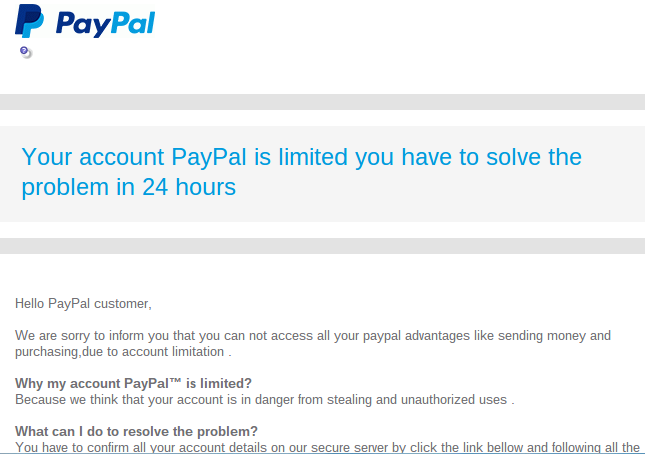
    “Your account PayPal is limited you have to solve the problem in 24 hours”

    Hello PayPal customer,

    We are sorry to inform you that you can not access all your paypal advantages like sending money and purchasing,due to account limitation 

    Why my account PayPal™ is limited?

    Because we think that your account is in danger from stealing and unauthorized uses .

    What can I do to resolve the problem?

    You have to confirm all your account details on our secure server by click the link bellow and following all the steps
    I received this on Wednesday and I was immediately suspicious for several reasons:

    • The wording seemed awkward,
    • The  “24 hours” time frame seemed unnecessary,
    • My PayPal account is linked directly to my bank account, not a credit card that could be compromised
    • My PayPal password is very secure.

    There wasn’t any apparent reason for my account to be “in danger.
    I was pretty sure this was a scam.

    Screenshot 2015-01-30 at 8.09.29 AM

    Instead of clicking on the button in the email that said “Confirm Your Information,”  I went to PayPal directly, logged in to my account and saw that there was no problem there.  The email was a scam just as I had suspected.

    If I had clicked on the button in the email that said “confirm your information” and logged in on their web page, I would have given the scammers the password for my PayPal account.  I don’t know if they would have asked for additional information, like the bank routing number or credit card number.  I know better than to go that far with the process.

    Screenshot 2015-01-30 at 7.56.16 AM

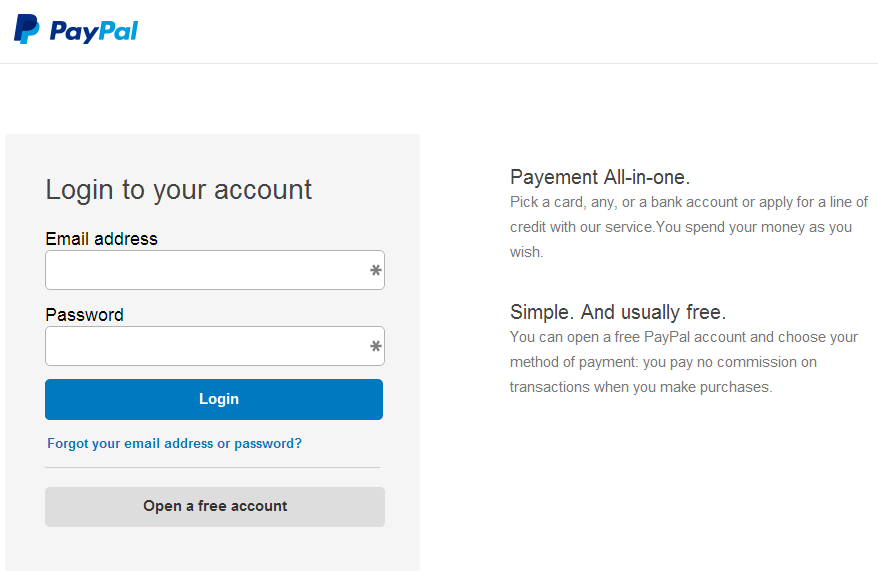
    I clicked on the button to test it for this article and the web address (URL) did not even have the word “PayPal” in it. It was http://realitygameforums.com/confirm.account/verifie.information/update/
    “realitygameforums”!  Really!  If it weren’t so treacherous it would be funny!

    The reason this is so disturbing is that the email and the verification web page looked so authentic.  Many people could be tricked by something like this and I don’t want it to be you!

    This is a common technique for tricking people. It’s called Phishing.

    Phishing is the attempt to acquire sensitive information such as usernames, passwords, and credit card details (and sometimes, indirectly, money) by masquerading as a trustworthy entity in an electronic communication.  Phishing – Wikipedia, the free encyclopedia

    If you ever get emails that appear to be from your Bank or credit card company or any other source that is asking for sensitive information, don’t click on any buttons or links in the email.  Go to your account online and login to see if there are any messages for you; or call the bank, credit card, or other company directly and ask them if there is an issue with your account.

    nortonHere is more information from Norton Internet Security ttp://us.norton.com/transactsafely/phishingscam.jsp

    To protect yourself against phishing, follow these basic guidelines:

    1. Be wary of emails asking for confidential information—especially of a financial nature. Legitimate organizations will never request sensitive information via email.
    2. Don’t get pressured into providing sensitive information. Phishers like to use scare tactics, and may threaten to disable an account or delay services until you update certain information.
    3. Be sure to contact the merchant directly to confirm the authenticity of their request.
    4. Familiarize yourself with a web site’s privacy policy.
    5. Watch out for generic-looking requests for information. Fraudulent emails are often not personalized, while authentic emails from your bank often reference an account you have with them.
    6. Never submit confidential information via forms embedded within email messages.
    7. Never use links in an email to connect to a web site. Instead, open a new browser window and type the URL directly into the address bar.
    8. Maintain effective software to combat phishing. Norton Internet Security automatically detects and blocks fake web sites. It also authenticates major banking and shopping web sites.

    Senior_Year_by_ScarecrowArtist

    I hope you have found this information helpful and that you feel more empowered and secure now.

    Please send this tip to your friends so they will be empowered and protected too.
    Thoughts or comments about this topic? Please share in the comments below.

  • Passwords Can Be Simple and Safe

    Passwords Can Be Simple and Safe

    I know you hate having to use so many passwords.  It’s a big pain to keep track of them.  You might even be using the same password for multiple sites and allowing your web browser to save them so you don’t have to login every time.

    A recent article by Kim Komando, inspired me to encourage you to take the bull by the horns, do some house cleaning and start using a password manager. This will make your online life so much simpler and safer.
    Here are some great tips based on her article, One secret about online accounts every computer user needs to know

    You may have created dozens of accounts that have only been used once. Just think of how many times you’ve created a username and password just to read an article, play a game or download something.  This can be dangerous because your information is floating around on dozens or hundreds of websites that may or may not be secure.  Even worse, if you have used the same username and password for every site, every account you have is in danger.  A hacker who gets your account information from one site can use it to get access to your other accounts as well.

    The solution is to hunt down and close any accounts you are not using and then change the passwords to your existing accounts so that each one is unique.

    A simple browser trick

    1) When you create a new online account or log in to an old one, your browser stores the username and password. This makes it easy to log back in later.  It also means you can go now and see what accounts you’ve created.

    2) After you locate your accounts, you can close down the accounts you are not using and create unique passwords for the sites you are keeping.

    3) Then turn off “password storing” and erase the existing passwords in your browser. The option to erase the passwords is in the same place you view the saved passwords.  (The Instructions are below.)

    Use A Password Manager

    LastPass, The last password you will ever need


    I know this seems like a lot of work but you only have to do it once.  Then, If you start using a password manager like LastPass all your unique passwords will be stored in a vault and you will only need to remember one master password.  The password manager will even generate secure passwords for you so you don’t have to think them up. You will love it!

    If you need help to clean things up or to learn how to use a password manager like LastPass, I’m always here for you. Just call for an appointment.

    Invite some friends to a Play Shop in your home, community room or office.  A play shop is a really fun way to learn and only costs $25 hr. per person.

    Forward this tip to your friends so they will be safe and happier too.
    Thoughts or comments about this topic? Please share in the comment section below.

    Instructions for web browser applications:

    FIREFOX

    To see your login information in Firefox, go to the Firefox menu – it’s the icon on the right with three horizontal lines – and click Options.

    Under the Security tab, click the “Saved Passwords” button.

    Then click the “Show Passwords” button and click “Yes.”

    CHROME

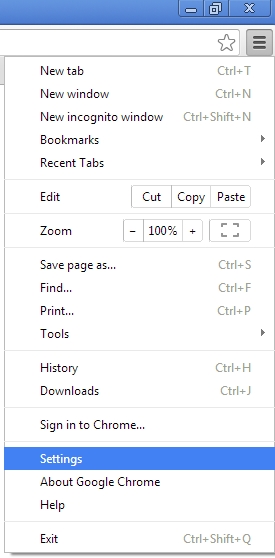
    In Chrome, click the icon with three horizontal lines in the upper right and choose “Settings.”

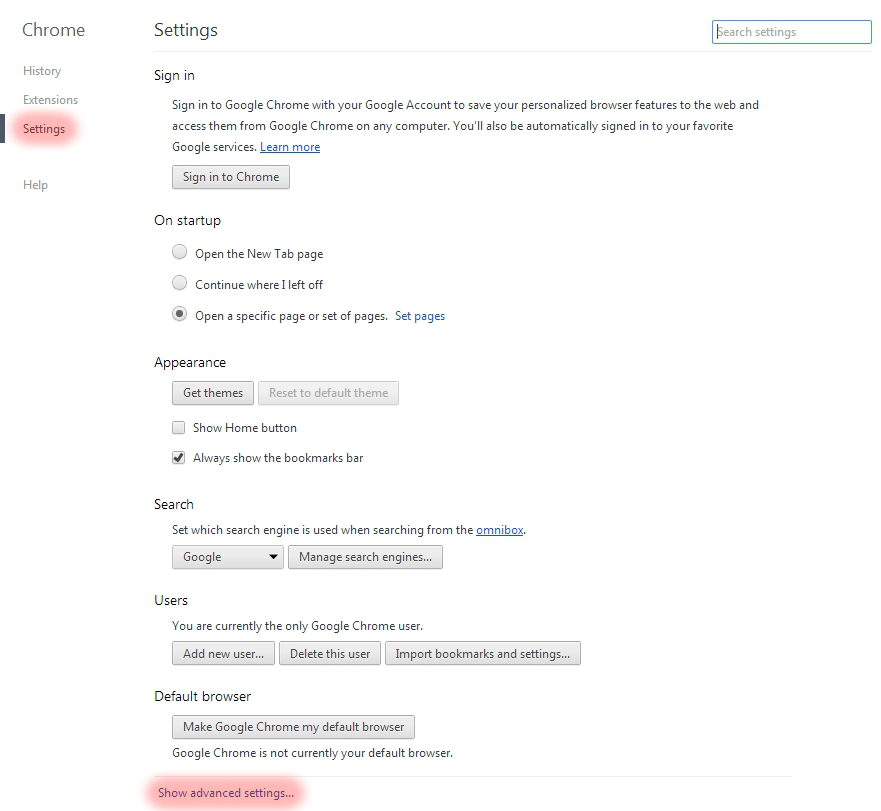
    Choose “Settings” on the left, and then click the “Show advanced settings” link at the bottom of the screen.

    Scroll down to “Passwords and forms” and click the “Manage saved passwords” link.

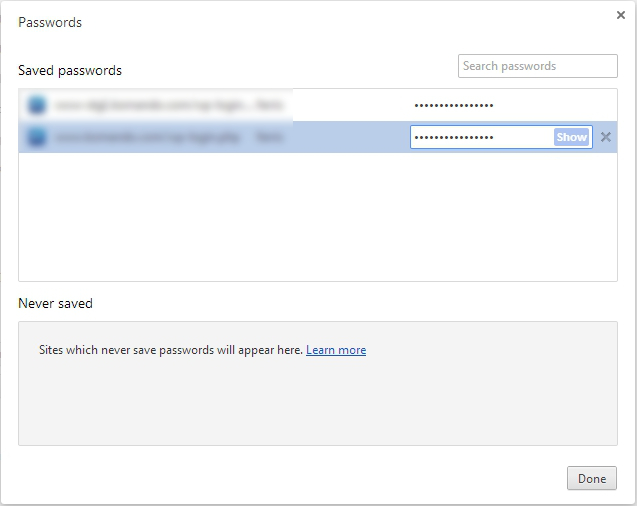
    If you want to log back into your old account, but don’t remember the password, then you can click on a password and click the Show button next to it.

    To see the password, you will have to enter your Windows account password, which does make it harder for casual snoops to get in.

    INTERNET EXPLORER

    You can’t view saved usernames and passwords directly in IE. You would need a third-party program like IE PassView.  However, I recommend that you don’t use Internet Explorer anyway.  It is easily invaded by spyware. I use Google Chrome but Firefox is good also.

    SAFARI

    In Safari, go to Safari>>Preferences>>Auto-fill. Click the Edit button to view the saved passwords.

    Need Help?

    If you need help to clean things up or to learn how to use a password manager like LastPass,  I’m always here for you. Just call for an appointment.

    Invite some friends to a Play Shop in your home, community room or office.  A play shop is a really fun way to learn and only costs $25 hr. per person.

    Forward this tip to your friends so they will be safe and happier too.

  • Simple Fixes for Webcam Spying

    Are you scared by all the news stories suggesting that hackers can spy on you through your computer and gadget cameras?

    My mother has been really concerned about it and I understand how scary it can be.  It is almost overwhelming and really annoying when all these “advances” in technology bring new challenges and require more education!

    You don’t need to worry though, I’m dedicated to calming your fears and giving you the information and help you need so you can relax and enjoy your toys again.

    Despite the potential dangers, webcams are great tools for chatting long-distance with friends and family, and conducting  business.

    When you understand how they work and how to secure them, you will feel much better and have more fun.  Enjoy!

    Please help others by forwarding this to all your friends and relatives and encourage them to subscribe to my techie tips so they can be protected and have peace of mind also.  They can click right here to subscribe.  If you are into social media, you can use the sharing buttons provided. That will be a big help also. Thanks!

    INTERNET-ENABLED CAMERAS  Internet Cameras
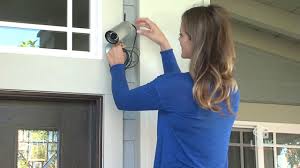
    Internet-enabled security cameras and baby monitors are becoming more and more common because they are inexpensive and easy to set up.  These gadgets connect to your Wi-Fi network and they are a great way to keep an eye on kids, aging parents and your possessions.

    However, many people don’t follow the directions when setting them up and leave the default username and password in place. Hackers have made it their business to know all the default login information for every gadget on the market.  If you don’t change the factory settings they could find your camera online, log in, and watch you or put you on a website with thousands of other cameras for curious snoops to browse.

    Good News!
    The solution is easy: just remember to change the default password when you set up any type of new gadget. If you buy a camera that doesn’t have a password, exchange it for a different model.

    COMPUTER WEBCAMS  lamptop cam

    Once hackers get on your computer, they can use programs to turn on your webcam without triggering alerts like the webcam light. Thus, covering or unplugging the camera when not in use is a good idea.

    However, hackers could still have full access to your computer. They could rummage through your email, browser history, passwords, documents and anything else they want.

    And, of course, when you do use the webcam, they can eavesdrop.

    To get on your computer, hackers use a remote access tool, or RAT. That’s what tech support agents use to get on your computer remotely to change settings or fix a problem. Fortunately, remote access tools require your permission, so a person can’t just take control without your permission.

    However, hackers have many ways to trick you into letting them on to your computer — fake email attachments, malicious links, Trojan viruses, and phony tech support calls.  Once you’re tricked into running a file, clicking a link, or inviting them on to your system, they can take control and do whatever they want.

    More Good News!

    The solution is pretty simple. Just avoid unsolicited email attachments and links, run up-to-date security software and don’t believe anyone who contacts you claiming to be tech support for a major company.

    Operating systems on your computer may have a remote access tool (RAT) built in. This makes it easier for real tech support to get on your system, but it also makes it easier for a hacker to trick your system into letting them on.

    To turn off Remote Assistance in Windows, go to Start>>Control Panel. In the Search box in the upper right corner, type “remote” and then click the “Allow remote access to your computer” link.

    Uncheck the “Allow Remote Assistance connections to this computer” option and click OK.

    For Macs, go to the Apple icon and select System Preferences. Click the Sharing icon and uncheck Remote Login, Remote Management.

    If you use a company laptop, it could have similar software on it. Companies are supposed to disclose the presence of that kind of software but they don’t always do it, so if it doesn’t belong to you, be mindful of what you do on it.

    smartphone cameraTABLET AND SMARTPHONE CAMERAS

    Tablets and smartphones also have cameras but I haven’t heard of any malicious apps or spying apps that can trigger the camera.  That doesn’t mean they don’t exist, or won’t exist in the future but I will let you know if that changes.

    A word to the wise….if there is something you really don’t want the world to see, don’t put it on your smartphone or tablet.

    If you have any questions or comments about this or if you have any suggestions for future tips, please post a comment below and let me know. I always love to know what you think and how I can help you. Thanks!

  • OpenOffice.org

    Sometimes I Feel Stupid Too!  Computer User Feeling Stupid


    One of the biggest challenges for me in my work is that so many of my clients say they feel so stupid.  No one is stupid!  One of my goals in my work is to help my clients feel better about themselves.


    No one is born with all the information they need in order to navigate life.   We either educate ourselves or we “wing it” based on what we are told by others (who may or may not have the best information).


    Even those of us who take the time to do research, study and practice, will make mistakes. It’s part of the learning process.


    My goal is for you to benefit from my mistakes and those of my clients.


    Here are some really useful tips based on my work in the field this past week.


    Great Money Saving Tip

    OpenOffice.org

    There is a great free office suite called Open Office that looks very much like the apps in Microsoft Office and has many of the same tools.  You don’t need to pay for Microsoft Office suite.


    The Pitfalls

    The address for Open Office is www.openoffice.org not “.com”  There is another site, http://www.openoffice.us.com that looks reputable but will download a bunch of malware programs on your computer.

    firefox-os_logo-wordmark_RGB-vertical-300dpiThe Solution    Google Chrome

    You should be using Mozilla Firefox or Google Chrome.


    If you use Microsoft Internet Explorer as your web browser, you are at risk of getting add pop ups installed on it and having your home page changed to something you don’t want.  This is called “hijacking your web browser”.

    Norton Internet Security


    If you have installed the W.O.T (Web of Trust) extension on your web browser or if you are using Norton with Internet Security, you will see a notification that http://www.openoffice.us.com  is not safe.
    (Buy Norton from Dom at Desert Cow Computers and save $20.) www.mydesertcow.com


    Do a Google search for reviews of any app you are considering downloading before you proceed.

    The Rules In Review

    • Use the right web browser and search engine
    • Have safety extensions on your browser
    • Do your research
    • Be sure you are going to the reputable site


    If none of his makes sense to you, just call for an appointment.

    The promise of successEverything will be OK.   We’ll do it together.


    Hope this helps you “make peace with the ups and downs of modern technology.”


  • Critical Safety Tips

    I learned some Important tips this week from my friend and technical specialist, Dominique Fruchtman of Desert Cow Computers.  She is the one I refer for cleaning up the mess when clients get those nasty viruses.
    First, be aware that delivery services like UPS and Fed Ex will not send you emails saying there is a package you have not picked up.  If you receive emails like this that have a link to click, don’t do it.  They contain dangerous virus installation programs.
    Secondly, there is an important distinction between your computer slowing down gradually or slowing down suddenly.  

    If your computer is suddenly running slow, that’s a sign that you might have a virus.  Do not wait!  Call Dominique right away for a diagnosis.  If you wait, you run the risk of having your files stolen and held hostage for ransom.  Seriously!  One of her business clients was told they needed to wire $500 within an hour to get their files back or the ransom would go up to $1000.

    On the other hand, if your computer has been getting slow gradually, you may just need a tune up.  Dominique and her husband Mark can do that for you too.

    Owning techie gadgets is like owning cars, they require maintenance and repairs from time to time.  It’s not wise to wait when you hear funny noises or experience reduced performance.

    Please don’t get upset or stressed about all this.  There are always solutions. Dom and I are here to help you.  The advantages of owning these devices, far out weigh the occasional inconvenience or expense.

    If you, or someone you care about, have questions or frustrations that are clouding the full enjoyment of computers or gadgets, call me for an appointment now.  With a little instruction, everyone can get past the storm and experience the joy. I promise!
  • A Power Strip Does Not Protect You

    A power strip doesn’t protect you!

    Frequently, I go shopping with clients to help them buy new computers, gadgets, printers and accessories.  I want to remind you, and everyone you know, that you need surge suppressors to protect your equipment.  A common power strip is not enough protection.  Also, you need to check your surge suppressors periodically.  

    This is so important that I’m adding it to my list of things to check on all my appointments.  (The other things are virus protection and backup systems — including smart phones and tablets.)

    Don’t confuse surge suppressors with power strips. They look similar, but there is a difference.Power strips have circuit breakers instead of surge suppression.  A circuit breaker will trip the breaker and cut all power to the device.

    A surge suppressor will dissipate the surge so you can keep working.

    Also, a power strip will allow smaller surges to get through and this can wear out your electronics faster.  You need to use a surge suppressor.

    If you already have a surge suppressor but the lights are blinking, the protection is exhausted and you need to buy a new one.  If you’ve had it for 4 years or more, you should replace it anyway.  The blinking warning light may not be working.

    The right level of protection is important, but nothing can guarantee your computer won’t be damaged. A serious surge could blow through your surge suppressor and destroy your computer.  Remember to unplug your computer when a serious storm approaches. 

    No matter how much you prepare, something can always go wrong. That’s the reason you have homeowners or renters insurance. That’s also the reason it’s important to make sure all your data is backed up.

  • Change Your Web Browser

    Please Change Your Web Browser ASAP!internet explorer

    So many of my appointments involve problems with Microsoft Internet Explorer!  Internet Explorer is frequently hacked and hijacked and it’s very disconcerting to have your home page suddenly switched to something you never authorized and you cant find your familiar Google search box.     firefox-os_logo-wordmark_RGB-vertical-300dpi

    Please use the Google Chrome or Firefox internet browser instead. I prefer Google Chrome because I use a myriad of awesome free Google products. Ask me about them next time we get together.


    chrome

    According to a report by the cybersecurity firm Bromium, the latest version of Internet Explorer is still the number one target for hackers.

    For the first half of 2014, the report found that Google Chrome has actually had no publicly known security flaws, making it safe from malware attacks.

    Other important facts in the report:

    1. Microsoft Internet Explorer set a record high for reported vulnerabilities in the first half of 2014.
    2. Internet Explorer also leads in publicly reported exploits.
    3. Web browser release cycles are becoming more frequent – as are initial security patches.
    4. Adobe Flash is the primary browser plugin being targeted by attacks this year.

    Microsoft quickly schedules updates that Internet Explorer uses to patch its holes but it’s still one of the most commonly-attacked browsers by far, and I know that many of my clients ignore the updates. It’s a huge problem!


    Keeping your Adobe Flash player up to date is also very important. Always update your Flash player to avoid security flaws like this. Apple won’t even let you play a video if you don’t have the latest version of Flash.

    I hope these Techie Tips will ensure that you are protected and enable you to take advantages of all great things technology can do for you.

    As always, if you, and your friends and relatives, need help with any of these things, just call me to set up an appointment.

    In Joy,

    Mardi Boettcher

    “Helping you make peace with the ups and downs of technology.”

  • Back Up Your Smart Phone and Tablets


    Please Check This Now!

    Is your smart phone or tablet doing backups?
    Did you even know that it’s supposed to?
    Do you realize that if your phone or tablet breaks or is stolen, you might lose your photos, music, address book and notes?
    Apparently none of the people who sell phones are setting it up or explaining it to their customers because most of the phones I examine are not doing back ups.  This issue has come up so many times in the past two weeks that I decided I’d better give you a heads up.

    Please check your gadget’s settings and make sure backups are set up and operating. (It will show you the last date a backup occurred.)
    This is especially important if you are going to be traveling on vacation this month!

    com.alienmanfc6.wheresmyandroid_banner-450x220

     
    Also, it’s important for you to know that there are really neat apps that enable you to locate your gadget if it is lost or stolen.  They even enable you to delete your data and lock the gadget so it will be useless to a thief.  (Even if you don’t get it back, you will have the satisfaction of knowing the thief didn’t get your stuff and couldn’t use it.)

    If you have an iPhone or iPad you may have noticed the “Find My Phone” or “Find My iPad” icon and assumed that it would help you in an emergency. It won’t unless it is enabled in settings. I’m amazed how many iPhones and iPads I see that don’t have this feature activated!

    screen568x568

    A related issue that comes up frequently is people want to know if they can see their phone or tablet photos on their computers.  Yes you can!  It’s just a matter of getting things set up properly.

    I hope these Techie Tips will ensure that you are protected and enable you to take advantages of these neat things that technology can do for you.

    As always, if you, and your friends and relatives, need help with any of these things, just call me to set up an appointment.

    In Joy,

    Mardi Boettcher

    “Helping you make peace with the ups and downs of technology.”

  • Last Month for My $40 Summer Special


    Want your internet faster and safer?

    Want to get rid of those annoying ads?

    Take advantage of my Summer Special Now!


    I’ll make some tweaks to your browser and speed up your internet browsing experience without you having to call Time Warner or Verizon and pay more for your Internet. Let me come over and make a few adjustments.
    You’ll be amazed at how much faster (and safer) your web pages are loading, all for one $40 appointment.
    Call me today to set up a time!