Category: Security

  • What to Do With An Old Computer

    What to Do With An Old Computer

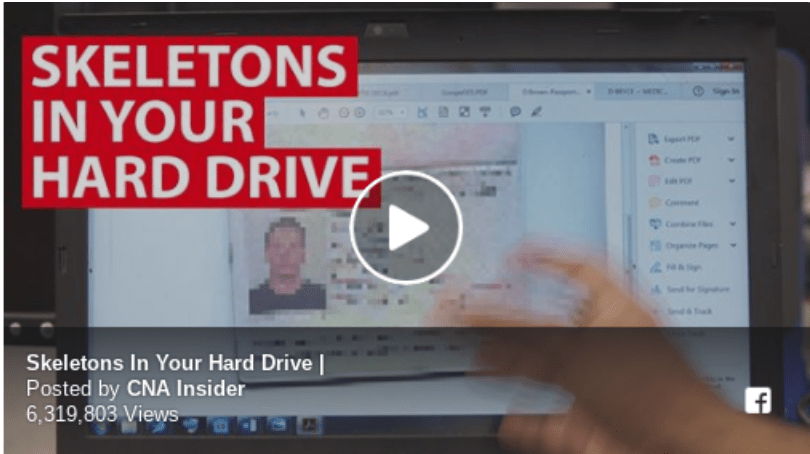
    When I saw this astonishing video I realized that I should address this issue in my Techie Tips.   
    Screenshot 2017-09-09 at 11.06.45 AM

    When clients ask me what to do with their old computers, I recommend recycling them at Best Buy.  It’s quick and easy.  You just drop them off at the customer service desk.  

    Many times, my people like to donate them to a charity or give them to a friend or relative.

    In any case, you need to protect the data on your hard drive if you have any sensitive information on it that you would not want criminals to see.

    How It Works

    You cannot actually erase data on a drive.  When you delete something, the space on the drive gets marked as “vacant” or “writable” so new data can be written over it.  The original information is still there until it’s overwritten and can be found with specialized software.

    Some people assume that they can reformat their hard drives, but that just erases the directory that the computer uses to find the files.  It doesn’t delete the files.  The physical bits and bytes still exist.  With regular use, the data  will get overwritten, but it’s a random process and you won’t know which files have been overwritten and which haven’’t.

    A “full format” will overwrite the drive with zeros but it’s still possible to recover data with specialized software.

    The Solution

    DBAN is a free software that overwrites the drive multiple times.  I found a comment online by a Tech who said that after 20 passes, nothing can be recovered.  He swears by it 100%.  I looked up DBAN and it has a disclaimer that it’s not “certified safe.”  I imagine certification would be important in situations where there is legal liability — where you are responsible for someone else’s sensitive data.  If you are willing to install the software and do 20 passes this might be a good solution for your needs.

    The most common recommendation is to remove the hard drive from the computer and smash the disks or memory chips with a hammer (wear safety glasses.)  I did that with my old PC laptop and I thought it was fun but you might not share my enthusiasm for taking things apart to see what’s inside.  

    I told Angel Sanchez at NYPC Repair (on Hwy 111 in Palm Desert near the Red Barn) that a lot of my clients would probably not want to deal with removing the hard drive and he said you are welcome to bring your computer into the shop and they will take it out and smash it for you with no charge!  Isn’t that great!  Love NYCP Repair!

    In Summary

    Now you know the whys, the hows and simple solutions.  Your choice will depend on your level of comfort about the security of your files.  For most of us, it isn’t an issue but if it is, you know what to do.

    As always, let me know if you have any questions or need help.  

    Enjoy!

    Mardi  

    P.S. If you have found this information helpful, please support my mission to make technology simple, easy and fun for mature adults.  Share this post with others and encourage them to sign up to receive all my Techie Tips via email.   They can sign up here  Thanks!
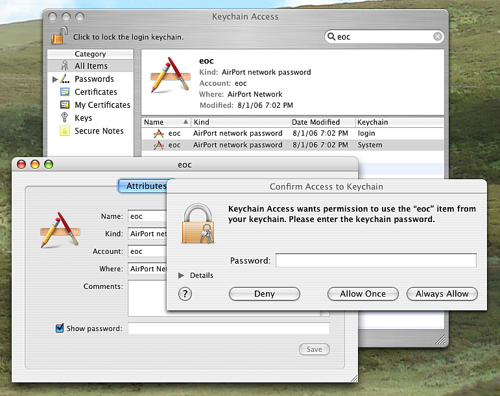
  • Get control of passwords the simple, easy way with Keychain

    use keychain to login to websites automatically

    Apple’s Password Manager Rocks!

    Apple’s password manager is one of the many reasons that I recommend buying Apple computers. I know they seem expensive but when you see the value, you will find a way. I just bought a Refurbished MacBook Pro for only $475 and I love it almost as much as my Chromebook!

    Safari offers to remember your passwords and log you in and, when you create a new account, it suggests a complex, secure password.

    It works the same on your mobile devices too.

    (There may be times when a website doesn’t allow autofill, for example, at public terminals or when a site has been coded to specifically block autofill)

    Here’s How It Works

    When you login to an account, Safari asks you if you want it to remember the password and you just click on “Yes”.

    If it doesn’t ask, check the Preferences

    • Click Safari
    • Click Preferences
    • Click Passwords
    • The check box next to “Autofill user names and passwords” needs to be checked
    • Close the window by clicking the red dot.

    Note: this is where you can go to see a list of your sites and their passwords too.

    To see your passwords

    • Click Safari
    • Click Preferences
    • Click Passwords
    • Check the box next to “show passwords”
    • Enter your Admin/Owner password
    • Select the site for which you want to see the password.
    • Close the window.

    Safari Autofill

    Safari will autofill, forms on websites with account and credit card information and your contact information.

    1. Click Preferences
    2. Click Autofill to verify that these options are checked or to uncheck them if desired

    It’s convenient features like these that make Apple products such a pleasure to use.

    If you have questions about buying a computer or if you need help with Keychain or other apps, just call or send me an email and we’ll set up a time to get together — in person or via remote access.    Enjoy!

    Go back

    Your message has been sent

    Warning
    Warning
    Warning

    Warning.

  • You Can Be A Hoax Slayer

    Displaying Displaying pasted image 0

    Friday, I received a call from a client about a phishing scam that was very convincing. It’s time to review the guidelines again.

    “Be wary of ANY message that claims that you must click a link or open an attachment to upgrade account details, rectify a supposed account issue, or implement new ‘security’ measures. If you receive a suspect message, do not click on any links or open any attachments that it contains. Instead, login to your account by entering the address into your web browser or via an official account application.”

    This particular scam was pretending to be from Microsoft Outlook Team but there are others for Facebook, Yahoo, dating sites, and more.

    Here is a great resource for you: Bookmark http://www.hoax-slayer.com It has information about email, social media and internet scams. Many thanks to Brett for his voluntary service on our behalf.

    Please share this with the people you care about and encourage them to call me whenever they have a question or need help with their techie tools and toys. My passion and mission is to help you and your loved ones more fully enjoy the many benefits of computer technology while keeping it it simple, easy and fun. Thanks!

    Enjoy!
    Mardi

  • Six Simple Maintenance Tips for Windows PCs

    Most computer owners don’t know much about basic computer maintenance and their PCs are likely to slow down or crash as a result.

    Of course, most of us don’t know much about cars either, but we know to give them gas, change the oil and keep an eye out for flat tires. It’s the same with PCs. You don’t need to be an expert to keep your PC in relatively good condition. You just need to perform a little basic PC maintenance and, more importantly, be observant.

    Here are six simple steps you can take to keep your PC running quickly and reliably:

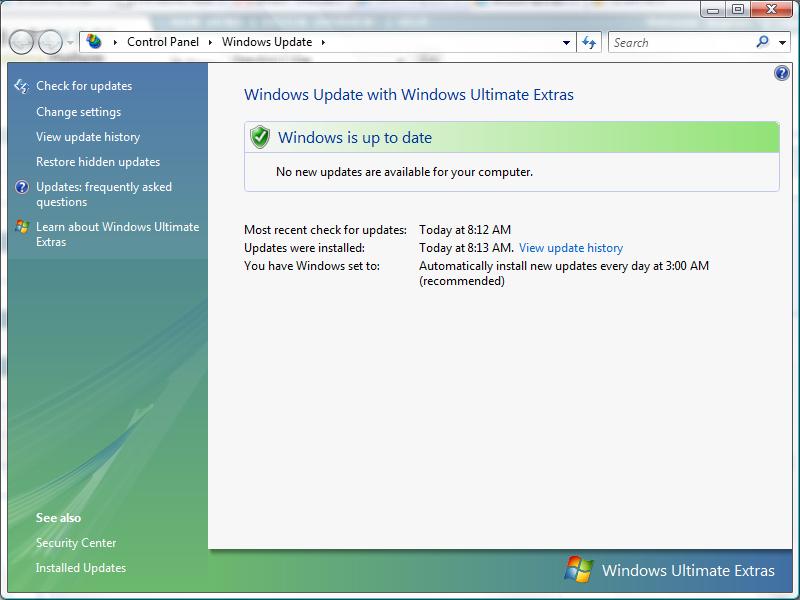
    Windows Updates1. Keep the Window Operating System (OS) Updated with the Latest Patches

    Windows Update scans your system and updates it with the latest security patches and service packs. You can schedule these updates to run automatically, so there is really no excuse for not having an up-to-date system.

    To access Windows Update click on the Start button, All Programs and scroll through the list to find it.

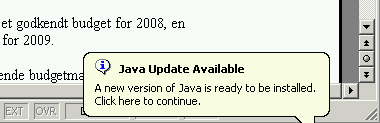
    2. Keep Your Applications and Utilities Patched  Java update message

    This may surprise you, but all the applications and utilities on your system are prone to security risks and need to be updated regularly.

    Programs that you use everyday like Adobe Acrobat Reader, QuickTime, Realplayer, Skype, WinZip and more require both maintenance and security updates from time to time. Even applications that run in the background like Flash and Java are at risk.

    When update notifications pop up on your screen, allow them to install. Just read the screens as you go, to be sure they aren’t offering to install promotional software that you don’t want. You may need to uncheck some boxes.

    If you have my business card, you have a list of safe updates on it. If you don’t have my care or aren’t sure if a pop up is a legitimate update, just give me a call.

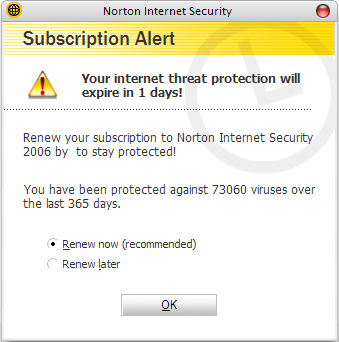
    Norton Expiration Notice3. Keep Your Spyware and AntiVirus Programs Updated

    No matter how good your spyware and antivirus software, it won’t do you any good if it’s not updated or, worse, not running because it expired.

    Most antivirus applications load an icon in the Windows tray, (lower right corner) which lets you verify its status at a glance. Always verify that the application is running after starting Windows.

    In addition, these applications should be configured to perform definition updates everyday and complete system scans at least once a week.

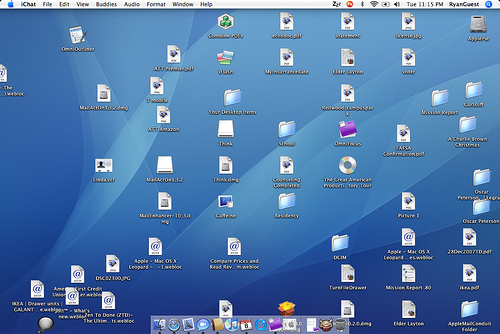
    4. Clean Off the Desktop  Cluttered Windows Desktop

    Having a lot of files on the desktop will actually slow down your computer because each file and its icon preview take up RAM and resources. The less RAM you have the more you’ll notice the sluggishness resulting from a cluttered desktop.

    It’s really more efficient to get in the habit of filing things in the appropriate folders instead of on the desktop; but if you can’t be bothered to do that, just grab all the files and move them into the appropriate folders from time to time.

    If you can’t remember to do it yourself, there are apps that will automatically clean it for you by moving files and folders to a designated place at a regular interval.

    IDrive Online Backup5. Regularly Backup Your Computer

    Performing regular backups is essential for you to be able to quickly recover from potential disasters. I recommend iDrive or Carbonite. They are easy to set up and make it easy to restore your data when you have a disaster, or upgrade to a new computer. You can access your files from your mobile gadgets too! If paying the annual fee bothers you, just think of it as insurance, like your auto and home insurance.

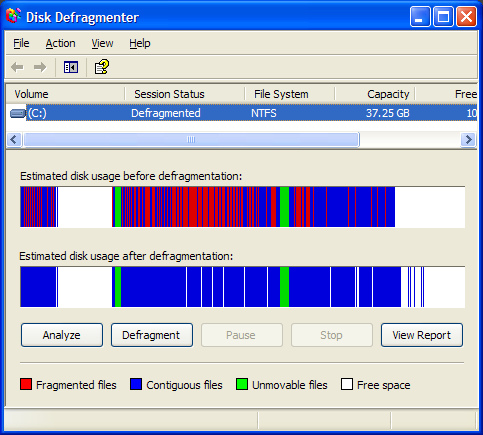
    6. Defragment and Check Your Hard Drive for Errors Regularly  Defragmenter Utility

    In order to maintain the integrity of your data there are two hard drive tests that you should run at least once a month.

    The first is to Defragment your hard drive. Over the course of regular use, your files get fragmented or spread out all over your hard drive. So while an MP3 or WMV file appears as a single file to you in Windows Explorer, small pieces of the file could literally be spread across the entire hard drive. Gathering all of these distant pieces back together into a single continuous order, makes files load faster. Defragmenting your drive can can make your system noticeably faster if you had lots of files fragmented.

    The other test is Check Disk. This tool checks hard disk volumes for problems and attempts repairs. (It can repair problems related to bad sectors, lost clusters, cross-linked files and directory errors…but you don’t need to know all that.) Just remember that Disk errors are a common source of difficult-to-track problems, and running this test regularly can significantly reduce your risk of having problems.

    Windows has a built-in defragmenter and check-disk utility. Just open Windows Explorer and right-click on the drive you want to examine. Select Properties and then click on the Tools tab. To defragment your hard drive, go to the Defragmentation section and press the Defragment now button. To perform a check disk, go to the Error-checking section and press the Check now button.

    You don’t need to be a computer expert to keep your computer running well. Preventing problems doesn’t require much understanding about computers. You just need to pay attention and actually read those messages that popup on screen during an installation and use the tools that come with your computer.

    Just follow these basic steps, and your computer will be safer and far more reliable.

  • 4 Simple Apple Computer Maintenance Tips

    Did you know that your computer needs some regular maintenance, just like your car?

    Just like your car, your computer is a substantial financial investment and causes major inconvenience when it doesn’t run properly so it’s important to keep it in good shape. In both cases, you can learn how to do the maintenance yourself, or you can pay someone to take care of it for you.

    If you don’t want to deal with it, I’ll be happy to take care of it for you…one time or on a monthly basis via remote connection.

    I hope you find this information helpful and that you will forward to others so they can more fully enjoy the benefits of computer technology.

    There are four simple maintenance tips that will help you keep your computer in tip-top shape and running at its best.:

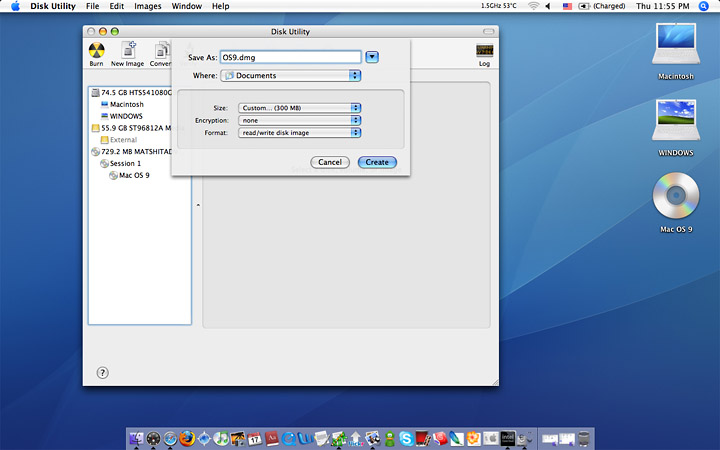
    Run Apple Disk Utility1) Run Disk Utility

    Running Disk Utility every month or two is a good for: repairing permissions, and more importantly, verifying and repairing the hard drive.

    Disk Utility is included on all Macs and found in the /Applications/Utilities folder, under the “First Aid” tab and can be run one after another.

    Repairing permissions is a good procedure to run, especially after installing or uninstalling a lot of applications.

    Repair Disk s probably the most important thing to do with Disk Utility. Be sure to run Verify Disk not only on the drive itself (physical drive name), but also the boot partition (Macintosh HD). If any errors are found, they’ll appear in red, and thankfully Disk Utility is usually more than capable of handling such repairs on it’s own.

    The best way to repair the boot disk is to boot from the recovery partition by holding down Command+R and running Disk Utility from there. This will be necessary if bad blocks are found or if the drive is corrupt.

    Mac Software Update2) Keep your Mac Software Updated

    Keeping your software up to date is vital. Periodically run Software Update from the Apple menu, and periodically check the Mac App Store for updates of your apps too.

    Updates contain bug fixes, feature enhancements, and security fixes. and it’s so easy to do there is no excuse not to.

    Software Update will check for updates once a week by default, but the Mac App Store has to be manually checked for updates in OS X Lion.

    With OS X Mountain Lion and newer, Software Update moves to the Mac App Store so this whole process will be automated for modern OS X users, including El Capitan, Yosemite, and Mavericks.

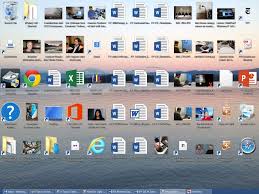
    Mac Desktop Clutter3) Clean Off the Desktop

    Having a lot of files on the desktop will actually slow down your computer because each file and its icon preview take up RAM and resources.

    The less RAM you have the more you’ll notice the sluggishness resulting from a cluttered desktop.

    It is more efficient to get in the habit of filing things into appropriate folders instead of on the desktop; but if you can’t be bothered to do that, just grab all the files and move them into the appropriate folders from time to time.

    If you can’t remember to do it yourself, there are apps that will automatically clean it for you by moving files and folders to a designated place at a regular interval.

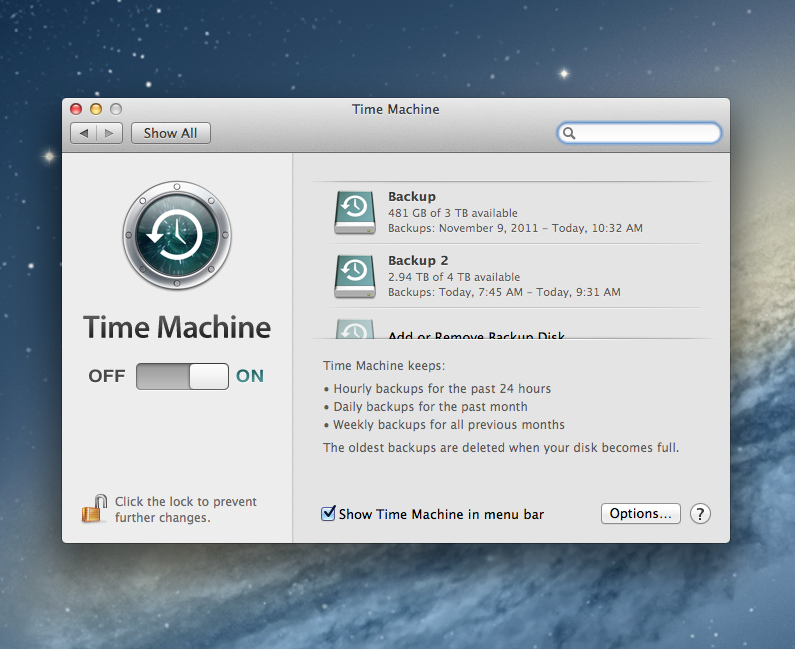
    Set Up Time Machine4) Regularly Back Up Your Computer

    Performing regular backups is essential for you to be able to quickly recover from potential disasters.

    The simplest back up solution for Macs is Time Machine. You’ll need an external hard drive, but once you set up Time Machine, automatic backups occur without any effort.

    If you haven’t set up Time Machine yet you really need to do so. Get a large external hard drive and configure Time Machine through System Preferences.  I’t’s easy to do and you’ll be very thankful you have a back up in the event of a hard drive failure.

    You should also do a manual back up before allowing system software updates. I’t’s rare, but things can go wrong, and it’s best to be prepared.

    “Listen to your Mother” and do your maintenance so you won’t have regrets later ; )

    Enjoy!

  • To Sleep or Shut Down, That is the Question

    When your computer is not in use, do you shut it down, put it to sleep, or just keep it turned on?

    In working with clients, it’s come to my attention that many people don’t completely shut down their computers from time to time.  Letting your computer just go to sleep night after night can cause problems.  For the average user, I recommend shutting it down completely, at least once a week.  The same applies to mobile gadgets like tablets and phones.  (See below for more details.)

    If any of your techie tools are acting a little weird and slowing down, they may just need a reboot (shutdown and restart).  Try rebooting and then call me if that doesn’t work.

    I hope you have found this tip useful and that you will forward it to others so they too, can more fully enjoy the benefits of computer technology.

    Pros and Cons

    Putting It To Sleep   Computer in sleep mode

    The advantage to putting it to sleep is that it provides the easiest and fastest way to resume work while minimizing wear and tear on the hardware. The computer goes to sleep instantly and when it wakes up, all of your open apps, documents, window arrangements, and web pages, are exactly where you left off with almost no delay. For average users who want to quickly get back to what they were doing, sleeping is perfect.

    • Pros: Quickly resume exactly where you left off; sleep and wake can be scheduled or even done remotely
    • Cons: Minor power consumption; system temp fluctuations, swap, and cache files don’t get cleared out during as during a reboot process; system updates requiring reboots don’t install automatically and need a manual reboot; performance is best for computers with 4GB RAM or more

    If you use your computer every day, simply putting it to sleep when it’s not in use or overnight is probably the best choice. Just be sure to reboot every once in awhile to allow system software updates to install. Waiting for an operating system Update or Security Update is generally a sufficient time between reboots.

    shutting down computer for updatesShutting It Down

    Shutting it down isn’t necessary unless it’s going into a longer term state of inactivity or storage. Shutting down is slower because all the open applications and documents have to quit; and when you turn the machine back on, everything has to re-open again to get back to where you were prior to shutdown.

    • Pros: Saves power, doesn’t strain hardware; system temp, memory, swap, and cache files get cleared out during boot; allows for major system updates to install
    • Cons: Takes a while to boot up and resume previous activity

    For the power conscious or for those trying to squeeze the absolute longest lifespan out of hardware and hard disks, shutting down when not in use is the best choice. This is also necessary if you’re going to put your computer in long term storage, won’t be using it for a longer than a few days, or you’re going to be traveling and not using it during the travel period.

    Computer as a serverKeeping It Always Turned On

    Leaving a computer constantly turned on is best reserved for computers that function as servers. On the plus side, you don’t have to bother resuming anything since it’s already on, you can schedule all maintenance and backup tasks to occur in the wee hours of system inactivity, and it allows for a server or media center to be running on the machine. The downside is the constant power consumption and the constantly active hardware, which can limit overall lifespans of the computer components.

    • Pros: No waiting for use; instantly resume all apps and tasks exactly where you left off; allows for servers to run with constant accessibility; backup and system maintenance tasks can be scheduled for off hours
    • Cons: Constant power consumption; more wear and tear on hard drives, fans, and physical hardware due to possible heat

    For the casual user, it’s best to put it to sleep when it’s not in use.  It gives hard drives and fans a rest, and will generally lead to a longer lifespan of the computer.

  • Are you wondering if you should upgrade your OS?

    There are major changes happening with computer and mobile gadget operating systems and it’s my mission to make it easy for you to keep up and enjoy the many benefits.

    One of my clients received an email from Microsoft offering a free upgrade to Windows 10 and she wanted to know if I thought it would be better or worse than her Windows 8.1.
    windows 10

    I told her, that it’s too soon to tell.  I recommend that people wait until it has been on the market for at least a year to give them a chance to correct any problems.  There are always bugs and fixes that need to be done with any new software.

    There are many improvements and some neat new features, but we’ll shall see….

    If you are interested in knowing about the new features of Windows 10, Click here.

     Yosemite

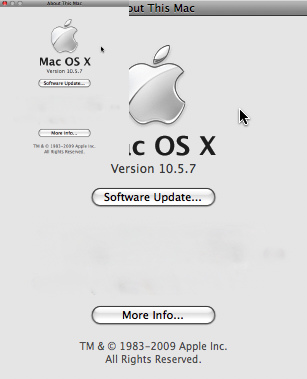
    Apple also has a new operating system for it’s computers. It’s been available for quite some time and Apple has issued several important updates.  It’s called OS X Yosemite and it has a lot of cool new features.  If you want to learn more about it click here.

    Chromebook

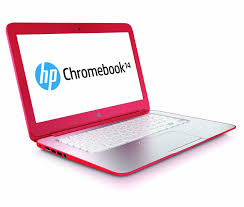
    I’m still really enjoying my Chromebook.  A Chromebook is a laptop of a different breed. Instead of Windows or Mac OS, Chromebooks run Google’s Chrome OS. These machines are designed to be used primarily while connected to the Internet, with most applications and documents living in the cloud and they are much less expensive than other computers.

    If you are thinking about buying a new computer, smart phone or tablet, you might want to consult with me first. In my tutoring, I have the opportunity to play with many kinds of devices so I can give you some good information about their advantages and disadvantages.  I’m proud to say that many of my clients have saved a lot of money and avoided a lot of frustration by consulting with me before they purchased.
    If you buy a new device, have me give you an orientation so you can get up and running quickly and easily. I read the owners manuals and take online classes so you don’t have to.  (“It’s a tough job but somebody has to do it.”  LOL)

    If you found this information helpful, please share it.  


    Enjoy!

    Mardi

  • No More Password Hassles with LastPass

    No More Password Hassles!

    Treat your password like your toothbrush.
    Don’t let anybody else use it, and get a new one every six months.

    Clifford Stoll                                      Read more at brainyquote.com

    maxresdefault

    Are you ready to put your password hassles to rest once and for all?  I’ve got a great solution for you!   Get LastPass password manager.  It’s free! It will generate secure passwords for all your accounts and insert them automatically. You only need to remember one master password.  Everything is encrypted and safe.

    No more updating pages and pages of accounts and passwords or going through a bazillion steps to reset the ones you forgot!  LastPass even let’s you know if you have an account with a company whose data base has been compromised so you can change your password immediately.

    I’ve been using the basic features of LastPass for years, but I just took a class on it to learn more and I am very impressed.  I had the opportunity to teach a client how to use it this week and she is so happy and relieved that she’s telling all her friends.

    You can learn more about it here  www.lastpass.com  I urge you to use it.  The little bit of time it takes to install and learn how to use it, will be minimal compared to the time it takes to clean up a mess if someone hacks any of your accounts.

    Please share this with everyone you know so they can be safe and feel relaxed, happy and confident with their computers and techie gadgets.

    Please post your thoughts or comments below….

    Thanks!

  • AOL Phishing Scam

    AOL Phishing Scam

    One of my clients sent this to me yesterday. It’s a Phishing scam, just as she suspected. Good job Harriett!

    AOL HELP.

    Your two incoming mails were placed on pending status due to the recent upgrade to our database,In order to receive the messages Click Here

     to Login and wait for response from  AOL Mail

    .We apologies for any inconveniences 

    Best Regards,

    The AOL! Mail Team
    I was suspicious because of the reference to holding back only two emails.  A big company like AOL doesn’t have time to notify people of small stuff like this.  (Most of the time, companies don’t even notify us of big changes!  LOL )  Mail held up by a “data base upgrade” would most likely just come through later, after the upgrade was completed.

    Of course, being the intrepid, curious researcher that I am, I just had to click on the link to see what would happen.  This is what showed up…

    URL Terminated  

    The TinyURL (p95eoub) you visited was used by its creator in violation of our terms of use. TinyURL has a strict no abuse policy and we apologize for the intrusion this user has caused you. Such violations of our terms of use include:

    • Spam – Unsolicited Bulk E-mail
    • Fraud or Money Making scams
    • Malware
    • or any other use that is illegal.

    If you received spam, please note that TinyURL did not send this spam and we do not operate any email lists. We can not remove you from spammer’s database as we have no association with spammers, but instead we recommend you use spam filtering software.

    This confirmed my suspicions.  I let Harriet know and thanked her for letting me know.

    You are always welcome to email me when you have a concern like this. My mission is to make your computing experience more enjoyable and to help others as well.

    Please forward this to everyone you know so they can be safe and feel relaxed, happy and confident with their computers and techie gadgets.

    Thoughts or comments about this topic?
    Please comment below.

    Thanks!

  • Phishing Alert: Watch Out For This!

    I thought you should know about this right away.

    After seeing my Techie Tip about phishing on Saturday, my daughter sent the following email about a phishing problem with Anthem Insurance.  Even if you don’t have Anthem Insurance, this will reinforce what I said about “phishing. ”

    Heh Mom, Did you know about this?

    Last week, Anthem announced that data might have been accessed about Anthem Healthcare clients.  Apparently, hackers are taking advantage and sending emails and making phone calls asking to verify information.

    Here is the email from the Human Resources Department where she works.

    “Anthem notified us today that members who may have been impacted by the cyber attack should be aware of scam email campaigns targeting current and former Anthem members.  These scams, designed to capture personal information (known as “phishing”) are designed to appear as if they are from Anthem and the emails include a “click here” link for credit monitoring.  Anthem DID NOT send these emails.  If you receive one of these scam emails like the one attached:

    • DO NOT click on any links in email.
    • DO NOT reply to the email or reach out to the senders in any way.
    • DO NOT supply any information on the website that may open, if you clicked on a link in email.
    • DO NOT open any attachments that arrive with email.

    Further, Anthem is not calling members regarding the cyber attack and Anthem representatives are not asking for credit card information or social security numbers over the phone.

    This outreach is from scam artists who are trying to trick consumers into sharing personal data. There is no indication that the scam email campaigns are being conducted by those that committed the cyber attack, or that the information accessed in the attack is being used by the scammers.

    Anthem will contact current and former members via mail delivered by the U.S. Postal Service about the cyber attack with specific information on how to enroll in credit monitoring. Affected members will receive free credit monitoring and ID protection services.

    For more guidance on recognizing scam email, please visit the FTC Website:http://www.consumer.ftc.gov/articles/0003-phishing.

    Anthem has created a website (www.anthemfacts.com), and a hotline, 1-877-263-7995, for its members to call for more information.”

    Please forward this to everyone you know so they can be safe too.
    Thanks,
    Mardi