Category: news

  • Happy New Decade!

    image with Happy New Year 2020 with clock
    Image by Jeff Jacobs from Pixabay

    As the decade draws to a close, have you taken time to look back on your life for the past 10 years?  It’s an interesting exercise.  We can feel proud of ourselves for the challenges we’ve overcome (or at least survived) and the progress we’ve made toward goals and get inspired to set new goals for the new year.

    Can you believe how fast the decade has flown by? Everyone marvels at how quickly time passes and it’s not just older folks. Young people notice it too. Ask some young adults and see what they say.

    I think it’s due to the fact that everything around us is changing and evolving so quickly. That’s especially true with technology.  Not only does it change rapidly, but it often radically changes the way we live our lives.  What was life like before email, cell phones and Facebook?  And now Uber, streaming video, Echo and Google Home?

    I really enjoyed this article by PC Magazine and I think you will too.  
    You may not have heard of some of them but that’s fine.  Enjoy the ones you do know, like iPads, smart watches, Windows 10 and Chromebooks.

    The Most Iconic Tech Innovations of the 2010s  “As the decade winds down, we round up the most important and innovative products, trends, and breakthroughs that have shaped how we use technology.”

    And this brings up the issue of feeling stupid…
    So many clients tell me they are stupid when it comes to technology and I always tell them, “That’s not true! You just feel stupid because there is so much new information and vocabulary to learn at one time.”

    “It’s not even a matter of not having learned computers in school.  Things wouldn’t be the same now anyway.  I can barely keep up!  If I were off the grid for 6 months or more, I’d probably feel stupid too.”

    Here’s an inspiring quote from Seth Godin that speaks to this…

    From What to Do When it’s Your Turn (and it’s Always Your Turn)

    The Fear of Stupidity
    “Stupid is not uncommon. Stupid is the way we feel when working on a difficult problem. Stupid is the emotion associated with learning—we are stupid and then we are not. The pre-learning state is stupidity. A scientist might work ten years on solving a problem of math or logic or biology. Or a lifetime. And until the problem is solved, she’s stupid. And then she isn’t. Which is all fine, actually. The problem comes with the emotion that we’re supposed to feel when we feel stupid: Fear. We are supposed to be afraid of stupid, to get stupid over with as soon as we can. Change, of course, makes everyone feel stupid, because change breaks all the old rules, inventing new ones, rules we don’t know (yet). And so the equation is obvious: Change —> Stupid —> Afraid. One way to avoid this is to avoid change. One way to avoid this is to avoid freedom. The best way to avoid this is to embrace stupid and skip the last part. There’s nothing to be afraid of. Nothing except avoiding the feeling of stupid. And stupid is a good thing.”

    May you embrace “stupid,” embrace change, embrace continuing education and have an amazing 2020!

    Enjoy!
    Mardi

    What do you think about the changes in the past decade and are you over feeling stupid for feeling stupid sometimes?  I’d love to see your thoughts in the comments sections below…

    Receive notifications about all my Techie Tips as soon as they become available by signing up here.

    Go back

    Your message has been sent

    Warning
    Warning

    Warning.

  • What Happened to Your Windows 10 October Update?

    What Happened to Your Windows 10 October Update?

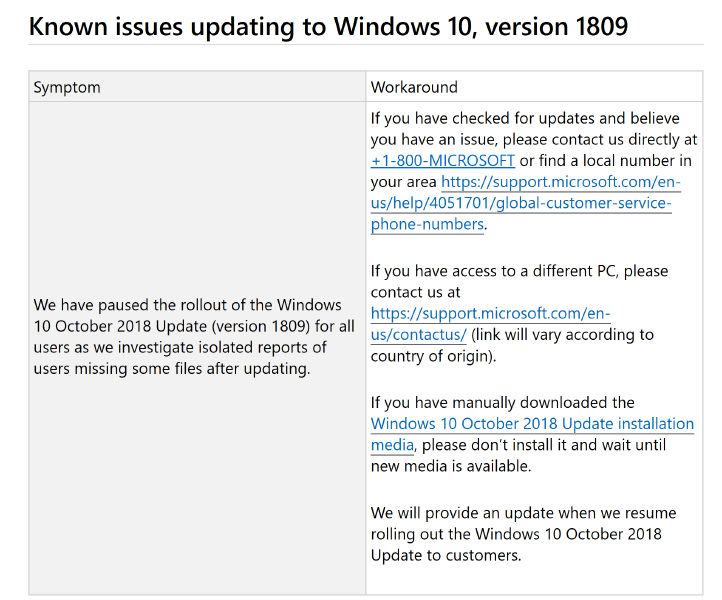
    screen shot of notice of issues on Microsoft's websiteMicrosoft has paused the roll-out of its October Update (version 1809) because it was causing numerous problems.  It’s been over a month and there hasn’t been any word as to when it will be re-released.
    The new feature update will eventually download and install automatically, based on your Windows Update settings.  It may be some time before you get the update because Windows 10 is running on more than 700 million machines! (It took more than six weeks for the April 2018 Update to reach 250 million Windows 10 devices — about 36 percent, and that was a record pace.)

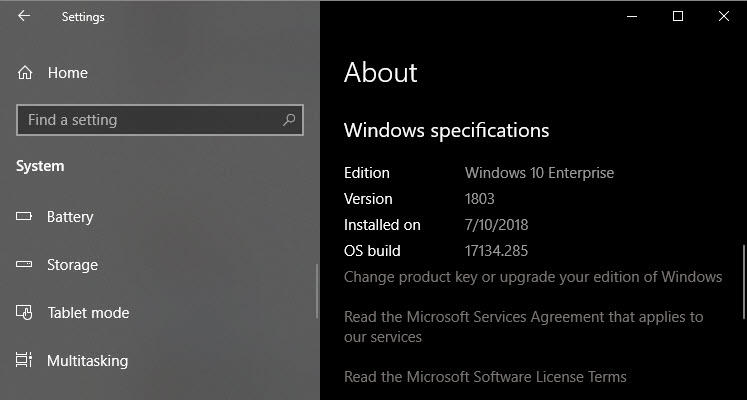
    The October 2018 Update is officially version 1809, build 17763. You can check the version information on your PC by going to Settings > System > About, and looking under the Windows Specifications heading. There, you’ll see the details for the currently installed version and build. (The number after the build number indicates the most recent update version.)

    This example shows a PC running the previous version 1803.

    Screen shot of Settings Menu

    If you are using Windows 10 Home edition, you don’t have an option to defer the update until bugs and compatibility issues are revealed and fixed, but you, as a home user, aren’t on the top of the list either.  This deferment actually protects you.  

    People who run a business edition of Windows 10 can change some things in the settings to control when they allow updates, but I’m not going to go into all the details here because it’s not relevant for you.

    In any case, I trust that you have heeded my previous warnings about OS updates.  You have a backup system in place, and you know your passwords, right?

    I know all this negative news and confusion makes you nervous.  It’s been been very damaging to the credibility of the Microsoft brand too.  Tech news reporters have suggested that Microsoft’s development process is broken, and that they should focus on fundamentals rather than new features. 

    Microsoft’s “broken development process” is hurting the entire PC industry.  It’s almost the holiday shopping season.  Computer manufacturers are having to ship computers without the latest version of Windows.  Consumers, troubled by all the negative news stories, are likely to consider Chromebooks, MacBooks, or the new iPads. Who wants to deal with all these problems unless they have to?

    If you’re tired of dealing with Windows issues, or you need a new computer, or you’re planning to buy a computer for a loved one, you might want to consider other options too.  Most of computer problems and frustrations can be avoided by choosing the right computer in the first place and I want to help you keep your techie life simple, easy and fun!  I’ll be happy to answer your questions about the best choice for your unique needs, free of charge. 

  • Love Apple’s New macOS Mojave

    Love Apple’s New macOS Mojave

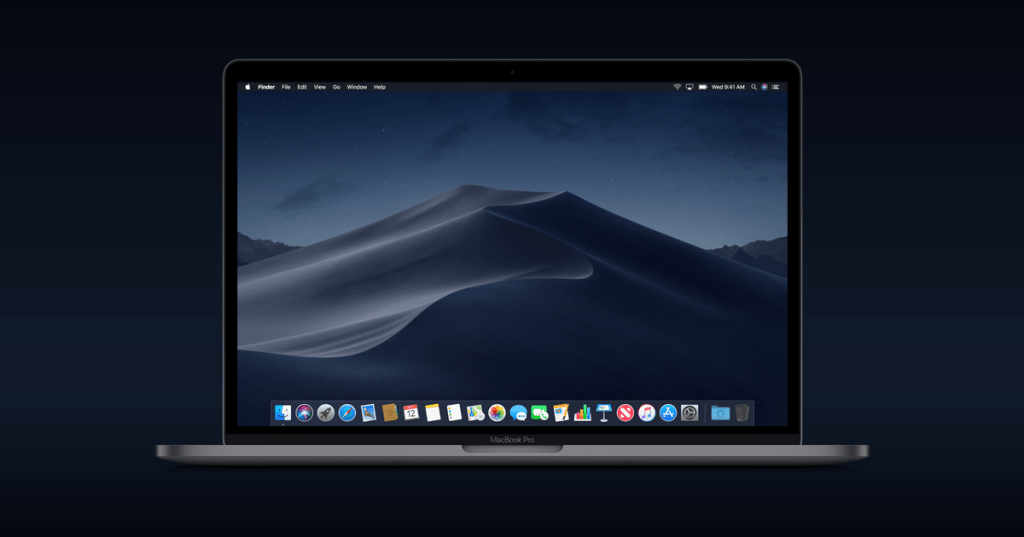
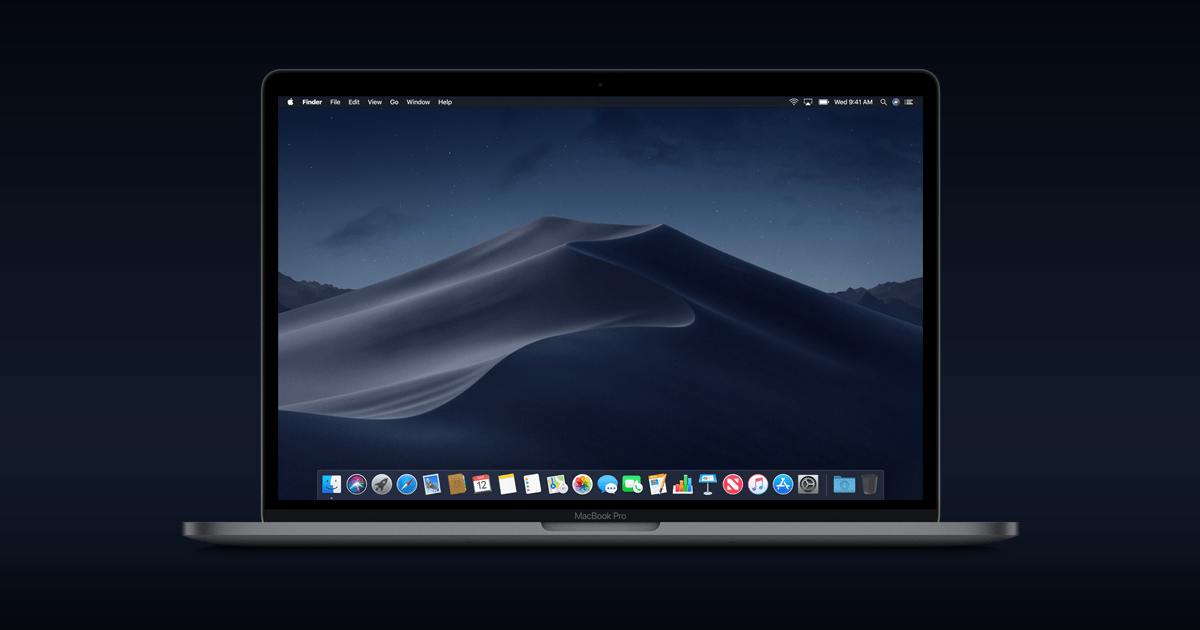
    Image of macOS Mojave Dark Mode Theme

    The new macOS Mojave was released on September 24 and “the coast is clear” to install it now, if you haven’t already. It’s a free software update in the App Store.

    Before you do that, you need to:

    1. Check that your computer is compatible
    2. Make a backup
    3. Check that you have enough free space

    No worries…all the instructions are clearly explained on Apple’s website How to upgrade to Mac OS Mojave   If you need a little hand holding or want me to do it for you, let’s set up a time.

    Apple has created a beautiful web page that describes the new features.  It even has animations to show what they do.  See it all here…

    The features I think you will really love are:

    1. The Dark Mode Desktop theme and the time-shifting images to match the time of day. It’s really pretty!
    2. The Stacks feature that cleans up messy desktops by automatically organizing files into neat groups.
    3. Quick Look in Finder that lets you work on a file without even opening it!  You can perform actions specific to the file type — without ever launching an app. You can mark up a PDF, rotate and crop an image, trim audio and video and even share files!

    And too “technical” to “Love” but hugely helpful…

    1. macOS Mojave requires apps to get your approval before accessing the camera or microphone, your messages data and mail database.
    2. Enhanced Tracking Prevention — When you browse the web, the characteristics of your device can be used by advertisers to create a “fingerprint” to track you. Safari now thwarts this by only sharing a simplified system profile. Intelligent Tracking Prevention keeps embedded content such as social media Like buttons, Share buttons, and comment widgets from tracking you without your permission. 
    3. Safari automatically creates, stores, and autofills strong passwords for you. And it flags existing passwords that have been reused in Safari preferences, so you can easily update them. Security has never been so user friendly!

    I’m eager to know how you like it.  Let me know your favorite features in the comments below.