Category: iPad

  • Happy New Decade!

    image with Happy New Year 2020 with clock
    Image by Jeff Jacobs from Pixabay

    As the decade draws to a close, have you taken time to look back on your life for the past 10 years?  It’s an interesting exercise.  We can feel proud of ourselves for the challenges we’ve overcome (or at least survived) and the progress we’ve made toward goals and get inspired to set new goals for the new year.

    Can you believe how fast the decade has flown by? Everyone marvels at how quickly time passes and it’s not just older folks. Young people notice it too. Ask some young adults and see what they say.

    I think it’s due to the fact that everything around us is changing and evolving so quickly. That’s especially true with technology.  Not only does it change rapidly, but it often radically changes the way we live our lives.  What was life like before email, cell phones and Facebook?  And now Uber, streaming video, Echo and Google Home?

    I really enjoyed this article by PC Magazine and I think you will too.  
    You may not have heard of some of them but that’s fine.  Enjoy the ones you do know, like iPads, smart watches, Windows 10 and Chromebooks.

    The Most Iconic Tech Innovations of the 2010s  “As the decade winds down, we round up the most important and innovative products, trends, and breakthroughs that have shaped how we use technology.”

    And this brings up the issue of feeling stupid…
    So many clients tell me they are stupid when it comes to technology and I always tell them, “That’s not true! You just feel stupid because there is so much new information and vocabulary to learn at one time.”

    “It’s not even a matter of not having learned computers in school.  Things wouldn’t be the same now anyway.  I can barely keep up!  If I were off the grid for 6 months or more, I’d probably feel stupid too.”

    Here’s an inspiring quote from Seth Godin that speaks to this…

    From What to Do When it’s Your Turn (and it’s Always Your Turn)

    The Fear of Stupidity
    “Stupid is not uncommon. Stupid is the way we feel when working on a difficult problem. Stupid is the emotion associated with learning—we are stupid and then we are not. The pre-learning state is stupidity. A scientist might work ten years on solving a problem of math or logic or biology. Or a lifetime. And until the problem is solved, she’s stupid. And then she isn’t. Which is all fine, actually. The problem comes with the emotion that we’re supposed to feel when we feel stupid: Fear. We are supposed to be afraid of stupid, to get stupid over with as soon as we can. Change, of course, makes everyone feel stupid, because change breaks all the old rules, inventing new ones, rules we don’t know (yet). And so the equation is obvious: Change —> Stupid —> Afraid. One way to avoid this is to avoid change. One way to avoid this is to avoid freedom. The best way to avoid this is to embrace stupid and skip the last part. There’s nothing to be afraid of. Nothing except avoiding the feeling of stupid. And stupid is a good thing.”

    May you embrace “stupid,” embrace change, embrace continuing education and have an amazing 2020!

    Enjoy!
    Mardi

    What do you think about the changes in the past decade and are you over feeling stupid for feeling stupid sometimes?  I’d love to see your thoughts in the comments sections below…

    Receive notifications about all my Techie Tips as soon as they become available by signing up here.

    Go back

    Your message has been sent

    Warning
    Warning

    Warning.

  • Backups Don’t Have to Be Hard or Confusing

    Backups Don’t Have to Be Hard or Confusing

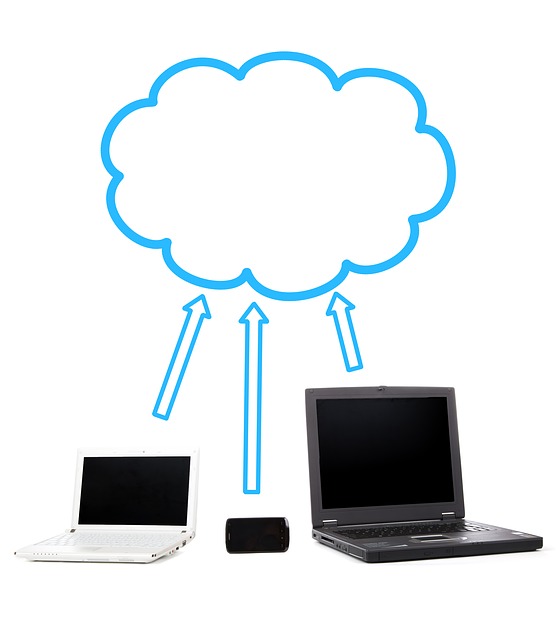
    diagram of cloud and mobile devices
    Image courtesy of Pixabay

    I love articles by How To Geek because they often cover basic information that my clients should know.  The articles are written very clearly but sometimes I make them even simpler by providing a shorter version and definitions of technical terminology.

    I’ve talked about backups many times, so I think most of you will be able to understand this article as it is:  What’s the Best Way to Back Up My

    If you know me at all, you will know that I recommend Chromebooks and Google Drive as the best solution for most people.  My second choice for simple and secure would be an Apple iPad and iCloud backup.

    As they say in the article: “Everyone loses data at some point in their lives. Your computer’s hard drive could fail tomorrow, ransomware could hold your files hostage, or a software bug could delete your important files. If you’re not regularly backing up your computer, you could lose those files forever.  Backups don’t have to be hard or confusing.”

    Please just make a decision and do it!  And check monthly to be sure it’s working.

    If you need help, you can make an appointment here or call 760-348-8867.

    Let us know what you use for backups in the comments below.

    Thanks for reading and for sharing with others. 🙂

    Enjoy!

    Mardi


  • The New iPad Air – Power For The Rest of Us

    The New iPad Air – Power For The Rest of Us

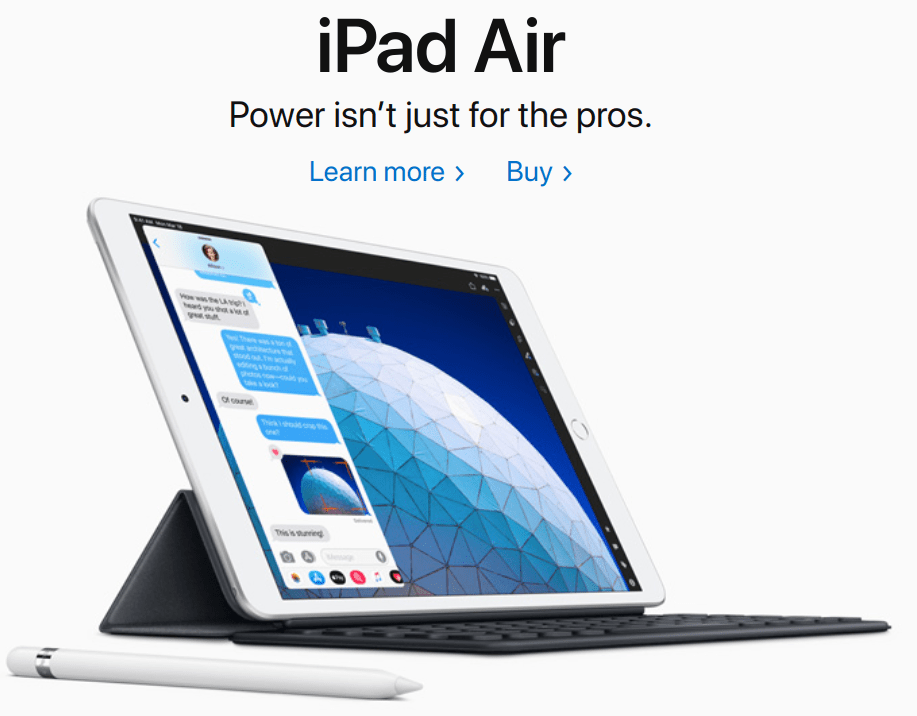
    image of the new iPad AirIn addition to the new iPad Mini, Apple has announced a new iPad Air.

    If you’ve been wanting an iPad Pro but weren’t willing to pay the price, you may be excited about the iPad Air. It provides most of the features of the Pro for a much lower price.

    The two iPads are really very similar except the Pro 10.5” has “Promotion Technology” (That means the screen refresh rate is 120 MHz refresh rate while the iPad Air refreshes at 60 MHz.) If you’re not a serious gamer or video editor, you don’t care. For more about refresh rates see this article at livewire.com https://www.lifewire.com/what-is-refresh-rate-2625984

    Additionally, the main camera on the iPad Pro is 12 megapixels instead of the 8 megapixels on the iPad Air.

    I imagine you can live comfortably with those two compromises for the much lower price of $499.

    The iPad Air supports the smart keyboard (available separately for $159), has a more powerful processor than the iPad Pro 10.5 inch, has pencil support (the old pencil, not the newer second-generation pencil), TrueTone (True Tone allows the display to adjust its color temperature based on the light of its surroundings so images appear more natural. True Tone was introduced with the 9.7-inch iPad Pro in 2016 and has since slowly made its way to all Apple’s mobile devices.) and wide color gamut support, the same resolution as the old iPad Pro 10.5 inch model and it weighs slightly less, at just one pound.

    Apple’s goal is to provide “more of our most powerful technologies to more people than ever” by offering a bigger iPad that’s not quite at the “Pro” level but still more powerful than the smaller 9.7-inch iPad.

    This model fits in the iPad lineup between the larger iPad and the iPad Pro models. You can see the whole product line here https://www.apple.com/ipad/ 

    Apple says the new iPads can be ordered today and will be in the stores next week.

    I think iPads or Chromebooks are the best options for most people and I love it when the products keep getting better and more affordable like this.

    Are you going to buy a new iPad Pro 10.5? I’d love to know what you think. Share your thoughts in the comments below.

    Thanks for being here!
    Mardi

  • A New and Improved iPad Mini is Here

    A New and Improved iPad Mini is Here

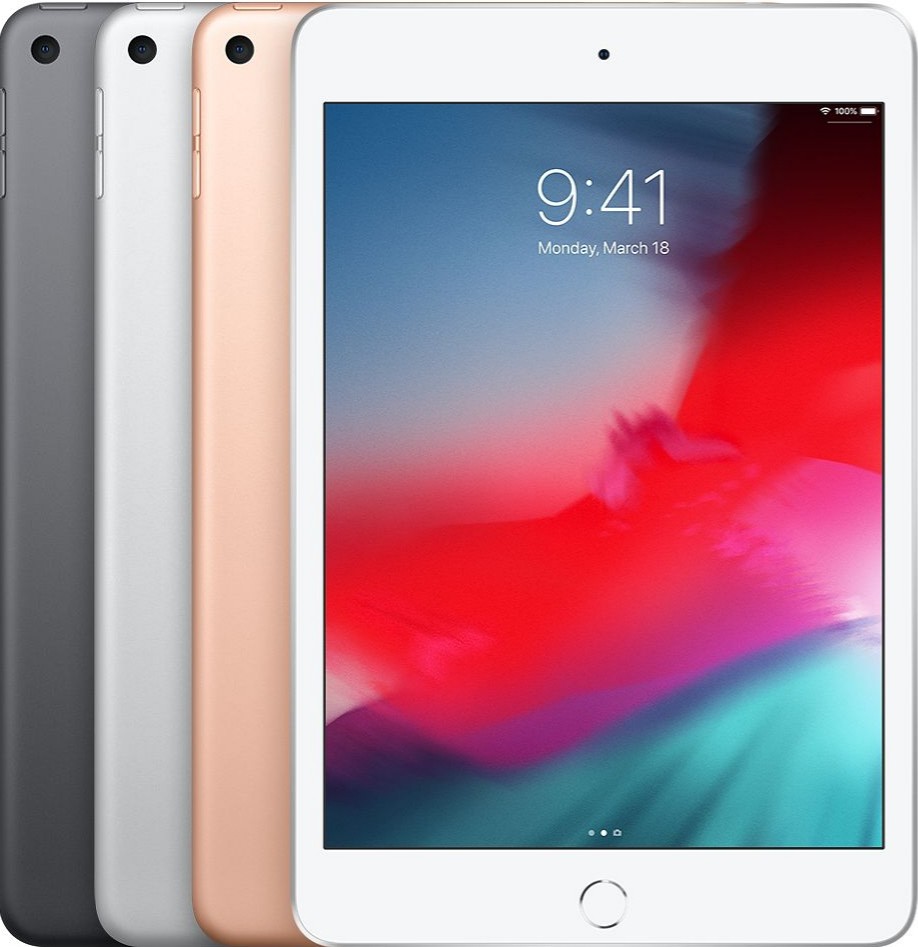
    image of iPad MiniAfter almost four years, Apple has updated the iPad Mini and, at the same time, managed to keep the prices down.

    The processor has been updated from an A8 to a A12.  (These numbers reveal how outdated it had become.) This processor should speed up the performance substantially.

    In addition, the display is brighter and picks up True Tone.  (True Tone allows the display to adjust its color temperature based on the light of its surroundings so images appear more natural. True Tone was introduced with the 9.7-inch iPad Pro in 2016 and has since slowly made its way to all Apple’s mobile devices.)

    The front-facing camera now has 7 megapixels instead of 1.2 megapixels.  There’s no Face ID support yet.

    They’ve added Pencil support too. I think that might appeal to a lot of you for taking notes or creative doodling.

    Apple managed to hold down the entry-level price to $399 by reducing the storage from 128 GB to 64 GB.  For $549 you can increase that storage to 256 GB.

    I personally don’t see the advantage of a mini tablet because the screen is small and it doesn’t have a phone in it.  I’d rather have a larger iPad or a Chromebook, but I know some of you like the mini.

    What do you think?  I’d love to know if the new iPad Mini appeals to you.  Let me know what you think by posing in the comments below.


    Thanks for being here!

  • ​Do You Use Skype or Face Time?

    Why Use Skype?

    Skype is an app that lets you connect with people using the video camera on your computer or mobile device.

    Face Time does the same thing, but only works with Apple products. Even if you use Face Time, it’s a good idea to know how to use Skype as well. They are both very simple and easy to use and they are truly one of the best benefits of modern technology.

    A friend of mine uses Skype to play checkers with her 9 yr. old grandson who lives out of state.

    Parents use it to stay in touch with their children when they have to be away on business trips or vacations. They can read the children a bedtime story, watch them get tucked into bed, and throw them a kiss goodnight.

    Several clients have had me show them how to use Skype for important job interviews. We practiced calling each other, chose the most flattering camera angle, picked the most attractive background, and discussed what to wear. It is so rewarding to see people gain confidence and be optimistic about getting the job!

    Video chat is great for online dating and long-distance relationships too.

    Businesses use Skype for video conferencing because they can have multiple people on a video call. They save a lot of money on air travel, hotels and meals.

    On an internet enabled big screen TV, it can feel like you’re actually in the room with distant family members. You can even watch each other open Christmas presents!

    On mobile phones, you can only use audio for group calls, but on your computer or internet enabled TV you can do video conference calls.

    Skype also supports audio calls to traditional phones. Using Skype on your tablet or smartphone, you can call somebody on a regular telephone. This is really handy if you are traveling and don’t have access to phone service but do have access to wifi.

    One of my clients who is retired from the Foreign Service, learned how to use Skype so he could stay in touch with his friends all over the world for free.

    All of the features of Skype are free, except calling people on regular telephones. However, Skype phone calls are a lot less expensive than traditional long distance calls.

    How to Use Skype

    Skype is a free download from the iOS App Store and the Google Play Store and is already installed with Windows 10 and Window phones. (It’s owned by Microsoft.)

    You need to have an account to use Skype. You can set up a free account or, if you already have a Microsoft account, you can just log in with that.

    On iPads, iPhones, Android phones, and Android tablets, each version of Skype will look a little different but the functionality is the same. There are just a few minor differences on each device

    When you login you will see three screens

    1. RECENT- shows the most list of people most recently talked to
    2. FAVORITES – shows the contacts you have marked as favorites
    3. PEOPLE – is your list of people you can call on Skype. They have to have an account also and they have to agree to be connected with you.

    To Add a Contact

    Search for the person in the Skype database. There are millions of people in the Skype database and lots of people with the same name…even unusual names. It’s amazing!

    Therefore, the quickest and easiest way to find people is to search for their unique Skype name. Email address work sometimes too because there aren’t duplicates of those but it’s really easier to ask your person for their skype name.

    When you find them, tap the button that says “add people.” Then tap “send a contact request.”

    The person’s name will show up on your contact list but, they will not show up as online and accessible until they have accepted your request.

    After they accept your request, you will be able to see their status next to their name, which lets you know when they are online for you to call them.

    Note: some people leave the Skype app open all the time to receive calls. Other people text or email each other to set a time and then open the app. It depends on how often they use it.

    To make a call

    Select a contact and you will see buttons at the bottom of the screen. You can choose to do a video call or an audio call. They both work pretty much the same. Tap on the button for audio or video. The camera starts running right away so you can frame up your shot while you wait for the other person to pick up.

    After you start talking, the buttons at the bottom of the screen will fade out of the way, but when you tap on the screen, they’ll pop up again.

    You can mute and unmute your audio by hitting the mute button.

    You can disable the camera by hitting the camera button if you want to talk and see them without them seeing you.

    When you’re done, just hit the red hang up button.

    To receive an incoming call

    The app will make a sound and you will see a choice of buttons.

    If you don’t want to answer a call, you can just hit the red button.

    If you want to answer but only want to use audio, then hit the green button in the middle.

    To see video and hear audio, hit the camera button.

    To hang up, tap on the screen to bring up the controls and hit the red button

    You can also use Skype to have a text chat.

    On the screen, with a contact’s information, tap on the field that says “type a message”. Type and then hit the Send button. When he responds, you’ll see his response pop up.

    Calling regular telephones

    This feature is particularly useful when you’re traveling to a place where you won’t have a cellular phone connection, but you will have wifi.

    This is called Voice Over IP, or VOIP. Using this feature, you can call a regular phone as long as you can connect to Skype on your mobile device.

    This is the one feature that is not free but Skype is much less expensive than traditional long distance rates. To get an idea of the pricing options, check out their website. http://www.skype.com/en/

    You can login to your Skype account on the website and add Skype credit to your account.

    Or in the app on your mobile device, you can hit the “my account” button (top right), and there’s an option for “Skype credit”. This way, it’s an “in-app” purchase and it will be charged to your iTunes account or Play Store account. It will ask for your password for confirmation. Then hit “Buy”.

    To make a call to a regular phone

    At the bottom of the screen, there’s a dialer button and you can just dial a regular phone number. Also, there’s a button at the top that links directly to the address book on your device so you can find the person and tap on the number. When you hit the phone button at the bottom, it will dial. When he answers, you will be having a conversation just as if you were using a regular telephone. To hang up, just hit the red button at the bottom

    Skype is a great app for video and audio calls because it runs on all mobile devices and computers no matter what platform. Group video calls are not available on mobile devices but video calls to individuals work.

    I hope you will try this and enjoy it. If you need help, just let me know.

    Please share this with your friends and relatives. Your referrals are the heart of my business and my mission is to help people more fully enjoy the many benefits of modern technology.

    Thanks,

    Mardi

  • Good News – Phones Unlocked!

    Good News – Phones Unlocked!

    The government has agreed to the unlocking of devices in the United States  This means you can now unlock your mobile phone or tablet (iPhones, iPads, Android smartphones and tablets) and use it with a different wireless network carrier. All major service providers like Verizon, AT&T, T-Mobile, Sprint and U.S cellular are now allowing the unlocking of devices so you can switch to the carrier service that is best for you.  Previously, if you wanted to change your network provider you had to buy a new phone.

    Wireless carriers you can see if you allow images in your email app

    The unlocking policy and methods vary according to the network provider. The unlocking process is free if you fit into the rules set by the provider.  Before making your request to unlock the device, check the company policy and make sure you are eligible.

    Please forward this to everyone you know so they can be safe and feel relaxed, happy and confident with their computers and techie gadgets.

    Thoughts or comments about this topic?
    Please comment below.

    Thanks!

  • Great Apps for Computers and

    Apps are not just for smartphones and tablets. Many apps are web based and accessed through your web browser. You don’t have to have a smart phone or tablet to use some of the most popular apps.

    However, when people buy smartphones or tablets, they often ask me what apps they should know about.  I’m always happy to make suggestions based on antheir lifestyle and interests.

    Since you may have received a gadget as a holiday gift, I thought it would be a good time to tell you about a few of my favorites apps and programs. You may already be using some of these but you may discover some new ones to try. Enjoy!

    Entertainment and Media:   

    NetflixNetflix let’s you watch an unlimited number movies and television shows online for only $8.95 mo. You can train it to make suggestions for you based on the movies you watch and how you rate them.  You can even set up separate profiles for individual family members!  And, there are no commercials!!!

    You can connect your gadget to your TV and watch movies on it too.

    chromeCast


    Chromecast from Google $35


    roku

    Roku Streaming Stick $50


    appleTvApple TV $99


    spotify


    Spotify let’s you listen to music for free.  It even has playlists by subject or genre. The variety is astounding and there are no commercials!!!


    YouTube


    YouTube is a must for doing research on any topic that can be best explained with a video.  Think recipes, repairing things, movie previews, songs, lyrics, instructional videos, and answers to absolutely any question under the sun.

    shazam

    Shazam listens to songs on the radio, TV or movies. It identifies the song title, shows you the performer, album, lyrics and links you to sites where you can purchase.


    Productivity:

    dropboxDropbox is a great app for cloud storage and sharing.  When you put files in there, you can access them from anygadget or computer.  I use the phone app to play audio files of lectures and seminars. It’s super easy to learn and you get 2GB of storage for free.  By referring your friends to Dropbox, you can earn up to 16GB of additional space.  Sign up here
     

    office 365

    One of the most popular productivity tools for home and business is Microsoft Office. Unfortunately, Office documents don’t always play nice with third-party apps. Now Microsoft has released the Microsoft Office Mobile app.   It lets you open, create and perform basic editing on Word, Excel and PowerPoint files no matter where you are.


    mintMint.com and its app  (Free, and available for Android and iOS) links to your all your bank accounts, credit card accounts and loans so you always know just how much money you have and how you are spending it. You can set up spending categories and create a budget for each category. I love it for keeping track of my income and expenses for paying my taxes.


    The weather channelThe Weather Channel app and weather.com show you the current temperature, the hourly forecast and the next 10 days of weather.  Also you get a customizable radar map, video clips, severe weather alerts and beach conditions. It’s better than your gadget’s built-in weather app.


    free wifi finder

    You don’t want to burn through your cellular data plan when you are out and about or on a trip, so you need to useWi-Fi whenever possible. You can find free Wi-Fi locations with the Free Wi-Fi Finder app.


    Dating:

    match


    Match.com app has earned the top spot in dating apps and is my favorite.


    pof-logo


    POF.com (Plenty of Fish) is very popular here in the desert and is free.


    google mapsNavigation:

    Google Maps is my favorite navigation app.  I especially appreciate that it invites you to submit corrections.  Youget an email thanking you for your help and then a follow up email when the corrections have been made.

    uberUber is an app-based transportation network that uses a smartphone application to receive ride requests, and then sends these trip requests to their drivers. Customers love using the app to request rides and to track their reserved vehicle’s location.  Uber’s drivers use their own cars and there is a variety of types of vehicles available, from Town Cars to SUVs and more.  One of my friends is a driver for Uber and just loves it.  It’s a win-win for everybody.

    Other Popular Apps

    Here are some other popular apps that I don’t find the time to use very often, but you might enjoy.

    Save Money  

    RetailmenotThe RetailMeNot app helps you find promo codes and coupons for more than 50,000 physical and online stores, including grocery stores. You can save and store coupons for later, and share the savings with your friends through social media.




    Photo EditingSnapseed-icon-medium

    Snapseed is the top app for photo-editing and VSCO Cam is gaining ground in popularity.

    Social and Sharing

    Pinterest


    Pinterest, WhatsApp and Snapchat are the top apps in messaging and texting.


    instagram


    Instagram and Facebook are considered the must-haves for social sharing. The Facebook app got me interestedin using Facebook more often because it is so easy to use.

    Sports

    watchESPN


    WatchESPN.com is the most popular app for sports fans.


    Fitness

    MyFitnessPal is the top fitness app.my fitness pal


    Do you have any favorite apps to share?

    There are thousands of apps and recommendations from friends is the best way to sort through the maze.  Do you have some favorite apps not mentioned here?  Post your comments below so everyone can benefit from your ideas.

  • Listen Up Sports Fans… There’s An App for That!

    RememberThis week a client asked me if he could watch college football on his new tablet.  Yes!  “There’s an app for that.”  Actually there are a lot of apps available.  There are many free and paid options to watch football, soccer, basketball, tennis and other favorite sports.

    You can download an app through “the company store”. (Google Play for Android devices and The App Store for Apple devices.)

    Here are a few suggestions to get you started. Two good apps for streaming live sports are offered by television stations.

    WatchESPN (ESPN Inc) offers live streaming of events from the ESPN, ESPN2, ESPN3 and ESPNU networks. You can enjoy access to events from the NBA, MBL, U.S. Open, The Masters, college football and basketball, Grand Slam Tennis and Euro 2012 Soccer — as well as original ESPN programming like SportsCenter, Pardon the Interruption and SportsNation. WatchESPN is user-friendly, making it easy to search for your favorite teams, leagues and shows.

    To access WatchESPN’s live stream, you’ll need a cable subscription through a participating cable provider (e.g., AT&T U-verse, Cox, Time Warner Cable or Verizon). The app will prompt you to enter your TV provider, TV subscription user ID and password.

    CBS Sports (CBS Interactive, Inc.) features a live stream of video of top sports, including NCAA and SEC football games. Scores of games that cannot be streamed live are updated very quickly. CBS Sports also offers on-demand access to game highlights, analysis and original programming, as well as a live Twitter feed of commentary from players, writers, analysts and bloggers.  The CBS Sports mobile app features extensive college football coverage including live streaming of some games on Saturday.

    Note:  You may need to download and install Adobe Flash Player, the leading video and animation player. Downloading Adobe Flash Player is free, quick and easy.

    NBA League Pass Mobile allows you to follow the league through live NBA game viewing in addition to on-demand game replays and league highlights. The league Pass costs $16.99 per season and is available through the NBA Game Time mobile app.

    MLB.tv offers the At Bat 13 subscription service, which features home and away broadcasts, HD quality video, full game archives and in-game highlights and stats. A season pass is $19.99 and premium subscribers have access to live video feeds.

    In addition to apps, you can find websites that can connect you to an online broadcast of the sporting event you want to watch.  Just do a search in your web browser.  You may want to check out Ustream, FirstRow Sports and Stream2Watch.


    Note:  Streaming sports live does limit the life of your battery because it requires you to use your data connection plus the audio and video components of your device’s hardware.  To prolong the life of your battery, try dimming the screen and turning off any unnecessary features (e.g., Bluetooth). Make sure to have a power adapter on hand to juice up your battery when the need arises.

    If you, or someone you know, needs to learn more about how to search for good apps, or websites, I’d love to help. Call me today!

    Share your favorite apps and websites for sports in the “Comments” below.


  • Can’t Type? Try Dragon Naturally Speaking

    Can’t Type?   There is a great solution.

     Dragon Naturally Speaking

    Dragon

    Dragon is similar to the speech recognition apps on smart phones like Siri and Google Voice, but you can train Dragon to recognize your voice and your speech patterns so it gets more and more accurate.  It will even scan the emails in your “Sent” folder to learn your speech patterns. You have to be a little patient in the beginning to correct its mistakes, because that’s how it learns to become more accurate but it’s easy to do.

    I have helped several clients with Dragon and I’m currently working with a man who had a stroke several years ago and is using Dragon to write his emails.  I also connected his computer to his big screen TV so he can see the typing better.  He’s really enjoying it and that has inspired me to consider using myself.  I often feel like my hands can’t keep up with my brain.  My typing is fast but makes so many mistakes, especially when I’m journaling or writing Techie Tips.

    I used it years ago when I was in Real Estate and it worked in all my apps:  email correspondence in Outlook, web searches, composing documents in Word, and making notes in my contact manager.  The newer version of Dragon is even more accurate and easier to train than before and it’s not very expensive.

    Dragon Dictate
    You can get the app for your tablet or smartphone too.
    iTunes                     Google Play Store

    And you can use your smart phone as the microphone for your computer.

     iTunes                      Google Pla

    If you, or someone you know, would like to learn how to use Dragon Naturally Speaking, please let me know. 

    This is a great way to “make peace with the ups and downs of computer technology.”