Category: Fixes

  • No More Password Hassles with LastPass

    No More Password Hassles!

    Treat your password like your toothbrush.
    Don’t let anybody else use it, and get a new one every six months.

    Clifford Stoll                                      Read more at brainyquote.com

    maxresdefault

    Are you ready to put your password hassles to rest once and for all?  I’ve got a great solution for you!   Get LastPass password manager.  It’s free! It will generate secure passwords for all your accounts and insert them automatically. You only need to remember one master password.  Everything is encrypted and safe.

    No more updating pages and pages of accounts and passwords or going through a bazillion steps to reset the ones you forgot!  LastPass even let’s you know if you have an account with a company whose data base has been compromised so you can change your password immediately.

    I’ve been using the basic features of LastPass for years, but I just took a class on it to learn more and I am very impressed.  I had the opportunity to teach a client how to use it this week and she is so happy and relieved that she’s telling all her friends.

    You can learn more about it here  www.lastpass.com  I urge you to use it.  The little bit of time it takes to install and learn how to use it, will be minimal compared to the time it takes to clean up a mess if someone hacks any of your accounts.

    Please share this with everyone you know so they can be safe and feel relaxed, happy and confident with their computers and techie gadgets.

    Please post your thoughts or comments below….

    Thanks!

  • Phishing Alert: Watch Out For This!

    I thought you should know about this right away.

    After seeing my Techie Tip about phishing on Saturday, my daughter sent the following email about a phishing problem with Anthem Insurance.  Even if you don’t have Anthem Insurance, this will reinforce what I said about “phishing. ”

    Heh Mom, Did you know about this?

    Last week, Anthem announced that data might have been accessed about Anthem Healthcare clients.  Apparently, hackers are taking advantage and sending emails and making phone calls asking to verify information.

    Here is the email from the Human Resources Department where she works.

    “Anthem notified us today that members who may have been impacted by the cyber attack should be aware of scam email campaigns targeting current and former Anthem members.  These scams, designed to capture personal information (known as “phishing”) are designed to appear as if they are from Anthem and the emails include a “click here” link for credit monitoring.  Anthem DID NOT send these emails.  If you receive one of these scam emails like the one attached:

    • DO NOT click on any links in email.
    • DO NOT reply to the email or reach out to the senders in any way.
    • DO NOT supply any information on the website that may open, if you clicked on a link in email.
    • DO NOT open any attachments that arrive with email.

    Further, Anthem is not calling members regarding the cyber attack and Anthem representatives are not asking for credit card information or social security numbers over the phone.

    This outreach is from scam artists who are trying to trick consumers into sharing personal data. There is no indication that the scam email campaigns are being conducted by those that committed the cyber attack, or that the information accessed in the attack is being used by the scammers.

    Anthem will contact current and former members via mail delivered by the U.S. Postal Service about the cyber attack with specific information on how to enroll in credit monitoring. Affected members will receive free credit monitoring and ID protection services.

    For more guidance on recognizing scam email, please visit the FTC Website:http://www.consumer.ftc.gov/articles/0003-phishing.

    Anthem has created a website (www.anthemfacts.com), and a hotline, 1-877-263-7995, for its members to call for more information.”

    Please forward this to everyone you know so they can be safe too.
    Thanks,
    Mardi

  • Passwords Can Be Simple and Safe

    Passwords Can Be Simple and Safe

    I know you hate having to use so many passwords.  It’s a big pain to keep track of them.  You might even be using the same password for multiple sites and allowing your web browser to save them so you don’t have to login every time.

    A recent article by Kim Komando, inspired me to encourage you to take the bull by the horns, do some house cleaning and start using a password manager. This will make your online life so much simpler and safer.
    Here are some great tips based on her article, One secret about online accounts every computer user needs to know

    You may have created dozens of accounts that have only been used once. Just think of how many times you’ve created a username and password just to read an article, play a game or download something.  This can be dangerous because your information is floating around on dozens or hundreds of websites that may or may not be secure.  Even worse, if you have used the same username and password for every site, every account you have is in danger.  A hacker who gets your account information from one site can use it to get access to your other accounts as well.

    The solution is to hunt down and close any accounts you are not using and then change the passwords to your existing accounts so that each one is unique.

    A simple browser trick

    1) When you create a new online account or log in to an old one, your browser stores the username and password. This makes it easy to log back in later.  It also means you can go now and see what accounts you’ve created.

    2) After you locate your accounts, you can close down the accounts you are not using and create unique passwords for the sites you are keeping.

    3) Then turn off “password storing” and erase the existing passwords in your browser. The option to erase the passwords is in the same place you view the saved passwords.  (The Instructions are below.)

    Use A Password Manager

    LastPass, The last password you will ever need


    I know this seems like a lot of work but you only have to do it once.  Then, If you start using a password manager like LastPass all your unique passwords will be stored in a vault and you will only need to remember one master password.  The password manager will even generate secure passwords for you so you don’t have to think them up. You will love it!

    If you need help to clean things up or to learn how to use a password manager like LastPass, I’m always here for you. Just call for an appointment.

    Invite some friends to a Play Shop in your home, community room or office.  A play shop is a really fun way to learn and only costs $25 hr. per person.

    Forward this tip to your friends so they will be safe and happier too.
    Thoughts or comments about this topic? Please share in the comment section below.

    Instructions for web browser applications:

    FIREFOX

    To see your login information in Firefox, go to the Firefox menu – it’s the icon on the right with three horizontal lines – and click Options.

    Under the Security tab, click the “Saved Passwords” button.

    Then click the “Show Passwords” button and click “Yes.”

    CHROME

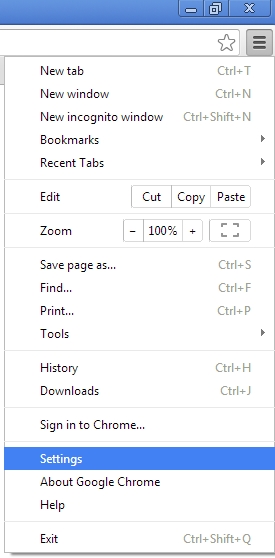
    In Chrome, click the icon with three horizontal lines in the upper right and choose “Settings.”

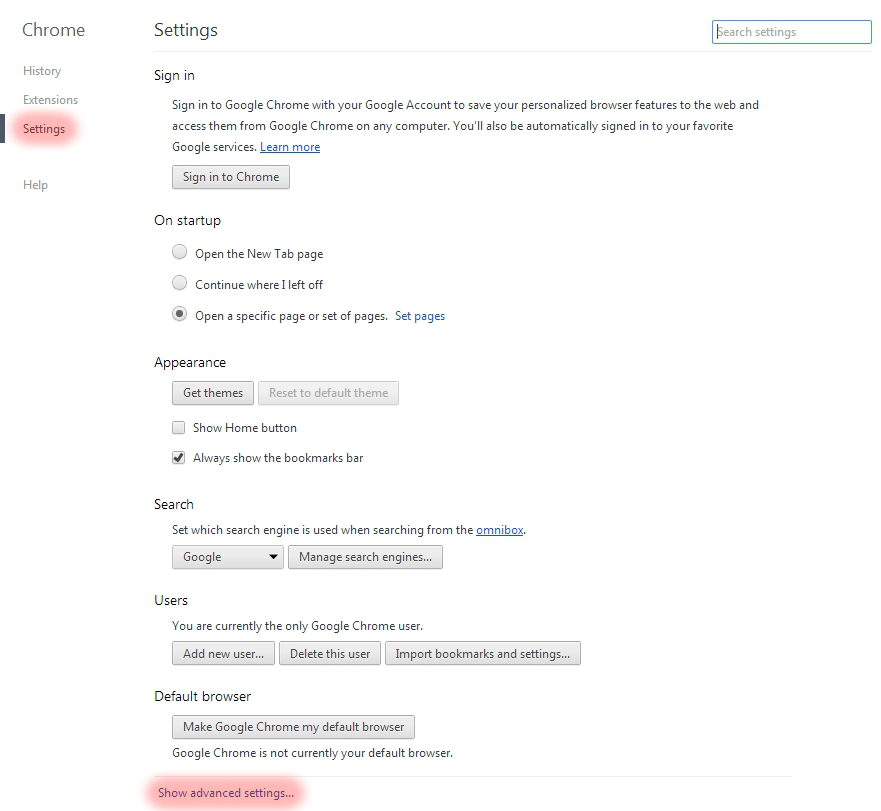
    Choose “Settings” on the left, and then click the “Show advanced settings” link at the bottom of the screen.

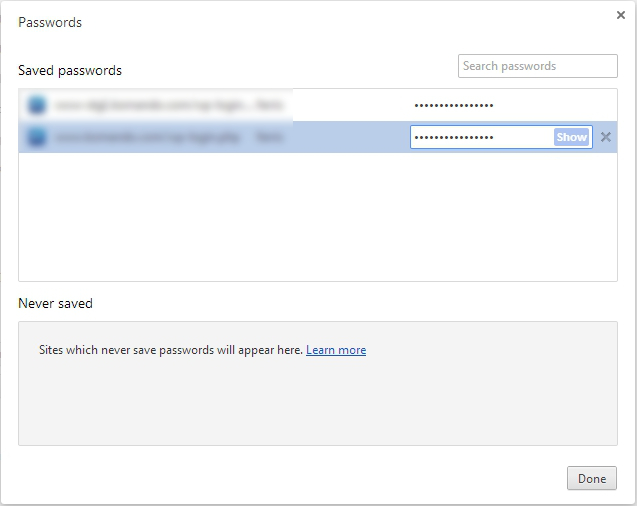
    Scroll down to “Passwords and forms” and click the “Manage saved passwords” link.

    If you want to log back into your old account, but don’t remember the password, then you can click on a password and click the Show button next to it.

    To see the password, you will have to enter your Windows account password, which does make it harder for casual snoops to get in.

    INTERNET EXPLORER

    You can’t view saved usernames and passwords directly in IE. You would need a third-party program like IE PassView.  However, I recommend that you don’t use Internet Explorer anyway.  It is easily invaded by spyware. I use Google Chrome but Firefox is good also.

    SAFARI

    In Safari, go to Safari>>Preferences>>Auto-fill. Click the Edit button to view the saved passwords.

    Need Help?

    If you need help to clean things up or to learn how to use a password manager like LastPass,  I’m always here for you. Just call for an appointment.

    Invite some friends to a Play Shop in your home, community room or office.  A play shop is a really fun way to learn and only costs $25 hr. per person.

    Forward this tip to your friends so they will be safe and happier too.

  • Simple Fixes for Webcam Spying

    Are you scared by all the news stories suggesting that hackers can spy on you through your computer and gadget cameras?

    My mother has been really concerned about it and I understand how scary it can be.  It is almost overwhelming and really annoying when all these “advances” in technology bring new challenges and require more education!

    You don’t need to worry though, I’m dedicated to calming your fears and giving you the information and help you need so you can relax and enjoy your toys again.

    Despite the potential dangers, webcams are great tools for chatting long-distance with friends and family, and conducting  business.

    When you understand how they work and how to secure them, you will feel much better and have more fun.  Enjoy!

    Please help others by forwarding this to all your friends and relatives and encourage them to subscribe to my techie tips so they can be protected and have peace of mind also.  They can click right here to subscribe.  If you are into social media, you can use the sharing buttons provided. That will be a big help also. Thanks!

    INTERNET-ENABLED CAMERAS  Internet Cameras

    Internet-enabled security cameras and baby monitors are becoming more and more common because they are inexpensive and easy to set up.  These gadgets connect to your Wi-Fi network and they are a great way to keep an eye on kids, aging parents and your possessions.

    However, many people don’t follow the directions when setting them up and leave the default username and password in place. Hackers have made it their business to know all the default login information for every gadget on the market.  If you don’t change the factory settings they could find your camera online, log in, and watch you or put you on a website with thousands of other cameras for curious snoops to browse.

    Good News!
    The solution is easy: just remember to change the default password when you set up any type of new gadget. If you buy a camera that doesn’t have a password, exchange it for a different model.

    COMPUTER WEBCAMS  lamptop cam

    Once hackers get on your computer, they can use programs to turn on your webcam without triggering alerts like the webcam light. Thus, covering or unplugging the camera when not in use is a good idea.

    However, hackers could still have full access to your computer. They could rummage through your email, browser history, passwords, documents and anything else they want.

    And, of course, when you do use the webcam, they can eavesdrop.

    To get on your computer, hackers use a remote access tool, or RAT. That’s what tech support agents use to get on your computer remotely to change settings or fix a problem. Fortunately, remote access tools require your permission, so a person can’t just take control without your permission.

    However, hackers have many ways to trick you into letting them on to your computer — fake email attachments, malicious links, Trojan viruses, and phony tech support calls.  Once you’re tricked into running a file, clicking a link, or inviting them on to your system, they can take control and do whatever they want.

    More Good News!

    The solution is pretty simple. Just avoid unsolicited email attachments and links, run up-to-date security software and don’t believe anyone who contacts you claiming to be tech support for a major company.

    Operating systems on your computer may have a remote access tool (RAT) built in. This makes it easier for real tech support to get on your system, but it also makes it easier for a hacker to trick your system into letting them on.

    To turn off Remote Assistance in Windows, go to Start>>Control Panel. In the Search box in the upper right corner, type “remote” and then click the “Allow remote access to your computer” link.

    Uncheck the “Allow Remote Assistance connections to this computer” option and click OK.

    For Macs, go to the Apple icon and select System Preferences. Click the Sharing icon and uncheck Remote Login, Remote Management.

    If you use a company laptop, it could have similar software on it. Companies are supposed to disclose the presence of that kind of software but they don’t always do it, so if it doesn’t belong to you, be mindful of what you do on it.

    smartphone cameraTABLET AND SMARTPHONE CAMERAS

    Tablets and smartphones also have cameras but I haven’t heard of any malicious apps or spying apps that can trigger the camera.  That doesn’t mean they don’t exist, or won’t exist in the future but I will let you know if that changes.

    A word to the wise….if there is something you really don’t want the world to see, don’t put it on your smartphone or tablet.

    If you have any questions or comments about this or if you have any suggestions for future tips, please post a comment below and let me know. I always love to know what you think and how I can help you. Thanks!

  • Critical Safety Tips

    I learned some Important tips this week from my friend and technical specialist, Dominique Fruchtman of Desert Cow Computers.  She is the one I refer for cleaning up the mess when clients get those nasty viruses.
    First, be aware that delivery services like UPS and Fed Ex will not send you emails saying there is a package you have not picked up.  If you receive emails like this that have a link to click, don’t do it.  They contain dangerous virus installation programs.
    Secondly, there is an important distinction between your computer slowing down gradually or slowing down suddenly.  

    If your computer is suddenly running slow, that’s a sign that you might have a virus.  Do not wait!  Call Dominique right away for a diagnosis.  If you wait, you run the risk of having your files stolen and held hostage for ransom.  Seriously!  One of her business clients was told they needed to wire $500 within an hour to get their files back or the ransom would go up to $1000.

    On the other hand, if your computer has been getting slow gradually, you may just need a tune up.  Dominique and her husband Mark can do that for you too.

    Owning techie gadgets is like owning cars, they require maintenance and repairs from time to time.  It’s not wise to wait when you hear funny noises or experience reduced performance.

    Please don’t get upset or stressed about all this.  There are always solutions. Dom and I are here to help you.  The advantages of owning these devices, far out weigh the occasional inconvenience or expense.

    If you, or someone you care about, have questions or frustrations that are clouding the full enjoyment of computers or gadgets, call me for an appointment now.  With a little instruction, everyone can get past the storm and experience the joy. I promise!
  • Convenient & Affordable New Service for You!

    Convenient & Affordable
    New Service for You!join.me

    From time to time, clients have said they wished they could have me on a “retainer” to answer a quick question or get them out of a jam.  We have discussed a subscription service where people would pay a monthly fee, but most people wouldn’t need help every month. This week, the subject came up again and my clients said they would love to be able to “pay as needed”  They suggested that I charge $60 hr. (to keep the math simple) and bill in 15 min increments (to make it worth my time).  I thought it was a great idea and a real win-win solution. I’m excited to be offering this this as a new service.

    I will be happy to answer your questions on the phone, by remote access into your computer, or by email. This is a great option for people who need some help, but don’t need a whole one-hour appointment in their home.  Bring me all those niggling questions and frustrations and let’s get you back to full enjoyment of your techie tools.  Call me today for an appointment!

  • Can’t Type? Try Dragon Naturally Speaking

    Can’t Type?   There is a great solution.

     Dragon Naturally Speaking

    Dragon

    Dragon is similar to the speech recognition apps on smart phones like Siri and Google Voice, but you can train Dragon to recognize your voice and your speech patterns so it gets more and more accurate.  It will even scan the emails in your “Sent” folder to learn your speech patterns. You have to be a little patient in the beginning to correct its mistakes, because that’s how it learns to become more accurate but it’s easy to do.

    I have helped several clients with Dragon and I’m currently working with a man who had a stroke several years ago and is using Dragon to write his emails.  I also connected his computer to his big screen TV so he can see the typing better.  He’s really enjoying it and that has inspired me to consider using myself.  I often feel like my hands can’t keep up with my brain.  My typing is fast but makes so many mistakes, especially when I’m journaling or writing Techie Tips.

    I used it years ago when I was in Real Estate and it worked in all my apps:  email correspondence in Outlook, web searches, composing documents in Word, and making notes in my contact manager.  The newer version of Dragon is even more accurate and easier to train than before and it’s not very expensive.

    Dragon Dictate
    You can get the app for your tablet or smartphone too.
    iTunes                     Google Play Store

    And you can use your smart phone as the microphone for your computer.

     iTunes                      Google Pla

    If you, or someone you know, would like to learn how to use Dragon Naturally Speaking, please let me know. 

    This is a great way to “make peace with the ups and downs of computer technology.”

  • FYI for Current Users of Apple iPhone, iPad and iPod

    FYI:  For Current Owners of Apple Gadgets:

    Ipad And Iphone

    The iOS 8 update is available now for users of iPhone 4 and later, iPad 2 and later, iPad mini and later, and iPod touch (fifth generation).

    You may have to delete some things in order to have enough memory to install the update.  It can take quite a bit of time to look at your apps’ usage and decide what to delete.  (Go to Settings > General > Usage)

    I had to dump 2 GB on my iPhone 4s.  I chose to keep my music for my workouts and dump a lot of photos. I also dumped a bunch of apps I wasn’t using very often.  I didn’t care about them anyway so it was a good incentive for me to do some clean up. I will run the update and report back in next week’s Techie Tip.

  • Do You Reboot?

    Do You Reboot?

    Network Neurons 1

    Your Techie Tip for this week is to turn your computer completely off at least once a week.  The reason this is important is that its memory gets too full and it’s likely to slow down or get confused.
    (Just like us!)

    During the shutdown process, it files everything away where it belongs and dumps extraneous stuff from the memory.  Kind of like we do when we get a good nights sleep.  Then, when it restarts (reboots), it checks all its systems, corrects any errors, and installs updates.  The installation of the updates is critically important because there are security fixes (patches) in them.

    Asleep 3Your computer is set to go to sleep after a certain period of non-use, and the screen may go dark, but that is not the same as shutting down.  So please choose one night a week to give your machine a complete break and an opportunity for a fresh start in the morning.

    This applies to your tablets, smartphones and other gadgets too.  

  • Avoid Printer Drama

    Do Moon Phases Affect Printers?


    Do the phases of the moon affect techie gadgets?  This past week was so full of printer drama that I had to wonder…

    Here are some tips that will help you maintain peace in your techie world:

    1. If you need to move your printer, be sure to turn it off first.  Shut it down with the off button rather than just unplugging it.  Printers are are actually computers and they need to file everything in it’s proper place before shutting down.  If you just unplug them, they may wake up very confused and not be able to connect to your wifi again.

    Note: your printer may look like it’s off, but only be sleeping.  If there is a light on anywhere, it is just asleep.  Use the on/off button to turn it off.

    1.  Sometimes there are minor power surges or mysterious techie hiccups that confuse our machines.  The first line of defense is always to reboot them. (turn them off and then back on)  If your printer loses its wifi connection, turn it off, wait a minute or two, and then turn it back on.  Hopefully, it will find the router and reconnect on its own.  If not, you will have to go through the setup process again.

    Note:  I’m not a certified Technician, I’m an Instructor and Peace Maker.  For technical issues and installations, I refer you to my friends at Desert Cow Computers.

    1. Hp is offering an “Instant Ink” service with some of its new printers.  These printers connect directly with HP, let them know when you need new ink cartridges, and HP mails you ink cartridges automatically.  You pay a flat monthly fee, depending on how many pages you print each month.  Unused pages roll over to the next month.  HP description of program   It looks like this service is less expensive than buying ink at the store.  Review I have one client who is on the program.  We’ll let you know how it goes.  If you are using this service, I would love to hear from you.

    Chromebook Update: I am not happy about printing from my Google Chromebook without a “cloud-enabled” printer.  I didn’t buy a cloud-enabled printer because I had just bought a new printer last year and thought it would be a good idea to test the alternative method offered by Google.

    My Chromebook has to print via my old computer which is connected to my printer via my WiFi network.  Therefore, my old computer has to be on in order for my Chromebook to print. I find this very inconvenient.

    Fortunately, I can access docs from my Chromebook and smartphone, so I don’t need to print very often.  Have me show you how to do this.  It’s great!

    If you buy a Chromebook, you may want to buy a cloud-enabled printer for it.  If your current printer is connected directly to your computer and is not on a wifi network, you will definitely need to buy a cloud-enabled printer.  Fortunately, you can get one for less than $100.

    By the way…I’m really enjoying my Chromebook in all other respects.  It’s a great solution for a lot of people and I highly recommend it.  I carry it with me during the day and can get a lot more accomplished between appointments than working from my smartphone.  I’ll be delighted to share it with you at our next appointment.