Category: Browsing the Internet

  • See Your Computer on “The Big Screen”

    Have you ever wished you could see your computer screen on a TV?  Would you like to see emails, web pages, photos slideshows, YouTube videos and movies on a big screen or display presentations for your business?

    Well you can….and it can be pretty simple and inexpensive to set up.

    The simplest method is Chromecast because you don’t have to know about ports and screen resolution settings.
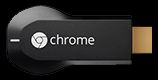
    chromeCast

    A $35 Chromecast plugs into the TV and connects it to your Wi-Fi network. Then you can see video, images and pages from the Chrome web browser from any computer, smartphone or tablet that’s also on the network.  This is a very inexpensive solution and very easy to set up.  You can use Chromecast with a Mac too.  You will just need to use the chrome browser instead of Safari when connected to the TV.

    If you want to see everything on your computer rather than just what’s shown in Google Chrome, you can do a direct connection.

    DIRECT CONNECTION

    There are four kinds of ports for direct connections.  HDMI, DisplayPort, DVI and VGA.

    All newer TVs have HDMI, and that’s the one you ideally want to use because it supports HD (high definition).

    Unfortunately, many computers don’t support HDMI

    Computers that don’t have HDMI, will have either DVI or DisplayPort. If your computer has one of these, you can get an adapter to connect it to the HDMI port on your TV.

    Inexpensive computers might have only VGA and it cannot do HD (high definition) images so you might want to use a better computer if you plan to stream movies online.

    GETTING THE RESOLUTION RIGHT

    Modern computers should be smart enough to figure out the right resolution, when you plug into a TV, especially if you’re using the HDMI port.

    However, if you’re using an adapter or an older version of Windows, it might have to adjust the resolution.

    Right-click on the computer desktop and select “Screen Resolution.” Select the TV and change the Resolution to 1920×1080 (unless you’re using a smaller or older TV, in which case it might be 1280×720).

    You might be tempted to push the resolution higher, but don’t. Not only will it look terrible but a higher resolution actually makes everything on the screen look smaller.

    video calls

    PICKING A TV SIZE 

    If you’re going to use a TV in a larger room, you want to make sure it’s easy to see. This handy chart will give you an idea of the size you’ll want based on the room length.

    Distance Minimum size Maximum size
    6 feet 24-inch screen 36-inch screen
    8 feet 32-inch screen 48-inch screen
    10 feet 40-inch screen 60-inch screen
    12 feet 48-inch screen 72-inch screen

    Even with a large TV, you might still have a hard time seeing smaller computer text from a distance. You can use CTRL + + (plus sign) in most programs to zoom in text and images. CTRL + – (minus sign) zooms back out, and CTRL + 0 (zero) resets the zoom. This is a great trick for watching on your regular computer monitor as well.

    CONTROLLING THE COMPUTER

    You can use a wired mouse and keyboard, but it’s more convenient to use a wireless mouse and keyboard so you can pass it around or give it to whomever is running a meeting in your office.

    Be sure everyone knows how to turn off the mouse when it isn’t in use so you don’t waste the batteries. For business use, you might keep several on hand so you don’t have to interrupt a meeting to change batteries.

    If you need help doing any of this, just call me for an appointment.  760-348-8867

    If you have found this information helpful, please share it with others and encourage them to contact me to receive my Techie Tips on a regular basis.

    Enjoy!

    Mardi
  • Does Your Internet Seem Slow?

    Does Your Internet Seem Slow?

    Based on an article by Fiona Syrett at http://digitalunite.com/

    Here is a simple way to check your speed and some tips for speeding it up.

    When you sign up for broadband, your internet provider (ISP) tells you the maximum speed you can expect. However, the reality can be quite different.

    It’s very easy to find out what speed you’re actually getting.

    Follow these step-by-step instructions to find out your internet speed

    Step 1: Open your web browser – for example, Chrome, Firefox or Safari. (I don’t recommend using Internet Explorer.)

    Step 2: Click in the address bar at the top and type in www.speedtest.net

    Be sure you use “.net” and not “.com.”
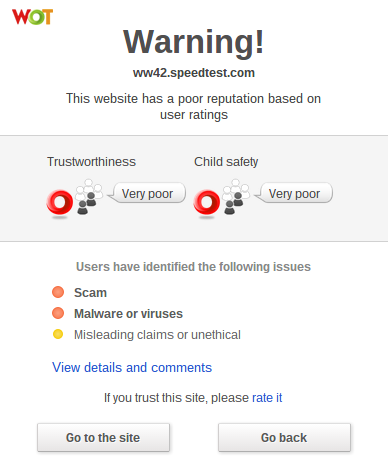
    Note: If you have WOT (Web of Trust) installed on your web browser and you were to accidentally go to “speedtest.com,” instead of “speedtest.net;” you would see this somewhat scary, but very helpful, warning message and you would click on “Go Back.”
    Wot warning

    Step 3: Now, with www.speedtest.net entered in the address bar, press the “Enter” key on the keyboard. This will take you to the website that will check your internet speed.

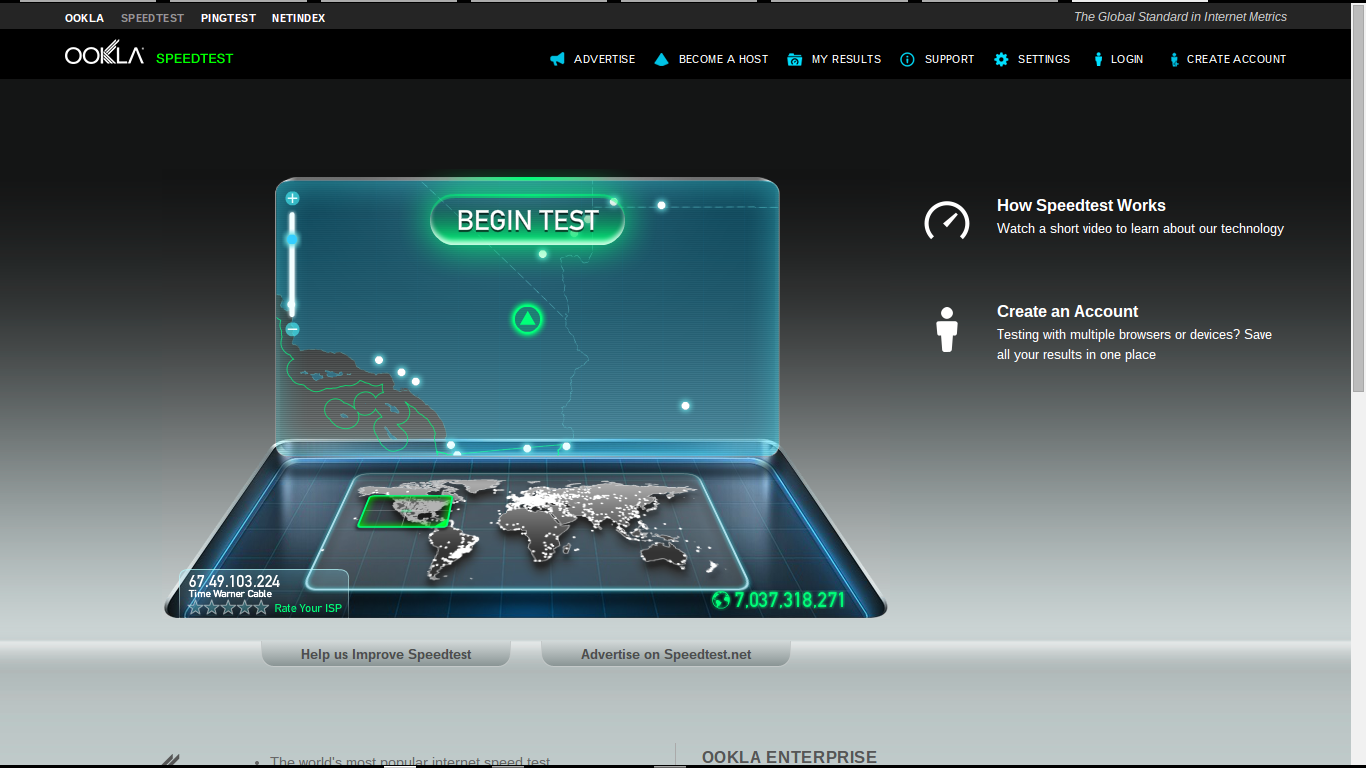
    Speedtestnet

    Step 4: When the page has loaded click “Begin Test.”

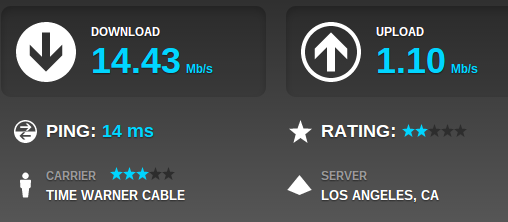
    The results will show you two speeds:

    • The download speed is how long it takes for pages to appear on your screen and to download files such as music files from the internet to your computer.
    • The upload speed is the opposite – for instance, how long it takes to upload photographs from your computer to an online photo album.

    My speed test

    Internet speeds can vary considerably at different times of the day, so you should check yours more than once.

    If your internet speeds are slower than you think they should be:

    Step 1: Find out what speed you’re paying your internet provider (ISP) for. You may have to phone them to get the answer to this. If you’ve had your broadband for some time, it may be time to upgrade.

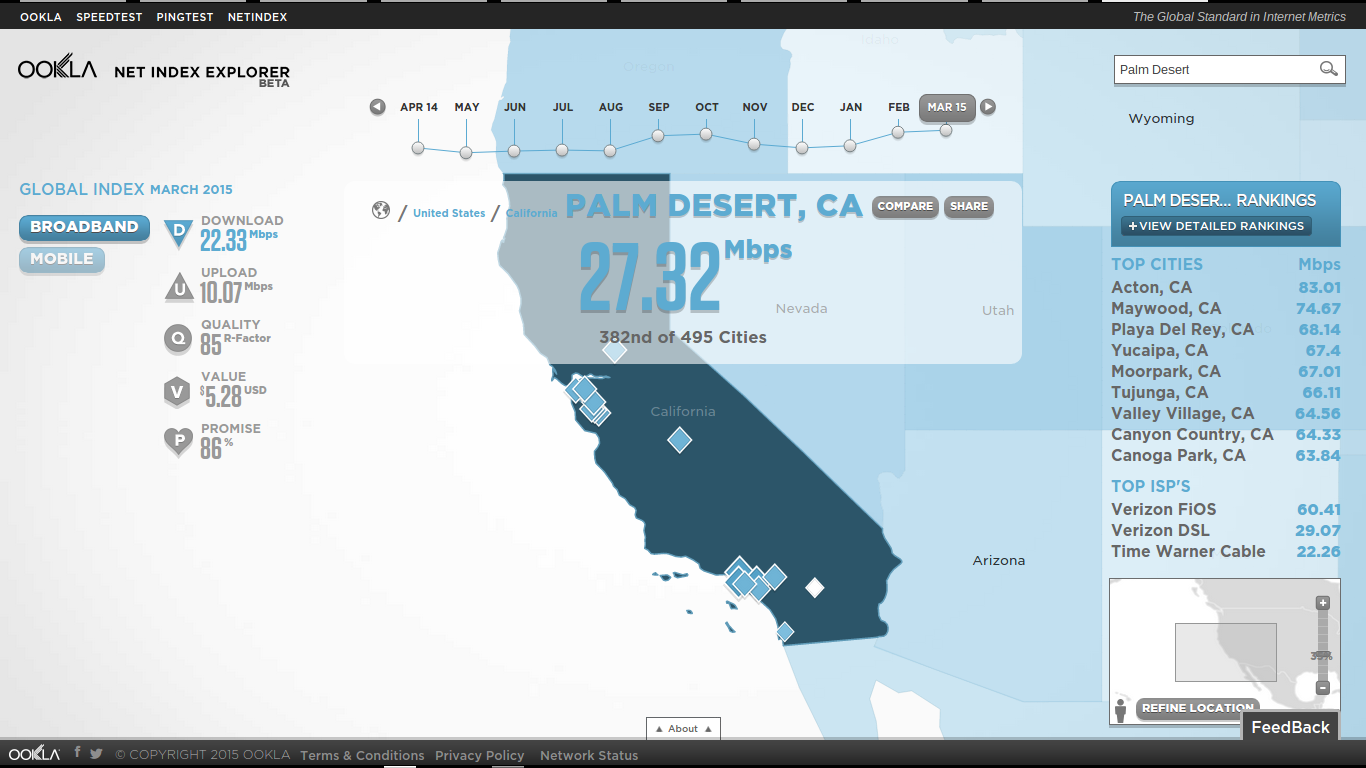
    Step 2: Check what speed is achievable in your area. You can click on the “Net Index” tab at www.speedtest.net and enter the name of your city in the search box.  Here is a screenshot for Palm Desert:

    net index palm desert

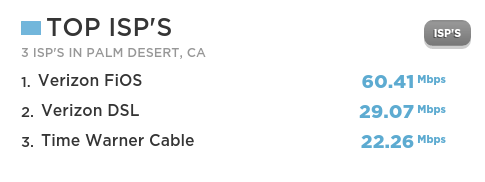
    You can also see “Top ISP Speeds:

    Tops isp

    Step 4: Now that you know what speed you’re paying for and what your hardware is capable of producing, there are a number of things you can do that are likely to make your internet run faster:

    • Check that you haven’t exceeded your monthly download allowance. Some ISPs cap internet speeds as a penalty for doing this.
    • If possible, always use the master telephone socket for your broadband router.
    • Don’t use a telephone extension lead with your router. If it’s unavoidable, use the shortest one you can.
    • Make sure that all other telephone sockets in use are fitted with microfilters.  Not doing this can result in loss of internet speed and interference on the line.
    • Make sure your computer isn’t running any unnecessary applications in the background. This can slow things down considerably.  Finding out if it’s happening can be a bit complicated. It might be best to ask an expert for help.
    • Make sure your antivirus software is kept up to date. Viruses and adware can slow down your computer and the internet a lot.
    • If you’re using WiFi (wireless internet), make sure it’s password protected. Otherwise you could be providing your neighbors with free WiFi!
    • If you’re using a laptop with a wireless connection, try using it in a different room or consider using a network cable to connect to the router instead.

    I hope these tips enhance the peace and joy in your techie life.

    Thoughts or comments about this topic?
    Please comment below.

    If you would like to receive my weekly tips via email, you can subscribe here.​