Blog

  • A Not So Happy Password Day

    Yesterday on the news it was reported that a Russian Hacker stole 272 million usernames and passwords to Hotmail, Gmail and Yahoo email accounts? I got a call from a concerned client so I researched it and emailed all my clients instructions on what to do.

    My goal is always to make techie things as simple and easy as possible, so here are the few simple things you need to know.

    If you use Gmail, Yahoo Mail or Hotmail, you should change your password.  You may not be at risk but do it just to be sure. Even if you use a different email service, you should make sure you have a strong password and that you haven’t used it for more than one account. Bear in mind that you are not only protecting yourself, you are protecting all the people in your address book.  If criminals get into your account, they can send damaging emails to all your contacts.

    1. Make sure your password has 12 characters minimum.

    2. Include numbers, symbols, capital letters and lowercase letters.

    3. Don’t use dictionary words.

    4. Add 2-Step verification — an extra layer of security requiring a code from your mobile device.

    5. Don’t use the same password for more than one account.

    I know this seems like a big pain but it doesn’t have to be.  The easiest way to manage passwords is to use a password manager like Last Pass and it’s free!  For details See my Techie Tip about this here.

    Apple products come with a password manager called Keychain.  Antivirus software programs, like Norton and McAfee, include a password manager.  A password manager can create super secure, unique passwords for all your accounts and you only need to remember one Master Password of your choice!

    If you need help to change the passwords in your accounts or want to learn how to use a password manager like LastPass, just call for an appointment.  Let’s put this niggling password nuisance to rest once and for all so you can more fully enjoy your techie tools.

    I hope you will forward this post.  Not only can it help your friends be safe, but it can prevent hackers from getting into their accounts and sending you dangerous emails. Working together, we can stop this!

    Oh, and “A belated Happy National Password Day”!  How ironic that this story hit the news when it did.  If you want the full news story Click here

    Enjoy!

    .

  • How To Clean Gadget Screens

    People often ask about the best way to clean the screens on their computers and mobile gadgets. I’ve tried a lot of things and I’ve found a simple solution to be the best… plain water or eyeglass spray and a regular size microfiber towel.

    Be sure to reserve a special towel that is used only for gadgets so it won’t have a bit of sand or grit in it from cleaning something around the house.


    Microfiber towel for gadgets only
    Get a nice big one and just keep refolding it into little squares until you have used all the clean surfaces. You will be able to do a lot of cleaning before you have to wash it. (Don’t bother with those itty bitty cloths for eyeglasses…they get dirty too fast and get lost in the wash.)
    Spray water on cloth only
    Be sure you moisten the towel and don’t spray anything directly on the glass because it might seep into the gadget.

    A less “green” solution is to use eyeglass spray and a tissue.  Then you don’t have anything to launder.
    If you enjoyed this tip, please share it so your friends and relatives can enjoy their gadgets more.  Thanks!
  • How to Manage Your Productivity and Workflow with Google Calendar

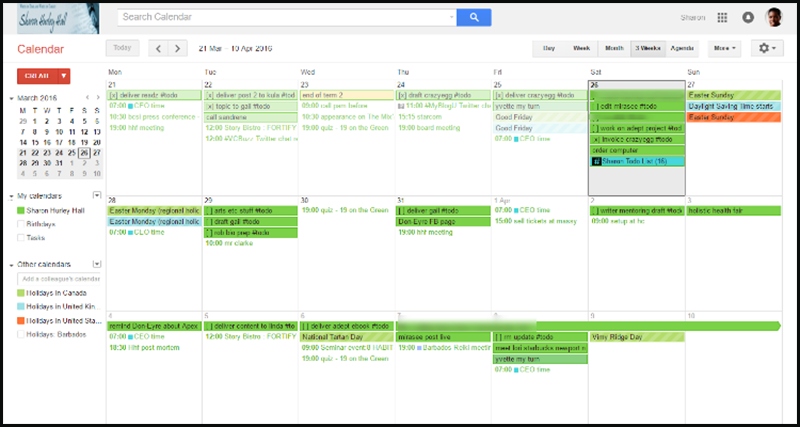
    I love Google Calendar and this is a great article about how to use it.  I also was interested to learn how many hours she spends on blog articles.  I feel better now about my Techie Tips taking so long to write.  I hope you enjoy them. If you need help learning how to use Google Calendar, I’m here for you.  Enjoy!


    With so much to remember when running your own business, let Google Calendar handle your workflow for you via @SHurleyHall.

    Source: How to Manage Your Productivity and Workflow with Google Calendar

  • What To Do If Your Cell Phone Gets Wet

    cell phone in the toilet

    One Saturday night, I received an urgent call from a client who had dropped her cell phone in the toilet. It had fallen out of her pocket. I know…it’s funny….but embarrassing too. Well, she isn’t the only one. It’s a fairly common occurrence. Don’t we all know someone….?

    If your cell phone gets wet, you will need to act quickly and you won’t want to be wasting valuable time doing research on the internet.


    It isn’t always easy to find the most reliable information either. Just because it’s on the Internet, doesn’t mean it’s true. Sometimes it takes a lot of time and some background knowledge to find the right answer.

    I thought you would like to have the results of my research and an article to print in case of an emergency. Please share this with the people you care about so they can be prepared too. And, encourage them to subscribe to my Techie Tips. Thanks!

    boy on bike in the lakeIf you do a google search, you’re going to see many articles that say the best way to prevent water damage after dropping your phone into a toilet, (or lake any other liquid) is to put it into a container of dry, uncooked rice. Conventional thought says the rice will suck the moisture right out of the phone and restore it to life.


    The folks at Gazelle wanted to find the truth about rescuing drowned phones, so they gathered nine devices destined for recycling and put popular wisdom to the test. What they learned surprised them. See Gazelle’s Guide To Water Damage for the details.

    If you just want to know what they recommend and don’t care about how they arrived at their conclusions, here’s the instructions to print: How to Save Your Phone From Water Damage

    If you enjoyed this article, please share it and encourage your friends and relatives to sign up to receive new blog posts in their inbox so they can enjoy modern technology more.

    Enjoy!
    Mardi

  • Windows 10 Update

    Windows 10 Update

    Windows 10

    You may remember that, back in July when Windows 10 originally became available, I recommended that everyone wait until “the bugs were worked out.” Now that Windows 10 has been available for five months and “the dust has settled,” it’s time to give you an update.

    I recommend that people who are running Windows 7 on older machines do not upgrade to Windows 10.  Updating to Windows 10 has caused some computers to lock up or crash, and I have had to refer several clients to a computer technician for expensive repairs.  I recommend that people with Windows 7 wait until it’s time to get a new computer. (If your computer is 4 years old…it’s time to get a new one!)

    People with Windows 8 on their machines can probably update to Windows 10 without problems. They will find that it is much less confusing.  (They might want to have me tweak the settings so so it looks like good ‘ol Windows 7.)

    People who are are making the transition from Windows 7 to Windows 10 because they survived the update or got a new computer, may want to have me tweak the settings so it looks like Windows 7, and take them on a tour of the new features.

     For many reasons, that I won’t go into here, I have been very disappointed with Microsoft and its products and recommend avoiding them if possible. (You probably don’t want all the gory details but if you do, just ask.)  There are other computers systems that are easier to use and more reliable.  I have been using a Chromebook for almost 2 years and it cost less than $300!  I also highly recommend Apple computers and tablets.  Of course the choice depends on how you use them and your budget.

    When it’s time to make a purchase, please consult with me first.So many problems and frustrations can be avoided by choosing the right equipment for your individual needs, and I can often save people a lot of money.

    I also do free presentations on “How To Choose The Right Computers and Gadgets for Your Needs”.  If you know a group that would like me to speak, just let me know.

  • Plan Your Year

    Great tools here…especially for business owners that already have a lot “on their plates” and more they want to contribute.  Sometimes paper is as better than digital.  Yes,  I did say that.  LOL  However they will have “an app for that” too.

  • A Little Comic Relief

    Modern technology can be really frustrating at times.  Besides occasional malfunctions, there are the constant changes!  If you feel stressed-out sometimes, I want you to know that you are not alone.  It’s even a challenge for me to keep up!!

    Fortunately, I love reading, doing research and taking classes.  And, being able to share what I know and brighten up someone’s day is my greatest joy.  So, in addition to posting techie tips, I think it’s a good idea to have a little comic relief.  I loved these funnies from one of my client’s emails and I hope they will brighten up your day.

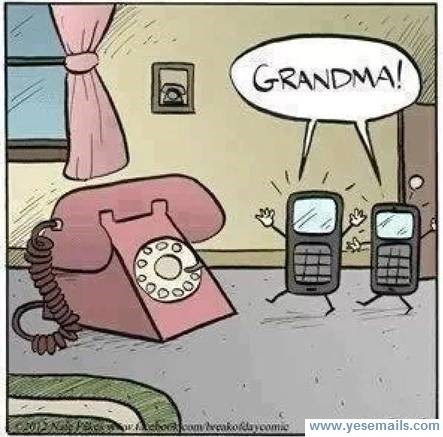
    The phone generation gap
    The joy of finding a quarter in the coin return
    Violently pressing "end call" just doesn't do it for me.
    unnamed (4)

    Hilarious Videos from YouTube

     Funny T Shirts

     http://www.badideatshirts.com/


    The Original Computer

    Plug me back in and see if that works
     Remote Control
  • ​Do You Use Skype or Face Time?

    Why Use Skype?

    Skype is an app that lets you connect with people using the video camera on your computer or mobile device.

    Face Time does the same thing, but only works with Apple products. Even if you use Face Time, it’s a good idea to know how to use Skype as well. They are both very simple and easy to use and they are truly one of the best benefits of modern technology.

    A friend of mine uses Skype to play checkers with her 9 yr. old grandson who lives out of state.

    Parents use it to stay in touch with their children when they have to be away on business trips or vacations. They can read the children a bedtime story, watch them get tucked into bed, and throw them a kiss goodnight.

    Several clients have had me show them how to use Skype for important job interviews. We practiced calling each other, chose the most flattering camera angle, picked the most attractive background, and discussed what to wear. It is so rewarding to see people gain confidence and be optimistic about getting the job!

    Video chat is great for online dating and long-distance relationships too.

    Businesses use Skype for video conferencing because they can have multiple people on a video call. They save a lot of money on air travel, hotels and meals.

    On an internet enabled big screen TV, it can feel like you’re actually in the room with distant family members. You can even watch each other open Christmas presents!

    On mobile phones, you can only use audio for group calls, but on your computer or internet enabled TV you can do video conference calls.

    Skype also supports audio calls to traditional phones. Using Skype on your tablet or smartphone, you can call somebody on a regular telephone. This is really handy if you are traveling and don’t have access to phone service but do have access to wifi.

    One of my clients who is retired from the Foreign Service, learned how to use Skype so he could stay in touch with his friends all over the world for free.

    All of the features of Skype are free, except calling people on regular telephones. However, Skype phone calls are a lot less expensive than traditional long distance calls.

    How to Use Skype

    Skype is a free download from the iOS App Store and the Google Play Store and is already installed with Windows 10 and Window phones. (It’s owned by Microsoft.)

    You need to have an account to use Skype. You can set up a free account or, if you already have a Microsoft account, you can just log in with that.

    On iPads, iPhones, Android phones, and Android tablets, each version of Skype will look a little different but the functionality is the same. There are just a few minor differences on each device

    When you login you will see three screens

    1. RECENT- shows the most list of people most recently talked to
    2. FAVORITES – shows the contacts you have marked as favorites
    3. PEOPLE – is your list of people you can call on Skype. They have to have an account also and they have to agree to be connected with you.

    To Add a Contact

    Search for the person in the Skype database. There are millions of people in the Skype database and lots of people with the same name…even unusual names. It’s amazing!

    Therefore, the quickest and easiest way to find people is to search for their unique Skype name. Email address work sometimes too because there aren’t duplicates of those but it’s really easier to ask your person for their skype name.

    When you find them, tap the button that says “add people.” Then tap “send a contact request.”

    The person’s name will show up on your contact list but, they will not show up as online and accessible until they have accepted your request.

    After they accept your request, you will be able to see their status next to their name, which lets you know when they are online for you to call them.

    Note: some people leave the Skype app open all the time to receive calls. Other people text or email each other to set a time and then open the app. It depends on how often they use it.

    To make a call

    Select a contact and you will see buttons at the bottom of the screen. You can choose to do a video call or an audio call. They both work pretty much the same. Tap on the button for audio or video. The camera starts running right away so you can frame up your shot while you wait for the other person to pick up.

    After you start talking, the buttons at the bottom of the screen will fade out of the way, but when you tap on the screen, they’ll pop up again.

    You can mute and unmute your audio by hitting the mute button.

    You can disable the camera by hitting the camera button if you want to talk and see them without them seeing you.

    When you’re done, just hit the red hang up button.

    To receive an incoming call

    The app will make a sound and you will see a choice of buttons.

    If you don’t want to answer a call, you can just hit the red button.

    If you want to answer but only want to use audio, then hit the green button in the middle.

    To see video and hear audio, hit the camera button.

    To hang up, tap on the screen to bring up the controls and hit the red button

    You can also use Skype to have a text chat.

    On the screen, with a contact’s information, tap on the field that says “type a message”. Type and then hit the Send button. When he responds, you’ll see his response pop up.

    Calling regular telephones

    This feature is particularly useful when you’re traveling to a place where you won’t have a cellular phone connection, but you will have wifi.

    This is called Voice Over IP, or VOIP. Using this feature, you can call a regular phone as long as you can connect to Skype on your mobile device.

    This is the one feature that is not free but Skype is much less expensive than traditional long distance rates. To get an idea of the pricing options, check out their website. http://www.skype.com/en/

    You can login to your Skype account on the website and add Skype credit to your account.

    Or in the app on your mobile device, you can hit the “my account” button (top right), and there’s an option for “Skype credit”. This way, it’s an “in-app” purchase and it will be charged to your iTunes account or Play Store account. It will ask for your password for confirmation. Then hit “Buy”.

    To make a call to a regular phone

    At the bottom of the screen, there’s a dialer button and you can just dial a regular phone number. Also, there’s a button at the top that links directly to the address book on your device so you can find the person and tap on the number. When you hit the phone button at the bottom, it will dial. When he answers, you will be having a conversation just as if you were using a regular telephone. To hang up, just hit the red button at the bottom

    Skype is a great app for video and audio calls because it runs on all mobile devices and computers no matter what platform. Group video calls are not available on mobile devices but video calls to individuals work.

    I hope you will try this and enjoy it. If you need help, just let me know.

    Please share this with your friends and relatives. Your referrals are the heart of my business and my mission is to help people more fully enjoy the many benefits of modern technology.

    Thanks,

    Mardi

  • Six Simple Maintenance Tips for Windows PCs

    Most computer owners don’t know much about basic computer maintenance and their PCs are likely to slow down or crash as a result.

    Of course, most of us don’t know much about cars either, but we know to give them gas, change the oil and keep an eye out for flat tires. It’s the same with PCs. You don’t need to be an expert to keep your PC in relatively good condition. You just need to perform a little basic PC maintenance and, more importantly, be observant.

    Here are six simple steps you can take to keep your PC running quickly and reliably:

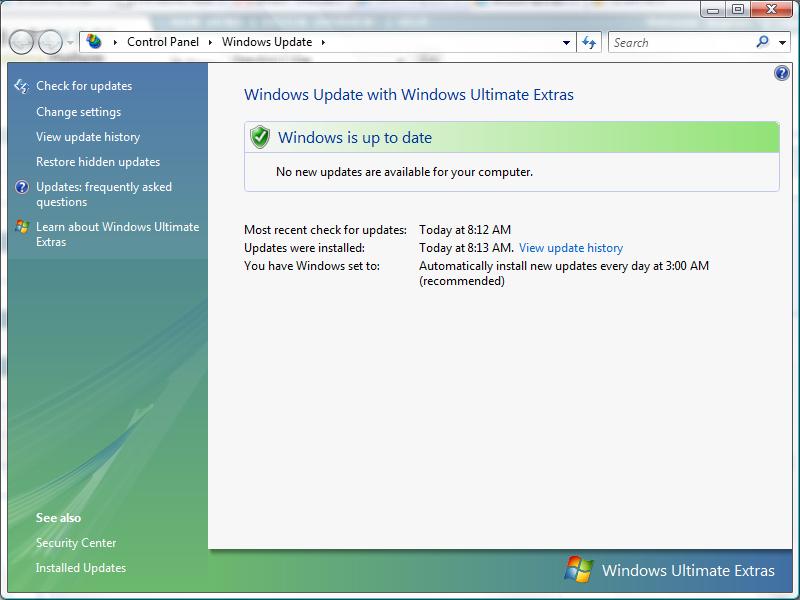
    Windows Updates1. Keep the Window Operating System (OS) Updated with the Latest Patches

    Windows Update scans your system and updates it with the latest security patches and service packs. You can schedule these updates to run automatically, so there is really no excuse for not having an up-to-date system.

    To access Windows Update click on the Start button, All Programs and scroll through the list to find it.

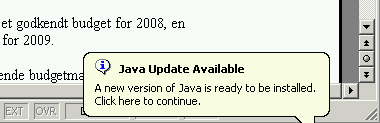
    2. Keep Your Applications and Utilities Patched  Java update message

    This may surprise you, but all the applications and utilities on your system are prone to security risks and need to be updated regularly.

    Programs that you use everyday like Adobe Acrobat Reader, QuickTime, Realplayer, Skype, WinZip and more require both maintenance and security updates from time to time. Even applications that run in the background like Flash and Java are at risk.

    When update notifications pop up on your screen, allow them to install. Just read the screens as you go, to be sure they aren’t offering to install promotional software that you don’t want. You may need to uncheck some boxes.

    If you have my business card, you have a list of safe updates on it. If you don’t have my care or aren’t sure if a pop up is a legitimate update, just give me a call.

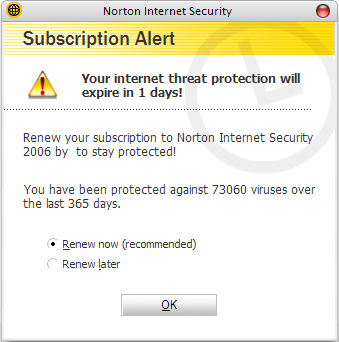
    Norton Expiration Notice3. Keep Your Spyware and AntiVirus Programs Updated

    No matter how good your spyware and antivirus software, it won’t do you any good if it’s not updated or, worse, not running because it expired.

    Most antivirus applications load an icon in the Windows tray, (lower right corner) which lets you verify its status at a glance. Always verify that the application is running after starting Windows.

    In addition, these applications should be configured to perform definition updates everyday and complete system scans at least once a week.

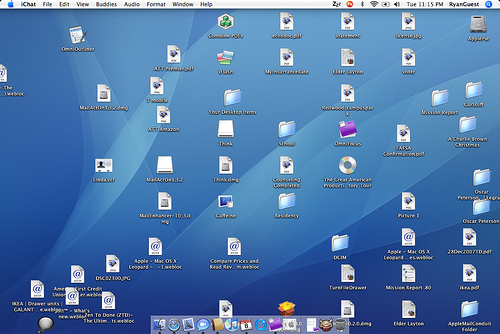
    4. Clean Off the Desktop  Cluttered Windows Desktop

    Having a lot of files on the desktop will actually slow down your computer because each file and its icon preview take up RAM and resources. The less RAM you have the more you’ll notice the sluggishness resulting from a cluttered desktop.

    It’s really more efficient to get in the habit of filing things in the appropriate folders instead of on the desktop; but if you can’t be bothered to do that, just grab all the files and move them into the appropriate folders from time to time.

    If you can’t remember to do it yourself, there are apps that will automatically clean it for you by moving files and folders to a designated place at a regular interval.

    IDrive Online Backup5. Regularly Backup Your Computer

    Performing regular backups is essential for you to be able to quickly recover from potential disasters. I recommend iDrive or Carbonite. They are easy to set up and make it easy to restore your data when you have a disaster, or upgrade to a new computer. You can access your files from your mobile gadgets too! If paying the annual fee bothers you, just think of it as insurance, like your auto and home insurance.

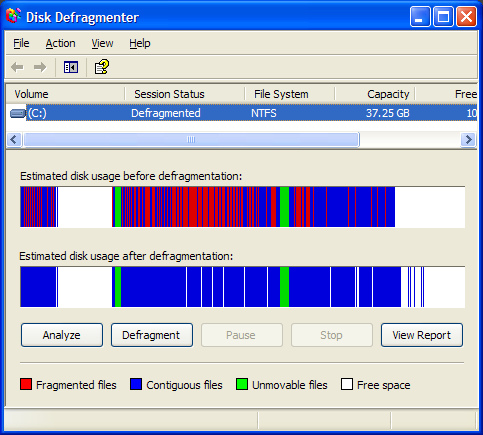
    6. Defragment and Check Your Hard Drive for Errors Regularly  Defragmenter Utility

    In order to maintain the integrity of your data there are two hard drive tests that you should run at least once a month.

    The first is to Defragment your hard drive. Over the course of regular use, your files get fragmented or spread out all over your hard drive. So while an MP3 or WMV file appears as a single file to you in Windows Explorer, small pieces of the file could literally be spread across the entire hard drive. Gathering all of these distant pieces back together into a single continuous order, makes files load faster. Defragmenting your drive can can make your system noticeably faster if you had lots of files fragmented.

    The other test is Check Disk. This tool checks hard disk volumes for problems and attempts repairs. (It can repair problems related to bad sectors, lost clusters, cross-linked files and directory errors…but you don’t need to know all that.) Just remember that Disk errors are a common source of difficult-to-track problems, and running this test regularly can significantly reduce your risk of having problems.

    Windows has a built-in defragmenter and check-disk utility. Just open Windows Explorer and right-click on the drive you want to examine. Select Properties and then click on the Tools tab. To defragment your hard drive, go to the Defragmentation section and press the Defragment now button. To perform a check disk, go to the Error-checking section and press the Check now button.

    You don’t need to be a computer expert to keep your computer running well. Preventing problems doesn’t require much understanding about computers. You just need to pay attention and actually read those messages that popup on screen during an installation and use the tools that come with your computer.

    Just follow these basic steps, and your computer will be safer and far more reliable.