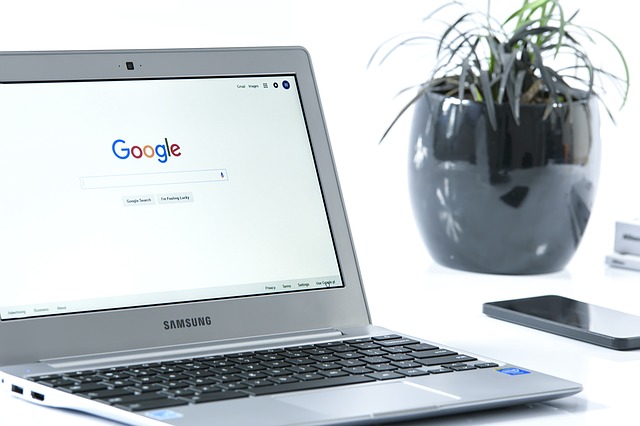
I received an email from clients who are considering some Black Friday deals on Chromebooks. They asked really important questions that you might have also so I got their permission to share them with you.
We are looking for a portable laptop with a keyboard. Touch screen 14 plus screen size. We primarily want to use it to read the news, Facebook, emal and internet. (We will still use the Windows PC for bigger projects.) We are thinking of a Chromebook (Black Friday deals) and have these questions:
1. What brands do you recommend?
All the brands are fine. I pay more attention to the specifications. Do you want a metal case or is plastic fine? That will depend on how much you’re going to cart it around and the aesthetics that are important to you. An inexpensive HP Chromebook with a plastic case is totally adequate for most people.
2. How much memory/ hard drive space?
You only need 4GB of memory for surfing working on the internet unless you are doing video editing or creating web pages.
You only need the minimum hard drive space because you’re working on the internet and not downloading a lot of files or storing files on the computer.
3. Which is a better processor, Celeron, i core, etc?
All the processors will probably be fine for what you’re planning to do.
You would only need a very fast processor if you were editing videos, building web pages, playing video games or using a lot of tabs at the same time. Celeron processors are fine in most cases, Intel Core i3 will be faster to load pages but may not be worth the extra cost. I look at the speed in the specs and look for the least expensive Chromebook that has 4 GB of RAM and more than 2 GHz processor speed rather than the brand of the processor.
4. Should get one with wi fi 6?
Wifi 6 is already out of date. There is a newer version and you would need a wifi 6 router. It’s on the horizon but you don’t need it now. Here’s Leo LaPorte on the subject.
5. What USB ports? How many? What kind?
The ports that are offered are fine in most cases.
What would you be plugging into it?
A mouse?
A flash drive to transfer a file or two?
An external optical drive for playing CDs or DVDs?
An additional external monitor or keyboard? (Some people, like you, use laptops as desktops and need external things plugged in.)
Charging a phone or other device? (Pretty slow, I don’t recommend it.)
6. Can you use Office Libre, Open Office on a Chromebook?
No, you can’t run any software on the computer itself but there are online versions for almost all programs now. You can use all the Microsoft Office Suite programs online (Office 365) or use Google Docs. Office online is only $69/yr. and there’s a free online version of Word. Google Docs, Sheets (spreadsheets like Excel) and Slides (presentations like PowerPoint) are all free. Also, you can edit Microsoft Office Docs with Google Docs and convert them back and forth. Even QuickBooks and Adobe Photoshop are available as online versions.
7. Can you transfer files from current laptop to Chromebook?
That’s not necessary because all your files should be backed up to the cloud and you access them and work on them on the cloud. (If you use Google docs you will see links on the computer that will take you there so you can launch them from the computer, but you’re still working on the cloud.)
8. What about end support dates for Chromebooks 2028?
That means you won’t be getting operating system updates after that date and the Chromebook will be obsolete at that time. Things change really fast so the hardware will need to be replaced in order to keep up. Computer years are like dog years. LOL The same thing happens with Apple products.
Costco has: Asus 14 inch touchscreen 4 GB, 128GB for 499.00 before 11/30.
Will you use the touchscreen? You don’t need 128 GB of storage. I would not recommend spending anywhere near that much for a Chromebook!
Will you use the touchscreen? Do you need that high a resolution screen for gaming or watching movies? Most of us end up reducing the screen resolution in the settings to make things bigger. You don’t need a Core i3 processor. I think you and Gary will find the 13’ screen to be too small.
These are all higher-end Chromebooks than you really need. They are being offered at a discount because they are more expensive and the profit margin is better for the sellers. Or they are clearing out older models. There’s very little profit for the sellers with the lower end computers. Costco doesn’t sell the lower end Chromebooks anymore.
I have used a $223 13” Chromebook for 4 years and I still love the smaller size and light weight. I recently upgraded to a beast for $800 but only because I was doing web pages with graphics, creating videos and I use a lot of web pages at the same time. I needed speed. It’s much faster but It’s heavy on my lap. I never use the touch screen or the flip to tablet mode. (14” is way too big for tablet mode. LOL) These features were included and I wouldn’t have chosen them if there had been a more basic version with the same 8 GB of RAM and a Core i5. Tent mode is for watching movies or doing one on one presentations for business, neither of which I’m doing. 14 inches is a nice size for laptop mode but 13” is fine with me too. I do a lot of research and writing so I don’t really need a large screen or high resolution. The screen is kind of grey and not very clear and I really don’t like it but the other option at the time was a Google Pixelbook for $1200 and I wasn’t willing to spend that much.
The bottom line is that most of my clients get Chromebook they are very happy with for between $220 and $299.Look at all the choices here for under $300!!! Just be sure you get a 4GB and the fastest processor for your budget.
These Black Friday sales are offering you bells and whistles you don’t need and at prices that are still pretty expensive for operating the simple Chrome operating system and doing simple tasks online.
People who don’t understand how Chromebooks work might think these are great deals because they are accustomed to paying so much for Windows Computers so I’m really glad these smart guys asked these great questions and I appreciate them allowing me to share my answers with you.
Let me know if you have any questions.
Have a very Happy Thanksgiving.
Here’s to keeping life simple, easy and fun!
Enjoy!
Mardi Lynn
Desert Computer Tutor
P.S. Know someone who would benefit from this info? Forward this email and encourage them to contact me, mardi@desertcomputertutor.com for a subscription. Thanks!
You don’t have to be frustrated by passwords! I’ve written about this several times before but I’m still encountering many people who are still not using password managers.
Google Chrome can save your user IDs and passwords and sync them across your other devices. This way you can set complex passwords for websites without worrying about memorizing them. Chrome can also automatically log you into these websites when you open them again.
I used to recommend that you not use it, but now it’s all encrypted. Be sure you are logged in to your google account in your Chrome Browser and be sure you use a VERY strong, secure Google (same as gmail) password and remember it. It’s the “key to the Kingdom.”
If you don’t have a Google account you can set one up. That doesn’t mean you have to use the gmail address, you just get one when you set up an account.
If you live in the Apple World, the equivalent is Keychain.
Be sure your Google and Apple passwords are super secure because they unlock access to EVERYTHING else.”
If you need help, let’s set up a tutoring session ASAP.
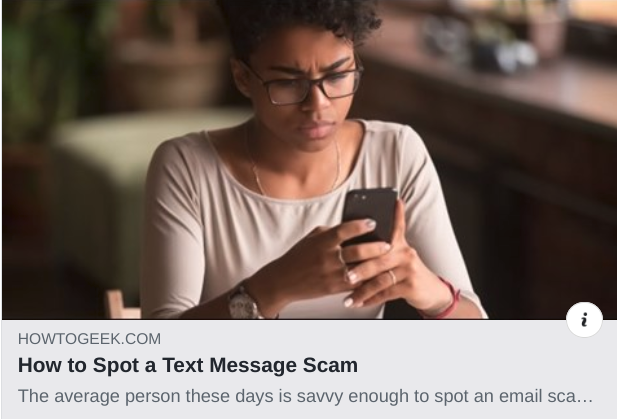
Text message scams are the basically the same as email scams. Trust your instincts. Don’t respond to people you don’t know. Don’t give out any information. Remember, it’s “social engineering” — they are skilled at scare tactics to short circuit your reason. Stop, breathe, and call up Your Higher Self and you’ll be fine. And remember… the benefits outweigh the risks. Enjoy!!
As the decade draws to a close, have you taken time to look back on your life for the past 10 years? It’s an interesting exercise. We can feel proud of ourselves for the challenges we’ve overcome (or at least survived) and the progress we’ve made toward goals and get inspired to set new goals for the new year.
Can you believe how fast the decade has flown by? Everyone marvels at how quickly time passes and it’s not just older folks. Young people notice it too. Ask some young adults and see what they say.
I think it’s due to the fact that everything around us is changing and evolving so quickly. That’s especially true with technology. Not only does it change rapidly, but it often radically changes the way we live our lives. What was life like before email, cell phones and Facebook? And now Uber, streaming video, Echo and Google Home?
I really enjoyed this article by PC Magazine and I think you will too.
You may not have heard of some of them but that’s fine. Enjoy the ones you do know, like iPads, smart watches, Windows 10 and Chromebooks.
The Most Iconic Tech Innovations of the 2010s “As the decade winds down, we round up the most important and innovative products, trends, and breakthroughs that have shaped how we use technology.”
And this brings up the issue of feeling stupid…
So many clients tell me they are stupid when it comes to technology and I always tell them, “That’s not true! You just feel stupid because there is so much new information and vocabulary to learn at one time.”
“It’s not even a matter of not having learned computers in school. Things wouldn’t be the same now anyway. I can barely keep up! If I were off the grid for 6 months or more, I’d probably feel stupid too.”
Here’s an inspiring quote from Seth Godin that speaks to this…
The Fear of Stupidity
“Stupid is not uncommon. Stupid is the way we feel when working on a difficult problem. Stupid is the emotion associated with learning—we are stupid and then we are not. The pre-learning state is stupidity. A scientist might work ten years on solving a problem of math or logic or biology. Or a lifetime. And until the problem is solved, she’s stupid. And then she isn’t. Which is all fine, actually. The problem comes with the emotion that we’re supposed to feel when we feel stupid: Fear. We are supposed to be afraid of stupid, to get stupid over with as soon as we can. Change, of course, makes everyone feel stupid, because change breaks all the old rules, inventing new ones, rules we don’t know (yet). And so the equation is obvious: Change —> Stupid —> Afraid. One way to avoid this is to avoid change. One way to avoid this is to avoid freedom. The best way to avoid this is to embrace stupid and skip the last part. There’s nothing to be afraid of. Nothing except avoiding the feeling of stupid. And stupid is a good thing.”
May you embrace “stupid,” embrace change, embrace continuing education and have an amazing 2020!
Enjoy!
Mardi
What do you think about the changes in the past decade and are you over feeling stupid for feeling stupid sometimes? I’d love to see your thoughts in the comments sections below…
Receive notifications about all my Techie Tips as soon as they become available by signing up here.
Oh, dear…the challenges of being on the Leading Edge of technology!
If you are going to play, you need to be educated about how things work and what to look out for. Hope this helps. Enjoy!
If you have any questions or comments, please share them in the comments section at the bottom and I’ll be happy to reply.
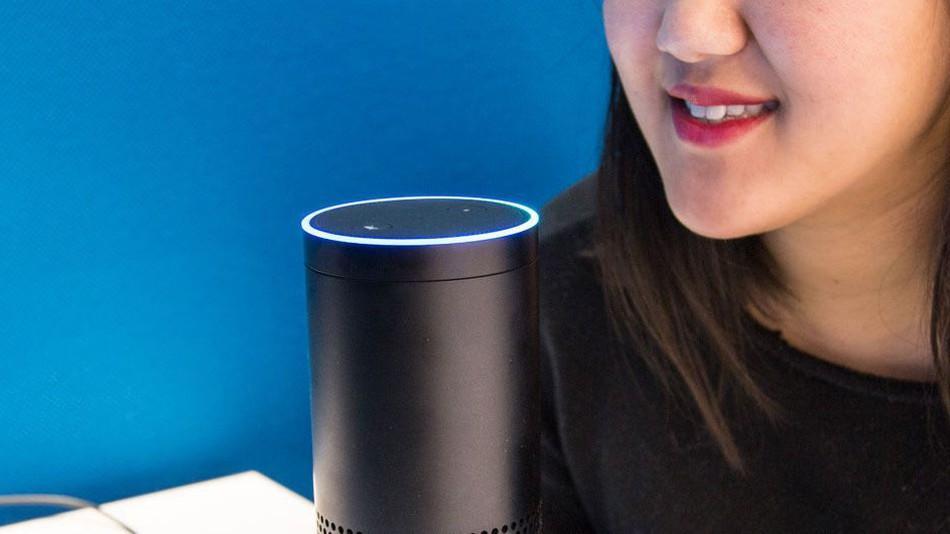
From ZDNet: Hackers can abuse Amazon Alexa and Google Home smart assistants to eavesdrop on user conversations without users’ knowledge, or trick users into handing over sensitive information.
The attacks aren’t technically new. Security researchers have previously found similar phishing and eavesdropping vectors impacting Amazon Alexa in April 2018; Alexa and Google Home devices in May 2018; and again Alexa devices in August 2018.
Both Amazon and Google have deployed countermeasures every time, yet newer ways to exploit smart assistants have continued to surface.
The latest ones were disclosed today, after being identified earlier this year by Luise Frerichs and Fabian Bräunlein, two security researchers at Security Research Labs (SRLabs), who shared their findings with ZDNet last week.
Both of these attacks exploit the fact that while Amazon and Google verify and vet Alexa and Google Home apps when they are submitted, they do not do the same for subsequent app updates.
In an email to ZDNet, the SRLabs team said they reported the issue to both vendors earlier this year, yet the companies have failed to address the issue.
“Finding and banning unexpected behavior such as long pauses should be relatively straight-forward,” the SRLabs team told ZDNet. “We are surprised that this hasn’t happened since reporting the vulnerabilities several months ago.”
Amazon did not respond to a request for comment from ZDNet prior to this article’s publication.
A Google spokesperson provided the following message:
“All Actions on Google are required to follow our developer policies, and we prohibit and remove any Action that violates these policies. We have review processes to detect the type of behavior described in this report, and we removed the Actions that we found from these researchers. We are putting additional mechanisms in place to prevent these issues from occurring in the future.”
Google also wanted Home assistant owners to know that their device will never ask them for the account password, and that Google staff are currently reviewing actions from all third-party apps.
I recently read a great article from How To Geek that validates my advice to not pick up calls from people who are not identified on your phone’s caller ID.
Did you know that if you pick up and answer a robocall, you are more likely to get called again?
It also explains why other commonly recommended methods don’t work.
And it suggested a great solution for those times when you might be expecting a call from your doctor or the pharmacy.
Here’s a great Techie Tip from the article:
If you’re continually expecting calls from doctors, customers, lawyers, or anyone else, add trusted businesses, customers, and professionals to your contact list. Ask companies for their outgoing phone number, and be sure to check if they use multiple outgoing numbers.
Then use the Do Not Disturb feature on your phone. The Do Not Disturb feature allows you to choose which numbers can call you. If you’ve set up a detailed contact list, this feature can help you block out scammers without missing out on important calls from your family or your doctor. And, if you’re ever expecting a call from an unknown number, you can quickly turn off the Do Not Disturb feature until you receive the call that you’re waiting for and then turn it back on.
Another method is to set your phone to not ring for incoming calls except for your Favorites which then allows specific numbers to bypass the block.
I hope you found this helpful and that you will share it with your friends and family.
And, as always, if you or someone you know, needs a helping hand or some compassionate techno-therapy, just give me a call at 760-348-8867 or schedule an appointment here.
Do you feel still feel stupid sometimes when it comes to technology?
People often tell me, “I’m so stupid when it comes to technology and I’m always quick to say, “You’re not stupid, you just need a little education!” I hate to see them so down on themselves or convinced that there is something wrong with them because of their age. It’s not true!
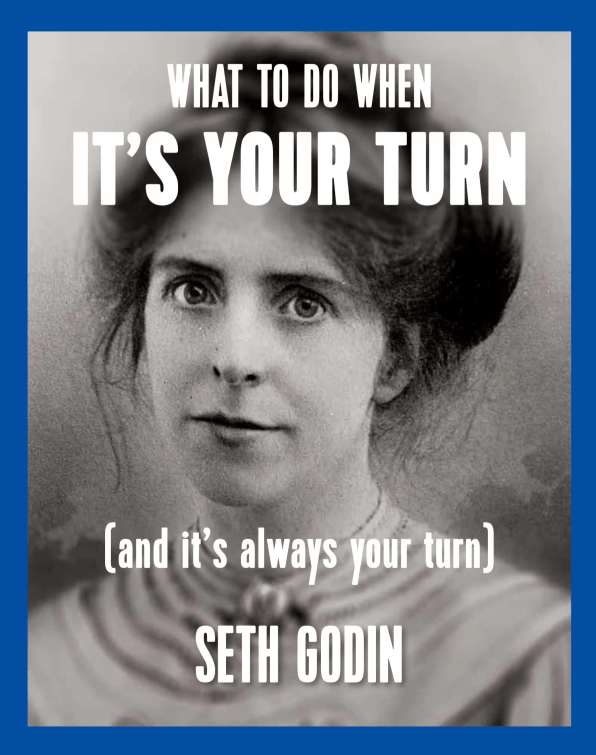
Well, I recently, I discovered a new book by Seth Godin which gave me a new perspective on stupid. I hope you find it as helpful as I do, put your thoughts in the comments below, and share this post with your friends so they can feel good about feeling stupid too.
The fear of stupidity is not uncommon. Stupid is the way we feel when working on a difficult problem. Stupid is the emotion associated with learning—we are stupid and then we are not. The pre-learning state is stupidity. A scientist might work ten years on solving a problem of math or logic or biology. Or a lifetime. And until the problem is solved, she’s stupid. And then she isn’t. Which is all fine, actually. The problem comes with the emotion that we’re supposed to feel when we feel stupid: Fear. We are supposed to be afraid of stupid, to get stupid over with as soon as we can. Change, of course, makes everyone feel stupid, because change breaks all the old rules, inventing new ones, rules we don’t know (yet). And so the equation is obvious: Change —> Stupid —> Afraid. One way to avoid this is to avoid change. One way to avoid this is to avoid freedom. The best way to avoid this is to embrace stupid and skip the last part. There’s nothing to be afraid of. Nothing except avoiding the feeling of stupid. And stupid is a good thing.
P. S. Who do you know that would feel better about themselves if they had a little computer tutoring. Just send me their name and number. I’ll follow up and take good care of them. Thanks!









 The Desert Computer Tutor